
Introduction
This manual provides detailed instructions for the installation, operation, and maintenance of your OBDPEAK D80 4-Channel 4K Rear View Mirror Camera. Please read this manual thoroughly before using the device to ensure proper functionality and safety.
What's in the Box
Verify that all components are present in the package:
- Rearview Mirror with 3 cameras (Main Unit)
- Rear camera with 6M Cable
- 64G TF Card
- Cigarette lighter charger
- 24-Hour Parking Monitoring Hardware Kit
- User Manual
- Rubber Strips (for mounting)

Image: Package contents for the OBDPEAK D80 dash cam system.
Product Features
1. 11" Touchscreen Display & 4K Front Camera
The device features an 11-inch full touchscreen display for intuitive control and a 4K (2160p) front camera for high-resolution video recording. The large display enhances visibility, reducing blind spots compared to standard rearview mirrors.
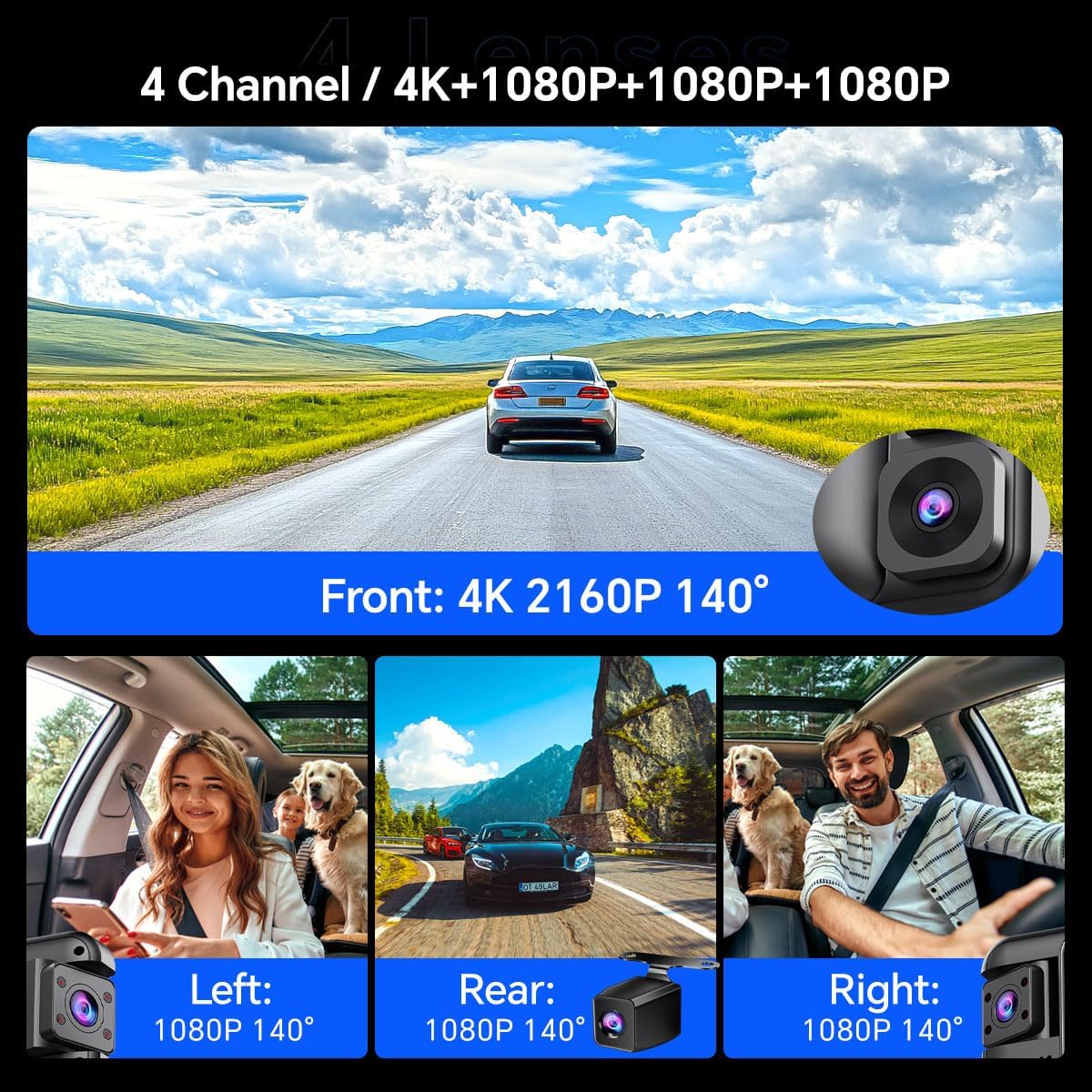
Image: The 11-inch touchscreen display of the D80 mirror camera.
2. 4-Channel Comprehensive Coverage
Equipped with four cameras (Front 4K, Rear 1080P, Left 1080P, Right 1080P), the system provides a complete 360-degree recording of your vehicle's surroundings. This ensures comprehensive evidence capture for various incidents.

Image: Visual representation of the 4-channel camera system providing 360-degree coverage.
3. Smart ADAS (Advanced Driver Assistance System)
The integrated ADAS technology provides voice alerts for critical driving situations, including front vehicle start, lane departure, forward collision, and pedestrian collision warnings. This system assists in maintaining driver awareness and safety.

Image: Examples of ADAS warnings for various road hazards.
4. BSD (Blind Spot Detection) Algorithm
The BSD system monitors blind spots not visible in standard mirrors. It detects vehicles in these areas and provides alerts to the driver, aiding in safer lane changes and preventing potential collisions.

Image: Illustration of the Blind Spot Detection system in action.
5. Rotating + Infrared Car Interior Lenses
The two internal cameras are equipped with infrared functionality, ensuring clear recording even in low-light conditions inside the vehicle. These lenses are rotatable, allowing adjustment to different angles or away from the interior for privacy.

Image: Detail of the rotatable interior cameras with infrared capability.
6. 64GB Memory Card Included
A 64GB memory card is included, providing ample storage for recordings and eliminating the need for a separate purchase. The dash cam supports memory cards up to 256GB.
7. 24-Hour Parking Monitoring
With the included hardware kit, the D80 offers 24-hour parking monitoring. This feature utilizes all four cameras to provide continuous surveillance of your vehicle, even when parked, with ultra-low power consumption.

Image: Overview of 24-hour parking monitoring features.
8. Multiple Display Modes
The touchscreen supports various display modes, including single-screen, three-screen (1:1:1), and four-screen (1:1:1:1) views, allowing you to customize your monitoring preference.

Image: Examples of multiple camera display modes on the mirror screen.
9. Backup Camera Assist
When reversing, the system automatically displays the high-definition rear camera feed on the IPS screen with guidelines, assisting in safe parking and maneuvering.

Image: Full-screen reversing display with parking assist lines.
10. Loop Recording
The device supports automatic seamless loop recording, which overwrites the oldest unlocked footage when the memory card is full. This ensures continuous recording without manual intervention.

Image: Explanation of loop recording process.
11. G-Sensor
The built-in G-sensor automatically detects sudden impacts or collisions. Upon detection, it locks the current video footage to prevent it from being overwritten by loop recording, preserving critical evidence.

Image: G-Sensor function locking video during an incident.
12. Super Night Vision (HDR Display)
The D80 features Super Night Vision with HDR (High Dynamic Range) display technology, providing enhanced clarity and detail in low-light conditions, improving visibility during nighttime driving and parking monitoring.

Image: Comparison of normal night vision and Super Night Vision with HDR.
13. In-App Video Download & Real-time Viewing (Wi-Fi)
The device supports both iOS and Android systems, allowing users to view and download videos in real-time via the dash cam's built-in Wi-Fi. Emergency videos are automatically locked to prevent overwriting.

Image: In-app video management via Wi-Fi.
Setup and Installation
Proper installation is crucial for optimal performance. It is recommended to have this device professionally installed if you are unfamiliar with vehicle electrical systems.
1. Main Unit Installation (Rearview Mirror)
- Secure the main unit over your existing rearview mirror using the provided rubber straps. Ensure it is firmly attached and does not obstruct your view.
- Adjust the angle of the main unit's front camera to capture the road ahead clearly.

Image: Main unit dimensions and mounting overview.
2. Rear Camera Installation
- Mount the rear camera at the back of your vehicle, typically above the license plate or inside the rear window. Ensure a clear, unobstructed view.
- Route the 6-meter rear camera cable to the main unit, tucking it neatly along the vehicle's interior trim.
- Connect the rear camera cable to the designated port on the main unit.
3. Power Connection
- Connect the cigarette lighter charger to the main unit's power input.
- Plug the charger into your vehicle's 12V cigarette lighter socket.
- For 24-hour parking monitoring, install the provided hardware kit by connecting it directly to your vehicle's fuse box. Refer to the hardware kit's specific instructions for detailed wiring.
4. Memory Card Insertion
- Insert the provided 64GB TF card into the memory card slot on the main unit. Ensure it is inserted correctly until it clicks into place.
- Format the memory card through the device's settings menu before first use to ensure compatibility and optimal performance.
Operating Instructions
1. Power On/Off
- The device will automatically power on and begin recording when your vehicle's ignition is turned on.
- It will automatically power off when the ignition is turned off.
- To manually power on/off, press and hold the power button located on the side of the unit.
2. Touchscreen Operation
- Tap the screen to access menus and settings.
- Swipe left/right on the screen to switch between different camera views (front, rear, left, right, or combined views).
- Swipe up/down to adjust brightness or switch between display modes.
3. Recording Modes
- Driving Recording: Continuous loop recording starts automatically when the device is powered on.
- Parking Monitoring: Activates when the vehicle is parked and ignition is off (requires hardware kit installation). Records events like impacts or motion detection.
- Emergency Recording (G-Sensor): Automatically locks video files upon detecting a collision or sudden movement, preventing them from being overwritten.
4. ADAS and BSD Functions
- ADAS and BSD systems are enabled by default. Voice alerts will be provided for detected hazards.
- These functions can be configured or disabled in the system settings if desired.
5. Wi-Fi and App Connectivity
- Download the dedicated mobile application (search for "OBDPEAK" or refer to the manual for app name) from your device's app store.
- Enable Wi-Fi on the dash cam via the settings menu.
- Connect your smartphone to the dash cam's Wi-Fi network (SSID and password typically displayed on the dash cam screen).
- Use the app to view live footage, playback recorded videos, download files to your phone, and adjust settings.
Maintenance
- Cleaning: Use a soft, dry cloth to clean the screen and camera lenses. Avoid abrasive cleaners or solvents.
- Memory Card: Regularly format the memory card (at least once a month) to maintain optimal performance and prevent data corruption. Back up important files before formatting.
- Firmware Updates: Check the manufacturer's website periodically for firmware updates. Updates can improve performance and add new features.
- Temperature: Avoid exposing the device to extreme temperatures for extended periods, as this can affect battery life and component longevity.
Troubleshooting
| Problem | Possible Solution |
|---|---|
| Device does not power on. |
|
| Recording stops or freezes. |
|
| Poor video quality. |
|
| ADAS/BSD alerts are not working. |
|
| Wi-Fi connection issues. |
|
Specifications
- Model Name: D80
- Brand: OBDPEAK
- Front Camera Resolution: 4K (2160p)
- Rear Camera Resolution: 1080p
- Interior Camera Resolution: 1080p (Left & Right)
- Display: 11-inch Touchscreen
- Field of View: Front 170 Degrees, Other cameras 140 Degrees
- Special Features: ADAS, BSD, 360 Degree Coverage, Automatic Incident Detection, Blind Spot Detection, Built-In Display, Parking Monitor, Super Night Vision, Loop Recording, G-Sensor, Wi-Fi
- Storage: Supports up to 256GB TF Card (64GB included)
- Connectivity: USB, Wireless (Wi-Fi)
- Power Source: 1 Lithium Ion battery (included), Car Charger (12V)
- Product Dimensions: 0.8 x 12.28 x 2.9 inches
- Item Weight: 2.97 pounds
Warranty and Support
For warranty information and technical support, please refer to the contact details provided in the packaging or visit the official OBDPEAK website. Keep your purchase receipt for warranty claims.