
DIYEAH R1373YI146M4PVB2ASP5R
DIYEAH RGB Strip Controller (Model: R1373YI146M4PVB2ASP5R) User Manual
1. Introduction
The DIYEAH RGB Strip Controller is designed to enhance the visual appeal of your desktop computer by providing control over addressable RGB LED lighting. This compact and versatile accessory allows for easy connection and synchronization of multiple RGB devices, offering various lighting effects to personalize your PC setup. Its tool-free installation ensures a straightforward setup process.
2. Package Contents
Please verify that all items are present in the package:
- 1 x RGB Strip Controller
- 1 x Adapter

Image 2.1: The DIYEAH RGB Strip Controller with its various connectors and the included adapter.
3. Specifications
| Feature | Detail |
|---|---|
| Model Number | R1373YI146M4PVB2ASP5R |
| Product Dimensions | 41.93 x 1.26 x 0.39 inches (106.5 x 3.2 x 1.0 cm) |
| Item Weight | 1.28 ounces (0.08 Pounds) |
| Color | Black |
| Material | Polyvinyl Chloride (PVC) |
| Manufacturer | DIYEAH |
| ASIN | B0FCMBQWSW |

Image 3.1: The RGB controller showing its total length of 41.85 inches (106.5 cm) and width of 1.26 inches (3.2 cm).
4. Setup and Installation
The DIYEAH RGB Strip Controller is designed for quick and tool-free installation. Follow these steps to integrate it into your PC setup:
- Prepare your PC: Ensure your computer is powered off and unplugged from the wall outlet before opening the case.
- Identify connection points: Locate available addressable RGB headers (typically 3-pin 5V ARGB) on your motherboard or existing RGB devices. Also, identify an available SATA power connector from your power supply.
- Connect RGB devices: Plug your addressable RGB LED strips or other compatible RGB devices into the available output ports on the DIYEAH controller. The controller features multiple output ports for connecting several devices.
- Connect power: Connect the SATA power connector from the controller to an available SATA power cable from your PC's power supply.
- Secure the controller: Position the controller within your PC case in a location that allows for easy access to its buttons and cable management. Its compact size allows for flexible placement.
- Close PC case: Once all connections are secure, close your PC case and reconnect the power cable.

Image 4.1: The RGB controller with its various connectors, ready for installation within a PC case.

Image 4.2: A user installing the RGB controller and connecting it to internal PC components, demonstrating the ease of installation.
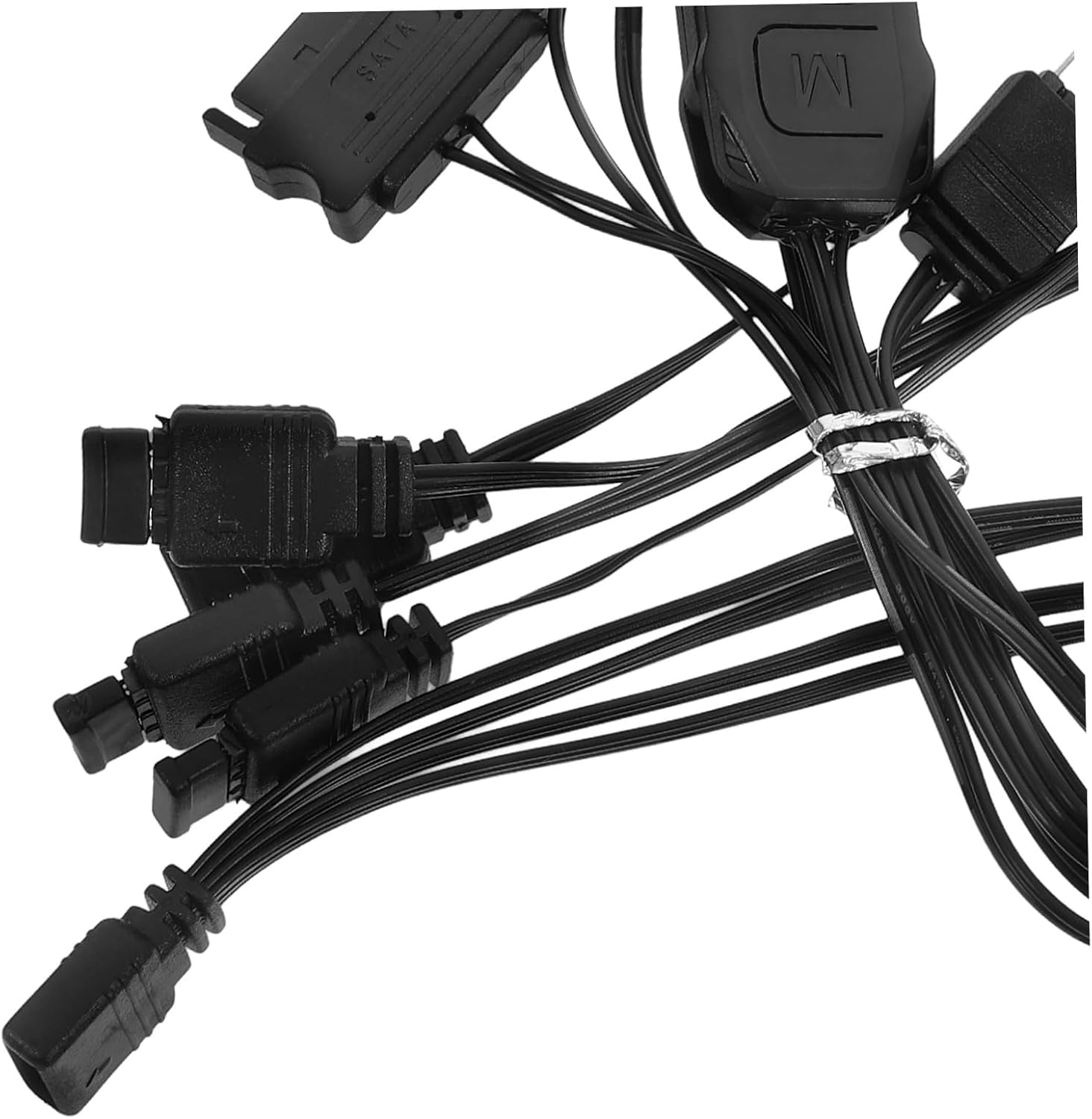
Image 4.3: A detailed view of the various connectors on the RGB controller, including the SATA power input and multiple ARGB outputs.
5. Operating Instructions
Once installed and powered on, the DIYEAH RGB Strip Controller allows you to manage your PC's lighting effects using its integrated buttons:
- Mode (M) Button: Press this button to cycle through various pre-programmed lighting effects and patterns.
- Speed (S) Button: Use this button to adjust the speed of dynamic lighting effects. Multiple speed settings are available.
- Color (C) Button: Press this button to change the static color or the primary color of dynamic effects.
The controller supports light synchronization, enabling simultaneous control of multiple connected RGB devices for a unified lighting experience.

Image 5.1: The compact RGB controller held in a hand, highlighting its small form factor and the three control buttons (M, S, C).
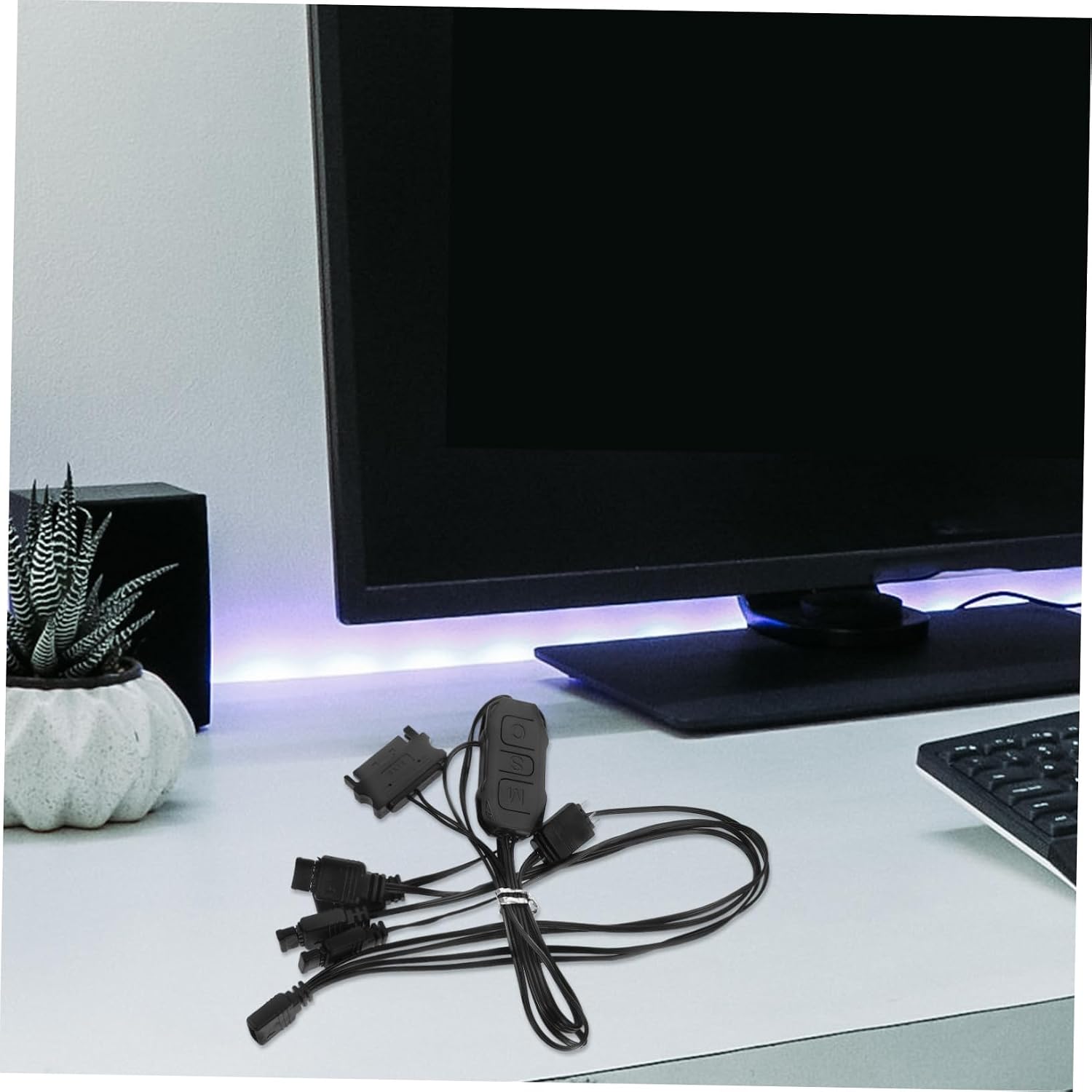
Image 5.2: The RGB controller placed on a desk next to a monitor, illustrating its discreet presence in a typical PC setup.
6. Maintenance
The DIYEAH RGB Strip Controller requires minimal maintenance. To ensure its longevity and proper function:
- Keep the controller and its connections free from dust and debris. Use compressed air or a soft, dry cloth for cleaning.
- Avoid exposing the device to extreme temperatures or moisture.
- Ensure all cable connections remain secure to prevent intermittent operation.
7. Troubleshooting
If you encounter issues with your RGB Strip Controller, consider the following:
- No lights or incorrect colors:
- Check all power connections, especially the SATA power cable from your power supply to the controller.
- Ensure RGB devices are correctly plugged into the controller's output ports. Verify the orientation of the connectors.
- Confirm that your RGB devices are addressable (ARGB 3-pin 5V) and compatible with the controller.
- Lights not synchronizing:
- Ensure all RGB devices are connected to the same controller.
- Cycle through modes using the 'M' button to reset or re-sync effects.
- Controller buttons unresponsive:
- Verify the controller is receiving power.
- Temporarily disconnect and reconnect the power to the controller to perform a soft reset.
8. Warranty and Support
Specific warranty information for the DIYEAH RGB Strip Controller is not provided in this manual. For warranty details, technical support, or further assistance, please refer to the product's packaging, the seller's website, or contact DIYEAH customer service directly.
Ask a question about this manual
Ask about setup, troubleshooting, compatibility, parts, safety, or missing instructions. Manuals+ will review the question and use this page’s manual context to help answer it.