
1. Product Overview
The XBJ 360 Mini Portable Projector (Model TYY360B001) is a compact and versatile smart projector designed for various entertainment and presentation needs. It features 4K decoding support, 400 ANSI lumens brightness, electric focus, auto keystone correction, Wifi 6, and Bluetooth connectivity.

Image 1.1: XBJ 360 Mini Portable Projector and Remote Control. This image displays the projector unit in white, along with its remote control, and a projected image showing various features like 1080p support, 4K decoding, auto keystone, electric focus, Wifi 6, and Bluetooth 5.2.
What's in the Box
- XBJ 360 Portable Projector
- Power Cord
- Remote Control
- User Manual (This document)
2. Setup Guide
2.1 Power Connection
- Connect the provided power cord to the projector's power input port.
- Plug the other end of the power cord into a standard electrical outlet.
- Press the power button on the projector or the remote control to turn on the device.
2.2 Initial Placement and Adjustment
The XBJ 360 Mini Portable Projector features a 360° rotatable design, allowing flexible placement and projection onto walls, ceilings, or floors without needing to move the entire unit.

Image 2.1: Projector with 360° Rotation. This image illustrates the projector's ability to rotate 360 degrees, enabling projection onto various surfaces like walls and ceilings from a single position.
For optimal viewing, consider the following:
- Recommended Projection Size: 40 to 150 inches.
- Recommended Projection Distance: 1.2 meters to 4 meters.
- Throw Ratio: 1.25:1, which means a larger screen can be achieved from a shorter distance.

Image 2.2: Projection Size and Distance Guide. This diagram shows recommended projection sizes (50", 100", 200") and corresponding distances, with a focus on the 40"-150" recommended range and 1.2m-4m distance.
2.3 Focus and Keystone Correction
The projector features electric focus and automatic keystone correction for a clear and properly shaped image.
- Electric Focus: The projector will automatically adjust the focus for a sharp image. Manual adjustment may be available via the remote control if needed.
- Auto Keystone: The projector automatically corrects distorted images caused by angled projection, ensuring a rectangular display.
2.4 Network Connection (Wi-Fi)
The projector supports dual-band Wi-Fi 6 (2.4G and 5G) for fast and stable internet connectivity.
- Navigate to the 'Settings' menu on the projector's interface.
- Select 'Network' or 'Wi-Fi settings'.
- Choose your desired Wi-Fi network from the list.
- Enter the Wi-Fi password if prompted.
- Confirm the connection.

Image 2.3: Dual-Band Wi-Fi 6 Connectivity. This image shows the projector wirelessly connected to a smartphone via Wi-Fi 6, demonstrating smooth streaming and screen mirroring capabilities (Airplay, Miracast) over both 2.4G and 5G networks.
2.5 Bluetooth Pairing
Connect external Bluetooth speakers or headphones for enhanced audio experience.
- Ensure your Bluetooth device is in pairing mode.
- On the projector, go to 'Settings' and select 'Bluetooth'.
- Scan for available devices.
- Select your Bluetooth device from the list to pair.
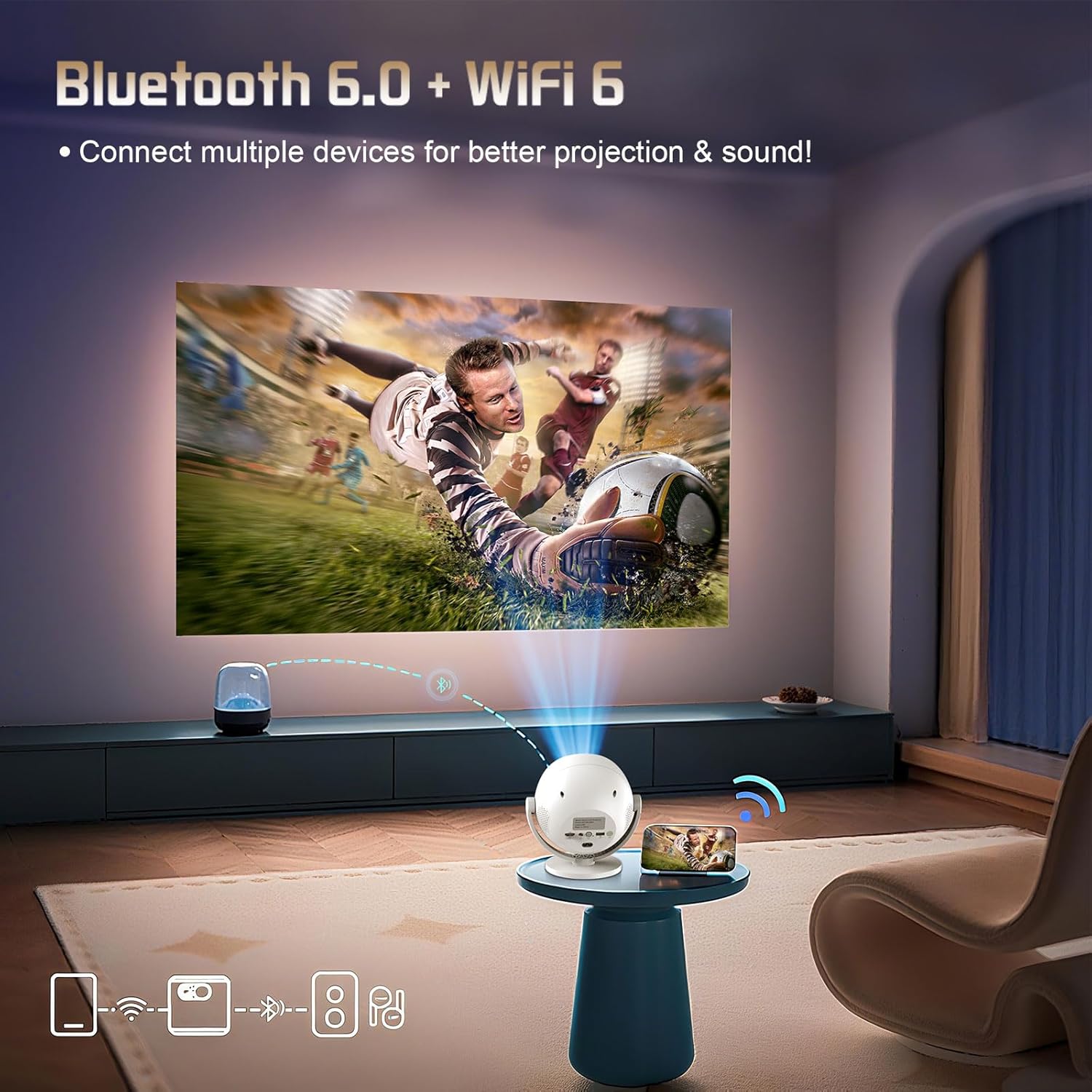
Image 2.4: Bluetooth 6.0 Connectivity. This image illustrates the projector's ability to connect to multiple devices, such as a Bluetooth speaker and a smartphone, for improved audio and projection experiences.
2.6 Connecting External Devices
The projector is equipped with various ports for connecting external devices.

Image 2.5: Projector Ports. This image highlights the various connectivity options on the projector, including HDMI, USB, and Audio Out (AUX) ports, along with the power input and switch.
- HDMI: Connect devices like laptops, gaming consoles (PS5), or TV sticks.
- USB: Play media directly from a USB drive or connect other USB accessories.
- AUX (3.5mm Jack): Connect wired headphones or external speakers.
3. Operating Instructions
3.1 Basic Controls
Use the included remote control to navigate the projector's interface. Point the remote control directly at the projector for optimal response.
3.2 Smart System Navigation
The projector runs on an Android system with preloaded applications. You can access streaming services like Netflix and YouTube directly.
- From the home screen, use the remote to select desired applications.
- Log in with your account credentials for streaming services.
- Ensure a stable Wi-Fi connection for smooth streaming.
3.3 Screen Mirroring
Mirror content from your smartphone or tablet using Airplay (for iOS devices) or Miracast (for Android devices).
- Ensure both your device and the projector are connected to the same Wi-Fi network.
- On the projector, select the screen mirroring function (e.g., Airplay or Miracast).
- On your mobile device, activate the screen mirroring feature and select the projector from the list of available devices.
3.4 Projection Modes and Scenarios
The projector's portable design and 360° rotation allow for diverse usage scenarios.

Image 3.1: Versatile Usage Scenarios. This image demonstrates the projector's adaptability for various environments, including a bedroom movie setup, an outdoor movie night, a camping movie experience, and a home theater setup.
- Bedroom Movie: Project onto a wall or ceiling for comfortable viewing.
- Outdoor Movie: Ideal for backyard gatherings or camping trips (ensure dim lighting conditions for best results).
- Home Theater: Create an immersive experience in your living room.
4. Maintenance
4.1 Cleaning
- Lens: Use a soft, lint-free cloth specifically designed for optical lenses. Gently wipe the lens to remove dust or smudges. Avoid abrasive materials or harsh chemicals.
- Exterior: Wipe the projector's exterior with a soft, dry cloth. Do not use liquid cleaners directly on the device.
- Vents: Periodically check the ventilation openings for dust accumulation. Use a soft brush or compressed air to clear them, ensuring proper airflow for the built-in cooling system.
4.2 Storage
When not in use, store the projector in a cool, dry place away from direct sunlight and extreme temperatures. If storing for an extended period, consider placing it in its original packaging or a protective case to prevent dust buildup and damage.
5. Troubleshooting
This section addresses common issues you might encounter with your XBJ 360 Mini Portable Projector.
- No Image or Distorted Image:
- Ensure the power cord is securely connected and the projector is turned on.
- Check the input source (HDMI, USB) is correctly selected.
- Allow the auto keystone correction to adjust the image. If needed, manually adjust focus via the remote.
- No Sound or Low Sound:
- Adjust the volume on both the projector and the connected source device.
- If using Bluetooth speakers, ensure they are properly paired and charged.
- If using wired speakers/headphones, ensure the 3.5mm jack is fully inserted.
- Wi-Fi Connection Issues:
- Ensure the projector is within range of your Wi-Fi router.
- Verify the Wi-Fi password is correct.
- Restart both the projector and your Wi-Fi router.
- For screen mirroring, ensure both devices are on the same network.
- Bluetooth Pairing Problems:
- Ensure the Bluetooth device is in pairing mode and fully charged.
- Clear previous Bluetooth connections on the projector and try pairing again.
- Move the Bluetooth device closer to the projector.
