
1. Introduction
This manual provides detailed instructions for the installation, operation, and maintenance of your SIXTOP 2+64G Android Car Stereo. This unit is designed for Hyundai I30 models manufactured between 2006 and 2011, specifically those with manual A/C controls. Please read this manual thoroughly before installation and use to ensure proper function and safety.

Image 1.1: SIXTOP Android Car Stereo with custom frame for Hyundai I30 (2006-2011).
2. Setup and Installation
Professional installation is recommended. Ensure the vehicle's power is disconnected before beginning installation.
2.1 Package Contents
Verify all components are present before installation:
- Car Stereo with Frame
- AHD Rear Camera
- External Microphone
- Power Cord
- Video Extension Cable
- GPS Antenna
- Rear Camera Input Cable
- RCA Cable
- USB Cables (2)
- Installation Tool
- Screws
- User Manual

Image 2.1: Overview of included components and unit dimensions.
2.2 Installation Steps
- Remove Original Radio: Carefully remove the existing car stereo and trim panels.
- Connect Wiring: Connect the provided power harness, RCA cables, USB cables, GPS antenna, and microphone to the new head unit.
- Install Rear Camera (Optional): If installing the AHD camera, route the camera cable to the rear of the vehicle and connect it according to the wiring diagram.
- Mount New Stereo: Secure the SIXTOP Android Car Stereo into the dashboard opening using the provided frame and screws.
- Test Functionality: Reconnect the vehicle's power and test all functions before fully reassembling the dashboard.

Image 2.2: Visual comparison of the dashboard before and after the stereo installation.
2.3 Rear Camera Wiring Diagram
For proper functionality of the reversing display, connect the AHD camera as shown:
- Connect the camera's power cable to the vehicle's reversing lamp for power.
- Connect the camera's video output to the 'Video In' port on the head unit using the RCA cable.
- Ensure the 'Reverse' trigger wire from the head unit's harness is connected to the vehicle's reverse light signal.

Image 2.3: Detailed wiring diagram for the AHD rear view camera.
3. Operating Instructions
The SIXTOP Android Car Stereo operates on Android 13 with a 9-inch touch screen interface.

Image 3.1: System specifications highlighting Android 13, 2GB RAM, and 64GB ROM.
3.1 Touch Screen Operation
The unit features a 2.5D HD touch screen for intuitive control. Navigate through menus and applications by tapping, swiping, and pinching gestures.

Image 3.2: Description of the 2.5D HD Touch Screen's clarity and responsiveness.
3.2 Apple CarPlay and Android Auto
The stereo supports wireless Apple CarPlay and Android Auto. This allows synchronization of your phone's apps, navigation, music, and voice assistant to the car stereo.
- Connection: Ensure your phone's WiFi and Bluetooth are enabled. Open the CPLINK or Android Auto application on the stereo to connect automatically. Alternatively, use a USB cable for a wired connection.
- Voice Control: Utilize your phone's voice assistant (Siri or Google Assistant) for hands-free operation.

Image 3.3: Display of Apple CarPlay and Android Auto interfaces.
3.3 FM/RDS Radio
Access FM radio stations with RDS (Radio Data System) functionality. The unit supports 18 preset stations.
- Tuning: Use the on-screen controls to scan for stations or manually tune to a frequency.
- RDS: View station information, song titles, and traffic updates where available.

Image 3.4: FM/RDS Radio interface.
3.4 Bluetooth Connectivity
Connect your mobile device via Bluetooth for hands-free calling, music streaming, and phonebook synchronization.
- Pairing: Go to Bluetooth settings on the stereo and your phone to pair devices.
- Calling: Make and receive calls directly from the stereo interface.
- Music: Stream audio from your phone to the car speakers.

Image 3.5: Bluetooth interface for calls and music.
3.5 WiFi and GPS Navigation
Connect to a WiFi hotspot to download applications from the Play Store, stream online content, and use online navigation maps.
- WiFi Connection: Access WiFi settings to connect to available networks.
- GPS: The unit supports GPS satellite positioning. Download offline navigation maps or use online maps when connected to WiFi.

Image 3.6: WiFi connectivity and GPS navigation display.
3.6 Mirror Link and Split Screen
Mirror Link allows you to display your phone's screen on the stereo. The Split Screen function enables two applications to run simultaneously.
- Mirror Link: Use the CarbitLink app and connect via WiFi to mirror your phone's display.
- Split Screen: Tap the rectangle icon at the top of the screen, then drag and drop applications to the left or right side to activate split-screen mode.
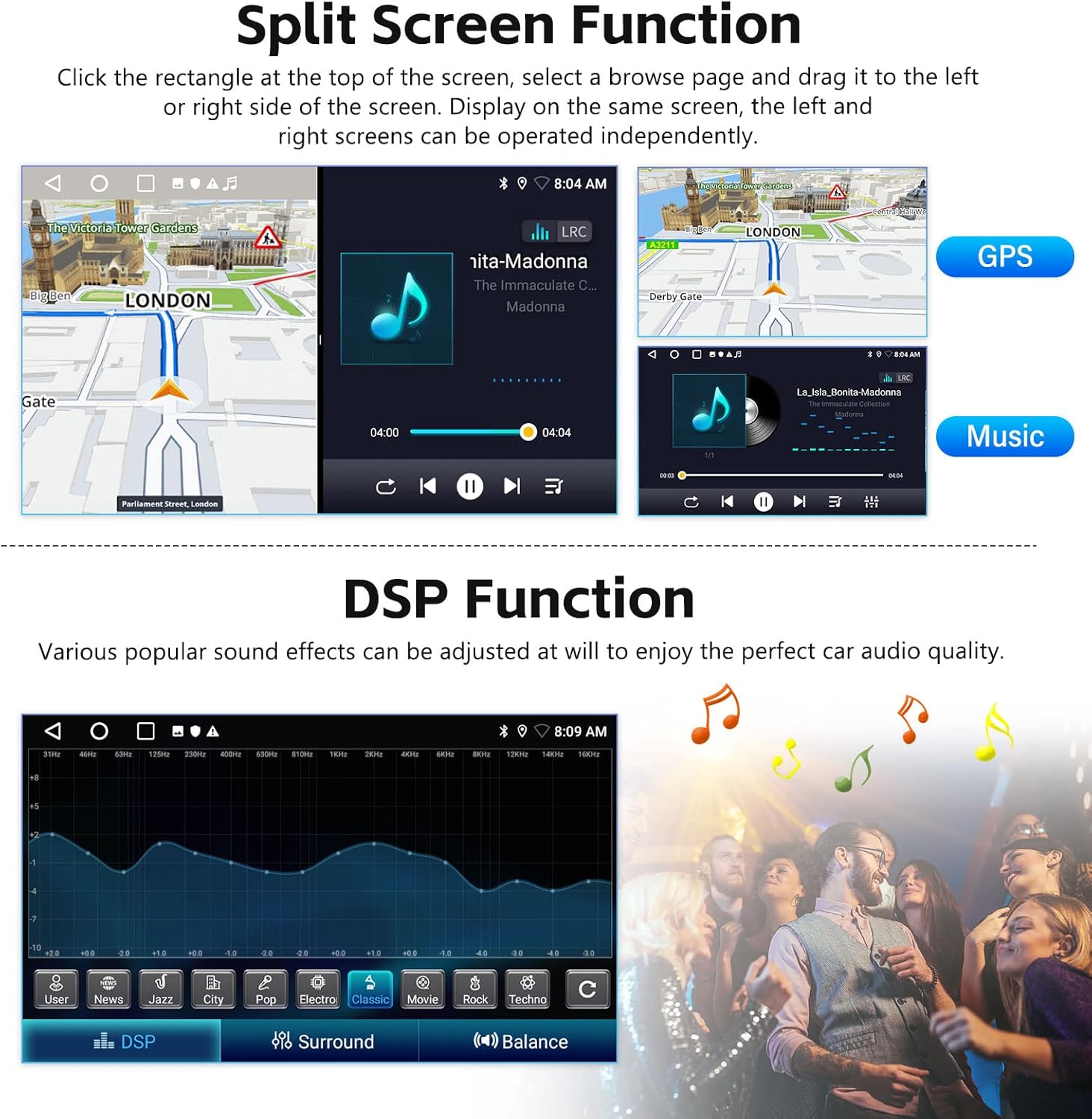
Image 3.7: Split screen functionality displaying two apps concurrently.
3.7 Steering Wheel Control (SWC)
The unit supports the vehicle's original steering wheel buttons for convenient control of audio functions.
- Setup: Access the steering wheel button settings in the car stereo's menu to configure the controls.
- Functionality: Control volume, track changes, and answer/end calls without taking your hands off the wheel.

Image 3.8: Steering wheel control interface.
3.8 Reversing Display
When connected to the included AHD camera, the stereo automatically displays a clear reversing image when the vehicle is shifted into reverse gear.
- Camera Resolution: The AHD camera provides 720P 25fps resolution. Verify camera settings in the factory settings menu if needed.

Image 3.9: Reversing display with parking guidelines.
3.9 EQ Audio Setting
Adjust the audio output with the built-in equalizer (EQ) to customize sound effects for various music genres (Jazz, Rock, Popular, Classic).

Image 3.10: Equalizer settings interface.
4. Specifications
| Feature | Detail |
|---|---|
| Operating System | Android 13 |
| RAM | 2GB |
| ROM | 64GB |
| Display Size | 9 Inches |
| Screen Type | 2.5D HD Touch Screen |
| Connectivity | Bluetooth, Wi-Fi |
| Special Features | Built-in Bluetooth, GPS, WiFi, Steering Wheel Control, Touchscreen, Split Screen, Wireless CarPlay, Android Auto, Mirror Link |
| Vehicle Service Type | Hyundai I30 (2006-2011) |
| Audio Output Mode | Stereo |
| Item Weight | 5.06 pounds |
| Package Dimensions | 18.22 x 13.39 x 7.83 inches |
5. Maintenance
To ensure the longevity and optimal performance of your car stereo, follow these maintenance guidelines:
- Cleaning: Use a soft, dry cloth to clean the screen and exterior. Avoid abrasive cleaners or solvents.
- Software Updates: Periodically check for system updates via the WiFi connection to ensure you have the latest features and security patches.
- Environmental Conditions: Avoid exposing the unit to extreme temperatures or direct sunlight for prolonged periods.
6. Troubleshooting
If you encounter issues with your SIXTOP Android Car Stereo, refer to the following common solutions:
- No Power: Check all power connections and the vehicle's fuse box. Ensure the ignition is on.
- No Sound: Verify speaker connections, volume levels, and audio source selection. Check EQ settings.
- Touch Screen Unresponsive/Frozen: Try restarting the unit by pressing and holding the power button (if available) or by temporarily disconnecting the vehicle's battery. Ensure the screen is clean and free of debris.
- Bluetooth Connection Issues: Ensure Bluetooth is enabled on both the stereo and your phone. Delete previous pairings and try reconnecting.
- GPS Signal Loss: Ensure the GPS antenna is properly installed and has a clear view of the sky.
- Rear Camera Not Displaying: Check camera wiring, especially the power and reverse trigger connections. Verify camera resolution settings in the stereo's factory settings.
For persistent issues, contact customer support.
7. Warranty and Support
Your SIXTOP Android Car Stereo comes with a 1-year warranty from the date of purchase, covering manufacturing defects.
7.1 Protection Plans
Extended protection plans are available for purchase:
- 2-Year Protection Plan: Extends coverage for an additional year.
- 3-Year Protection Plan: Provides two additional years of coverage.
7.2 Customer Support
For technical assistance, warranty claims, or any questions regarding your product, please contact SIXTOP customer support. You can typically find support contact information on the manufacturer's website or through your purchase platform.

Image 7.1: Information on how to contact online support.


