
ByteUp C80
ByteUp C80 Portable Thermal Printer User Manual
Model: C80
1. Introduction
The ByteUp C80 Portable Thermal Printer is a compact and lightweight device designed for convenient printing on the go. It utilizes thermal printing technology, eliminating the need for ink cartridges, and supports various paper types including US Letter, A4 thermal, and tattoo transfer paper. This manual provides essential information for setting up, operating, maintaining, and troubleshooting your C80 printer.
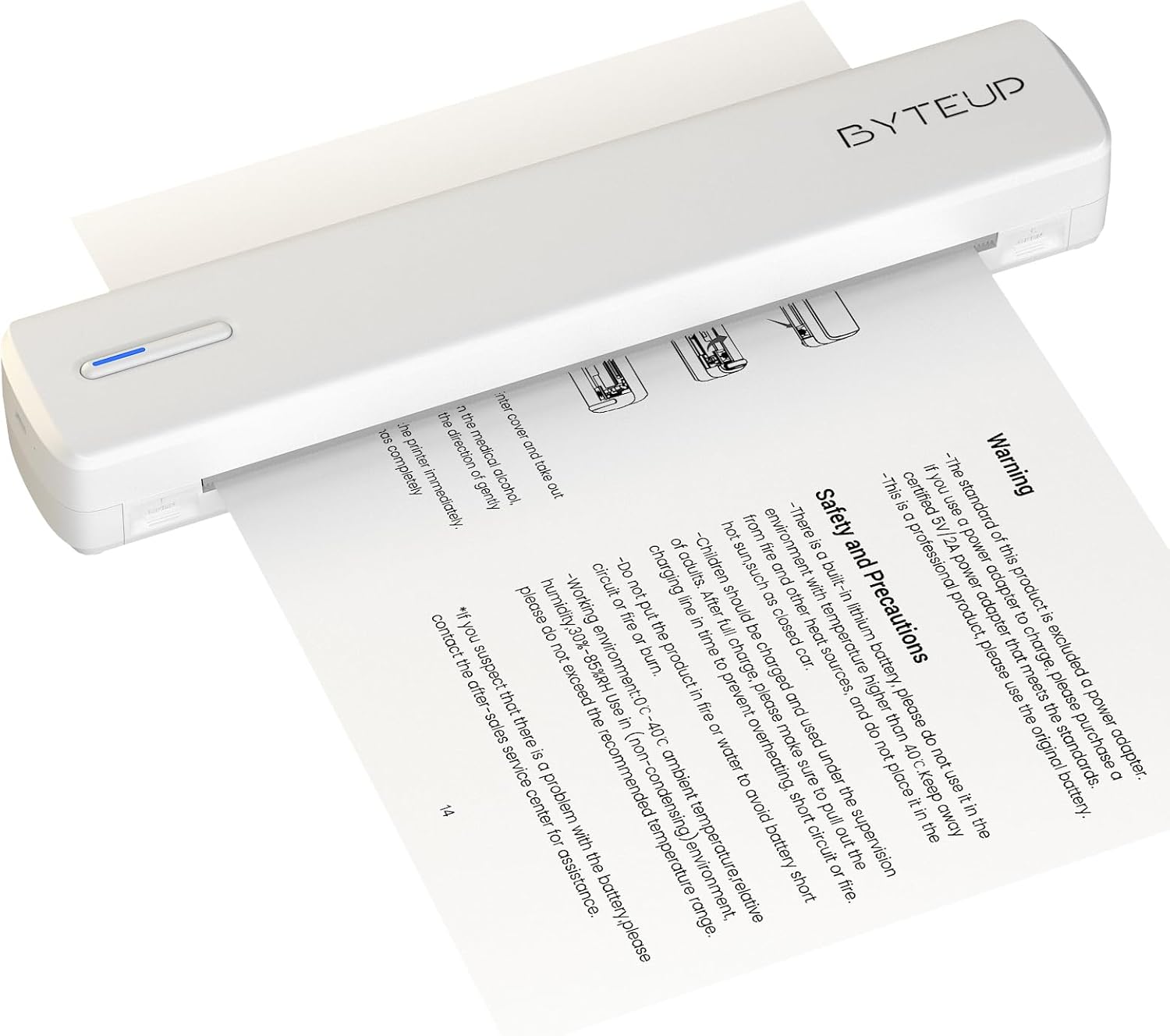
Image 1.1: The ByteUp C80 Portable Thermal Printer in operation, demonstrating paper feeding.
2. Safety Precautions
To ensure safe and proper operation of your ByteUp C80 printer, please observe the following precautions:
- The standard product package does not include a power adapter. If a power adapter is required, please purchase a certified 5V/2A power adapter that meets safety standards.
- This device contains a built-in lithium battery. Do not use it in environments with temperatures exceeding 40°C (104°F) or near open flames and other heat sources.
- The battery should be charged and used under supervision. Do not leave children unattended during charging.
- Do not put the product in fire or water to avoid battery short circuit or fire.
- Operating environment: 0°C - 40°C (32°F - 104°F) ambient temperature, relative humidity 30%-85% (non-condensing).
- If you suspect a problem with the battery, please contact the after-sales service center for assistance.
3. What's in the Box
Upon unpacking your ByteUp C80 Portable Thermal Printer, verify that all the following components are included:
- 1 x C80 Printer
- 20 x US Letter Size Thermal Paper sheets
- 1 x User Manual (this document)
- 1 x Guide Card
- 1 x U disk (containing drivers and software)
4. Setup Guide
4.1 Charging the Printer
Before first use, fully charge the printer using a compatible 5V/2A USB-C power adapter (not included). Connect the USB-C cable to the printer's charging port and the other end to the power adapter. The indicator light will show charging status.
4.2 Loading Paper
The C80 printer uses thermal paper only. It does not support regular copy paper.
- Open the paper input cover.
- Insert the thermal paper with the printable side facing up. Ensure the paper is aligned correctly and smoothly.
- Close the paper input cover. The printer will automatically feed a small amount of paper to confirm loading.

Image 4.1: The ByteUp C80 printer supports various paper sizes including US Letter, A4 Thermal, and Tattoo Transfer Paper.
5. Operating Instructions
5.1 Powering On/Off
- To power on: Press and hold the power button until the indicator light illuminates.
- To power off: Press and hold the power button until the indicator light turns off.
5.2 Connectivity Options
The ByteUp C80 printer offers both Bluetooth and USB-C connectivity for versatile use with various devices.

Image 5.1: The ByteUp C80 printer supports both USB and Bluetooth connections for printing from laptops, smartphones, and other devices.
5.2.1 Bluetooth Connection (for iOS, Android)
- Ensure the printer is powered on and within range of your mobile device.
- Enable Bluetooth on your mobile device.
- Open the dedicated ByteUp printing application (refer to the U disk for software installation).
- Within the app, search for available Bluetooth devices and select "C80" to pair.
- Once paired, you can select documents (PDF, Word, Images, Web) from your phone to print.
5.2.2 USB-C Connection (for Laptop/PC)
- Connect the printer to your laptop or PC using the provided USB-C cable.
- Install the printer drivers from the included U disk. Follow the on-screen instructions for installation.
- Once drivers are installed, the printer will appear as an available printer in your system's print dialogue.
- Select the C80 printer and adjust print settings as needed before printing.
5.3 Printing Documents
Always remember to choose the correct paper size setting on your phone or PC to match the thermal paper you are using. The printer supports monochrome (black and white) printing only.

Image 5.2: The ByteUp C80 printer is capable of high-resolution monochrome printing, suitable for various documents including tattoo stencils.
6. Maintenance
6.1 Cleaning the Print Head
Regular cleaning of the print head ensures optimal print quality.
- Ensure the printer is powered off and disconnected from any power source.
- Gently open the paper input cover.
- Use a soft, lint-free cloth lightly dampened with isopropyl alcohol to wipe the print head surface.
- Allow the print head to dry completely before closing the cover and powering on the printer.
6.2 Paper Storage
Store thermal paper in a cool, dry place away from direct sunlight and excessive heat to preserve its quality and print longevity.
7. Troubleshooting
| Problem | Possible Cause | Solution |
|---|---|---|
| Printer not powering on | Low battery or no charge | Charge the printer fully using a 5V/2A USB-C adapter. |
| Poor print quality / Faded prints | Dirty print head; Low quality thermal paper; Paper loaded incorrectly | Clean the print head (refer to Section 6.1); Use high-quality thermal paper; Ensure paper is loaded correctly with printable side up. |
| Printer not connecting via Bluetooth | Bluetooth not enabled; Printer not in pairing mode; Interference | Ensure Bluetooth is enabled on your device; Restart printer and device; Move closer to the printer; Check app for pairing instructions. |
| Printer not recognized by PC via USB | Drivers not installed; Faulty USB cable/port | Install drivers from the U disk; Try a different USB-C cable or port. |
| Paper jam | Paper loaded incorrectly; Damaged paper | Power off the printer, gently remove jammed paper, reload new paper correctly. |
8. Product Specifications
- Model Name: C80
- Brand: ByteUp
- Printing Technology: Thermal
- Connectivity Technology: Bluetooth, USB-C
- Printer Output: Monochrome (Black and White)
- Maximum Black and White Print Resolution: 203 dpi (Dots Per Inch)
- Max Print Speed Monochrome: 4 ppm (pages per minute)
- Maximum Media Size: 8.5x11 inches (US Letter)
- Supported Print Media: Thermal Paper (Roll paper, Fan-fold paper, Tattoo transfer paper)
- Max Input Sheet Capacity: 20 sheets
- Duplex Printing: No (Simplex only)
- Hardware Interface: USB Type C
- Ink Color: Black (Thermal printing, no ink required)
- Product Dimensions: 12.99"D x 3.35"W x 3.15"H (33 x 8.5 x 8 cm)
- Item Weight: 1.8 pounds (0.82 kg)
- Batteries: 1 Nonstandard Battery (included)
- Manufacturer: shanyin
9. Warranty and Support
For warranty information and technical support, please refer to the contact details provided on the ByteUp official website or the guide card included in your product package. If you encounter any issues not covered in this manual, or require further assistance, please do not hesitate to contact our customer service team.
Ask a question about this manual
Ask about setup, troubleshooting, compatibility, parts, safety, or missing instructions. Manuals+ will review the question and use this page’s manual context to help answer it.