
1. Getting Started
1.1 Package Contents
Ensure all items are present in the package:
- EZON Smart Watch
- User Manual
- Magnetic Charging Cable
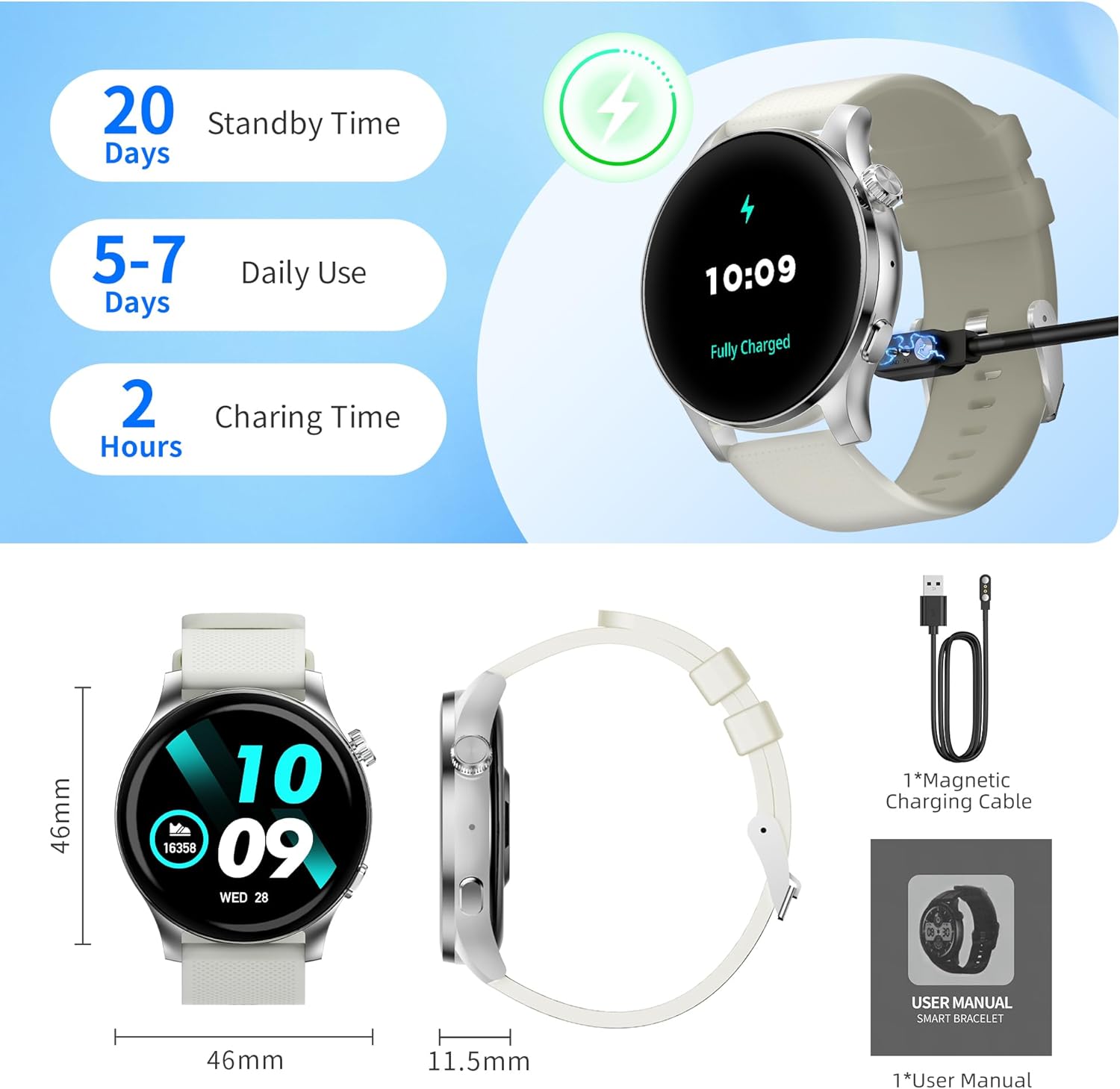
Image: EZON Smart Watch S8 and its accessories, including the watch, magnetic charging cable, and user manual.
1.2 Charging the Device
Before first use, fully charge your EZON Smart Watch S8. Connect the magnetic charging cable to the charging points on the back of the watch and plug the USB end into a power adapter (not included) or computer USB port. The watch will display a charging indicator.
- Charging Time: Approximately 2 hours for a full charge.
- Battery Life: Up to 5-7 days of daily use, up to 20 days standby time.
Image: The EZON Smart Watch S8 connected to its magnetic charging cable, showing the charging process.
1.3 Power On/Off
- To Power On: Long press the upper right button until the screen lights up.
- To Power Off: Long press the upper right button. A power-off confirmation screen will appear. Select 'X' to cancel or confirm to power off.
1.4 App Connection
To unlock the full features of your EZON Smart Watch S8, download and connect to the companion app on your smartphone (Android or iOS).
- Scan the QR code in the watch manual or search for the "Wa Kit" app in your phone's app store.
- Install and open the app.
- Follow the in-app instructions to pair your watch via Bluetooth. Ensure Bluetooth is enabled on your phone.
2. Operating Instructions
2.1 Basic Navigation
- Screen On/Off: Click the upper right button.
- Control Center: Swipe down from the watch face to access quick settings like brightness, power saving mode, and flashlight.
- Message Notifications: Swipe up from the watch face to view recent notifications from your connected phone.
- Daily Functions: Swipe right from the watch face to access features like AI Voice, Timer, Alarm, Stopwatch, Find Phone, and Settings.
- Health Monitoring & Weather: Swipe left from the watch face to view health data (Heart Rate, Blood Pressure, SpO2, Sleep) and weather forecasts.
Video: This video demonstrates basic operations of the EZON Smart Watch S8, including powering on/off, navigating the interface, accessing control center, message notifications, health monitoring, and daily functions.
2.2 Changing Watch Faces
Personalize your watch with various watch faces:
- Using the Dial Button: Rotate the upper right dial button to cycle through available watch faces.
- Long Press Screen: Long press the watch face, then swipe left or right to select a different face. Tap to confirm.
- Via App: The "Wa Kit" app offers over 100 watch faces and allows you to upload your own photos or generate AI-powered designs.
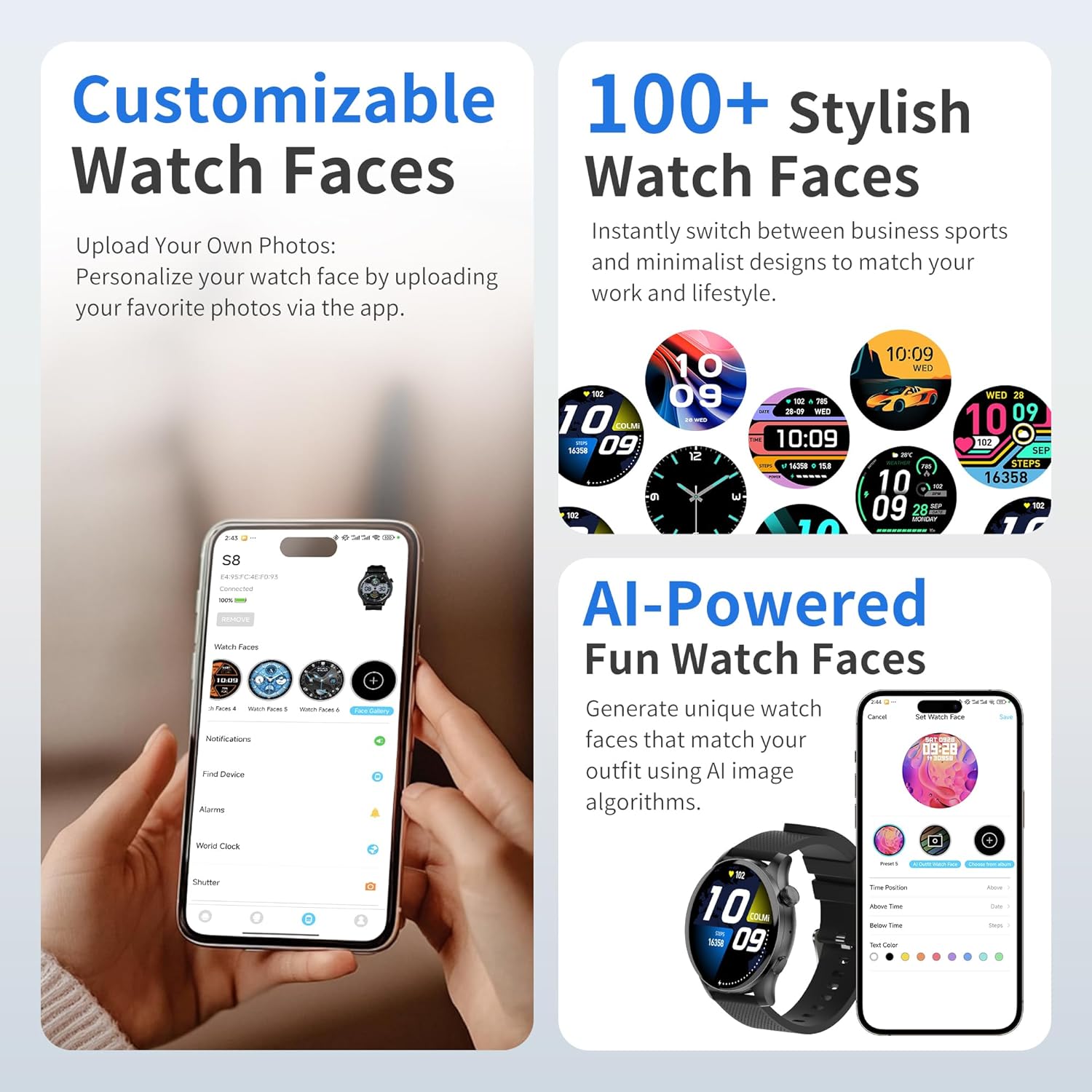
Image: The EZON Smart Watch S8 showcasing a selection of customizable watch faces, including options to upload personal photos or use AI-generated designs via the app.
2.3 Bluetooth Calling
Once connected to the app, you can make and answer calls directly from your watch.
- Answering Calls: When a call comes in, the watch will display the caller ID. Tap the green icon to answer.
- Making Calls: Access the phone dialer, call records, or contacts list from the watch interface to initiate a call.
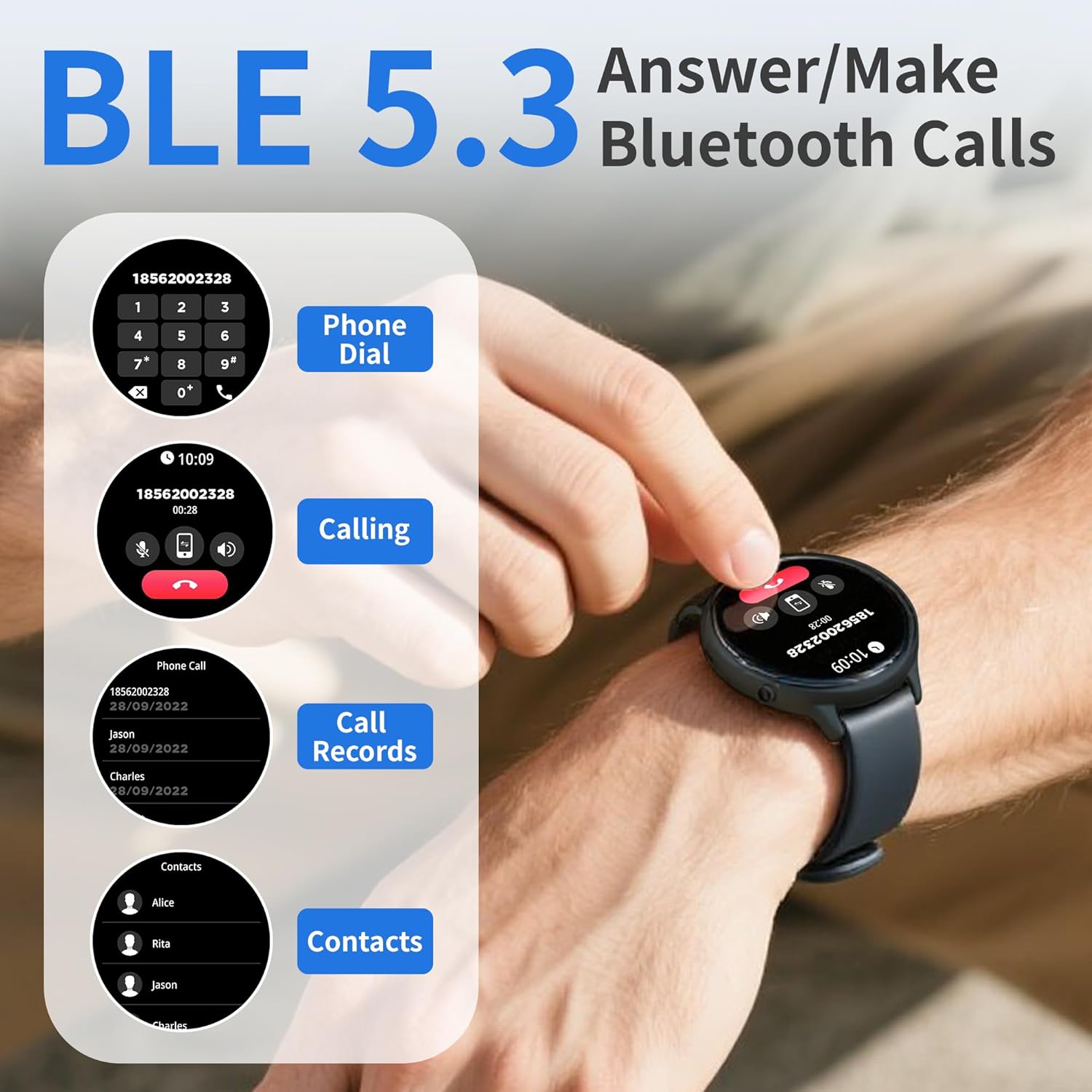
Image: A user interacting with the EZON Smart Watch S8 to use its Bluetooth calling functions, showing the phone dialer, call records, and contacts interface.
2.4 Smart Notifications
Receive instant alerts for messages, app notifications, and calls directly on your wrist when connected to your smartphone.
- Ensure notification permissions are enabled in the "Wa Kit" app and your phone settings.
- Swipe up from the watch face to view your notification history.

Image: The EZON Smart Watch S8 showing an incoming message notification from a social media application.
2.5 AI Voice Assistant
Activate your phone's smart voice assistant (e.g., Siri) directly from your watch to make calls, search for information, and set reminders.
- Access the AI Voice Assistant feature from the daily functions menu (swipe right from watch face).
- Tap to activate and speak your command.

Image: The EZON Smart Watch S8 displaying its AI Voice Assistant interface, ready to receive voice commands.
2.6 Music Control
Control music playback on your smartphone directly from your watch.
- Access the Music Control feature from the daily functions menu.
- Play, pause, skip tracks, and adjust volume.

Image: The EZON Smart Watch S8 displaying its music control interface, allowing users to manage playback on their connected smartphone.
3. Health Monitoring
The EZON Smart Watch S8 provides comprehensive health insights, tracking various metrics throughout the day.
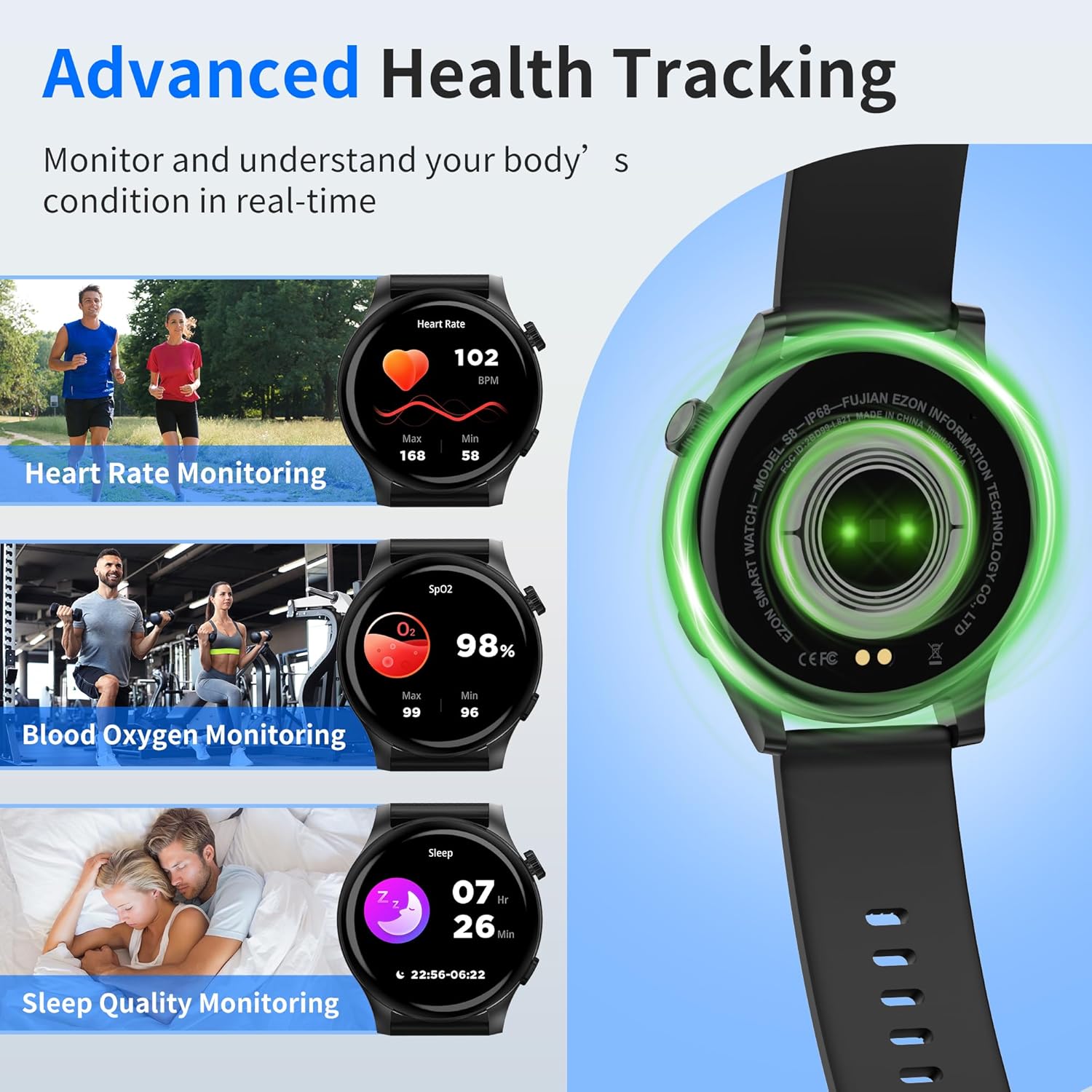
Image: The EZON Smart Watch S8 showing real-time data for heart rate, blood oxygen saturation (SpO2), and sleep quality monitoring.
3.1 Heart Rate Monitoring
Continuously tracks your heart rate, providing real-time insights into your cardiovascular health. View your current heart rate, as well as historical data in the app.

Image: The EZON Smart Watch S8 displaying heart rate data, including current BPM and a graph of heart rate trends over time.
3.2 Blood Oxygen (SpO2) Monitoring
Monitors your blood oxygen levels to help ensure your vital indicators stay within a healthy range. Access current SpO2 readings and trends in the app.

Image: The EZON Smart Watch S8 displaying blood oxygen saturation (SpO2) levels, with current percentage and historical data.
3.3 Sleep Quality Monitoring
Tracks your sleep cycles, including awake time, REM sleep, light sleep, and deep sleep, to provide a better understanding of your sleep quality and help improve rest.

Image: The EZON Smart Watch S8 displaying sleep quality data, including duration of different sleep stages like awake, REM, light, and deep sleep.
3.4 Menstrual Cycle Monitoring
The watch, in conjunction with the companion app, can assist in tracking menstrual cycles, providing predictions and reminders.

Image: The EZON Smart Watch S8 displaying its menstrual cycle tracking interface, showing a calendar view with cycle predictions.
4. Sports Modes
The EZON Smart Watch S8 features over 100 built-in sports modes to track various physical activities. Each mode provides specific metrics relevant to the activity.
- Accessing Sports Modes: Press the lower right button on the watch to enter the sports mode menu.
- Selecting an Activity: Scroll through the list and tap on your desired activity (e.g., Walking, Running, Cycling, Swimming, Yoga, Basketball, Football, etc.).
- Tracking: The watch will begin tracking your duration, steps, calories burned, heart rate, and other relevant data.

Image: The EZON Smart Watch S8 showing a selection of over 100 sports modes, including icons for walking, running, cycling, and more, alongside activity tracking data.
5. Specifications
| Feature | Detail |
|---|---|
| Brand | EZON |
| Model Name | S8 |
| Screen Size | 1.43 Inches AMOLED |
| Shape | Round |
| Operating System | RTOS |
| Connectivity Technology | Bluetooth (BLE 5.3) |
| Special Features | Activity Tracker, Daily Workout Memory, Notifications, Phone Call, Touchscreen, Heart Rate, SpO2, Sleep Monitor, AI Voice Assistant, 100+ Sports Modes |
| Waterproof Rating | IP68 |
| Battery Life (Typical Use) | 5-7 Days |
| Standby Time | Up to 20 Days |
| Charging Time | Approx. 2 Hours |
| Item Weight | 6.3 ounces (180 Grams) |
| Compatibility | Android and iOS devices |
6. Maintenance
6.1 Cleaning
- Wipe the watch and strap regularly with a soft, damp cloth.
- Ensure the charging contacts on the back of the watch are clean and dry before charging.
- Avoid using harsh chemicals or abrasive materials for cleaning.
6.2 Water Resistance (IP68)
The EZON Smart Watch S8 is IP68 waterproof, meaning it is resistant to dust and can withstand immersion in water up to 1.5 meters for up to 30 minutes. It is suitable for daily use, hand washing, and light rain. However, it is not recommended for hot showers, saunas, or diving, as steam and high water pressure can compromise the seal.
- Dry the watch thoroughly after exposure to water.
- Do not operate buttons underwater.
6.3 Storage
Store the watch in a cool, dry place when not in use. Avoid extreme temperatures.
7. Troubleshooting
- Watch does not turn on: Ensure the watch is fully charged. Connect it to the magnetic charger for at least 10 minutes.
- Cannot pair with phone:
- Ensure Bluetooth is enabled on your phone.
- Make sure the watch is within range of your phone.
- Restart both the watch and your phone.
- Check if the "Wa Kit" app has necessary permissions.
- No notifications:
- Verify the watch is connected to the app.
- Check notification settings in the "Wa Kit" app and your phone's system settings.
- Ensure the app is running in the background.
- Inaccurate health data:
- Ensure the watch is worn snugly on your wrist, not too tight or too loose.
- Clean the sensor on the back of the watch.
- Note that smartwatches are not medical devices and data is for reference only.
- Screen unresponsive: Restart the watch by long-pressing the upper right button.
8. Warranty and Support
EZON is committed to providing quality products and customer satisfaction.
- Lifetime Support: Access to ongoing customer assistance.
- 24-Hour Response: Expect a response to inquiries within 24 hours.
- 30-Day Return Policy: Eligible for returns within 30 days of purchase.
- 1-Year Free Replacement: Product replacement for manufacturing defects within one year.
For further assistance, please visit the EZON Official Store or contact customer support.
