
PWAYTEK CP1-A
PWAYTEK Wireless CarPlay & Android Auto Adapter User Manual
Model: CP1-A
Product Overview
The PWAYTEK Wireless CarPlay & Android Auto Adapter is designed to convert your existing wired CarPlay or Android Auto system into a wireless experience. This plug-and-play device eliminates the need for cables, offering seamless connectivity for navigation, music, calls, and voice commands.
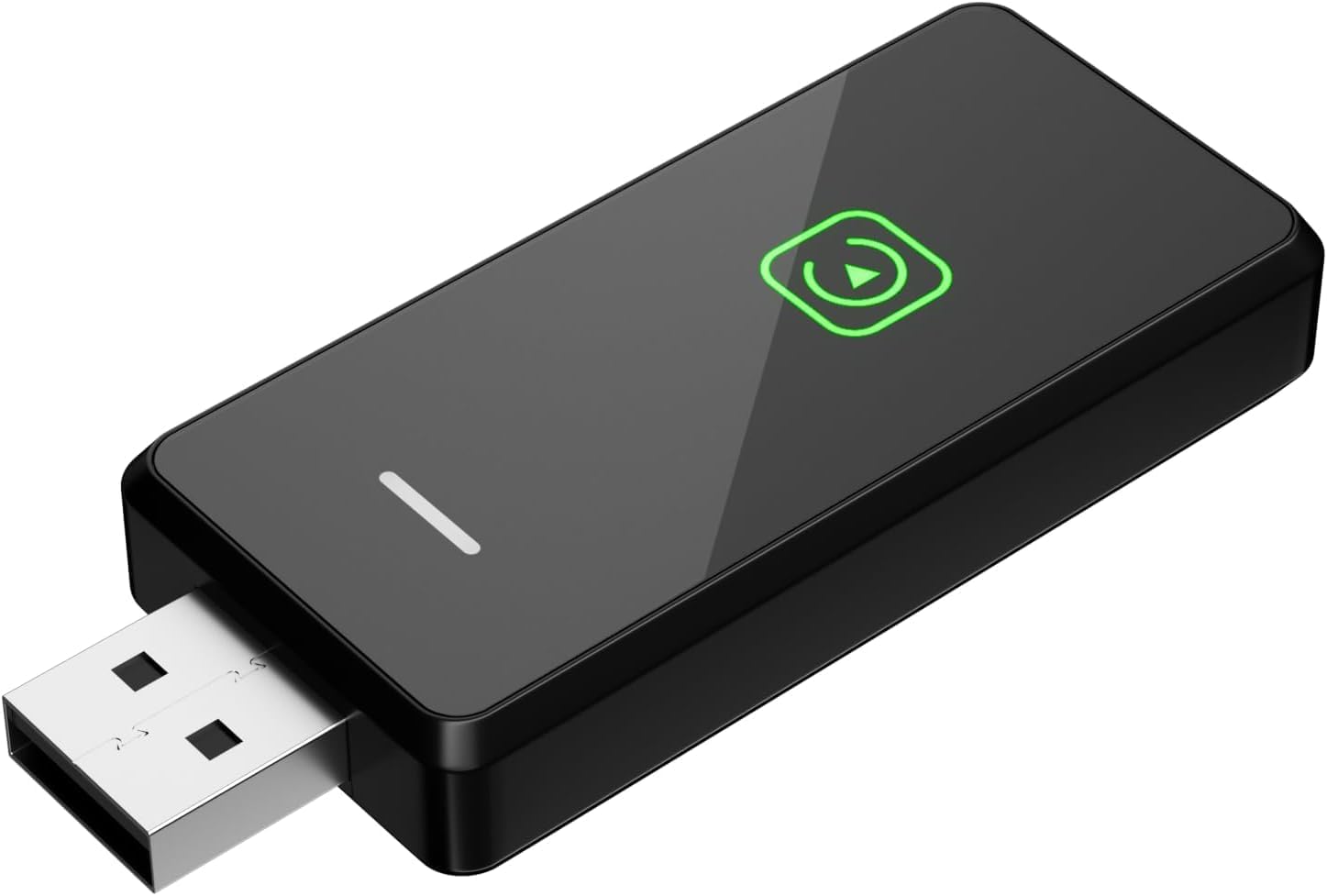
Image: The PWAYTEK Wireless CarPlay and Android Auto Adapter, a compact black device with a USB-A connector on one end and a green play icon on its surface, indicating its function.
Key Features
- 2-in-1 Wireless Connectivity: Converts wired Apple CarPlay and Android Auto to wireless, supporting both iOS 10+ and Android 11.0+ devices.
- Plug & Play Operation: Simple setup by connecting to your car's USB port and pairing via Bluetooth/Wi-Fi. Automatic connection after initial setup.
- Dual-band Intelligent Chip: Features 2.4G/5.8 GHz WiFi and an 8-core processor for fast startup, stable connection, and minimal delay.
- Smart Driving Experience: Enables control of CarPlay features (navigation, music, Siri, calls) via voice, steering wheel, touch screen, and OEM knob.
- Universal Connection: Supports both USB Type-C and USB Type-A ports.
- Upgraded Bluetooth 5.3: Offers faster transmission speed, improved stability, and wider coverage.

Image: Illustration showing a car's infotainment screen transforming from a wired setup to a wireless experience with the adapter, displaying both Android Auto and Apple CarPlay logos.

Image: Depicts how the adapter integrates with a car's original controls, including voice commands (Siri, Google Assistant), touch screen, steering wheel controls, and OEM knob control.

Image: A close-up of the adapter's internal components highlighting the Bluetooth 5.3 chip, with text indicating 100% faster transmission speed, 80% transmission stability rate, and 50% wider Bluetooth coverage rate.
Setup and Installation
Follow these steps to connect your PWAYTEK Wireless CarPlay & Android Auto Adapter:
- Step 1: Connect the Adapter to your Car.
Connect the Wireless CarPlay & Android Auto adapter to a USB-A or USB-C port in your car. Ensure your vehicle's USB port supports wired Apple CarPlay or Android Auto features.
- Step 2: Pair with your Mobile Phone.
Turn on the Bluetooth on your mobile phone. Search for and pair with the Bluetooth device named 'smartBox-****'. Continue to agree to any prompts to use CarPlay or Android Auto functionality.
- Step 3: Enjoy Wireless Connectivity.
You are now ready to enjoy wireless CarPlay or Wireless Android Auto. Keep your phone's Bluetooth turned on for automatic connection next time you start your vehicle.

Image: A visual guide illustrating the three steps for connecting the wireless adapter: plugging it into the car's USB port, pairing via Bluetooth on the phone, and the resulting wireless CarPlay/Android Auto interface.
Operating Instructions
Once connected, the PWAYTEK adapter allows you to use your car's existing controls for a seamless smart driving experience:
- Voice Control: Use Siri or Google Assistant for navigation, music playback, making calls, and sending messages without taking your hands off the wheel.
- Steering Wheel Controls: Navigate through menus, adjust volume, and manage calls directly from your steering wheel.
- Touch Screen: Interact with your CarPlay or Android Auto interface directly on your car's touch screen.
- OEM Knob Operation: For vehicles equipped with a control knob, you can use it to navigate the interface.
Compatibility
The PWAYTEK Wireless CarPlay & Android Auto Adapter is compatible with 98% of 2016+ cars equipped with factory-wired CarPlay & Android Auto. Your mobile device must be running iOS 10 or later (for iPhone) or Android 11.0 or later (for Android phones).
Important Notes:
- This adapter does not support BMW, Tesla, certain models, and certain aftermarket stereos.
- It is not recommended for 2016-2020 Nissan cars as they may require an additional USB Y splitter cable.
- If your car does not support features such as CarPlay or Android Auto natively, this product cannot be used.
To check if your car is compatible, you can connect your phone to your car using a USB data cable. If the CarPlay or Android Auto interface appears on your car screen, it is compatible.

Image: A visual representation of various car brands (Audi, Nissan, Toyota, Jeep, Chevrolet, Mercedes Benz, Volkswagen, Subaru, Honda, Hyundai, Mazda, Lexus, Kia, Ford) indicating wide compatibility, along with iPhone and Android phone models. QR codes are shown for checking compatibility.
For detailed compatibility lists, please refer to the official websites:
Troubleshooting
If you encounter issues with your PWAYTEK Wireless CarPlay & Android Auto Adapter, please refer to the following common solutions:
- Device Not Connecting Properly:
- Ensure both your car and mobile phone are compatible models.
- Verify that the device indicator lights are on correctly.
- Delete any other paired devices in your phone's CarPlay/Android Auto settings and attempt to reconnect.
- Frequent Disconnections:
- Poor network conditions may cause delays or disconnections.
- If Wi-Fi is occupied, try changing the channel via the firmware upgrade URL (if available, consult support).
- Unplug the adapter, clear old pairing records from your phone, restart your phone, and then re-pair the adapter.
- No Audio Playing:
- Check your Bluetooth connection when using wireless CarPlay/Android Auto.
- If your phone is connected to another audio device, audio may switch. Disconnect from other devices to restore playback through the adapter.
- General Issues:
- Ensure your car's USB port is active and providing power.
- If the product is defective or has quality problems upon receipt, contact customer support.

Image: A Q&A graphic addressing how to confirm car model suitability for the adapter, suggesting connecting the phone via USB cable to check for CarPlay interface appearance.

Image: A Q&A graphic explaining reasons for improper device connection, advising to check compatibility, indicator lights, and to delete other devices in phone settings.

Image: A Q&A graphic providing solutions for frequent disconnections, suggesting checking network, changing Wi-Fi channel, unplugging, clearing pairing records, and re-pairing.
Specifications
| Model Number | CP1-A |
| Brand | PWAYTEK |
| Connectivity Technology | Bluetooth, Wi-Fi (2.4G/5.8 GHz) |
| Power Source | USB Power Supply |
| Connector Type | USB Type C, USB Type A |
| Special Feature | Wired to Wireless Conversion |
| Package Dimensions | 4.45 x 3.39 x 0.63 inches |
| Item Weight | 0.634 ounces |
| First Available | June 10, 2025 |
| Manufacturer | PWAYTEK |
| Country of Origin | China |
Maintenance
To ensure the longevity and optimal performance of your PWAYTEK Wireless CarPlay & Android Auto Adapter:
- Keep the device clean and free from dust and debris. Use a soft, dry cloth for cleaning.
- Avoid exposing the adapter to extreme temperatures, direct sunlight, or moisture.
- Do not attempt to disassemble or repair the device yourself, as this may void any potential warranty.
Support and Warranty
For any defects, quality problems, or further assistance, please contact PWAYTEK customer support through the Amazon platform where you purchased the product. Provide your order details for faster service.
PWAYTEK is committed to assisting you until your issue is resolved.
Related documentsCP1-A


Ask a question about this manual
Ask about setup, troubleshooting, compatibility, parts, safety, or missing instructions. Manuals+ will review the question and use this page’s manual context to help answer it.