
TCL T768S
TCL 20 A 5G (T768S) User Manual
Model: T768S
1. Introduction
Welcome to the user manual for your new TCL 20 A 5G smartphone. This guide provides essential information to help you set up, operate, and maintain your device. The TCL 20 A 5G (Model T768S) is designed for reliable performance and seamless connectivity, featuring a 6.52-inch HD+ display and 5G capabilities on the Verizon network.
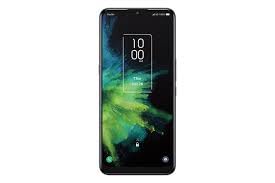
Figure 1.1: Front view of the TCL 20 A 5G smartphone. The screen shows the time as 10:00 AM and the date as Thursday, October 26, with a lock icon at the bottom center, indicating the phone is locked.
2. Setup
2.1 What's in the Box
Before you begin, ensure all components are present:
- TCL 20 A 5G Smartphone
- USB-C Cable
- SIM Ejector Tool
2.2 Inserting the SIM Card
Your TCL 20 A 5G requires a Nano-SIM card for cellular connectivity. Follow these steps:
- Locate the SIM card tray on the side of your phone.
- Insert the SIM ejector tool into the small hole on the tray to open it.
- Gently pull out the SIM card tray.
- Place your Nano-SIM card into the designated slot on the tray, ensuring the gold contacts face down and the notched corner aligns correctly.
- Carefully reinsert the tray into the phone until it clicks into place.
Note: Ensure the phone is powered off before inserting or removing the SIM card.
2.3 Charging the Battery
The phone comes with a non-removable 5000 mAh battery. For optimal performance, fully charge the battery before first use.
- Connect the USB-C cable to the phone's charging port.
- Connect the other end of the USB-C cable to a compatible USB power adapter (not included) and plug it into a power outlet.
- The charging indicator will appear on the screen.
It is recommended to use TCL-approved chargers and cables to prevent damage to the device.
3. Operating Your Device
3.1 Power On/Off
- To power on: Press and hold the Power button until the TCL logo appears.
- To power off: Press and hold the Power button, then select "Power off" from the options.
- To restart: Press and hold the Power button, then select "Restart" from the options.
3.2 Basic Navigation
Your TCL 20 A 5G runs on Android 11.0. Navigate the interface using touch gestures:
- Tap: Select an item or open an application.
- Swipe: Scroll through screens, lists, or content.
- Pinch: Zoom in or out on photos and web pages.
- Long Press: Access contextual menus or move icons.
3.3 Making Calls
To make a call:
- Tap the Phone icon on the home screen.
- Enter the phone number using the dial pad.
- Tap the Call button.
3.4 Sending Messages
To send a text message:
- Tap the Messages icon.
- Tap the Start chat or New message icon.
- Enter the recipient's number or select from contacts.
- Type your message in the text field.
- Tap the Send button.
3.5 Camera Functions
Capture crisp photos and HD video with your phone's camera.
- Open the Camera app.
- Select photo or video mode.
- Tap the Shutter button to take a photo or start/stop video recording.
4. Maintenance
4.1 Battery Care
To maximize battery life and performance:
- Avoid exposing the phone to extreme temperatures.
- Do not let the battery drain completely before recharging.
- Unplug the charger once the battery is fully charged.
- Use only original or certified chargers and cables.
4.2 Cleaning Your Device
Keep your phone clean to ensure optimal functionality and appearance:
- Use a soft, lint-free cloth to wipe the screen and body.
- Avoid using harsh chemicals, cleaning sprays, or abrasive materials.
- For stubborn smudges, slightly dampen the cloth with water.
4.3 Software Updates
Regularly check for software updates to ensure your device has the latest features, security patches, and performance improvements.
- Go to Settings > System > System update.
- Follow the on-screen instructions to download and install any available updates.
5. Troubleshooting
This section addresses common issues you might encounter with your TCL 20 A 5G.
| Problem | Possible Cause | Solution |
|---|---|---|
| Phone does not turn on | Low battery; software crash | Charge the phone for at least 10 minutes; perform a force restart by holding the Power button for 10-15 seconds. |
| Cannot connect to network | SIM card not inserted correctly; network settings issue; out of service area | Reinsert SIM card; check network settings (Settings > Network & internet > Mobile network); move to an area with better signal. |
| Apps are crashing or freezing | Insufficient RAM; app conflict; outdated app | Close background apps; clear app cache (Settings > Apps & notifications > App info > Storage & cache); update the app from Google Play Store. |
| Battery drains quickly | Too many background apps; high screen brightness; poor signal strength | Close unused apps; reduce screen brightness; enable battery saver mode; disable unnecessary features like GPS or Wi-Fi when not in use. |
6. Specifications
Detailed technical specifications for the TCL 20 A 5G (Model T768S):
| Feature | Detail |
|---|---|
| Model Number | T768S |
| Operating System | Android 11.0 |
| Display Size | 6.52 Inches HD+ |
| Resolution | 720 x 1440 pixels |
| Processor | Octa-core (Mediatek Dimensity 1100) |
| RAM | 4 GB |
| Internal Storage | 64 GB (approx. 11 GB user available) |
| Battery Capacity | 5000 mAh |
| Connectivity | 5G, 4G LTE, Wi-Fi, Bluetooth, GPS |
| Audio Jack | 3.5 mm |
| Color | Space Gray |
7. Warranty and Support
For warranty information and technical support, please refer to the official TCL website or contact TCL customer service. Keep your proof of purchase for warranty claims.
You can visit the official TCL Store on Amazon for more product information and support resources: TCL Store
Related documentsT768S


Ask a question about this manual
Ask about setup, troubleshooting, compatibility, parts, safety, or missing instructions. Manuals+ will review the question and use this page’s manual context to help answer it.