
Insignia NS-24F201CA26
Insignia NS-24F201CA26 24-inch 720p HD HDR LED Fire TV Smart TV User Manual
Model: NS-24F201CA26
Introduction
Thank you for purchasing the Insignia NS-24F201CA26 24-inch 720p HD HDR LED Fire TV Smart TV. This manual provides essential information for the safe and efficient use of your television. Please read these instructions thoroughly before operating your new TV and retain them for future reference.
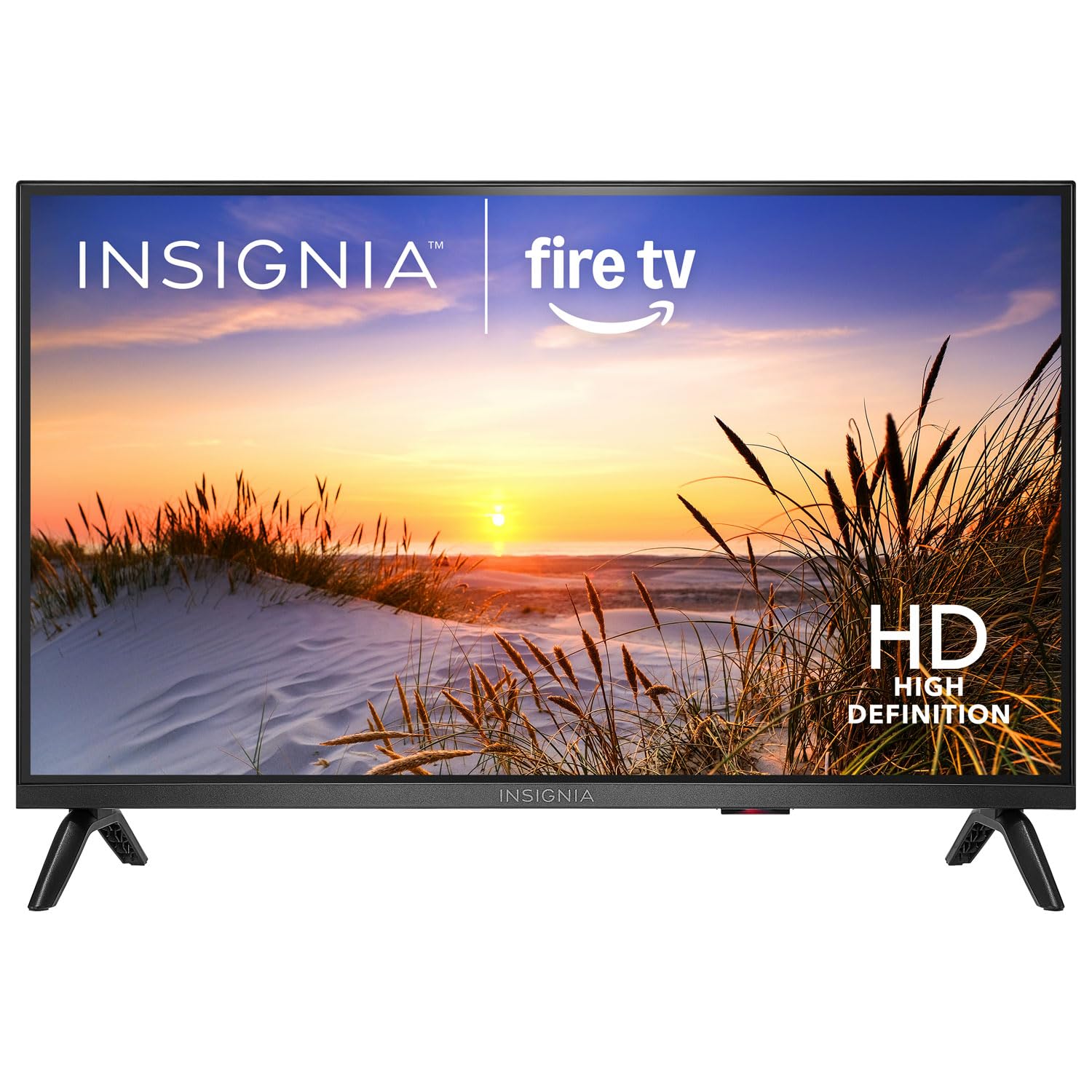
Image: Front view of the Insignia NS-24F201CA26 24-inch Fire TV Smart TV, showcasing its slim bezel and screen.
Important Safety Information
Always follow these basic safety precautions when using your television to reduce the risk of fire, electric shock, and injury:
- Do not expose the TV to rain or moisture.
- Do not open the TV cabinet. Refer all servicing to qualified service personnel.
- Ensure proper ventilation. Do not block ventilation openings.
- Protect the power cord from being walked on or pinched.
- Unplug the TV during lightning storms or when unused for long periods.
- Keep the TV away from heat sources such as radiators, heat registers, stoves, or other apparatus that produce heat.
- Use only attachments/accessories specified by the manufacturer.
What's in the Box
Carefully unpack your new product and ensure all items are present:
- Insignia NS-24F201CA26 24-inch Fire TV Smart TV
- Voice Remote with Alexa
- AAA Batteries (2)
- Power Cord
- TV Stand (2 pieces)
- Screws for TV Stand
- Quick Setup Guide
- Important Safety Information Sheet
Setup
1. Attaching the Stand or Wall Mounting
You can either attach the included stand or mount the TV to a wall. If wall mounting, refer to the instructions provided with your wall mount kit. For stand attachment:
- Place the TV face-down on a clean, cushioned surface to prevent screen damage.
- Align the stand pieces with the screw holes on the bottom of the TV.
- Secure each stand piece with the provided screws. Ensure they are tightened firmly.
Image Description: An illustration showing the process of attaching the two stand feet to the bottom of the television using screws. (Specific image not available in provided data)
2. Connecting Devices
Connect your external devices (e.g., cable box, Blu-ray player, gaming console) to the TV's HDMI ports. The TV has 2 HDMI ports.
- HDMI: For high-definition video and audio.
- USB: For connecting USB storage devices.
- Antenna/Cable: For connecting an antenna or cable TV feed.
- Optical Digital Audio Out: For connecting to a soundbar or audio receiver.
- Power: Connect the power cord to the TV and then to a wall outlet.
Image Description: A diagram illustrating the various input/output ports on the back of the television, including HDMI, USB, and power connections. (Specific image not available in provided data)
3. Initial Power On and First-Time Setup
- Plug the power cord into an electrical outlet.
- Press the POWER button on the remote control.
- Follow the on-screen instructions to complete the initial setup, which includes selecting your language, connecting to a Wi-Fi network, and signing in to your Amazon account for Fire TV features.
Operating Your TV
Remote Control Overview
The included Voice Remote with Alexa allows you to navigate the Fire TV interface, control playback, and use voice commands.
Image Description: A detailed diagram of the Voice Remote with Alexa, highlighting each button and its function. (Specific image not available in provided data)
- Power Button: Turns the TV on or off.
- Voice Button (Alexa): Press and hold to activate Alexa voice commands.
- Navigation Ring: Use to move through menus and select items.
- Home Button: Returns to the Fire TV home screen.
- Back Button: Returns to the previous screen.
- Volume Up/Down: Adjusts the TV volume.
- Mute Button: Mutes or unmutes the sound.
- App Buttons: Quick access to popular streaming apps.
Basic Functions
- Power On/Off: Press the POWER button on the remote.
- Volume Control: Use the VOL + or VOL - buttons.
- Input Selection: From the Fire TV home screen, navigate to the "Inputs" section to switch between HDMI inputs, live TV, or other sources.
Smart TV Features (Fire TV)
Your Insignia Fire TV provides access to a vast library of streaming content, apps, and live TV options.
- Home Screen: Displays recommended content, recently used apps, and input options.
- Apps: Download and manage streaming applications from the Amazon Appstore.
- Alexa Voice Control: Press and hold the Voice button on your remote and speak commands to search for content, launch apps, control smart home devices, and more.
Parental Controls
To manage content access for children, you can set up parental controls:
- From the Fire TV home screen, navigate to Settings.
- Select Preferences, then Parental Controls.
- Follow the on-screen prompts to enable parental controls and set a PIN. You can restrict purchases, app launches, and content based on ratings.
Maintenance
Cleaning the Screen
- Always unplug the TV before cleaning.
- Use a soft, lint-free cloth lightly dampened with water or a specialized screen cleaner.
- Wipe the screen gently. Do not apply excessive pressure.
- Never use abrasive cleaners, waxes, or solvents.
General Care
- Keep the TV in a well-ventilated area.
- Avoid placing objects on top of the TV.
- Do not expose the TV to direct sunlight or extreme temperatures.
Troubleshooting
Before contacting support, try these common solutions:
| Problem | Possible Solution |
|---|---|
| No power | Ensure the power cord is securely plugged into the TV and a working electrical outlet. Try a different outlet. |
| No picture, but sound is present | Check the input source. Ensure the connected device is powered on and functioning correctly. |
| No sound, but picture is present | Check the volume level and ensure the TV is not muted. Verify audio cables are connected correctly. |
| Remote control not working | Replace the batteries (2 AAA batteries). Ensure there are no obstructions between the remote and the TV. |
| Cannot connect to Wi-Fi | Ensure your Wi-Fi router is on and within range. Re-enter the Wi-Fi password. Restart the TV and router. |
Specifications
| Feature | Detail |
|---|---|
| Model Number | NS-24F201CA26 |
| Screen Size | 24 inches (Display Size Class) |
| Resolution | 720p HD |
| Display Technology | LED |
| Refresh Rate | 60 Hz |
| Picture Quality Enhancement | HDR |
| Operating System | FireOS |
| Connectivity Technology | Wi-Fi |
| Total HDMI Ports | 2 |
| Product Dimensions (D x W x H) | 17.7D x 53.7W x 36.3H cm (with stand) |
| Wattage | 35 W |
| Batteries Required | 2 AAA (included for remote) |
| Special Features | Parental Controls, Smart Home Compatible |
Warranty and Support
This Insignia product is covered by a limited warranty. For specific warranty terms and conditions, please refer to the warranty card included with your product or visit the official Insignia website.
For technical support, troubleshooting assistance, or service inquiries, please contact Insignia Customer Support. Contact information can typically be found on the manufacturer's website or in the quick setup guide.
- Online Support: Visit www.insigniaproducts.com/support (example link, actual link may vary).
- Phone Support: Refer to your product documentation for regional phone numbers.
Related documentsNS-24F201CA26


Ask a question about this manual
Ask about setup, troubleshooting, compatibility, parts, safety, or missing instructions. Manuals+ will review the question and use this page’s manual context to help answer it.