
TCL Q3K Series
TCL 32-Inch Q3K Series 1080P FHD QLED Smart TV User Manual
Model: Q3K Series | Brand: TCL
1. Introduction
Welcome to the user manual for your new TCL 32-Inch Q3K Series 1080P FHD QLED Smart TV. This television combines advanced Quantum Dot technology for vivid colors and incredible detail with the intuitive Google TV platform for a personalized entertainment experience. This manual will guide you through the setup, operation, and maintenance of your TV, ensuring you get the most out of its features.
2. What's in the Box
Carefully unpack all components and ensure you have the following items:
- TCL Q3K Series 1080P FHD QLED Smart TV
- Power Cable
- Remote Control (not explicitly listed but standard inclusion)
- TV Stands (2) and Screws (not explicitly listed but standard inclusion)
- UAX 3ft High-Speed HDMI Cable (UAX3FT)
- Screen Cleaner with Microfiber Cloth (SCLEANER)
- Quick Start Guide (not explicitly listed but standard inclusion)

Image: The TCL 32-Inch Q3K Series Smart TV displayed with its bundled accessories, including the HDMI cable, screen cleaner, and the protection plan box.
3. Setup
3.1 Installing the TV Stands
- Place the TV face down on a soft, clean surface to prevent screen damage.
- Align each stand with the corresponding screw holes on the bottom of the TV.
- Secure the stands using the provided screws.
3.2 Connecting Power
Plug the power cable into the TV's power input, then plug the other end into a wall outlet. Ensure the connection is secure.
3.3 Connecting External Devices
Use the provided UAX HDMI cable to connect external devices such as a cable box, Blu-ray player, or gaming console to the HDMI ports on your TV. Refer to the 'Connectivity' section for port details.
3.4 Initial Setup Wizard
Upon first power-on, the TV will guide you through an initial setup process. This includes selecting your language, connecting to a Wi-Fi network, and signing into your Google account to activate Google TV features.
4. Operating the TV
4.1 Google TV Interface
Your TCL Q3K Series TV runs on Google TV, providing a centralized hub for all your streaming content. Navigate using the remote control's directional pad and select button. The 'For You' tab offers personalized recommendations, while 'Live' provides access to live TV services (if configured).

Image: A screenshot of the Google TV Smart OS interface, showcasing various streaming applications and content recommendations for the user.
4.2 Streaming Applications
Access popular streaming services like Netflix, YouTube, Prime Video, Disney+, and more directly from the Google TV home screen. You can download additional apps from the Google Play Store.
4.3 Bluetooth Audio
Connect Bluetooth headphones or speakers for private listening or enhanced audio. Navigate to the TV's settings, select 'Remotes & Accessories', and then 'Add accessory' to pair your Bluetooth device.
4.4 Chromecast Built-In
Easily cast content from your compatible smartphone, tablet, or computer directly to your TV using the built-in Chromecast feature. Ensure your device and TV are on the same Wi-Fi network.

Image: A visual representation of the Chromecast Built-In feature, showing content from a mobile device being streamed seamlessly to the television screen.
5. Key Features
5.1 1080P FHD Resolution
Experience stunning high-definition picture quality with 1080P Full HD resolution, providing enhanced clarity and detail for all your content.

Image: A side-by-side comparison demonstrating the superior clarity and detail of 1080P Full HD resolution compared to standard HD.
5.2 Direct LED Backlight
Enjoy better brightness uniformity and improved picture performance across the entire screen, especially when compared to traditional edge-lit TVs.

Image: A visual comparison illustrating the enhanced brightness uniformity and picture quality achieved with Direct LED Backlight technology versus edge-lit LED.
5.3 FullView Metal Bezel-Less Design
The ultra-slim, bezel-less design provides an elegant edge-to-edge glass display and a sleek back panel, seamlessly blending into any modern living space.
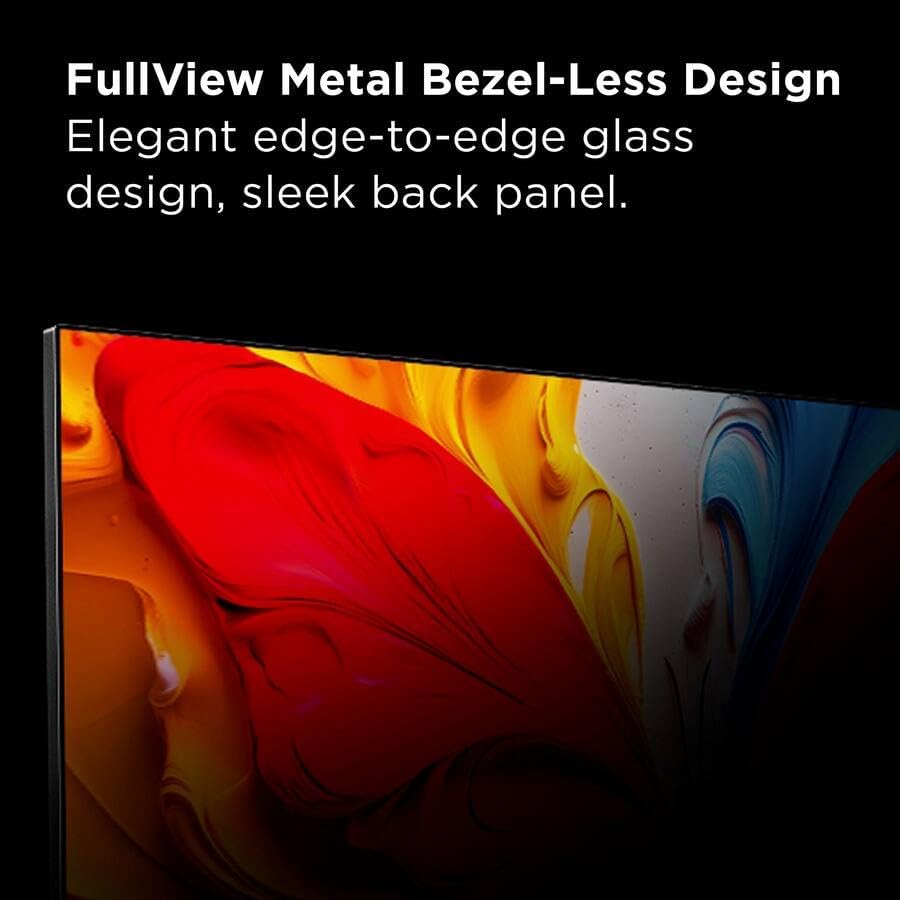
Image: A close-up view highlighting the elegant, edge-to-edge FullView Metal Bezel-Less Design of the television, showcasing its modern aesthetic.
6. Connectivity
Your TCL Q3K Series TV offers a variety of ports for connecting external devices:
- 2 HDMI Inputs: One of these supports Audio Return Channel (ARC) for simplified audio connections to soundbars or AV receivers.
- 1 USB 2.0 Port: For connecting USB storage devices to play media files.
- 1 Ethernet Port: For a wired internet connection.
- 1 RF Input: For connecting an antenna or cable TV.
- 1 Composite Video Input: For older devices using RCA cables.
- 1 Optical Audio Output: For connecting to digital audio systems.
- 1 Headphone Jack: For private audio listening.

Image: A detailed rear view of the TCL Q3K Series TV, clearly showing the arrangement and types of various input and output ports available for connectivity.
7. Maintenance
7.1 Cleaning the Screen
Use the provided screen cleaner and microfiber cloth to gently wipe the screen. Do not use abrasive cleaners or harsh chemicals, as they can damage the display. Always spray the cleaner onto the cloth, not directly onto the screen.
7.2 General Care
Keep the TV in a well-ventilated area. Avoid exposing it to direct sunlight, extreme temperatures, or high humidity. Do not block the ventilation openings on the back of the TV.
8. Troubleshooting
If you encounter issues with your TV, refer to the following common solutions:
- No Power: Ensure the power cable is securely plugged into both the TV and the wall outlet. Try a different outlet.
- No Picture/Sound: Verify that the correct input source is selected. Check all cable connections (HDMI, antenna).
- Poor Picture Quality: Check the resolution of the content being played. Adjust picture settings (brightness, contrast, color) in the TV menu.
- No Internet Connection: For Wi-Fi, ensure the network password is correct and the TV is within range of the router. For wired connection, check the Ethernet cable and router status.
- Remote Control Not Working: Replace the batteries. Ensure there are no obstructions between the remote and the TV's IR sensor.
- Slow Performance: Restart the TV by unplugging it from the power outlet for a few minutes, then plugging it back in. Close unused applications.
9. Specifications
| Feature | Specification |
|---|---|
| Brand | TCL |
| Model | Q3K Series |
| Screen Size | 32 Inches (82 cm) |
| Display Technology | QLED |
| Resolution | 1080p Full HD |
| Refresh Rate | 60 Hz |
| Operating System | Google TV |
| Special Features | Bezel-Less Design, Built-In Speaker, HDR10, Bluetooth Audio, Chromecast Built-In |
| Connectivity | Bluetooth, Ethernet, HDMI, USB, Wi-Fi |
| HDMI Ports | 2 (1 with ARC) |
| USB Ports | 1 (USB 2.0) |
| Item Weight | 13 Pounds |
| Included Components | Power Cable |
10. Warranty and Support
10.1 Protection Plan
This bundle includes a CPS 1-Year Protection Plan, which extends coverage beyond the manufacturer's warranty. For details regarding your protection plan, please refer to the documentation provided with the plan.
10.2 Customer Support
For technical assistance, warranty claims, or further inquiries, please contact TCL Customer Support. Visit the official TCL website for contact information and support resources.
Related documentsQ3K Series


Ask a question about this manual
Ask about setup, troubleshooting, compatibility, parts, safety, or missing instructions. Manuals+ will review the question and use this page’s manual context to help answer it.