
Introduction
This manual provides essential instructions for the setup, operation, maintenance, and troubleshooting of your Insignia 32-inch 1080p HD HDR LCD Fire TV Smart TV, model NS-32F401CA26. Please read this manual thoroughly before using your television to ensure proper and safe operation.
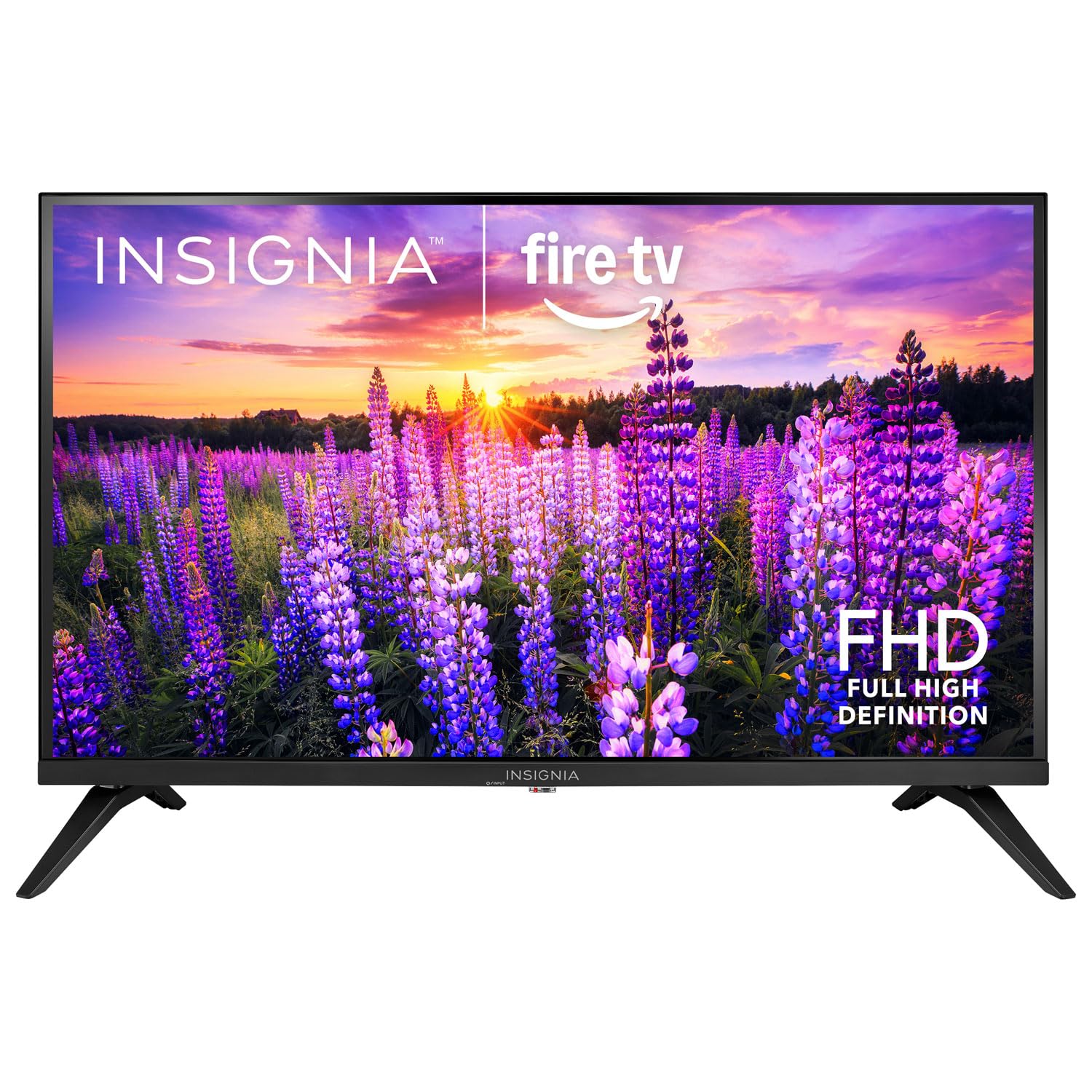
Image: Front view of the Insignia 32-inch Fire TV Smart TV, showing the screen and a remote control.
1. Setup
1.1 Unpacking
Carefully remove the TV and all accessories from the packaging. Retain the packaging materials for future transport or storage.
1.2 Attaching the Stand or Wall Mounting
For Stand Installation:
- Place the TV face-down on a soft, clean surface to prevent screen damage.
- Align the stand bases with the screw holes on the bottom of the TV.
- Secure the stands using the provided screws.
For Wall Mounting:
- This TV supports a VESA Mount Standard of 200 x 200 mm.
- Use a compatible wall mount kit (sold separately) and follow its installation instructions.
- Ensure the wall can support the weight of the TV and the mount.
1.3 Connecting Power
Plug the power cord into the TV's power input, then plug the other end into a working electrical outlet.
1.4 Connecting External Devices
Your TV includes multiple ports for external devices:
- HDMI Ports (Total 2): Connect Blu-ray players, game consoles, cable/satellite boxes.
- USB 3.0 Port (Total 1): Connect USB storage devices for media playback.
- Antenna/Cable Input: Connect an antenna for over-the-air broadcasts or a cable connection.
1.5 Initial Setup (Fire TV OS)
Upon first power-on, the TV will guide you through the Fire TV setup process:
- Remote Control Pairing: Insert the included 2 AAA batteries into the remote. Follow on-screen instructions to pair the remote.
- Network Connection: Select your Wi-Fi network and enter the password.
- Amazon Account: Log in with your Amazon account or create a new one.
- Channel Scan: If using an antenna, the TV will scan for available channels.
- Software Updates: The TV may download and install the latest software updates.
2. Operating Your TV
2.1 Power On/Off
Press the Power button on the remote control to turn the TV on or off.
2.2 Navigating the Fire TV Interface
Use the directional pad and Select button on your remote to browse the Fire TV home screen, access apps, and navigate menus.
2.3 Using the Alexa Voice Remote
Press and hold the Alexa button on your remote and speak into the microphone to:
- Search for movies and TV shows.
- Launch applications (e.g., "Open Netflix").
- Control playback (e.g., "Pause", "Fast forward").
- Ask questions or get information.
2.4 Accessing Applications
Popular streaming services like Amazon Prime Video, Netflix, and YouTube are pre-installed. You can download additional apps from the Amazon Appstore.
2.5 Adjusting Picture and Sound Settings
Access the Settings menu on the Fire TV home screen to adjust:
- Picture: Brightness, contrast, color, aspect ratio (16:9).
- Sound: Volume, sound mode, DTS Virtual-X settings.
- Display: Resolution (1080p), refresh rate (120 Hz).
2.6 Parental Controls
The TV includes parental control features. Navigate to the Settings menu, then select Preferences, and then Parental Controls to set restrictions on content, purchases, and app usage. A PIN is required to enable or disable these controls.
3. Maintenance
3.1 Cleaning the TV
- Screen: Gently wipe the screen with a soft, lint-free cloth. For stubborn marks, slightly dampen the cloth with water or a screen cleaner specifically designed for TVs. Do not spray liquid directly onto the screen.
- Body: Wipe the TV frame and stand with a soft, dry cloth.
- Always unplug the TV before cleaning.
3.2 Software Updates
Your Fire TV Smart TV automatically checks for and installs software updates when connected to the internet. You can manually check for updates in the Settings menu under My Fire TV > About > Check for Updates.
3.3 Remote Control Battery Replacement
When the remote control's performance degrades, replace the two AAA batteries. Ensure correct polarity when inserting new batteries.
4. Troubleshooting
| Problem | Possible Cause | Solution |
|---|---|---|
| No power | Power cord not connected; outlet not working. | Ensure power cord is securely plugged into TV and a live outlet. Test outlet with another device. |
| No picture or sound | Incorrect input source; external device off or disconnected. | Press the Input button on the remote to select the correct source. Check connections of external devices. Ensure devices are powered on. |
| Remote control not working | Dead batteries; remote not paired. | Replace batteries (2 AAA). Re-pair remote by holding the Home button for 10 seconds near the TV. |
| Wi-Fi connection issues | Incorrect password; router issues; TV too far from router. | Verify Wi-Fi password. Restart your router and modem. Move TV closer to router or use a Wi-Fi extender. |
| Apps not loading or crashing | Temporary software glitch; insufficient memory. | Restart the TV. Clear app cache (Settings > Applications > Manage Installed Applications). Ensure sufficient storage. |
5. Specifications
| Model Number | NS-32F401CA26 |
| Screen Size | 32 Inches |
| Display Technology | LCD |
| Resolution | 1080p (Full HD) |
| Refresh Rate | 120 Hz |
| HDR Format Supported | HDR10 |
| Aspect Ratio | 16:9 |
| Connectivity Technology | Wi-Fi |
| HDMI Ports | 2 |
| USB 3.0 Ports | 1 |
| Supported Internet Services | Amazon Prime Video, Netflix, YouTube, Alexa |
| Speaker Description | DTS Virtual-X virtual surround sound |
| Integrated Surround Sound Format | DTS Virtual-X |
| Control Method | Remote (with Alexa Voice) |
| Batteries Required | 2 AAA (included) |
| Product Dimensions (D x W x H) | 47.3D x 17.1W x 71.9H Centimetres |
| VESA Mount Standard | 200 x 200 mm |
| Additional Features | Parental Controls |
6. Warranty and Support
For warranty information, please refer to the warranty card included with your product or visit the official Insignia support website. For technical assistance, product registration, or service inquiries, please contact Insignia customer support through their official channels.
Note: Specific warranty terms and support contact details may vary by region and are subject to change.


