
1. Introduction
Thank you for purchasing the Fisher Alarm Clock Speaker Wireless Charger. This device combines a digital alarm clock, Bluetooth speaker, RGB night light, and wireless charging pad into a single unit, designed to enhance your bedside experience. Please read this manual carefully to ensure proper use and optimal performance.
2. Package Contents
- Fisher Alarm Clock Speaker Wireless Charger (Model: FAL288W)
- USB Power Cable
- User Manual
3. Product Overview
Familiarize yourself with the device's components and controls.

Figure 3.1: Front view of the Fisher Alarm Clock Speaker Wireless Charger, showing the digital time display and RGB light panel.

Figure 3.2: Bottom view of the device, illustrating the control buttons and speaker grilles. The buttons are labeled: Volume Down, Volume Up, Set, Alarm, and Power.
Control Buttons:
- Volume Down (-): Decreases speaker volume.
- Volume Up (+): Increases speaker volume.
- Set: Enters time/alarm setting mode.
- Alarm: Activates/deactivates alarm, enters alarm setting mode.
- Power: Turns the device on/off, controls display brightness.
4. Setup
4.1 Power Connection
- Connect the provided USB power cable to the DC 5V input port on the back of the alarm clock.
- Plug the other end of the USB cable into a compatible USB power adapter (not included) and then into a wall outlet.
- The display will illuminate, indicating the device is powered on.
4.2 Time Setting
The device is designed to automatically sync time when paired via Bluetooth. If manual adjustment is needed:
- Press and hold the Set button (located on the bottom of the unit) until the hour digits begin to flash.
- Use the Volume Up (+) or Volume Down (-) buttons to adjust the hour.
- Press the Set button again to confirm the hour and move to minute adjustment.
- Use the Volume Up (+) or Volume Down (-) buttons to adjust the minutes.
- Press the Set button a third time to confirm the minutes.
- To switch between 12-hour and 24-hour formats, briefly press the Power button while the time is displayed.
5. Operating Instructions
5.1 Alarm Function
- Setting the Alarm: Press and hold the Alarm button until the alarm hour digits flash. Use Volume Up (+) or Volume Down (-) to set the hour. Press Alarm again to set minutes, then use Volume Up (+) or Volume Down (-). Press Alarm a third time to confirm.
- Activating/Deactivating Alarm: Briefly press the Alarm button to toggle the alarm on or off. An alarm icon will appear/disappear on the display.
- Snooze Function: When the alarm sounds, briefly press any button (except Power) to activate snooze. The alarm will sound again after 9 minutes.
- Stopping the Alarm: To turn off the alarm for the day, press and hold the Alarm button when it is sounding.
5.2 Bluetooth Speaker
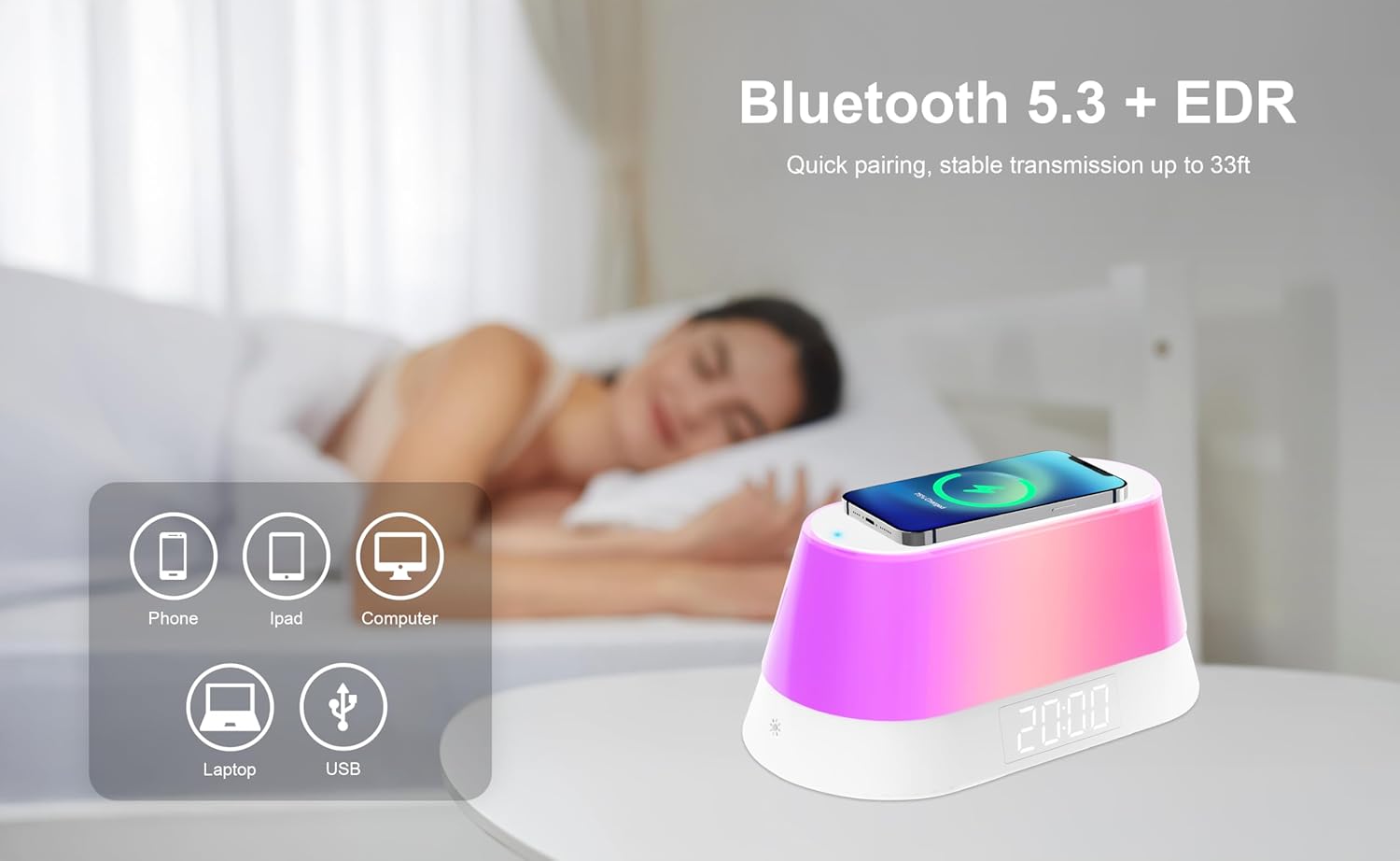
Figure 5.1: The device supports Bluetooth 5.3 for quick pairing and stable transmission with phones, tablets, and computers.
- Pairing: The device automatically enters Bluetooth pairing mode when powered on. Look for 'FAL288W' or 'Fisher Alarm Clock' in your device's Bluetooth settings.
- Connecting: Select the device name to connect. A confirmation sound will indicate successful pairing.
- Playing Audio: Once connected, you can play audio from your paired device. Use the Volume Up (+) and Volume Down (-) buttons on the alarm clock or your paired device to adjust the volume.
5.3 RGB Night Light
The device features an RGB light with multiple lighting modes.
- Activating Light: Briefly press the light icon button (located on the front, lower left) to turn on the night light.
- Changing Modes/Colors: Continue pressing the light icon button to cycle through various static colors and dynamic lighting modes.
- Turning Off Light: Cycle through all modes until the light turns off, or press and hold the light icon button.
5.4 Wireless Charging

Figure 5.2: A smartphone placed on the top surface of the alarm clock, indicating active wireless charging.
- Place your Qi-enabled smartphone or other compatible device directly onto the wireless charging pad located on the top surface of the alarm clock.
- Ensure the device is centered on the charging pad for optimal contact.
- A charging indicator (usually an LED light) on the alarm clock will illuminate to confirm charging has begun. Your device's screen will also show its charging status.
- Remove your device once fully charged.
5.5 Display Brightness Adjustment

Figure 5.3: The alarm clock display can be adjusted from bright to total darkness to suit user preference for sleep.
Briefly press the Power button to cycle through different display brightness levels, including total darkness.
6. Maintenance
- Clean the device with a soft, dry cloth. Do not use abrasive cleaners or solvents.
- Keep the device away from water, moisture, and direct heat sources.
- Avoid dropping the device or subjecting it to strong impacts.
7. Troubleshooting
| Problem | Possible Cause | Solution |
|---|---|---|
| Device does not power on. | Power cable not connected properly or power source issue. | Ensure the USB power cable is securely connected to both the device and a working power outlet. Try a different USB adapter or outlet. |
| Cannot set time/alarm. | Incorrect button sequence or unfamiliarity with controls. | Refer to Section 4.2 (Time Setting) and 5.1 (Alarm Function) for detailed instructions. Ensure you are pressing and holding buttons for the correct duration. |
| Bluetooth device cannot connect. | Device not in pairing mode or too far away. | Ensure the alarm clock is powered on and within 33 feet (10 meters) of your Bluetooth device. Check your device's Bluetooth settings and try re-pairing. |
| Wireless charging is slow or not working. | Device not properly aligned, case interference, or device not Qi-enabled. | Ensure your device is centered on the charging pad. Remove thick phone cases. Verify your device supports Qi wireless charging. Note that some devices may generate heat during wireless charging; this is normal. |
| Display is too bright even at lowest setting. | User preference for extreme darkness. | Cycle through brightness settings using the Power button. The device offers a 'total darkness' option. If still too bright, consider repositioning the clock or using an external light block. |
8. Specifications
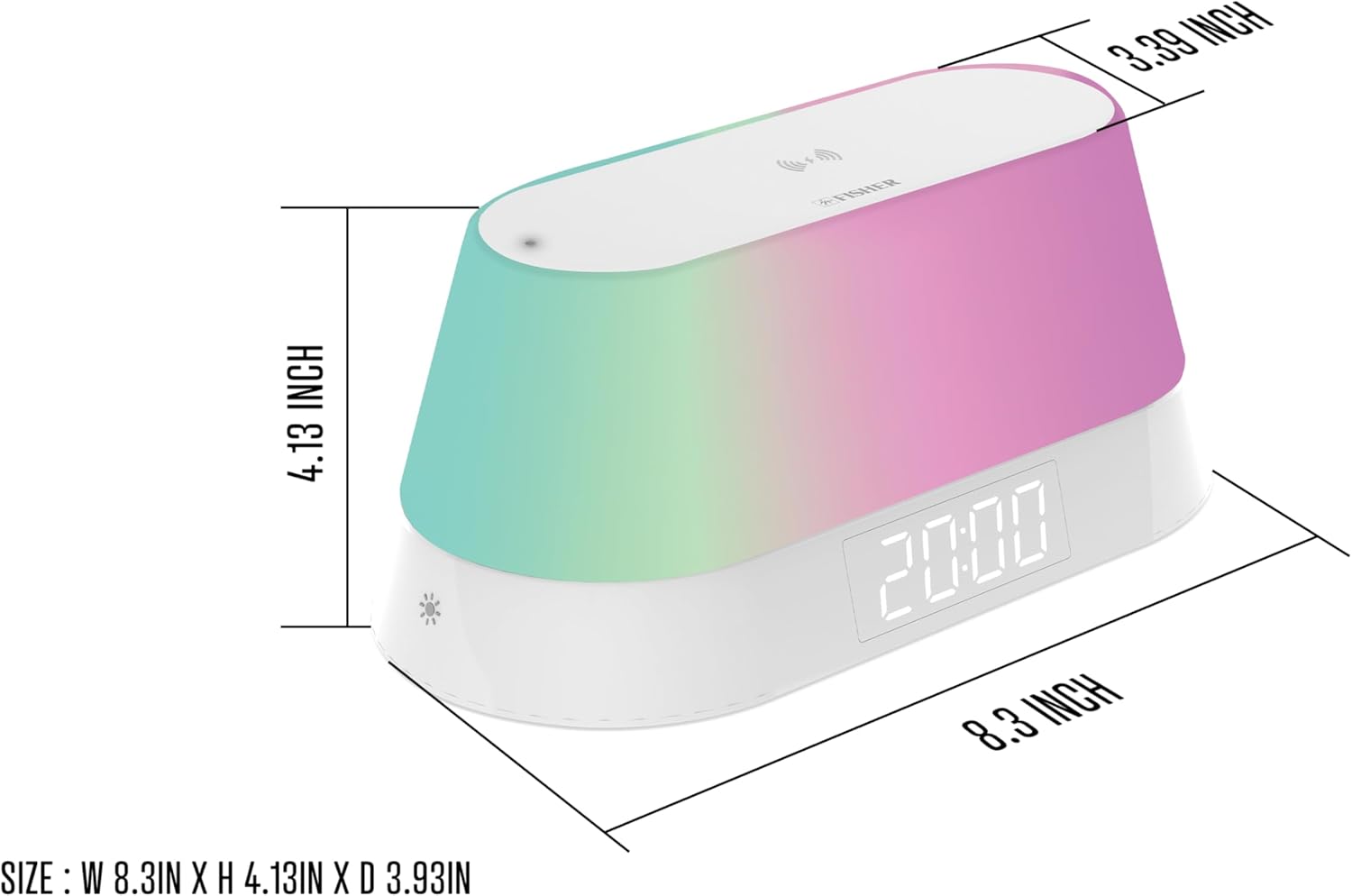
Figure 8.1: Diagram showing the dimensions of the alarm clock: 8.3 inches (width) x 4.13 inches (height) x 3.39 inches (depth).
- Brand: Fisher
- Model: FAL288W
- Display Type: LED-backlit
- Power Source: Corded Electric (DC 5V, 3A)
- Wireless Charging Output: 5W/7.5W/10W/15W Max
- Bluetooth Version: 5.3
- Product Dimensions: 8.3"W x 4.13"H x 3.39"D
- Item Weight: 10.9 ounces
- Frame Material: Plastic
- Room Type: Bedroom, Home Office, Kitchen, Living Room
- UPC: 721702325115
9. Warranty and Support
For warranty information and customer support, please refer to the documentation included with your purchase or contact Fisher customer service through their official website or the retailer where the product was purchased. Please retain your proof of purchase for warranty claims.
