
1. Introduction
This manual provides detailed instructions for the installation, operation, and maintenance of your Loddery 9-Inch Android 13 Car Stereo Radio. This unit is designed specifically for Dodge Dart models manufactured between 2012 and 2016, offering advanced features such as Wireless & Wired CarPlay, Android Auto, built-in GPS, Wi-Fi, DSP, and support for a rearview camera.
2. Package Contents
Please verify that all items are present in the package:
- Loddery 9-Inch Android 13 Car Stereo Unit
- Power Harness and Wiring Adapters
- GPS Antenna
- USB Cables
- External Microphone
- Rearview Camera (if included in your specific package)
- Mounting Brackets and Screws
- Car Compass

3. Setup and Installation
Installation of this car stereo requires basic automotive electrical knowledge. If you are unsure about any steps, it is recommended to seek professional installation.
3.1 Pre-Installation Check
- Ensure the vehicle's ignition is off and the battery is disconnected before starting.
- Confirm compatibility with your Dodge Dart (2012-2016).
3.2 Installation Steps
- Remove the Original Radio: Carefully remove the trim panels and screws securing the factory radio. Disconnect all wiring harnesses from the original unit.
- Connect Wiring Harness: Connect the provided wiring harness to the vehicle's factory harness. Ensure all connections are secure. Connect the GPS antenna, USB cables, and external microphone.
- Install Rearview Camera (Optional): If installing the rearview camera, route the camera cable to the rear of the vehicle and connect it to the designated input on the stereo unit.
- Mount the New Unit: Attach the mounting brackets to the Loddery stereo unit. Slide the unit into the dashboard opening and secure it with screws.
- Reconnect Battery and Test: Reconnect the vehicle's battery. Turn on the ignition and power on the stereo unit to test all functions (radio, audio, touch screen, GPS, Bluetooth, camera).
- Reassemble Dashboard: Once all functions are verified, reassemble the dashboard trim panels.


4. Operating Instructions
4.1 Basic Operation
- Power On/Off: The unit typically powers on with the vehicle's ignition. A long press on the power button (if available) can manually turn it off or on.
- Touchscreen Interface: Navigate through menus and applications using the capacitive touch screen.
- Volume Control: Adjust audio volume using the physical knobs/buttons on the unit or via steering wheel controls.
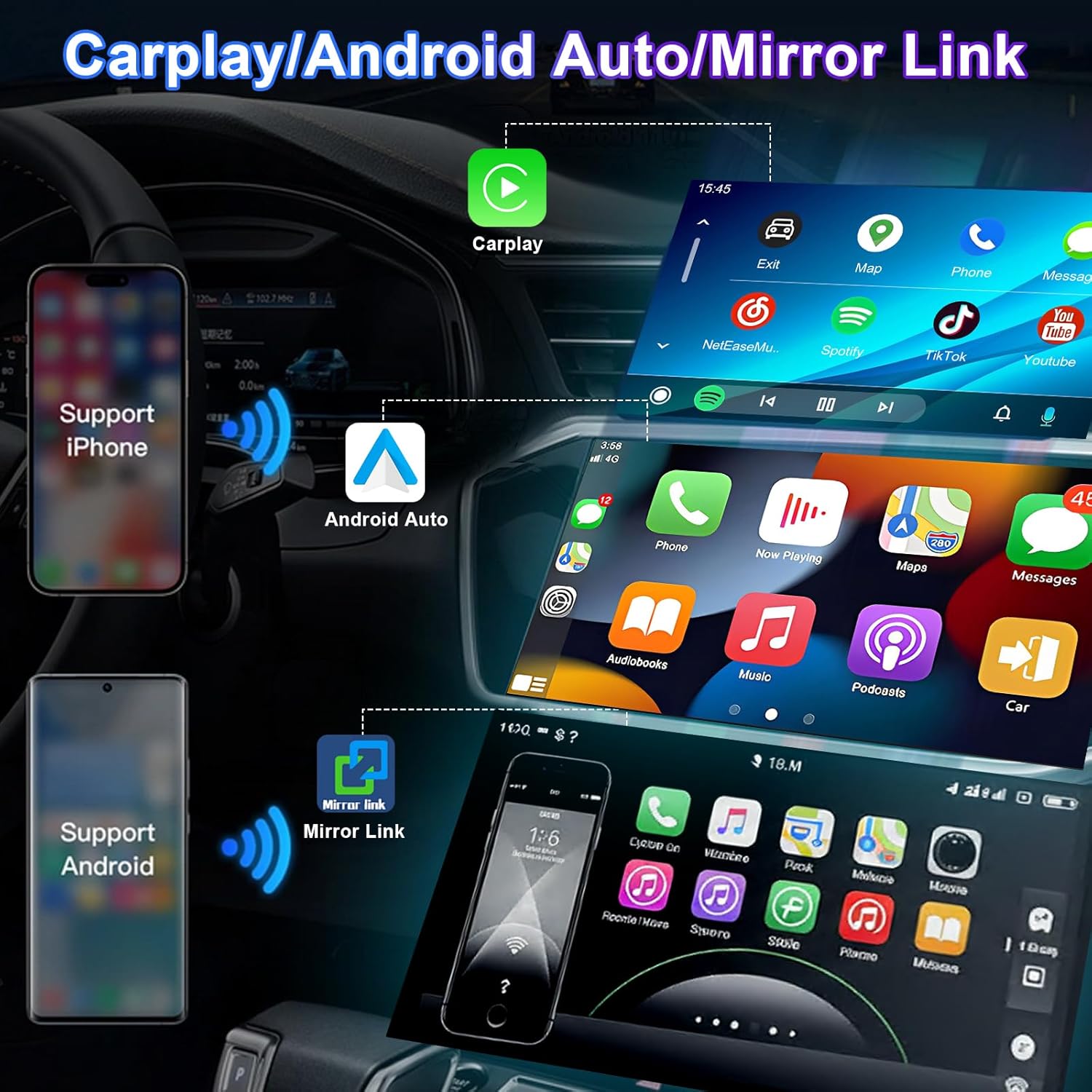
4.2 Wireless & Wired CarPlay / Android Auto
This unit supports both wireless and wired connections for Apple CarPlay and Android Auto, integrating your smartphone's features directly onto the stereo display.
- Wireless Connection: Enable Bluetooth and Wi-Fi on your smartphone. Pair your phone with the car stereo via Bluetooth. Follow the on-screen prompts to initiate CarPlay or Android Auto wirelessly.
- Wired Connection: Connect your smartphone to the stereo's USB port using a certified USB cable. The system will automatically detect and launch CarPlay or Android Auto.
- Voice Control: Utilize Siri (for CarPlay) or Google Assistant (for Android Auto) for navigation, calls, messages, and music playback.

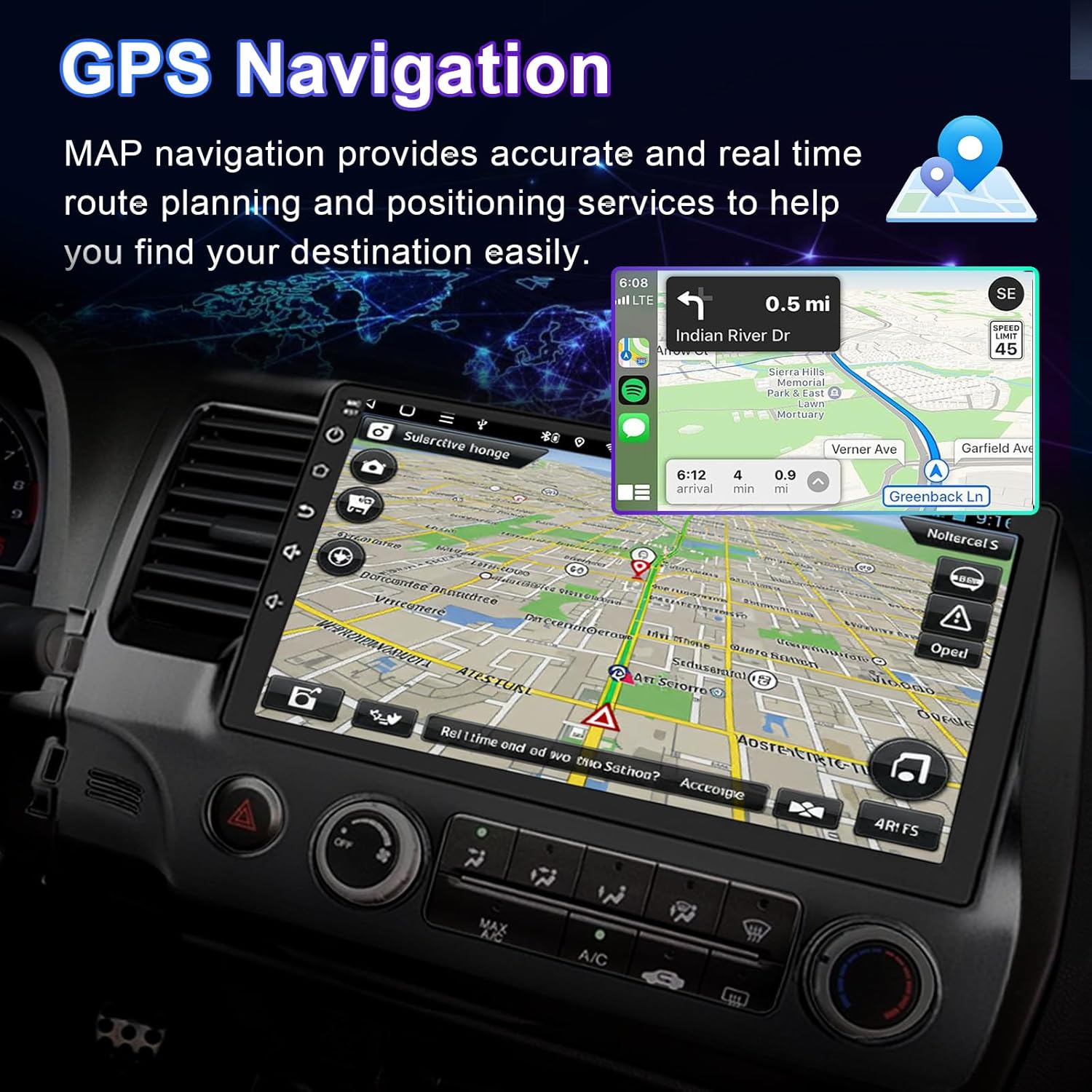
4.3 GPS Navigation
The unit supports both offline and online navigation. Connect the included GPS module for accurate positioning.
- Offline Maps: Pre-installed maps allow navigation without an internet connection.
- Online Navigation: Connect to Wi-Fi to download and use online navigation applications (e.g., Google Maps, Waze).
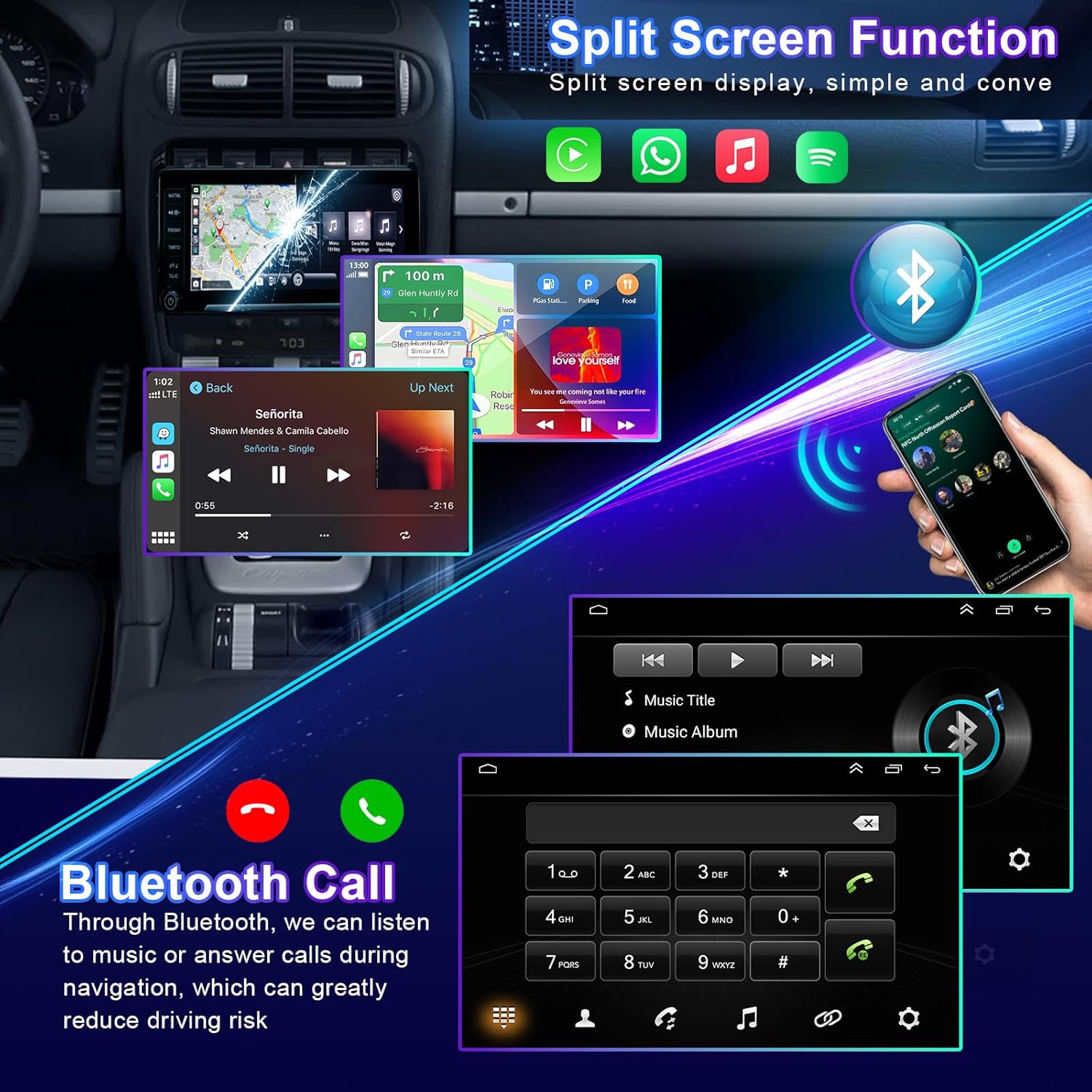
4.4 Bluetooth Functionality
Connect your smartphone via Bluetooth for hands-free calling and audio streaming.
- Pairing: Go to the Bluetooth settings on the stereo and your phone. Select the stereo's Bluetooth name from your phone's device list to pair.
- Hands-Free Calling: Make and receive calls directly from the stereo screen. Your phone's contacts can be synchronized.
- Audio Streaming: Play music from your phone through the car's speakers.
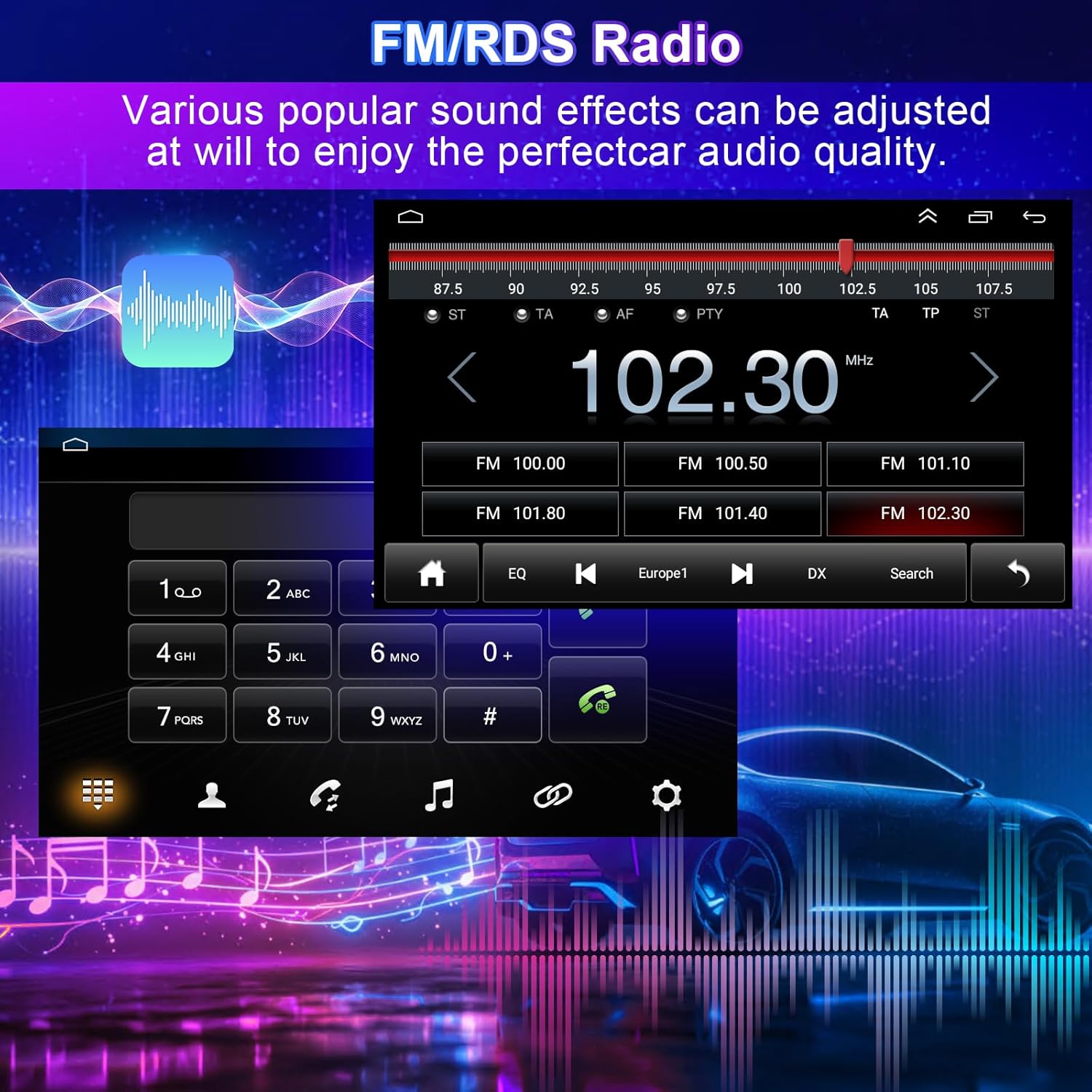
4.5 FM/RDS Radio
Access local radio stations with clear reception and RDS (Radio Data System) information.
- Tuning: Use the touchscreen to scan for stations or manually tune to a specific frequency.
- Sound Effects: Adjust various sound effects and equalizer settings to customize your audio experience.
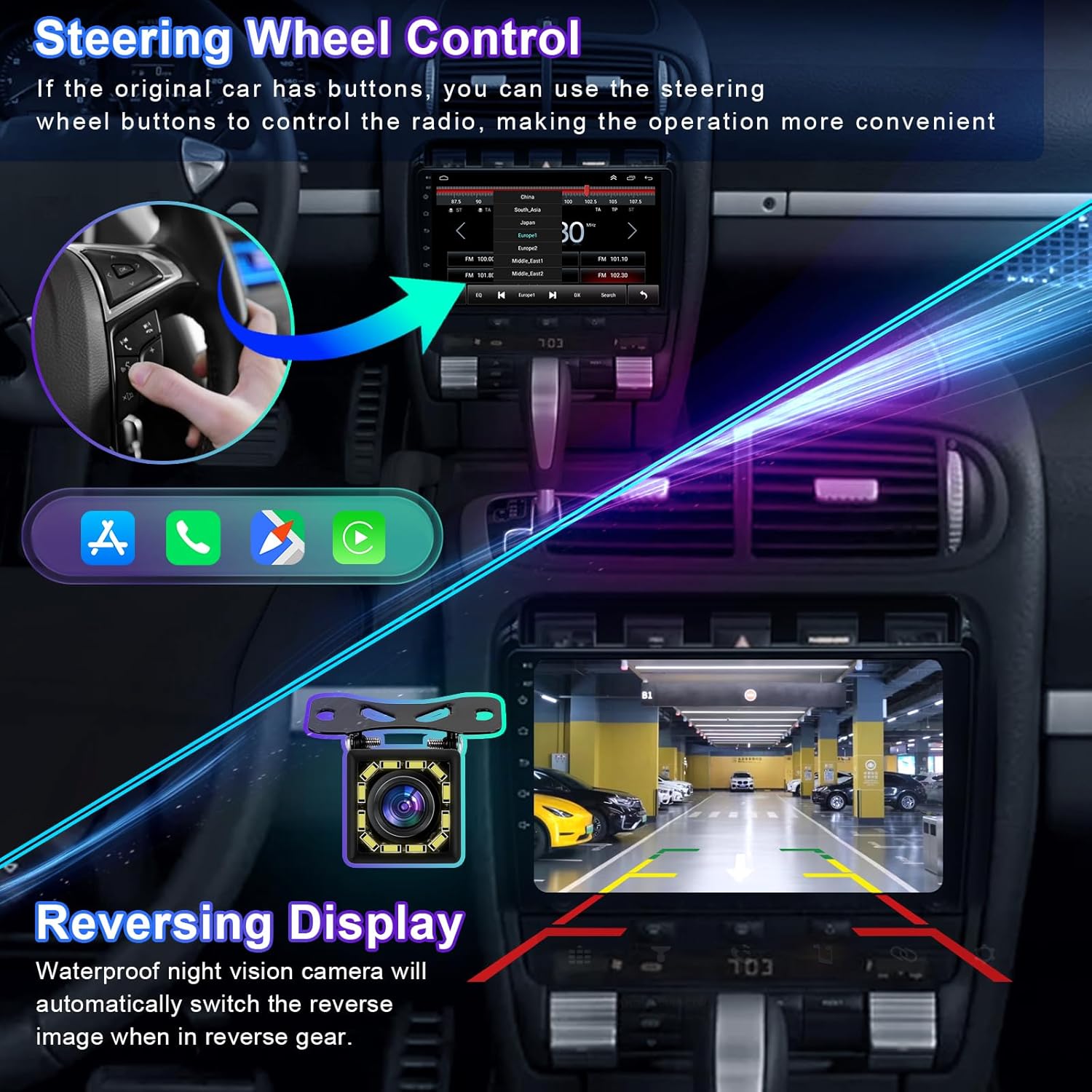
4.6 Steering Wheel Control (SWC)
If your vehicle has existing steering wheel buttons, they can be configured to control the stereo, enhancing convenience and safety.
- Configuration: Access the 'Steering Wheel Control' settings in the stereo's menu. Follow the on-screen instructions to map your vehicle's steering wheel buttons to specific functions (e.g., volume up/down, track skip, answer call).
4.7 Rear View Camera Input
The unit automatically displays the rearview camera feed when the vehicle is shifted into reverse gear, aiding in safe parking and maneuvering.
- Automatic Display: The screen will switch to the camera view when reverse gear is engaged.
- Guidelines: Dynamic or static parking guidelines may be displayed to assist with parking.
4.8 Split Screen Function
Multitask by running two applications simultaneously on the screen, such as navigation and music playback.
- Activation: Refer to the system's user interface for specific gestures or menu options to activate split-screen mode.
4.9 Mirror Link
Mirror Link allows you to display your smartphone's screen directly onto the car stereo, supporting both iOS and Android devices via Wi-Fi or USB.
- Connection: Connect your phone via USB or Wi-Fi and select the Mirror Link option on the stereo. Follow the prompts on both devices to establish the connection.
5. Maintenance
Proper maintenance ensures the longevity and optimal performance of your car stereo.
- Screen Cleaning: Use a soft, lint-free cloth slightly dampened with water or a screen cleaner specifically designed for electronic displays. Avoid harsh chemicals or abrasive materials.
- Software Updates: Periodically check for available software updates through the system settings (requires Wi-Fi connection) to ensure you have the latest features and bug fixes.
- General Care: Avoid exposing the unit to extreme temperatures, direct sunlight for prolonged periods, or excessive moisture.
6. Troubleshooting
This section addresses common issues you might encounter. For problems not listed here, please contact customer support.
| Problem | Possible Cause | Solution |
|---|---|---|
| No Power | Loose power connection, blown fuse, vehicle battery issue. | Check power wiring harness connections. Inspect vehicle fuses. Ensure vehicle battery is charged. |
| No Sound | Volume too low, mute activated, speaker wiring issue, incorrect audio output settings. | Increase volume. Check if mute is active. Verify speaker connections. Adjust audio settings in the system menu. |
| GPS Signal Loss | GPS antenna not connected, antenna obstructed, poor satellite reception. | Ensure GPS antenna is securely connected and placed in an unobstructed location (e.g., dashboard). Move to an open area for better reception. |
| Bluetooth Connection Issues | Phone not discoverable, incorrect pairing, interference. | Ensure Bluetooth is enabled on both devices. Delete previous pairings and re-pair. Restart both devices. |
| CarPlay/Android Auto Not Launching | Incorrect USB cable, phone software issue, app not installed. | Use a certified USB cable. Ensure CarPlay/Android Auto is enabled on your phone. Update phone OS and apps. |
| Touchscreen Unresponsive | System freeze, temporary software glitch. | Restart the unit (if possible, by holding the power button). If persistent, a factory reset might be necessary (note: this will erase all user data). |
7. Specifications
| Feature | Specification |
|---|---|
| Model Name | for Dodge Dart Radio 2012-2016 |
| Display Size | 9 Inches |
| Screen Resolution | 1280x720 (IPS Touchscreen) |
| Operating System | Android 13 |
| Connectivity Technology | Bluetooth, Ethernet, USB, Wi-Fi |
| Special Features | Wireless & Wired CarPlay, Android Auto, Built-in GPS, DSP, Steering Wheel Control, Rear View Camera Support, Split Screen, Mirror Link, FM/RDS Radio |
| Included Components | Car Stereo Unit, Wiring Harness, GPS Antenna, USB Cables, External Microphone, Car Compass |
| Item Weight | 4.13 pounds (1875 Grams) |
| Package Dimensions | 14.96 x 12.2 x 6.69 inches |
| Batteries Included | No |
8. Warranty and Support
Your Loddery car stereo comes with a manufacturer's warranty. For any questions or concerns regarding your product, please feel free to contact the seller or manufacturer directly. Please refer to your purchase documentation for specific warranty terms and contact information.
For technical assistance or further inquiries, please reach out to Loddery customer support through the platform where the product was purchased.