
1. Introduction
The XSUTIC Air Tracker Tag is designed to help you locate your important items using the Google Find Hub network on Android devices (Android 9+ only). This manual provides detailed instructions for setting up, operating, and maintaining your tracker tags.

Image: XSUTIC Air Tracker Tag attached to luggage, demonstrating its use for travel.
Key Features:
- Seamless Google Integration & Global Offline Finding: Utilizes Google's Find Hub network for worldwide item location without subscription fees.
- Precision Finding with Loud Alarm: The Google Find My Device app shows distance to your item (within 150 ft / 50m Bluetooth range) and can trigger a loud 100dB alarm.
- Global Tracking & Location Sharing: Tracks items outside Bluetooth range via the Android network, updating locations on Google Maps. Allows sharing access with trusted contacts.
- IP67 Water & Dust Resistance: Durable design withstands rain, spills, and brief submersion (up to 3 ft / 1m deep).
- Replaceable Battery: Features a user-replaceable CR2032 coin-shaped battery for extended use.
- Lost Mode for Assisted Recovery: Activates Google's network to help find missing items and sends notifications when detected.
Video: An introductory overview of the XSUTIC Air Tracker Tag for Android, highlighting its main features and benefits.
2. Setup Instructions
2.1. Preparation
- Ensure your Android device is running Android 9 or above.
- Turn on Bluetooth and Wi-Fi or cellular data on your Android phone.
- Download and install the latest version of the Google Find Hub app from the Google Play Store.

Image: An Android phone displaying the Google Find Hub app and confirming Bluetooth and network connectivity are active.
2.2. Pairing Your Tracker Tag
- Gently pull out the transparent battery insulation tab from the side of the tracker tag to activate it. You should hear a beep.
- Place the activated tracker tag close to your Android phone. A pop-up window should appear on your phone asking to connect. Tap "Connect".
- Follow the on-screen instructions in the Google Find Hub app and tap "Agree and Continue" to complete the pairing process.
- If the pop-up window does not appear, open the Google Find Hub app, go to "Devices" or "All Services" > "Devices", and ensure "Scan for nearby devices" is enabled. Tap on the listed "Wireless tag" or "LocaTag" to connect.
- Once connected, you can name your tracker tag and assign it to a category within the app.

Image: Visual instructions showing the steps to connect the tracker tag to an Android phone via the Google Find Hub app.
Video: Demonstrates the process of connecting the XSUTIC Air Tracker Tag to an Android phone.
Video: A guide on how to use the Android Air Tag, including setup and basic functions.
3. Operating Instructions
3.1. Finding Nearby Items
When your item is within Bluetooth range (up to 150 ft / 50m), you can use the "Find Nearby" feature in the Google Find Hub app. The app will show you the distance to your item, helping you narrow down your search.
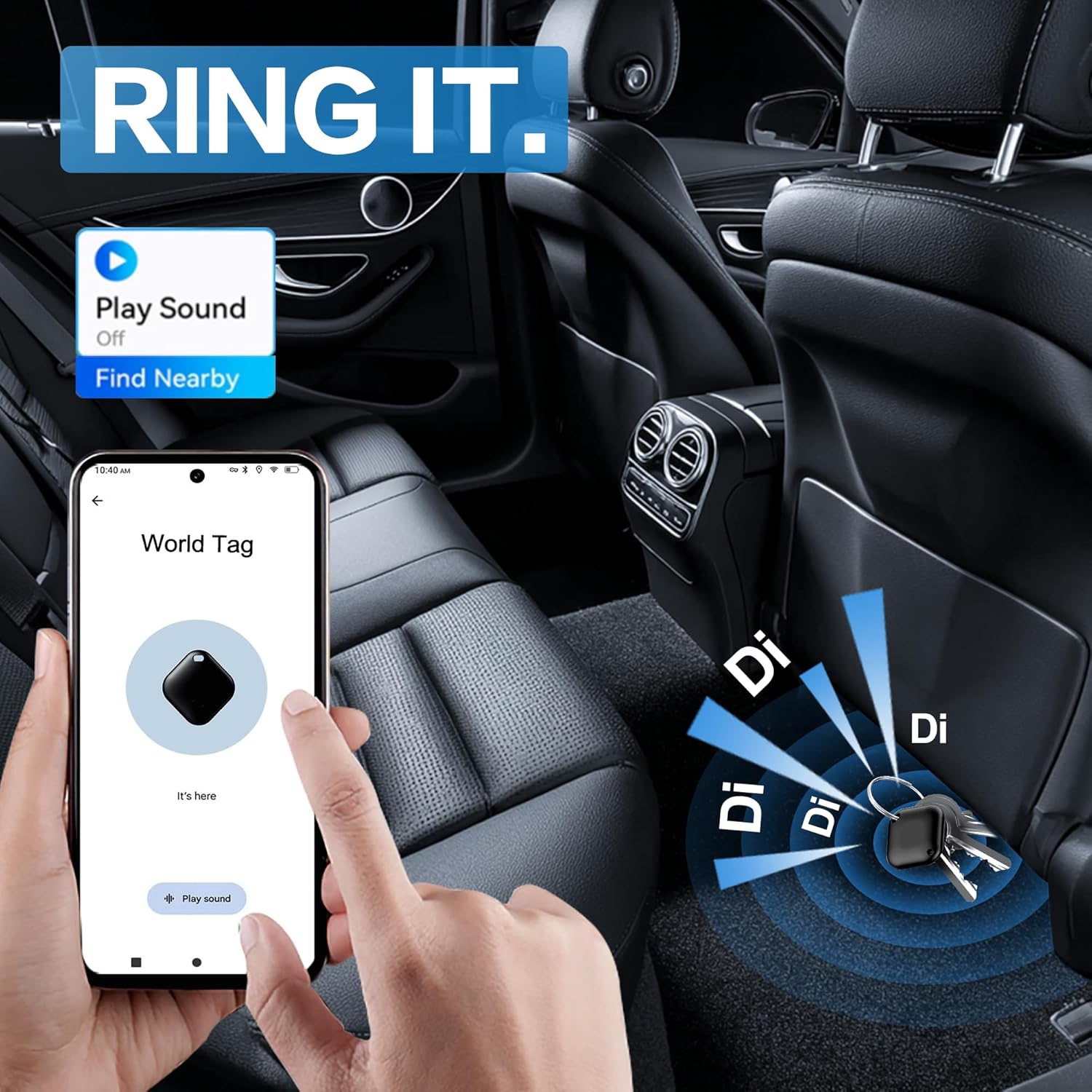
Image: An Android phone displaying the
Ask a question about this manual
Ask about setup, troubleshooting, compatibility, parts, safety, or missing instructions. Manuals+ will review the question and use this page’s manual context to help answer it.