
Introduction
This manual provides comprehensive instructions for the TECKNET TK-KB043 Bluetooth Keyboard. Please read this manual carefully before using the product to ensure proper operation and to maximize its lifespan. Keep this manual for future reference.
Product Overview
The TECKNET TK-KB043 is a portable, ultra-thin wireless Bluetooth keyboard with a German QWERTZ layout and adjustable backlighting. It is designed for compatibility with various operating systems, including iOS, Android, Windows, and macOS.
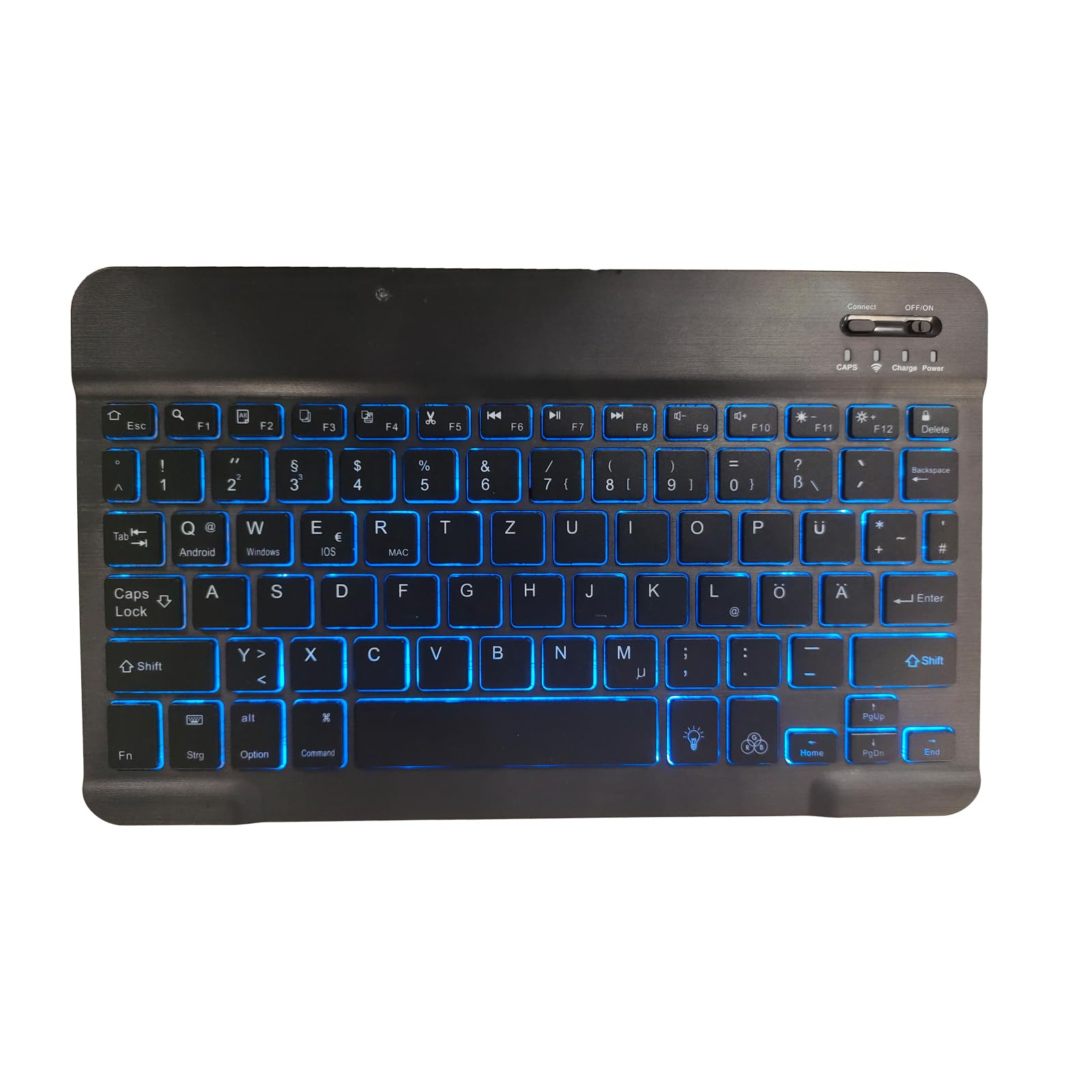
This image displays the TECKNET TK-KB043 Bluetooth Keyboard. It features a German QWERTZ layout with blue backlighting. Key features visible include the 'Connect' button, 'OFF/ON' switch, and indicator lights for CAPS, Charge, and Power. The keyboard is ultra-thin and black.
Setup
1. Unpacking
Carefully remove the keyboard and the included USB charging cable from the packaging. Inspect for any damage.
2. Charging the Keyboard
The keyboard features a built-in 420 mAh Lithium-ion rechargeable battery. Before initial use, fully charge the keyboard.
- Connect the small end of the USB charging cable to the charging port on the keyboard.
- Connect the larger end of the USB cable to a USB power adapter (not included) or a computer's USB port.
- The 'Charge' indicator light on the keyboard will illuminate during charging.
- Charging typically takes approximately 3 hours. The 'Charge' indicator will turn off or change color once fully charged.
A full charge provides approximately 10 hours of continuous use or up to 45 days in standby mode (based on 2 hours of daily use).
3. Powering On/Off
Locate the 'OFF/ON' switch on the top right side of the keyboard.
- To power on: Slide the switch to the 'ON' position. The 'Power' indicator light will briefly illuminate.
- To power off: Slide the switch to the 'OFF' position. The 'Power' indicator light will turn off.
4. Bluetooth Pairing
Follow these steps to connect your keyboard via Bluetooth:
- Ensure the keyboard is powered on.
- Press the 'Connect' button located near the 'OFF/ON' switch. The Bluetooth indicator light will start blinking, indicating the keyboard is in pairing mode.
- On your device (iPad, iPhone, Android tablet/phone, Windows PC, Mac), go to the Bluetooth settings.
- Search for available Bluetooth devices. The keyboard should appear as "TECKNET Keyboard" or similar.
- Select the keyboard from the list to initiate pairing. Your device may prompt you to enter a code displayed on the screen using the keyboard, then press Enter.
- Once paired, the Bluetooth indicator light on the keyboard will stop blinking and remain solid or turn off, depending on the device.
Operating the Keyboard
1. Key Layout and Special Characters
This keyboard features a German QWERTZ layout. Common German special characters include:
- Umlauts: Ö (O-umlaut), Ä (A-umlaut), Ü (U-umlaut) are directly accessible.
- Eszett: ß (sharp S) is directly accessible.
- Euro Symbol: The € symbol is typically accessed via Alt Gr + E or Fn + E depending on the operating system and keyboard configuration. On this keyboard, it is marked on the 'E' key.
2. Operating System Switching
The keyboard supports multiple operating systems. Use the following key combinations to optimize functionality for your specific device:
- Fn + Q: For Android devices.
- Fn + W: For Windows devices.
- Fn + E: For iOS devices (iPad/iPhone).
- Fn + R: For macOS devices.
3. Function Keys (F1-F12) and Multimedia Controls
The top row of keys (F1-F12) provides various functions, often requiring the 'Fn' key to be pressed simultaneously.
- Fn + Esc: Home/Desktop
- Fn + F1: Search
- Fn + F2: Select All
- Fn + F3: Copy
- Fn + F4: Paste
- Fn + F5: Cut
- Fn + F6: Previous Track
- Fn + F7: Play/Pause
- Fn + F8: Next Track
- Fn + F9: Mute
- Fn + F10: Volume Down
- Fn + F11: Volume Up
- Fn + F12: Lock Screen
4. Backlight Control
The keyboard features adjustable backlighting. Use the following keys to control the backlight:
- Lightbulb Key (bottom row, left of spacebar): Toggles backlight on/off and cycles through colors (if RGB is supported).
- Fn + F11 (Sun icon with minus): Decreases backlight brightness.
- Fn + F12 (Sun icon with plus): Increases backlight brightness.
5. Indicator Lights
- CAPS: Illuminates when Caps Lock is active.
- Charge: Illuminates during charging, turns off when fully charged.
- Power: Briefly illuminates when the keyboard is turned on.
- Bluetooth: Blinks during pairing, indicates connection status.
Maintenance
1. Cleaning
To clean the keyboard, power it off first. Use a soft, lint-free cloth slightly dampened with water or a mild cleaning solution. Avoid excessive moisture and harsh chemicals. Do not spray cleaners directly onto the keyboard.
2. Battery Care
- Avoid fully discharging the battery frequently.
- If storing the keyboard for an extended period, charge it to about 50% and store it in a cool, dry place. Recharge every few months to prevent deep discharge.
- Do not expose the keyboard to extreme temperatures.
Troubleshooting
Keyboard Not Connecting/Pairing
- Ensure the keyboard is powered on and fully charged.
- Press the 'Connect' button to put the keyboard into pairing mode.
- Make sure Bluetooth is enabled on your device.
- Try forgetting the keyboard from your device's Bluetooth list and re-pairing.
- Restart both the keyboard and your device.
Keys Not Responding
- Check if the keyboard is connected via Bluetooth.
- Ensure the battery is not critically low.
- Verify that the correct operating system mode (Fn+Q/W/E/R) is selected for your device.
- Clean any debris around the keys.
Backlight Not Working
- Press the Lightbulb key to toggle the backlight.
- Use Fn + F11/F12 to adjust brightness.
- Ensure the keyboard has sufficient battery charge.
Charging Issues
- Ensure the USB cable is securely connected to both the keyboard and the power source.
- Try a different USB port or power adapter.
- Check the charging cable for any damage.
Specifications
| Feature | Specification |
|---|---|
| Brand | TECKNET |
| Model Number | TK-KB043 |
| Connectivity Technology | Bluetooth |
| Keyboard Layout | German (QWERTZ) |
| Compatible Devices | Laptop, PC, Smartphone, Tablet (iOS, Android, Windows, macOS) |
| Special Features | Keyboard shortcut and multimedia keys, Rechargeable, Backlit |
| Backlight Color Management | RGB (Adjustable) |
| Color | Black |
| Battery Type | Lithium-ion (420 mAh) |
| Charging Time | Approx. 3 hours |
| Continuous Use Time | Approx. 10 hours |
| Standby Time | Up to 45 days |
| Product Dimensions | 24.5L x 14.3W x 0.6H cm |
| Included Components | USB Cable |
Warranty and Support
TECKNET products typically come with a manufacturer's warranty. Please refer to the warranty card included with your purchase or visit the official TECKNET website for detailed warranty terms and conditions.
For technical support, troubleshooting assistance, or further inquiries, please contact TECKNET customer service through their official website or the contact information provided with your product.


