
1. Introduction
This manual provides detailed instructions for the installation, operation, and maintenance of your SIXTOP Android 15 9-inch IPS Touch Screen Car Radio. This unit is designed for specific VW Polo models (6R, 6C, 9N) manufactured between 2008 and 2020. Please read this manual thoroughly before installation and use to ensure proper function and safety.

Figure 1.1: SIXTOP Android 15 Car Radio with included accessories (rear view camera, external microphone).
2. Safety Information
- Always ensure the vehicle is parked safely before operating the car radio or adjusting settings.
- Do not attempt to install or repair the unit if you are not qualified. Consult a professional installer.
- Avoid exposing the unit to extreme temperatures, direct sunlight for prolonged periods, or excessive moisture.
- Keep the screen clean using a soft, dry cloth. Do not use abrasive cleaners.
- Ensure all wiring is correctly connected to prevent short circuits or damage to the vehicle's electrical system.
3. Package Contents
Verify that all items are present in the package:
- SIXTOP Android 15 Car Radio Main Unit
- Power Cables
- GPS Antenna
- USB Cables
- External Microphone
- Rear View Camera
- RCA Cables
- Canbus Box (if applicable for your vehicle model)
- Radio Antenna Adapter
- Installation Tools (if included)
- User Manual (this document)
4. Product Overview
The SIXTOP Android 15 Car Radio features a 9-inch IPS touchscreen with a resolution of 1280 x 720P. It operates on Android 15 with 4GB RAM and 64GB ROM, offering a smooth user experience. Key features include wireless/wired CarPlay, Android Auto, DSP Audio with 32 EQ, GPS navigation, Wi-Fi connectivity, FM/RDS radio, and Bluetooth 5.0.
5. Installation
Professional installation is recommended. Ensure the vehicle's power is disconnected before beginning installation.
5.1. Pre-Installation Check
Before installing the new unit, compare your car's center console and adapter port with the provided images to ensure compatibility. This unit is specifically designed for VW Polo 6R, 6C, 9N models (2008-2020).

Figure 5.1: Comparison of the car dashboard before and after the installation of the SIXTOP car radio.
5.2. Wiring Connections
Connect the power cables, speaker wires, and other accessory cables according to the wiring diagram provided with your unit. Pay close attention to the CANbus box connection if your vehicle requires it for steering wheel controls or other vehicle data integration.
- Power Connection: Connect the main power harness to the vehicle's wiring. Ensure correct polarity.
- GPS Antenna: Mount the GPS antenna in a location with a clear view of the sky, typically on the dashboard or under the windshield.
- USB Cables: Route the USB cables to an accessible location, such as the glove compartment, for connecting USB devices.
- External Microphone: Connect the external microphone and position it near the driver for optimal call quality.
- Rear View Camera: Connect the rear view camera cable to the designated input on the main unit. Ensure the camera is properly mounted and powered.
6. Setup and Initial Configuration
6.1. First Power-On
After installation, turn on your vehicle's ignition. The car radio should power on automatically. Follow any on-screen prompts for initial setup, such as language selection.
6.2. Wi-Fi Connection
To access online features, connect the unit to a Wi-Fi network (e.g., your phone's hotspot).
- Go to Settings > Network & Internet > Wi-Fi.
- Select your desired Wi-Fi network and enter the password.

Figure 6.1: The car radio supports GPS navigation and Wi-Fi connectivity for online services.
6.3. Bluetooth Pairing
Pair your mobile phone via Bluetooth for hands-free calling and music streaming.
- Go to Settings > Connected devices > Bluetooth.
- Enable Bluetooth on the car radio and your phone.
- Search for available devices on your phone and select the car radio's Bluetooth name (e.g., "SIXTOP CarBT").
- Confirm the pairing code on both devices.
6.4. Steering Wheel Control (SWC) Learning
If your vehicle has steering wheel controls, you may need to configure them.
- Go to Settings > SWC Learning (or similar).
- Follow the on-screen instructions to assign functions to your steering wheel buttons. This typically involves pressing a button on the screen, then pressing the corresponding button on your steering wheel.

Figure 6.2: The unit supports Steering Wheel Control learning and displays the Rear View Camera feed.
7. Operating Instructions
7.1. Home Screen Navigation
The home screen provides access to various applications and settings. Swipe left or right to navigate between pages of apps. Tap on an app icon to launch it.
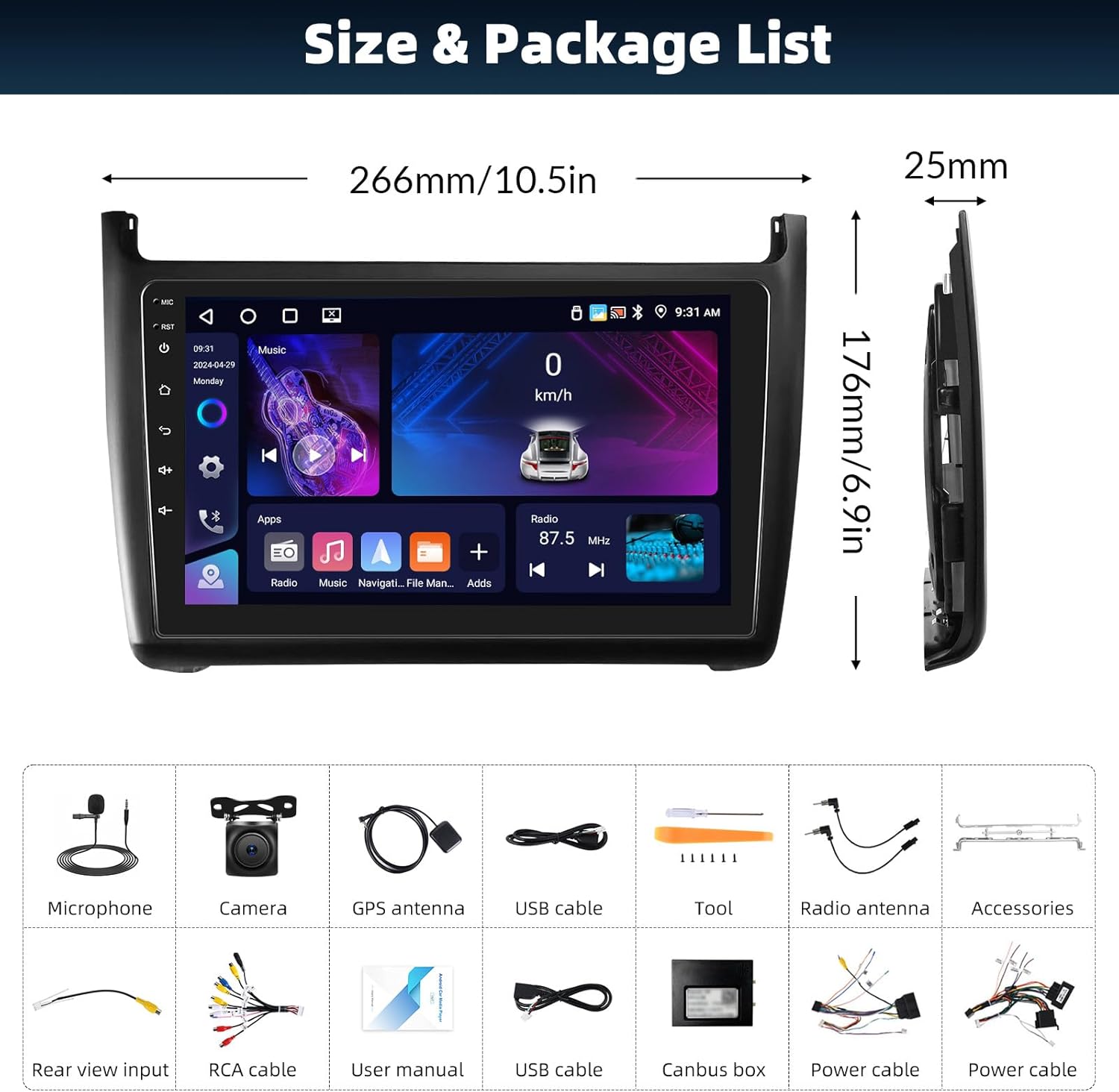
Figure 7.1: Customize your home page app display and utilize the split-screen function for multitasking.
7.2. Wireless CarPlay & Android Auto
Connect your smartphone for seamless integration of navigation, music, calls, and messages.
- For Wireless Connection: Ensure Bluetooth and Wi-Fi are enabled on both your phone and the car radio. Follow the on-screen prompts in the CarPlay/Android Auto app on the head unit to connect.
- For Wired Connection: Connect your phone to one of the USB ports using a high-quality USB cable.
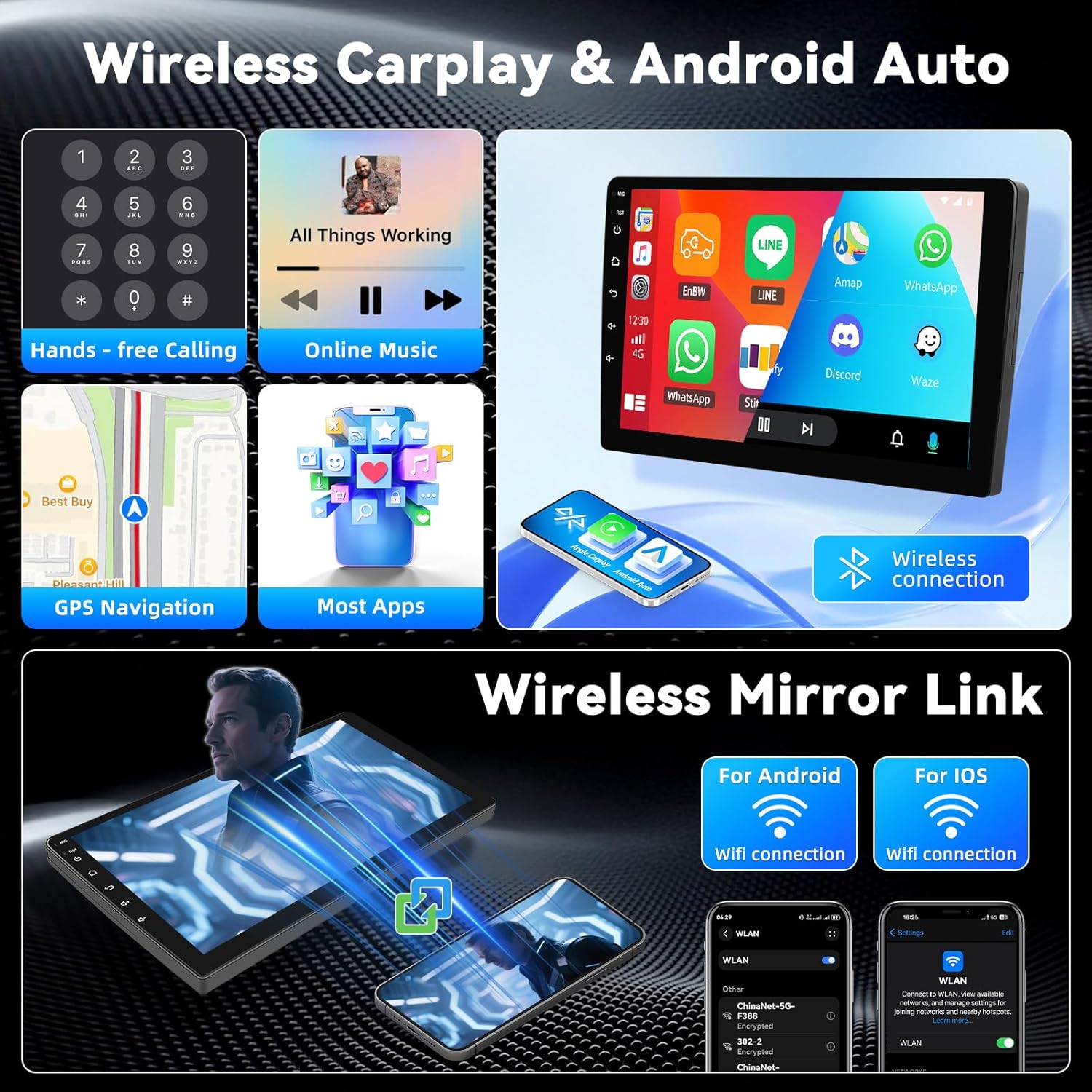
Figure 7.2: The unit supports wireless CarPlay and Android Auto, along with wireless mirror link for both Android and iOS devices.
7.3. Bluetooth Functions
Utilize Bluetooth 5.0 for hands-free communication and audio streaming.
- Hands-Free Calling: Once paired, you can make and receive calls directly from the car radio screen. The external microphone ensures clear audio transmission.
- Bluetooth Music: Stream audio from your paired phone to the car radio's speakers.

Figure 7.3: Bluetooth 5.0 enables hands-free calling and music playback. The unit also features FM/RDS radio and a 32-band equalizer for audio customization.
7.4. GPS Navigation
The built-in GPS module supports both online and offline navigation. Download offline maps for areas with limited internet access.
- Launch the navigation app from the home screen.
- Enter your destination and follow the voice-guided directions.
7.5. FM/RDS Radio
Access local radio stations with clear reception.
- Open the Radio app.
- Use the scan function to find available stations or manually tune to a frequency.
- Save your favorite stations for quick access.
7.6. DSP and EQ Settings
Customize your audio experience with the advanced Digital Sound Processor (DSP) and 32-band Equalizer (EQ).
- Access the EQ settings from the audio menu.
- Adjust individual frequency bands or select from preset sound modes.
7.7. Split Screen Function
Run two applications simultaneously on the screen for enhanced multitasking.
- Long-press the recent apps button or drag an app to one side of the screen to activate split-screen mode.
- Select a second app to fill the other half of the screen.
7.8. Rear View Camera
The unit automatically displays the rear view camera feed when the vehicle is in reverse gear, aiding in safer parking.
8. Maintenance
- Screen Cleaning: Use a soft, lint-free cloth to gently wipe the touchscreen. For stubborn smudges, slightly dampen the cloth with water or a screen-safe cleaner. Avoid harsh chemicals.
- Software Updates: Periodically check for software updates via the system settings to ensure optimal performance and access to new features. Updates can typically be downloaded over Wi-Fi.
- General Care: Ensure all connections remain secure. Avoid placing heavy objects on the unit or exposing it to excessive vibrations.
9. Troubleshooting
If you encounter issues, refer to the following common problems and solutions:
| Problem | Possible Cause | Solution |
|---|---|---|
| No Power | Incorrect wiring, blown fuse, vehicle power issue. | Check power connections and fuses. Consult an installer if necessary. |
| No Sound | Speaker wiring issue, volume too low, mute activated. | Check speaker connections. Increase volume. Ensure unit is not muted. |
| GPS Not Working | GPS antenna not connected or poorly positioned. | Ensure GPS antenna is securely connected and has a clear view of the sky. |
| Bluetooth Connection Issues | Bluetooth not enabled, incorrect pairing process. | Ensure Bluetooth is enabled on both devices. Re-attempt pairing. |
| Touchscreen Unresponsive | Temporary software glitch, screen damage. | Restart the unit. If issue persists, contact support. |
For issues not covered here, please contact customer support for assistance.
10. Specifications
| Feature | Specification |
|---|---|
| Brand | SIXTOP |
| Model | 4+64G |
| Operating System | Android 15 |
| RAM | 4GB |
| ROM | 64GB |
| Screen Size | 9 Inches |
| Screen Resolution | 1280 x 720P IPS |
| Connectivity | Bluetooth 5.0, Wi-Fi, GPS |
| Special Features | Wireless/Wired CarPlay, Android Auto, DSP Audio, 32-Band EQ, FM/RDS Radio, Rear View Camera Support |
| Audio Output Type | Speakers |
| Output Wattage | 180 Watts (Max) |
| Item Weight | 1.5 kg |
| Product Dimensions | 1 x 1 x 1 cm (approximate, main unit) |
11. Warranty and Support
Your SIXTOP Android 15 Car Radio comes with a standard manufacturer's warranty. Please refer to the warranty card included in your package or contact your point of purchase for specific warranty terms and conditions.
For technical support, troubleshooting assistance, or warranty claims, please contact the seller or manufacturer directly. Have your product model number and purchase details ready when contacting support.


