
PAXA Clipbuds 7
PAXA Clipbuds7 Open Ear Earbuds User Manual
Model: Clipbuds 7
1. Introduction
Thank you for choosing the PAXA Clipbuds7 Open Ear Earbuds. This manual provides essential information for setting up, operating, and maintaining your new earbuds. Please read it thoroughly before use to ensure optimal performance and longevity of your device.

Image 1: PAXA Clipbuds7 Open Ear Earbuds and their charging case. The earbuds are purple and feature a unique clip-on design. The charging case has an LED display showing battery levels.
2. Package Contents
Verify that all items are present in your package:
- PAXA Clipbuds7 Open Ear Earbuds (1 pair)
- Wireless Charging Case (1)
- Charging Cable (1)
- User Manual (1)
3. Setup
3.1 Initial Charging
Before first use, fully charge the earbuds and charging case. Connect the provided charging cable to the Type-C port on the charging case and a power source. The LED display on the case will indicate the charging status.
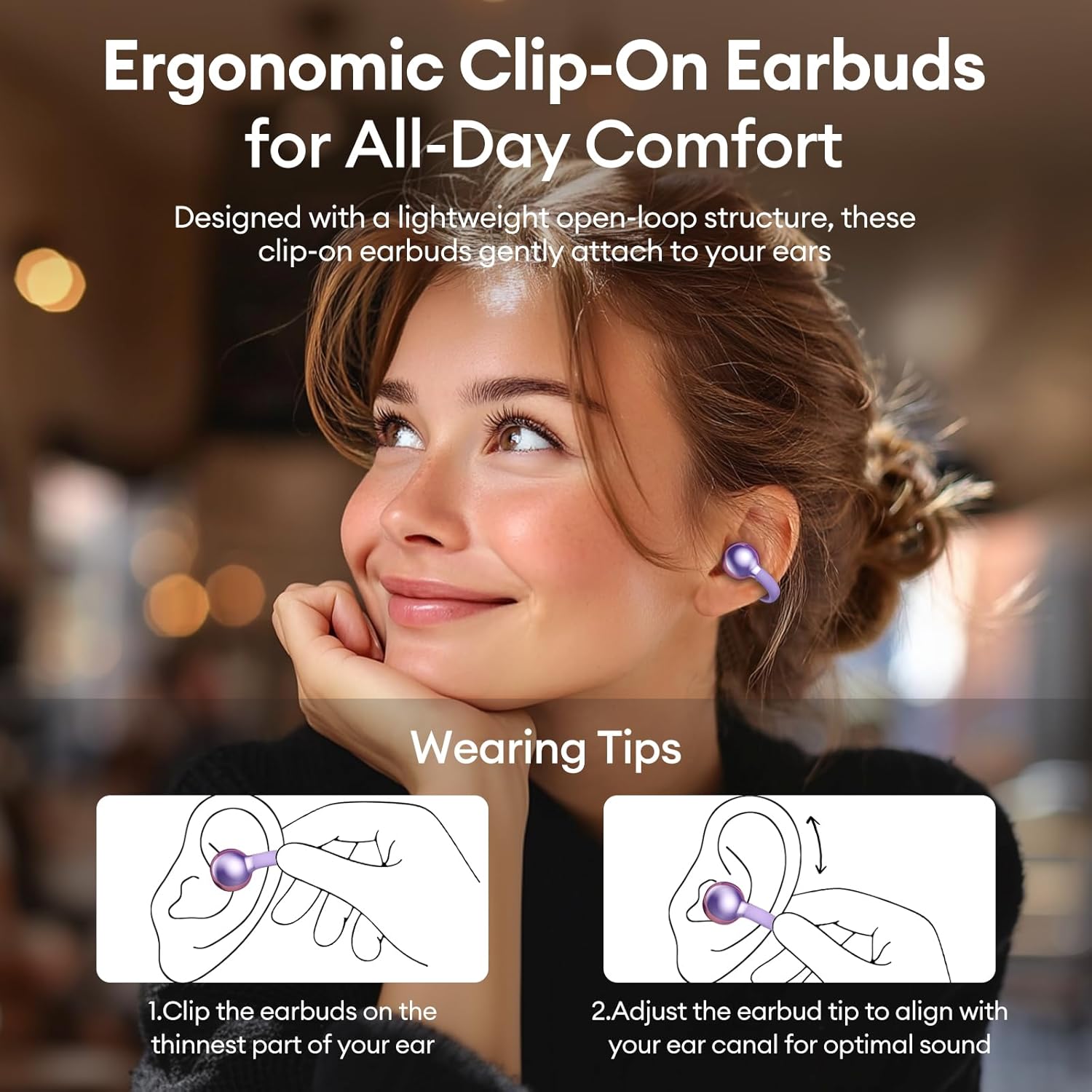
Image 2: The PAXA Clipbuds7 charging case connected to a charging cable, displaying the battery percentage on its LED screen.
3.2 Wearing the Earbuds
The Clipbuds7 are designed for open-ear comfort. Follow these steps for proper fit:
- Clip the earbuds onto the thinnest part of your ear.
- Adjust the earbud tip to align with your ear canal for optimal sound delivery.
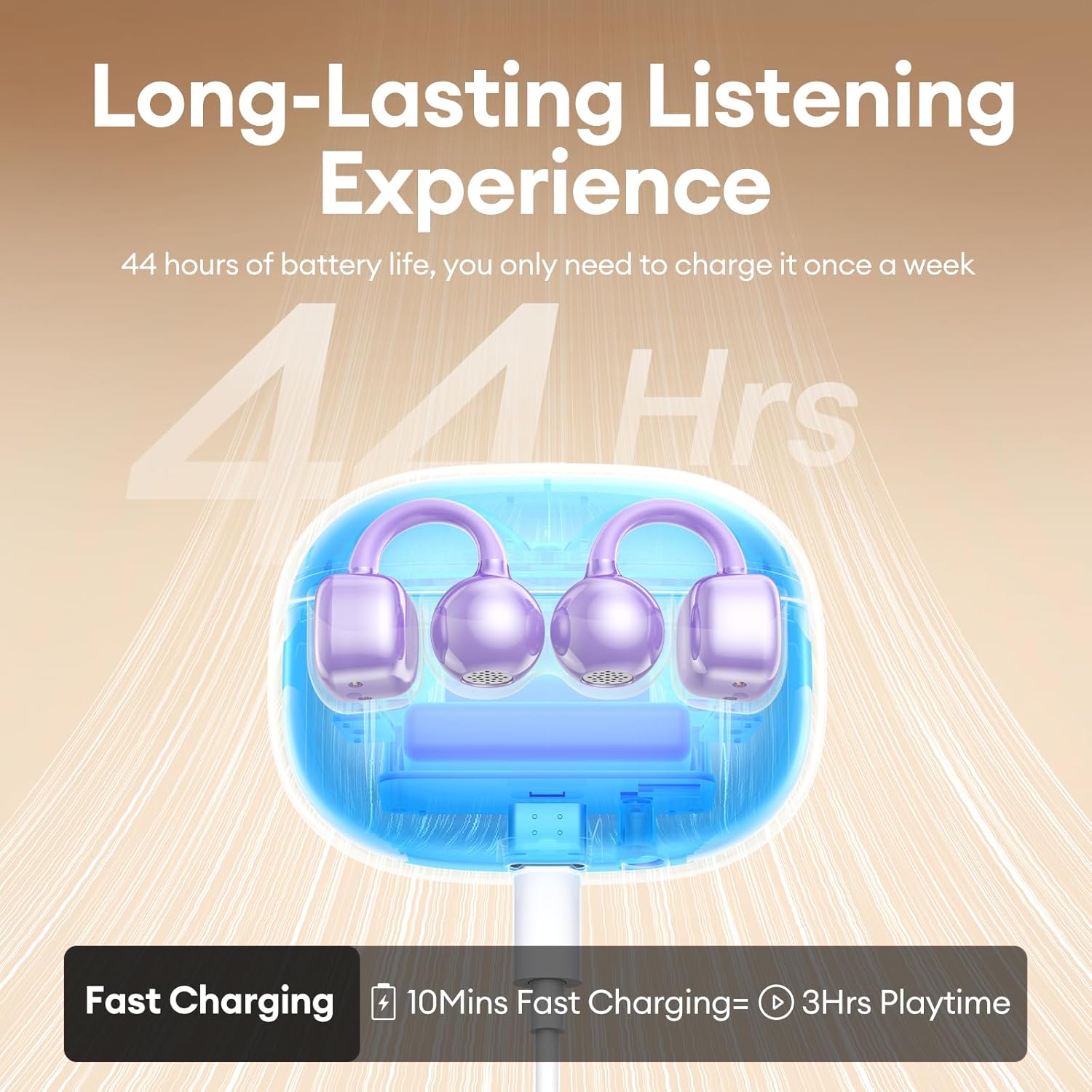
Image 3: A visual guide demonstrating the correct method for clipping the earbuds onto the ear and adjusting them for the best fit.
Video 1: This video demonstrates the unboxing and proper wearing technique for the PAXA Clipbuds7 earbuds, highlighting their comfortable and secure fit.
3.3 Bluetooth Pairing
The earbuds utilize Bluetooth 5.4 for stable connections.
- Open the charging case. The earbuds will automatically enter pairing mode.
- On your device (smartphone, tablet, laptop), enable Bluetooth and search for "PAXA Clipbuds7".
- Select "PAXA Clipbuds7" to connect. A voice prompt will confirm successful pairing.
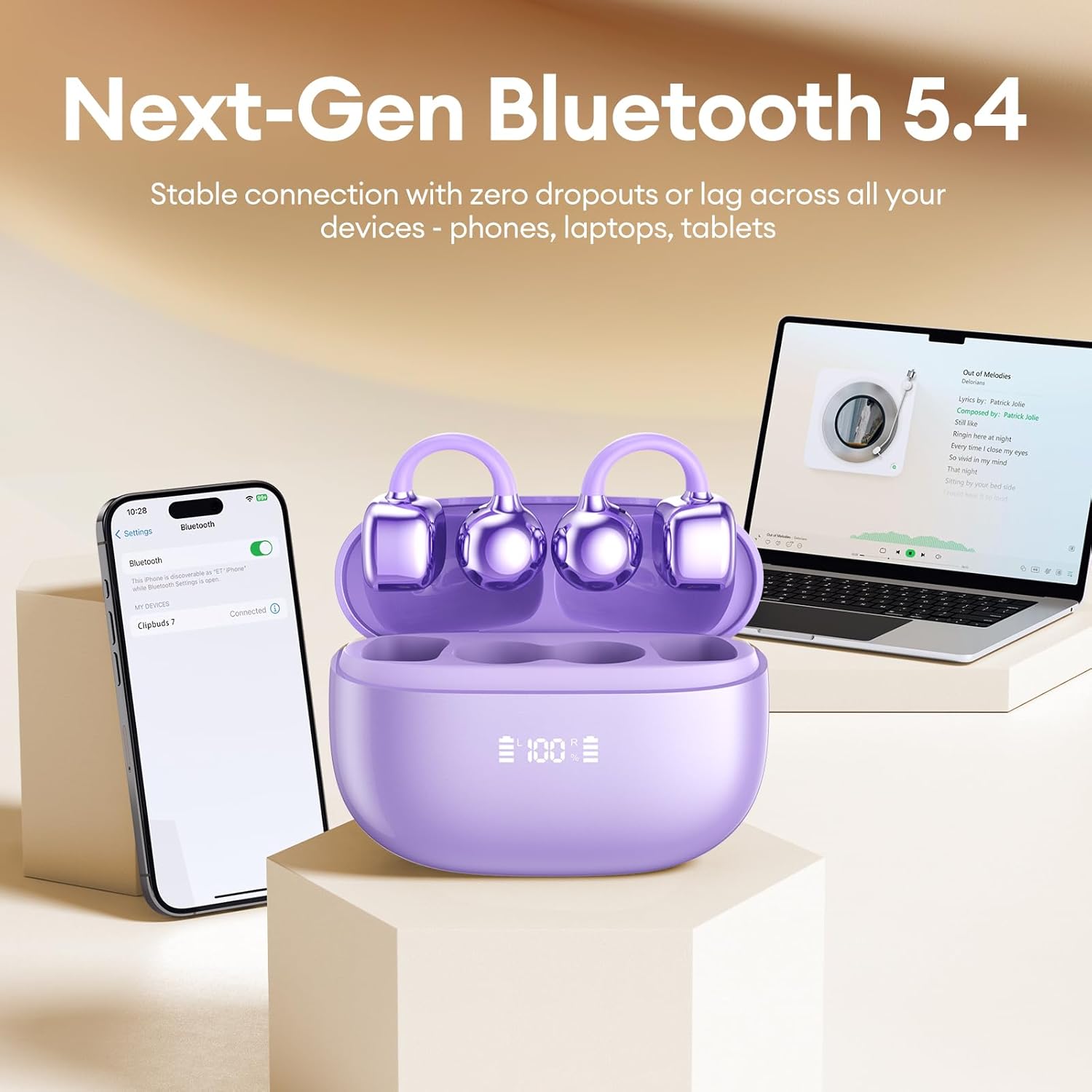
Image 4: A smartphone screen showing the PAXA Clipbuds7 successfully connected via Bluetooth, alongside the earbuds in their charging case.
4. Operating Instructions
4.1 Touch Controls
The PAXA Clipbuds7 feature intuitive touch controls:
| Action | Function |
|---|---|
| Double-click either earbud | Answer/End call, Play/Pause music |
| Press and hold either earbud for 2 seconds | Reject call |
| Triple-click the left (L) earbud | Previous song, Volume - |
| Triple-click the right (R) earbud | Next song, Volume + |
| Hold both earbuds | Activate Voice Assistant (Siri, Google Assistant, etc.) |

Image 5: A detailed graphic illustrating the various touch control functions for the PAXA Clipbuds7 earbuds, including call management and music playback.
4.2 Power On/Off
- Power On: Open the charging case, and the earbuds will automatically power on.
- Power Off: Place the earbuds back into the charging case and close the lid. They will automatically power off and begin charging.
4.3 Call Management
The earbuds feature ENC noise cancellation for clear calls. Use the touch controls as described above to manage calls.
4.4 Audio Features
Experience immersive stereo sound with directional audio technology, minimizing sound leakage while maintaining environmental awareness.
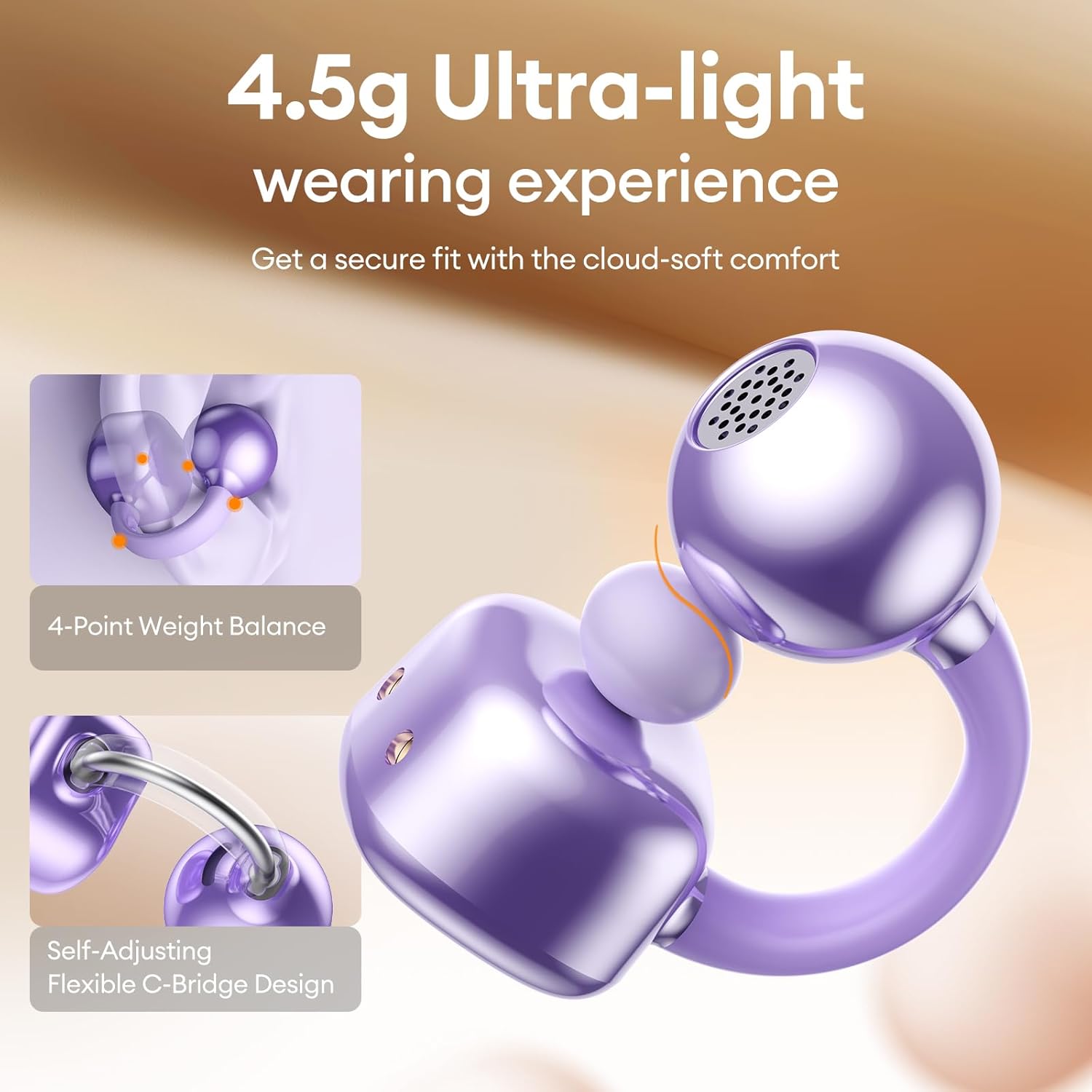
Image 6: A visual representation of the directional audio technology, showing how sound is delivered to the ear while minimizing leakage to the surroundings.
5. Maintenance
5.1 Cleaning
Regularly clean your earbuds and charging case with a soft, dry cloth. Avoid using abrasive materials or harsh chemicals. Ensure charging contacts are free of dust and debris.
5.2 Storage
When not in use, store the earbuds in their charging case to protect them and maintain battery life. Store in a cool, dry place away from direct sunlight and extreme temperatures.
5.3 Water and Dust Resistance
The earbuds are IP45 rated for dust and water resistance, meaning they can withstand splashes of water and sweat. They are not designed for submersion in water.

Image 7: A person wearing the PAXA Clipbuds7 earbuds while being exposed to light rain, demonstrating their IP45 water and dust resistance.
6. Troubleshooting
| Problem | Possible Solution |
|---|---|
| Earbuds not pairing | Ensure earbuds are charged. Place them back in the case, close, then reopen to re-enter pairing mode. Check your device's Bluetooth settings and try reconnecting. |
| No sound from one earbud | Check battery level of both earbuds. Try resetting the earbuds (refer to manufacturer's website for specific reset instructions if not in manual). Re-pair with your device. |
| Charging case not charging | Verify the charging cable and power adapter are working. Ensure the Type-C cable is securely connected to both the case and the power source. |
| Poor sound quality | Ensure earbuds are properly seated in your ears. Check for debris blocking the speaker grilles. Move closer to your connected device to avoid interference. |
7. Specifications
| Feature | Detail |
|---|---|
| Model Name | Clipbuds 7 |
| Bluetooth Version | 5.4 |
| Earbud Weight | 4.5g (each) |
| Battery Life (Single Charge) | Up to 8 hours |
| Total Battery Life (with Case) | Up to 44 hours |
| Charging Port | Type-C |
| Water Resistance Rating | IP45 |
| Noise Control | Hybrid Noise Cancellation (ENC for calls) |
| Control Type | Touch Control |
| Material | Silicone Rubber + Plastic |
8. Warranty and Support
PAXA products come with a standard manufacturer's warranty. For detailed warranty information, product support, or to contact customer service, please visit the official PAXA website or refer to the warranty card included in your package.
Online Support: Visit the PAXA Store on Amazon
Related documentsClipbuds 7


Ask a question about this manual
Ask about setup, troubleshooting, compatibility, parts, safety, or missing instructions. Manuals+ will review the question and use this page’s manual context to help answer it.