
1. Introduction
The akimart 21.5-inch FRAMEO Digital Photo Frame (Model ZN-DP2101) provides a modern way to display your cherished photos and videos. Featuring a 1920x1080 Full HD IPS touch screen, dual-band Wi-Fi connectivity, and 32GB of internal storage, this frame allows you to share moments with family and friends from anywhere using the Frameo application. It supports automatic rotation for flexible placement and offers various customizable settings for an optimal viewing experience.

Image: The akimart 21.5-inch FRAMEO Digital Photo Frame in both portrait and landscape orientations, displaying a family photo. A smartphone with the Frameo app is also shown, illustrating remote photo sharing.
2. What's in the Box
Please verify that all components are present in the package:
- akimart 21.5-inch FRAMEO Digital Photo Frame
- Power Adapter
- Detachable Stand
- VESA Wall Mount Bracket
- User Manual
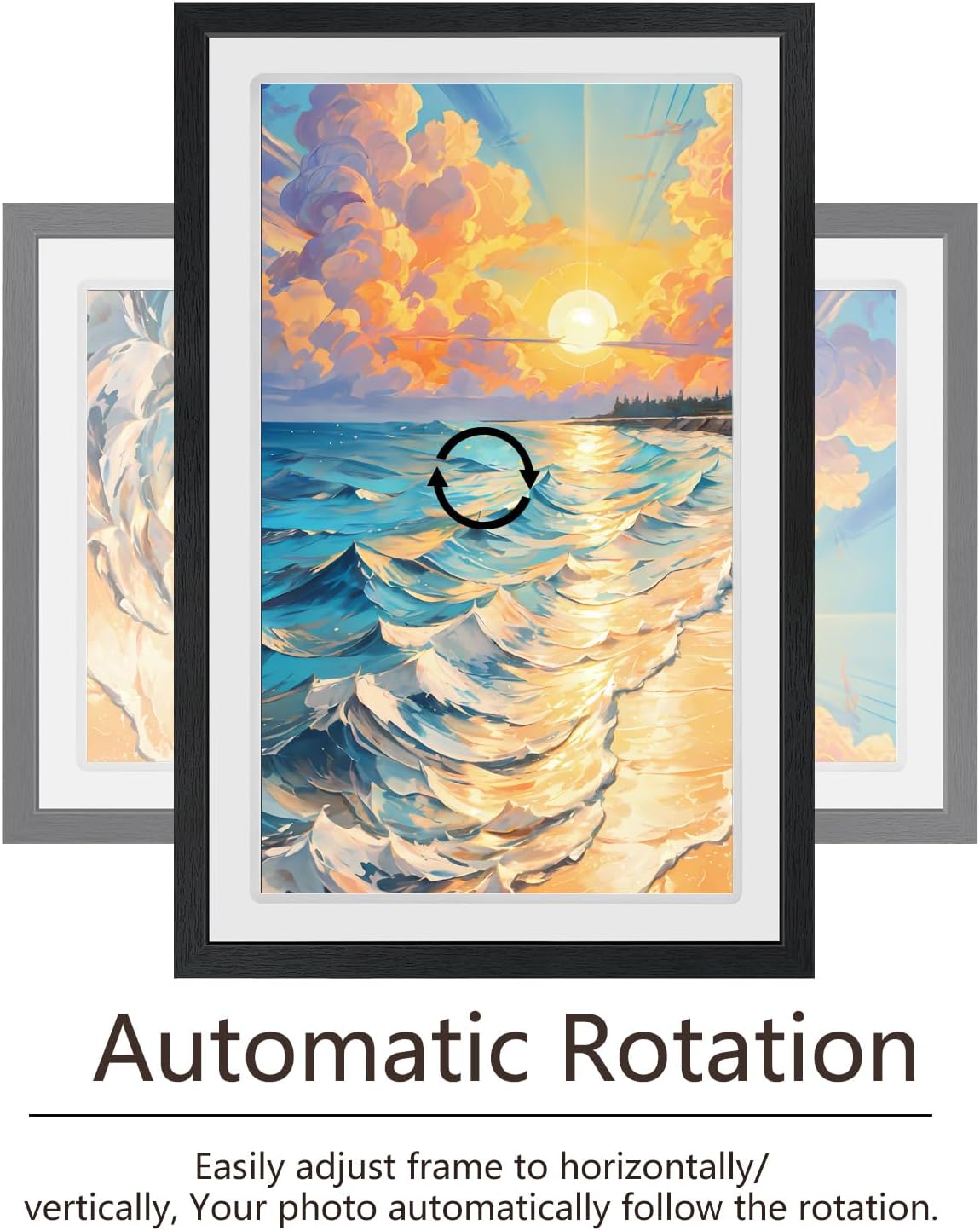
Image: An exploded view of the product packaging, showing the 21.5-inch digital photo frame, power adapter, detachable stand, VESA wall mount bracket, and the user manual.
3. Setup
3.1 Physical Setup
The digital photo frame can be placed on a flat surface using the included detachable stand or mounted on a wall using the VESA bracket.
- Using the Stand: Insert the detachable stand into the designated slot on the back of the frame. Ensure it is securely fastened.
- Wall Mounting (VESA): Attach the VESA wall mount bracket to the back of the frame using appropriate screws (not included). Secure the frame to a wall mount (not included) that supports VESA standards.

Image: The digital photo frame displayed on a desk with its stand, and a separate image illustrating how it can be mounted on a wall using VESA compatibility.
3.2 Power Connection
Connect the provided power adapter to the DC input port on the frame and then plug it into a power outlet. The frame will automatically power on.
3.3 Initial Configuration and Wi-Fi Connection
- Upon first power-on, follow the on-screen instructions to select your language and time zone.
- Connect the frame to your Wi-Fi network. The frame supports both 2.4GHz and 5GHz networks. Select your network and enter the password.
- Download the "Frameo" application on your smartphone or tablet from the App Store (iOS) or Google Play Store (Android).
- Open the Frameo app and create an account or log in.
- On the frame, navigate to the "Add Friend" section to obtain a unique frame code.
- In the Frameo app, enter the frame code to link your device with the digital photo frame.

Image: A visual guide demonstrating how to download the Frameo app from mobile app stores and the initial steps to set up a profile and connect to the digital photo frame using a unique code.
4. Operating Instructions
4.1 Using the Touch Screen
The 21.5-inch FHD IPS display is a touch screen, allowing for intuitive navigation and interaction with the frame's features. Tap, swipe, and pinch to control settings and view content.

Image: A close-up of a hand touching the screen of the digital photo frame, highlighting its touch functionality and ease of use.
4.2 Sending Photos and Videos via Frameo App
Once your frame is linked to the Frameo app, you can send photos and short videos (maximum 15 seconds) directly from your smartphone to the frame from anywhere with an internet connection.
- Open the Frameo app on your smartphone.
- Select the photos or videos you wish to send from your gallery.
- Choose the recipient frame(s).
- Add an optional caption to your media.
- Adjust the cropping or focus area if needed, then send.

Image: A step-by-step visual guide on using the Frameo app to select, caption, and send photos or videos to the digital frame.
4.3 Managing Photos and Videos
The frame allows for organization and customization of your displayed content:
- Create Albums: Organize your photos into custom albums directly from the frame or the Frameo app.
- Captions: Photos can display captions added during the sending process.
- Hide/Publish: You can choose to hide specific images or publish them to be displayed.
- Adjust Brightness: Customize screen brightness for optimal viewing in different lighting conditions.

Image: A visual representation of the Frameo app's album creation feature, showing how to organize and select photos for display.
4.4 Slide Show Settings
Customize your slideshow experience:
- Transition Speed: Adjust how quickly photos change.
- Transition Effects: Select from various visual effects between photos.
- Repeat Mode: Configure if the slideshow repeats after all photos have been displayed.
4.5 Auto-Rotate Function
The frame automatically detects its orientation (landscape or portrait) and adjusts the displayed photos accordingly. This allows for flexible placement on a desk or wall.

Image: The digital photo frame demonstrating its auto-rotate feature, showing the same image adapting to both vertical and horizontal frame positions.
4.6 Sleep Mode
Activate sleep mode to conserve energy and extend the lifespan of the device. You can set specific times for the frame to automatically turn off and on.

Image: The digital photo frame in active display mode and then in sleep mode, illustrating its power-saving feature.
4.7 External Storage
The frame includes 32GB of internal storage. You can extend storage capacity or import/export media using a USB drive or SD card.
- Insert a USB drive or SD card into the respective slot on the frame.
- Navigate to the storage settings on the frame to manage files.

Image: The digital photo frame showcasing its storage capabilities, emphasizing 32GB internal memory and options for expansion via SD card and USB drive.
4.8 Transferring via USB Cable
You can transfer photos directly from your computer to the frame using a USB cable. This feature is compatible with Windows and Linux operating systems.
- Connect the frame to your computer using a USB cable.
- On the frame, enable the "USB transfer" function.
- On your computer, locate the "DCIM" folder within the frame's storage.
- Copy your desired photos and videos into the "DCIM" folder. The media will then be displayed on the frame.

Image: A setup showing a laptop connected to the digital photo frame, demonstrating how to transfer media files directly from a computer to the frame's internal storage.
5. Specifications
| Feature | Detail |
|---|---|
| Product Dimensions | 11.7 x 20 x 0.99 inches |
| Item Weight | 7.67 pounds |
| Item Model Number | ZN-DP2101 |
| Manufacturer | akimart |
| Brand | akimart |
| Resolution | 1920x1080 (FHD) |
| Compatible Devices | Smartphone |
| Screen Size | 21.5 Inches |
| Connectivity Technology | USB, Wi-Fi (2.4/5GHz) |
| Internal Storage | 32GB |
| External Storage Support | USB Drive, SD Card |
| Display Type | IPS LCD Touch Screen |
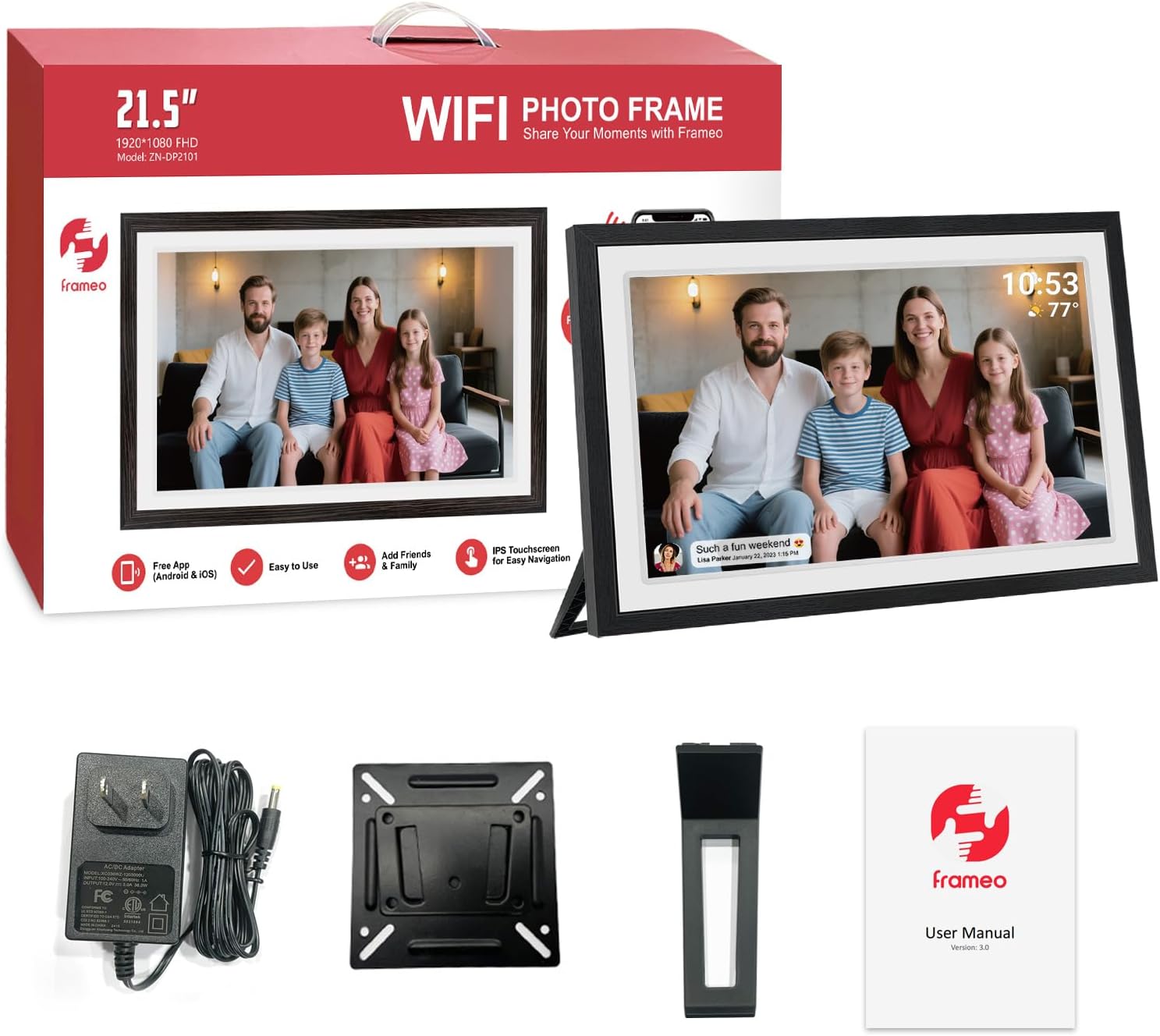
Image: The digital photo frame showcasing its wide 178-degree viewing angle, ensuring clear visibility from various perspectives.
6. Troubleshooting
If you encounter issues with your akimart digital photo frame, please refer to the following common solutions:
- Frame Not Powering On: Ensure the power adapter is securely connected to both the frame and a working power outlet.
- Cannot Connect to Wi-Fi: Verify that your Wi-Fi network is active and you are entering the correct password. Ensure the frame is within range of your router. The frame supports both 2.4GHz and 5GHz networks.
- Photos Not Appearing: Check if the frame is connected to the internet. Ensure photos/videos are sent correctly via the Frameo app. If using external storage, verify the media format (JPG/JPEG/BMP/PNG for photos, MP4 for videos) and that files are in the correct directory (e.g., DCIM for USB transfer).
- Frameo App Connection Issues: Confirm your smartphone has an active internet connection. Restart the Frameo app and the digital photo frame. Re-enter the frame code if necessary.
- Screen Unresponsive: Try restarting the frame by unplugging and re-plugging the power adapter. If the issue persists, contact customer support.
- Auto-Rotate Not Working: Ensure the frame is placed on a stable surface or mounted securely. Check the frame's settings to confirm auto-rotate is enabled.
7. Warranty and Support
For warranty information, technical assistance, or customer support, please contact akimart directly. Refer to the contact details provided in your product packaging or visit the official akimart website.
Manufacturer: akimart