1. Introduction
This manual provides detailed instructions for the installation, operation, maintenance, and troubleshooting of your SOYO Geforce GT 740 Low Profile Graphics Card. Please read this manual thoroughly before installation and use to ensure proper functionality and longevity of your product.

Image 1.1: The SOYO Geforce GT 740 Low Profile Graphics Card and its packaging.
2. Safety Information
Observe the following safety precautions during installation and operation:
- Always disconnect the power supply from your computer before installing or removing any hardware components.
- Wear an anti-static wrist strap or frequently touch a grounded metal object to discharge static electricity, which can damage electronic components.
- Handle the graphics card by its edges to avoid touching the gold-plated connectors or components on the circuit board.
- Ensure proper ventilation within your computer case to prevent overheating.
- Keep the graphics card away from moisture, dust, and extreme temperatures.
3. Package Contents
Verify that all items are present in your package:
- SOYO Geforce GT 740 Graphics Card
- Low-profile bracket(s)
4. Product Overview and Features
The SOYO Geforce GT 740 is a low-profile graphics card designed for compact systems, offering reliable performance for everyday tasks, HD video playback, and light gaming. It features 4GB DDR3 memory and a 128-bit memory interface for efficient data transfer.
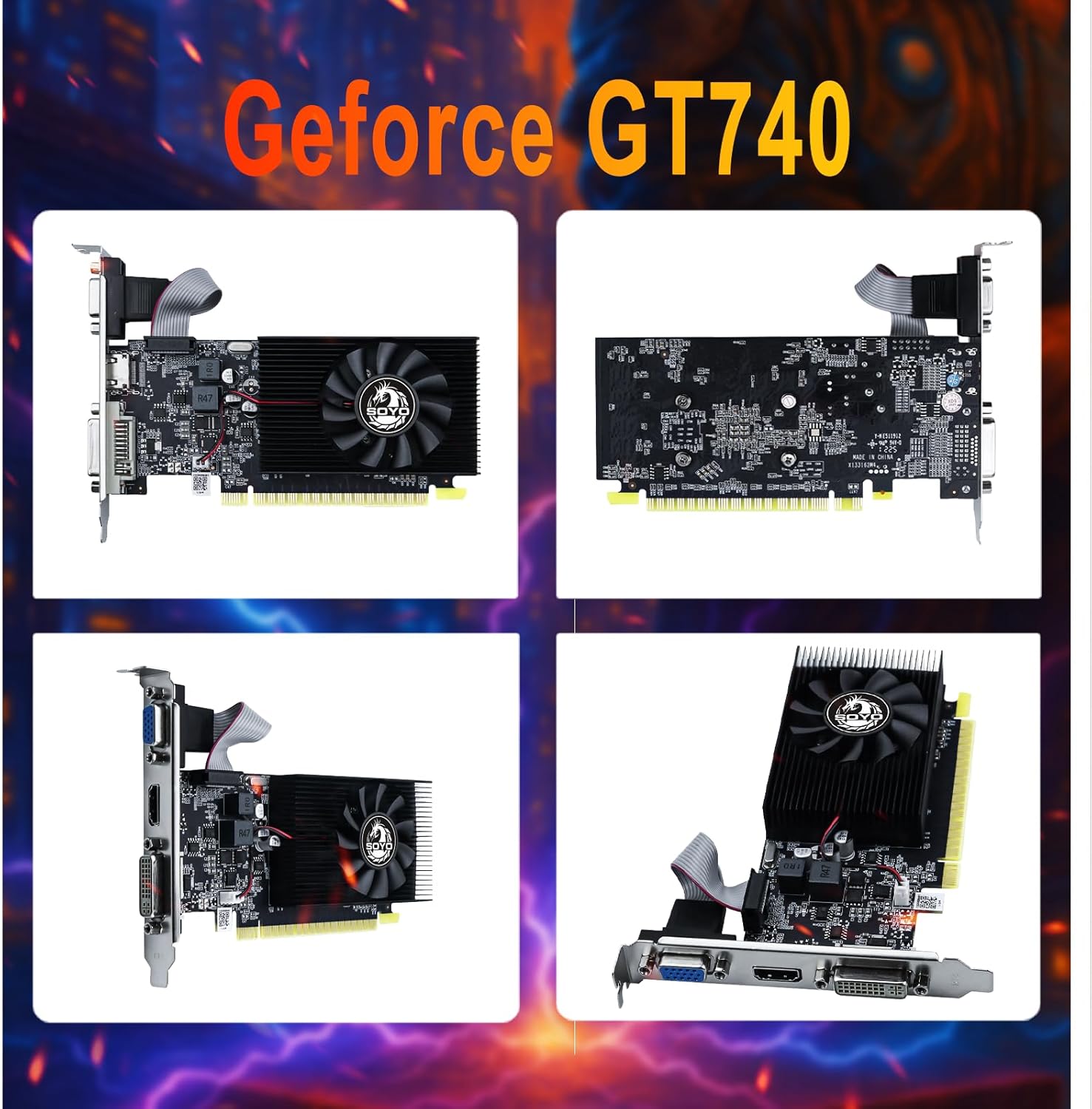
Image 4.1: Multiple views of the GT 740 graphics card.
Key Features:
- Superior Memory and Bandwidth: Equipped with 4GB DDR3 memory and a 128-bit memory interface for fast data transfer.
- Efficient and Reliable: Built with a 28nm process, balancing power and efficiency.
- Versatile Display Options: Includes HDMI, DVI, and VGA connectors for broad compatibility.
- PCI Express X16 3.0: Ensures fast and stable data transfer with the motherboard.
- Advanced Cooling System: Features a single fan for optimal temperature management.
- Graphics Technology Support: Supports DirectX 12, OpenGL 4.6, and Vulkan.
- Low-Profile Design: Ideal for small form factor (SFF) PCs and slim desktop cases.

Image 4.2: Illustration of 4GB DDR3 Graphics RAM.
5. Setup and Installation
5.1 Physical Installation
- Prepare Your System: Turn off your computer and disconnect all power cables. Open the computer case.
- Locate PCIe Slot: Identify an available PCI Express x16 slot on your motherboard.
- Remove Slot Cover: Remove the metal slot cover from the back of your computer case corresponding to the chosen PCIe slot. If installing in a low-profile case, you may need to replace the standard bracket on the graphics card with the included low-profile bracket.
- Insert Graphics Card: Carefully align the graphics card with the PCIe slot and press down firmly until it is securely seated. Ensure the retention clip (if present) locks into place.
- Secure Card: Fasten the graphics card to the computer case with a screw.
- Close Case and Connect: Close your computer case, reconnect all power cables, and connect your monitor to one of the graphics card's output ports (HDMI, DVI, or VGA).
5.2 Driver Installation
After physical installation, you will need to install the appropriate drivers for the graphics card. Drivers can typically be downloaded from the official NVIDIA website. Search for 'NVIDIA GeForce GT 740 drivers' and select the correct operating system.
5.3 BIOS Settings (If Issues Occur)
If the device does not display or work properly after installation, consider adjusting BIOS settings:
- Set Video to Legacy Mode: Enter your computer's BIOS settings (common keys: Del, F2 during startup). Find options related to display, locate 'Video Mode' or similar, and set it to 'Legacy' mode.
- Enable 4G Decoding: In BIOS, navigate to 'Advanced' options. Look for 'Above 4G Decoding' or '4G Memory Decoding' and set it to 'Enabled'.

Image 5.1: Broad compatibility and plug-and-play design.
6. Operating the Graphics Card
6.1 Basic Operation
Once installed and drivers are in place, your operating system should automatically detect and utilize the graphics card. You can adjust display settings through your operating system's display configuration panel or the NVIDIA Control Panel (if installed).
6.2 Multi-Monitor Setup
The SOYO GT 740 supports up to three monitors simultaneously using its HDMI, DVI, and VGA ports. Connect your monitors to the desired ports on the graphics card. Your operating system's display settings will allow you to configure extended desktop, duplicate displays, or other multi-monitor arrangements.

Image 6.1: Support for three monitors.

Image 6.2: Enhanced viewing with triple monitor support.
Important Note:

Image 6.3: Warning regarding signal adapters.
It is recommended to use direct HDMI, DVI, or VGA connections. Avoid using signal adapters (e.g., HDMI-DVI, HDMI-VGA, DP-VGA) as this may result in display artifacts, black screens, or no image output, affecting compatibility and stability.
7. Maintenance
To ensure optimal performance and longevity of your graphics card, follow these maintenance guidelines:
- Regular Cleaning: Periodically clean the graphics card and its fan to remove dust buildup. Use compressed air to gently blow dust away from the heatsink and fan blades.
- Check Fan Operation: Ensure the fan is spinning freely and quietly. Unusual noises or a non-spinning fan may indicate a problem.
- Maintain Airflow: Ensure your computer case has good airflow. Keep the area around your computer clear to prevent obstruction of vents.
- Driver Updates: Keep your graphics drivers updated to benefit from performance improvements and bug fixes.

Image 7.1: Illustration of the advanced cooling system.
8. Troubleshooting
This section addresses common issues you might encounter with your graphics card.
8.1 General Display Issues
- No Display or Black Screen:
- Check Power: Confirm if the card requires an external power connection (though GT740 typically does not). If it does, ensure it is connected.
- Check Connection: Ensure the monitor cable is connected to the HDMI, DVI, or VGA port on the graphics card, not the motherboard's integrated video output.
- Reseat the Card: Remove the card from the PCI-E slot, gently clean the gold contacts with an eraser, and firmly reinsert it.
- Compatibility Mode: For some older motherboards, try changing the boot mode in BIOS from UEFI to Legacy (refer to Section 5.3).
8.2 Performance Issues
- Low and Unstable Frame Rate (FPS) in Games:
- This card is entry-level. First, try setting all in-game graphics settings to 'Low' or 'Off' and lower the resolution (e.g., from 1920x1080 to 1600x900).
- Ensure your computer has sufficient RAM (at least 8GB is recommended) and that not too many background applications are running.
- Graphics Card Runs Hot:
- High temperatures during use can be related to cooling. First, check if your computer case has good airflow and regularly clean dust from the graphics card fan and heatsink.
- If the card is several years old, the thermal paste may have dried out; replacing it can significantly improve cooling performance (this requires technical skill).
8.3 Driver Issues
- Where to Download Latest Drivers: Download drivers from the official NVIDIA website. As these are older card models, the latest Game Ready drivers may no longer support them. Visit the NVIDIA Driver Download page, manually search for your graphics card model (GeForce GT 740) and operating system, and choose the 'Standard' version driver for best stability.

Image 8.1: NVIDIA GT 740 FAQ Part 1.

Image 8.2: NVIDIA GT 740 FAQ Part 2.
9. Specifications
Detailed technical specifications for the SOYO Geforce GT 740 Graphics Card:

Image 9.1: Key parameters of the GT740.
| Feature | Specification |
|---|---|
| Model | GT740 |
| Graphics Coprocessor | NVIDIA GeForce GT 740 |
| Graphics RAM Size | 4 GB |
| Graphics RAM Type | DDR3 |
| GPU Clock Speed | 993 MHz |
| Memory Interface | 128-bit |
| Bus Interface | PCI Express x16 3.0 |
| Video Output Interface | DVI, HDMI, VGA |
| Cooling Method | Single Fan Cooling |
| Package Dimensions | 8.43 x 6.26 x 1.73 inches |
| Item Weight | 10.5 ounces |

Image 9.2: Physical dimensions of the GT740.

Image 9.3: GPU-Z information for the GT 740.
10. Warranty and Support
For warranty information and technical support, please refer to the documentation provided with your purchase or visit the official SOYO website. Keep your proof of purchase for warranty claims.


