
1. Introduction
The ByteUp Bluetooth Thermal Shipping Label Printer (Model Y812BT) is designed for efficient and high-quality label printing. This wireless 4x6 label printer supports iOS, Android, Windows, and Mac systems, making it compatible with major e-commerce platforms and carriers. Engineered with an industrial-grade thermal print head, it delivers fast, crisp, and cost-efficient labeling without the need for ink or toner.
2. What's in the Box
Please ensure all the following items are included in your package:
- ByteUp Thermal Label Printer (Y812BT)
- Labels (50pcs Test Labels)
- Detachable Roll Holder
- User Manual
- Power Adapter & Cable
- USB Cable
- USB Drive (with drivers)
- U-disk

3. Setup
3.1 Loading Labels
To load labels, open the printer cover and adjust the label guides to fit your label width. Insert the labels, ensuring the printable side faces up, and feed them through the printer mechanism. Close the cover securely. The printer will automatically calibrate the label position.
3.2 Connecting Power and USB
Connect the power adapter to the printer and plug it into a power outlet. For wired printing, connect the USB cable from the printer to your computer.

3.3 Driver Installation (Windows, Mac, Chromebook)
For reliable printing with Windows, Mac, and Chromebook systems, connect the printer via USB. Chromebook users can also utilize the “Shipping Printer” extension for one-click printing. Drivers for Windows and Mac are typically provided on the included USB drive or can be downloaded from the official ByteUp support website.
Video: Y812BT Installation Instructions and Windows Settings. This video provides a step-by-step guide on how to install the printer and configure settings for Windows operating systems.
Video: Y812BT Installation Instructions and Mac Settings. This video demonstrates the installation process and necessary settings adjustments for Mac operating systems.
3.4 Mobile App Installation (iOS/Android)
For seamless wireless printing from your iOS or Android device, download the “Flash Label” app. Once installed, open the app and follow the on-screen instructions to connect your printer via Bluetooth.

Video: Y812BT Bluetooth Settings. This video guides users through the process of connecting the printer via Bluetooth.
4. Operating
4.1 Printing via Bluetooth (iOS/Android)
After installing the “Flash Label” app and connecting your device via Bluetooth (refer to section 3.4), you can select your desired label design or import a PDF file. Adjust print settings such as density and number of copies within the app, then initiate printing.
4.2 Printing via USB (Windows, Mac, Chromebook)
Once the printer drivers are installed and the printer is connected via USB (refer to section 3.3), you can print directly from your computer. Ensure your label files are saved as PDFs for smooth printing from platforms like Amazon, eBay, UPS, FedEx, and Shopify. Select the ByteUp Y812BT as your printer and adjust print preferences as needed.
4.3 Label Calibration and Self-Test
The ByteUp Y812BT features built-in auto-alignment, self-rewinding, and self-diagnosis capabilities to minimize paper jams and waste. A one-touch operation allows for easy printing. These smart features ensure accurate label positioning and reliable performance.

4.4 Supported Label Sizes
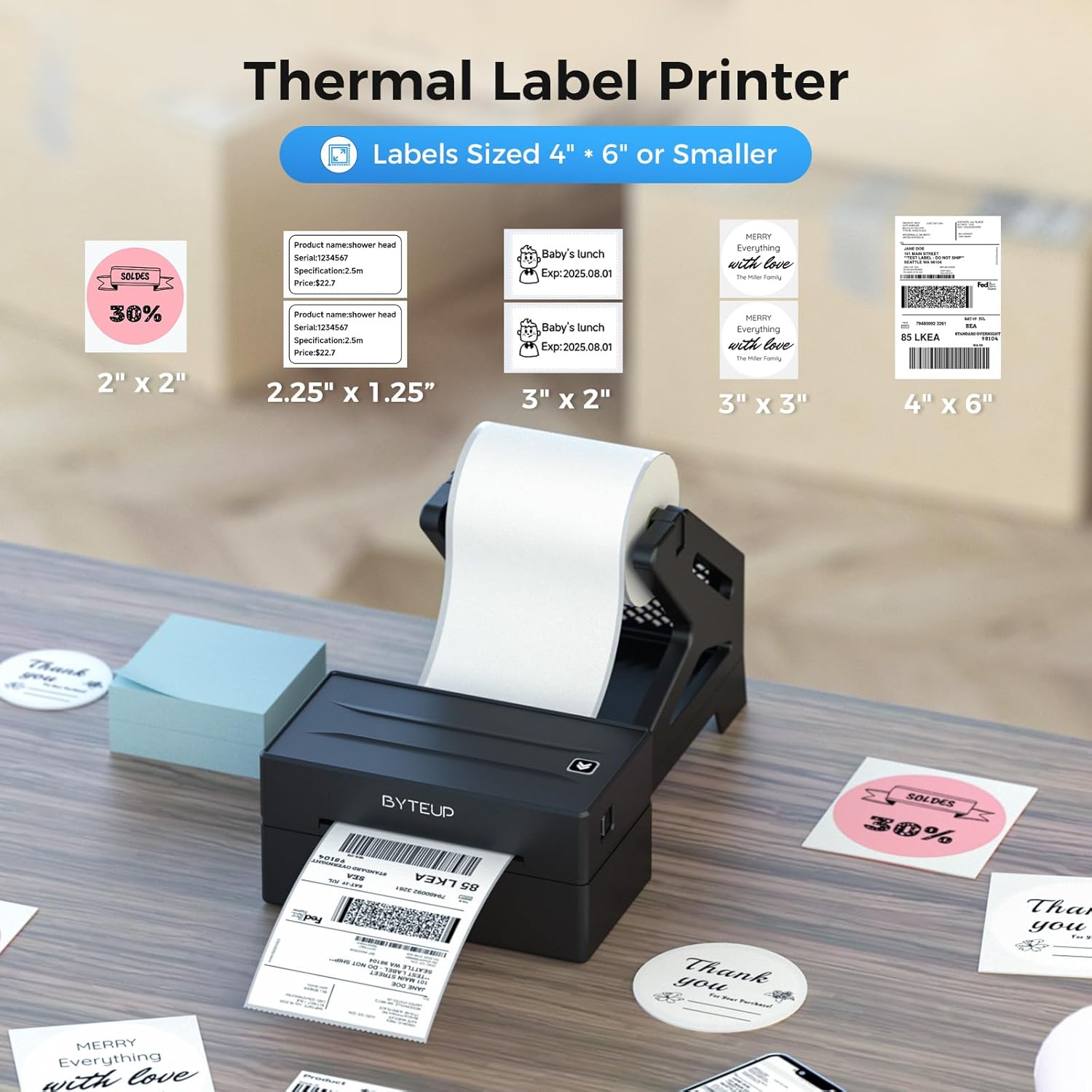
The printer supports thermal label rolls ranging from 1.57 inches to 4.3 inches wide. This includes common sizes such as 4x6 inches, 3x5 inches, 3x2 inches, and 2.25x1.25 inches, as well as custom shapes like circles.

4.5 Compatible Platforms
The ByteUp Y812BT is ideal for e-commerce sellers, supporting all key marketplaces and carriers including Amazon, eBay, UPS, FedEx, and Shopify. Ensure files are saved as PDFs for optimal printing from these platforms.

5. Maintenance
The ByteUp Y812BT is a thermal printer, meaning it requires no ink or toner. This simplifies maintenance significantly. Regularly clean the print head with an alcohol wipe to ensure optimal print quality and longevity. Avoid using abrasive materials or harsh chemicals.
6. Troubleshooting
- Printer Not Responding: Ensure the printer is powered on and properly connected via USB or Bluetooth. Check power cables and USB connections.
- Poor Print Quality: Clean the print head. Ensure you are using high-quality thermal labels. Check print density settings in your application or printer preferences.
- Labels Not Feeding Correctly: Verify that labels are loaded correctly and the label guides are adjusted to the correct width. Perform a label calibration or self-test.
- Bluetooth Connectivity Issues: Ensure Bluetooth is enabled on your device and the printer. Restart both devices. Re-pair the printer through the “Flash Label” app. Note that Mac and Chromebook do not support Bluetooth connectivity.
- Driver Installation Problems: Refer to the included USB drive for drivers or download the latest drivers from the ByteUp support website. Ensure you install the correct driver for your operating system.
7. Specifications
| Feature | Detail |
|---|---|
| Brand | ByteUp |
| Model Name | Y812BT |
| Connectivity Technology | Bluetooth, USB |
| Printing Technology | Thermal |
| Printer Output | Monochrome |
| Max Print Speed Monochrome | 150 ppm (72 4x6 labels/minute) |
| Maximum Black and White Print Resolution | 203 DPI |
| Maximum Media Size | 4 x 6 inch |
| Supported Media Sizes | 1.57" to 4.3" wide |
| Printer Ink Type | No Ink |
| Product Dimensions | 3.9 x 7.2 x 3.4 inches |
| Item Weight | 1.8 pounds |
| Special Feature | Auto Document Feeder, Auto-alignment, Self-rewinding, Self-diagnosis |
8. Warranty and Support
Your ByteUp Y812BT Thermal Label Printer comes with a 24-month (2-year) warranty. For any inquiries, technical assistance, or support, please contact our dedicated customer service team via email. A detailed setup guide is included with each printer for quick installation and dependable performance.