
1. Important Safety Information
Read all instructions carefully before installation and operation. Failure to follow these instructions may result in personal injury or damage to the product or vehicle.
- Professional Installation Recommended: Installation of car audio systems may require specialized tools and knowledge. If you are unsure, seek professional assistance.
- Power Disconnection: Always disconnect the vehicle's battery before beginning installation to prevent electrical shorts.
- Wiring: Ensure all wiring is correctly connected according to the provided diagrams. Incorrect wiring can cause damage or fire.
- Driving Safety: Do not operate the device in a manner that distracts you from driving. Always prioritize road safety.
- Volume Control: Keep the volume at a level where you can still hear outside traffic sounds.
- Environmental Conditions: Avoid exposing the unit to extreme temperatures, direct sunlight for prolonged periods, or excessive moisture.
2. Package Contents
Verify that all items listed below are included in your package:
- 1 x SIXWIN Android 13 Car Stereo Unit
- 1 x Power Cable
- 1 x RCA Input/Output Cable
- 1 x Reversing Camera Input Cable
- 1 x USB Cable
- 1 x GPS Antenna
- 1 x Radio Antenna
- 1 x Microphone
- 1 x Rear Camera
- 1 x Installation Tool Set
- 1 x User Manual (this document)
- Additional Accessories (as pictured)

Image: Detailed view of the SIXWIN Android 13 Car Stereo package contents, including the main unit, cables, antennas, microphone, rear camera, and installation tools. Dimensions of the unit are also shown.
3. Product Overview
The SIXWIN Android 13 Car Stereo is a 9-inch touch screen multimedia system designed for Hyundai Sonata models from 2010 to 2015. It features Android 13 OS, 6GB RAM, 128GB storage, and supports various connectivity options.
3.1 Front Panel Controls and Display
The front panel features a 9-inch capacitive touch screen for intuitive control. Common functions are accessible via on-screen icons.
3.2 Rear Panel Connections
The rear panel provides ports for power, RCA input/output, reversing camera, USB, GPS antenna, and radio antenna.

Image: Front view of the car stereo display and a diagram of the rear connections, labeling ports such as MIC, Reset, Power, Home, Back, Vol+, Vol-, RCA Input/Output, Reversing Camera Input, USB Cable, GPS Antenna, and Radio Antenna.
4. Installation Guide
This car radio is designed for the basic version of the Hyundai Sonata (2010-2015). Please ensure your vehicle's center panel matches option 'A' in the diagram below. If your vehicle has a different configuration, contact customer service for compatibility advice.
4.1 Pre-Installation Check
- Verify vehicle compatibility (Hyundai Sonata 2010-2015, basic version).
- Ensure all package contents are present.
- Gather necessary tools (provided installation tools, screwdrivers, wire cutters/strippers).
4.2 General Installation Steps
- Disconnect Battery: Disconnect the negative terminal of your vehicle's battery.
- Remove Old Unit: Carefully remove the existing car stereo and trim panels.
- Connect Wiring: Connect the new car stereo's power cable, RCA cables, GPS antenna, radio antenna, and USB cables to the corresponding ports.
- Backup Camera (Optional): If installing the backup camera, route the camera cable to the rear of the vehicle and connect it to the reversing camera input.
- Mount New Unit: Secure the SIXWIN car stereo into the dashboard opening.
- Reconnect Battery: Reconnect the vehicle's battery.
- Test Functionality: Turn on the vehicle and test all functions of the new stereo.
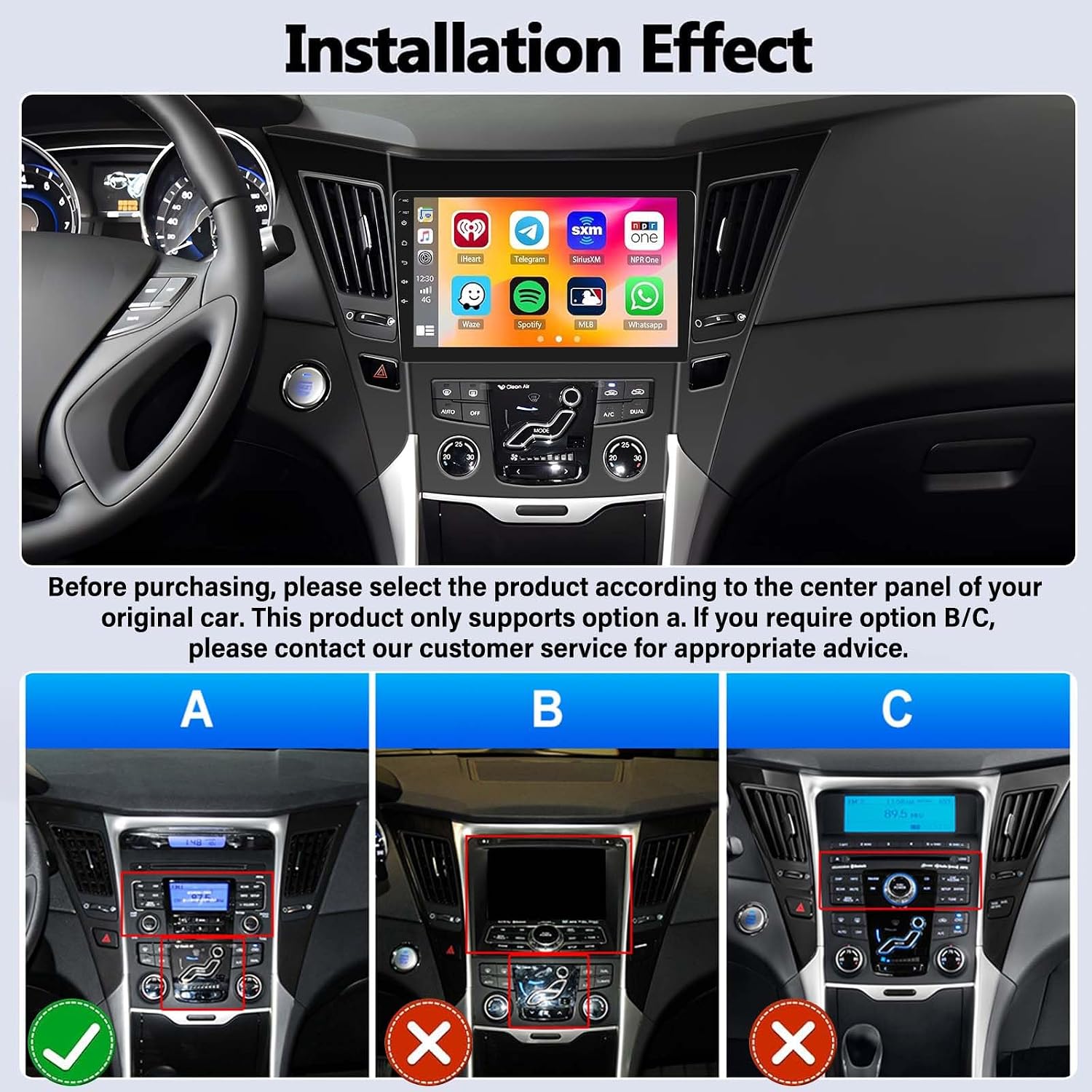
Image: The car stereo seamlessly integrated into a Hyundai Sonata dashboard. Below, three different center console configurations (A, B, C) are shown, indicating that only configuration A is compatible with this product.
4.3 Backup Camera Wiring
For backup camera installation, follow these steps:
- Red Cable (1): Connect to the positive pole of the car reversing light cable.
- Black Cable (2): Connect to the negative pole of the car reversing light cable.
- The other two red extension cables (3 & 4) do not need to be connected.
- Important: The white plug must be connected to the main device, even if the reversing camera is not used, to ensure Bluetooth and Wi-Fi functionality.
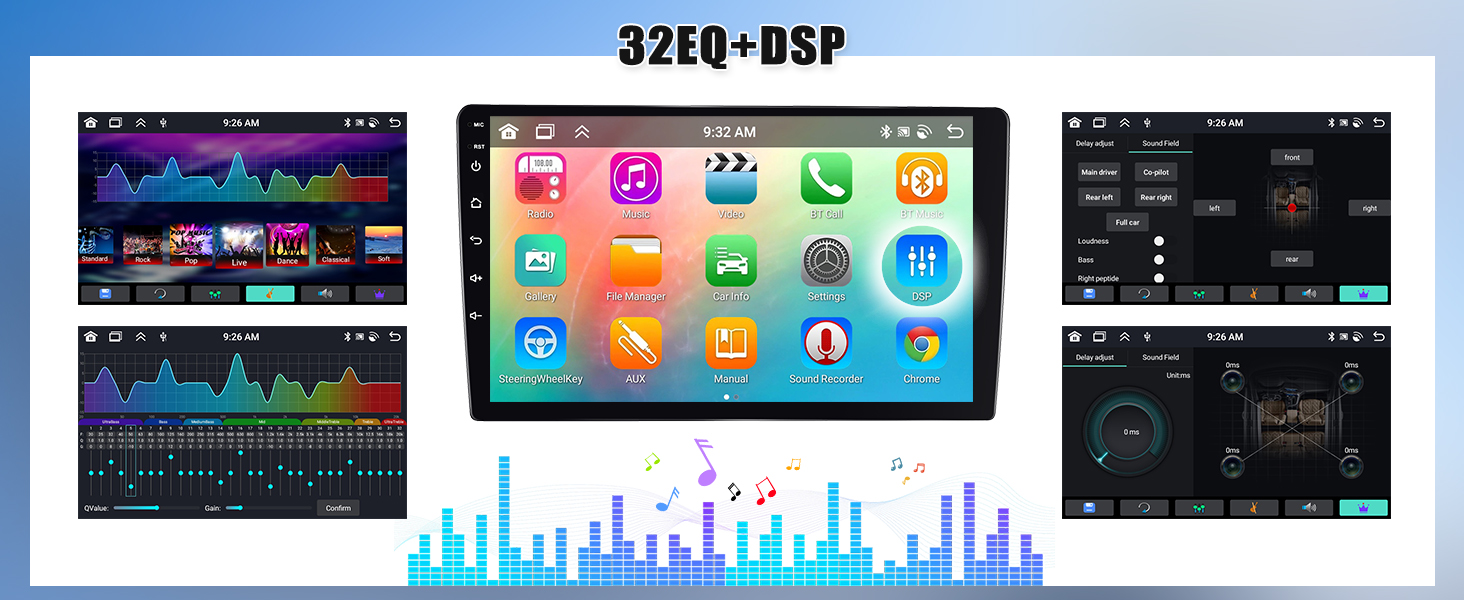
Image: A detailed wiring diagram illustrating the connections for the backup camera, including power, ground, and the main unit connection. It highlights the importance of connecting the white plug for Bluetooth and Wi-Fi.
5. Initial Setup
After successful installation, power on the unit and follow the on-screen prompts for initial setup.
- Language Selection: Choose your preferred language.
- Time and Date: Set the correct time zone, date, and time.
- Wi-Fi Connection: Connect to a Wi-Fi network to enable online features and app downloads.
- System Updates: Check for and install any available system updates.
6. Operating Instructions
6.1 Wireless CarPlay & Android Auto
The unit supports both wireless and wired CarPlay and Android Auto. Connect your smartphone to access navigation, music, calls, and messages directly on the car stereo screen. Voice control via Siri or Google Assistant is supported.
Note: Samsung phones are not supported for Mirror Link functionality.
Video: Demonstrates the connection process for both CarPlay and Android Auto, showing how to pair a smartphone and access features on the car stereo.
Video: Shows the steps for wirelessly connecting to CarPlay, including Bluetooth pairing and activating CarPlay on the car stereo.

Image: The car stereo screen displaying CarPlay, Android Auto, and various user interface themes, demonstrating phone integration and customization options.
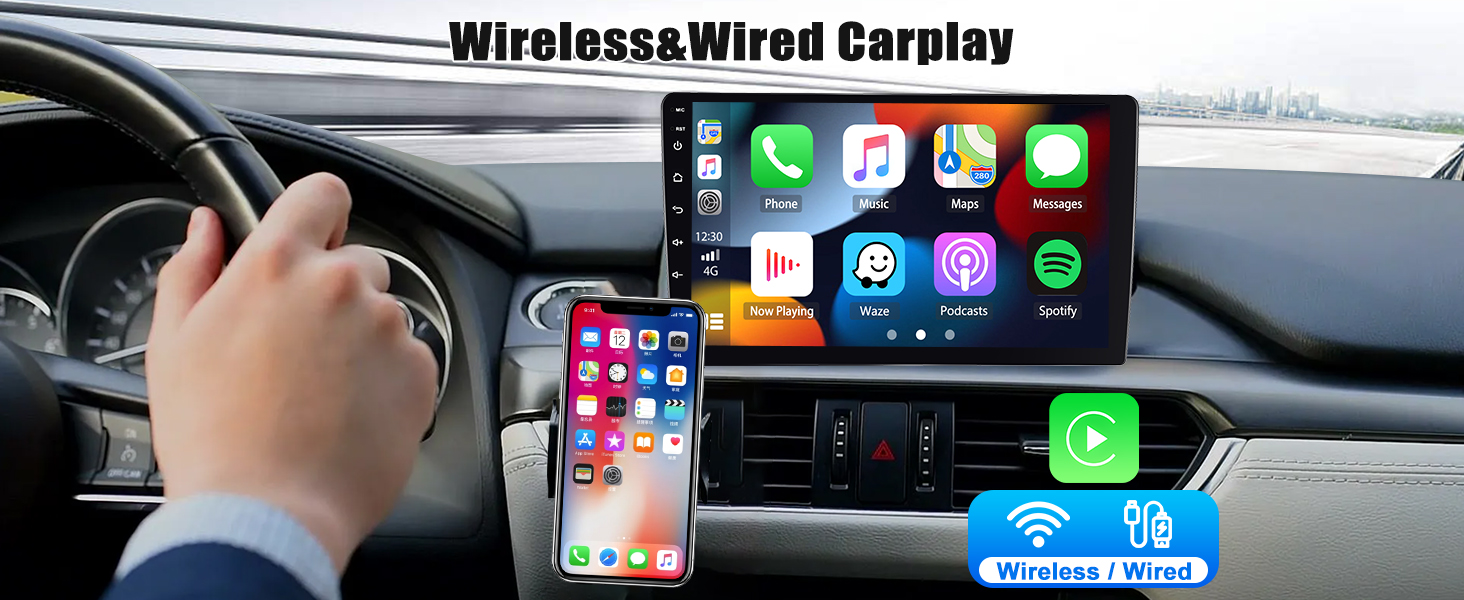
Image: Illustrates the wireless and wired connection methods for Apple CarPlay, showing a smartphone connected to the car stereo.
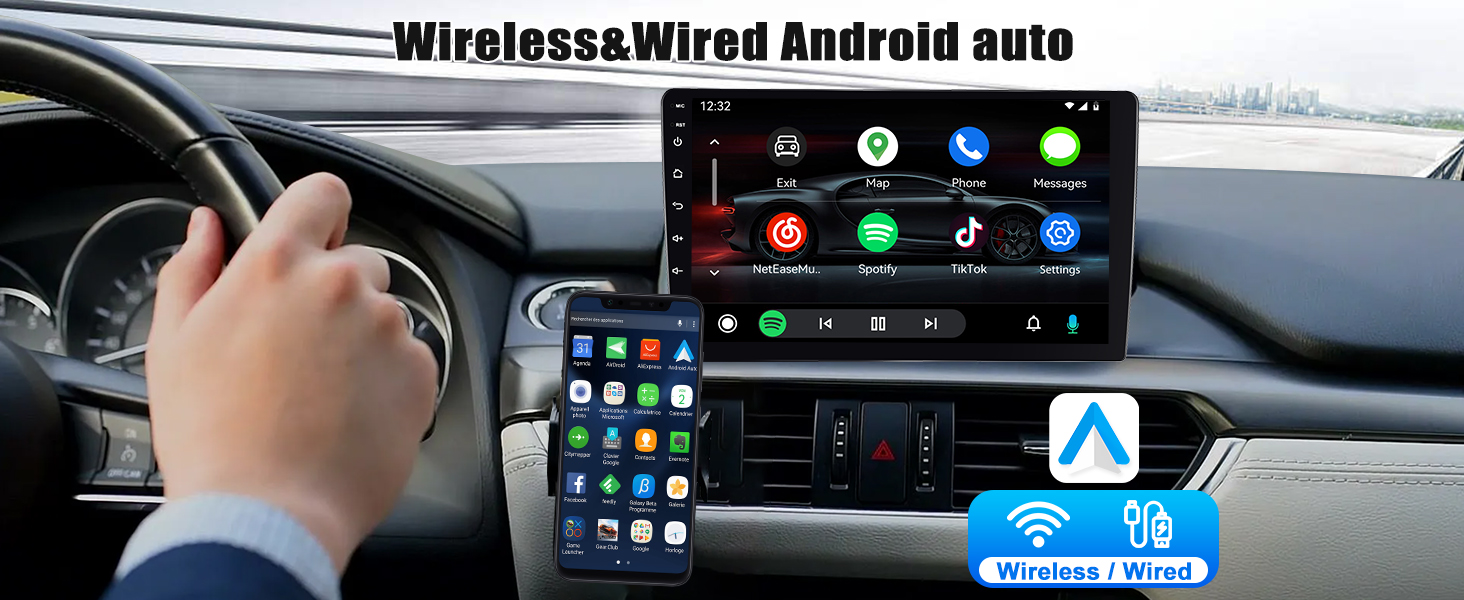
Image: Illustrates the wireless and wired connection methods for Android Auto, showing a smartphone connected to the car stereo.
6.2 Bluetooth 5.0
Connect your smartphone via Bluetooth 5.0 for hands-free calling, playing music, and downloading phone contacts. An external microphone ensures clear communication.

Image: Displays the Bluetooth 5.0 interface for hands-free calls and music, the FM/RDS radio interface with station storage, and the 32-band DSP equalizer settings.
6.3 GPS Navigation & WiFi
The unit supports both online and offline GPS navigation. Download offline maps using the 'Here We Go' app for navigation without an internet connection. Connect to Wi-Fi to use online navigation, download apps, and browse the internet.

Image: Shows the Wi-Fi connection interface, GPS navigation with online/offline map support, and the Network Radio interface for accessing global radio stations.
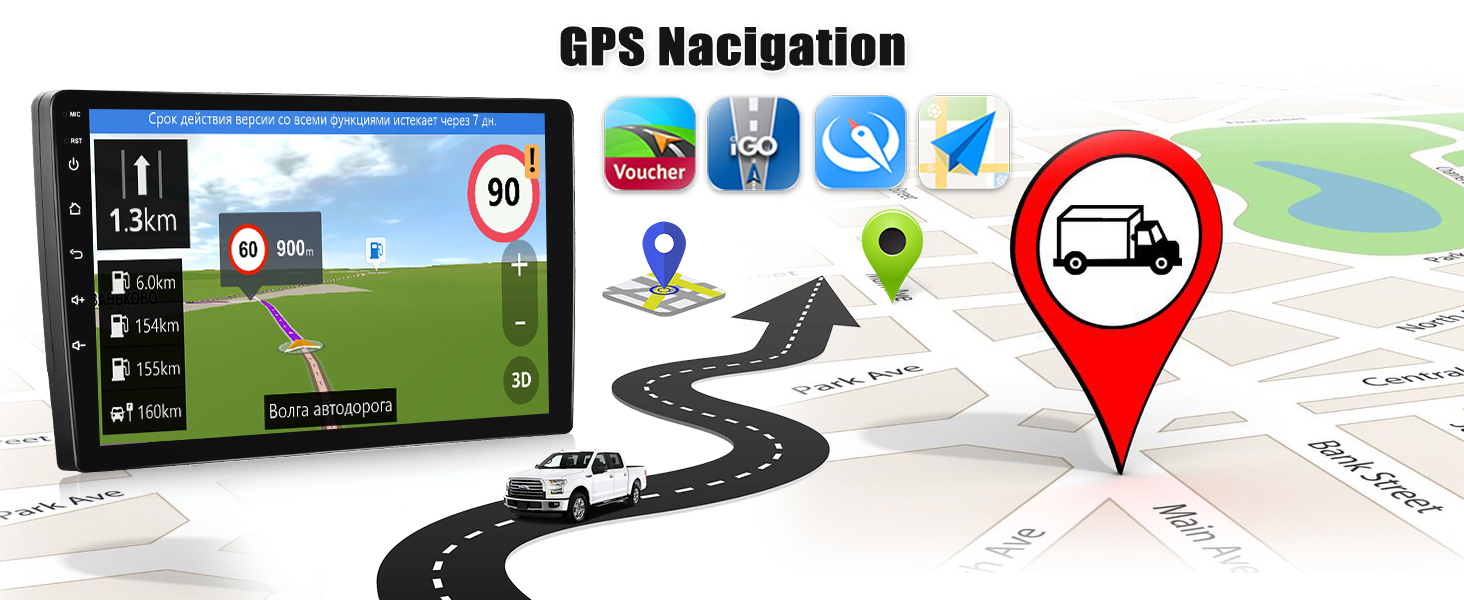
Image: The GPS navigation screen displaying map routes and various navigation app icons.

Image: Demonstrates the built-in Wi-Fi feature, showing various online applications and browsing capabilities on the car stereo.
6.4 Network Radio
Access mainstream radio stations from various countries through the network radio feature, even if you are outside local broadcast areas.
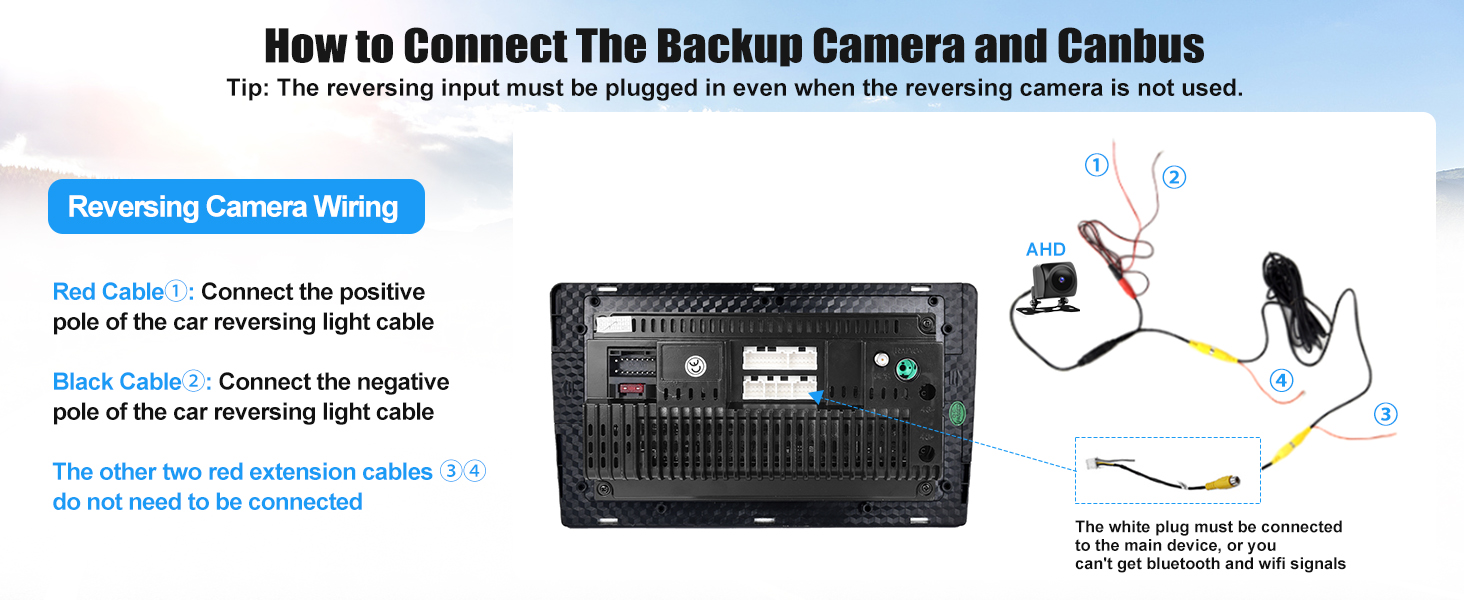
Image: The Network Radio interface displaying a selection of online radio stations and a top 30 list.
6.5 Weather Forecast
The car stereo can display a weekly weather forecast, providing convenient information for your travels.

Image: Shows the weather forecast display for a week, the three-split screen function, and a selection of 19 wallpapers for customization.
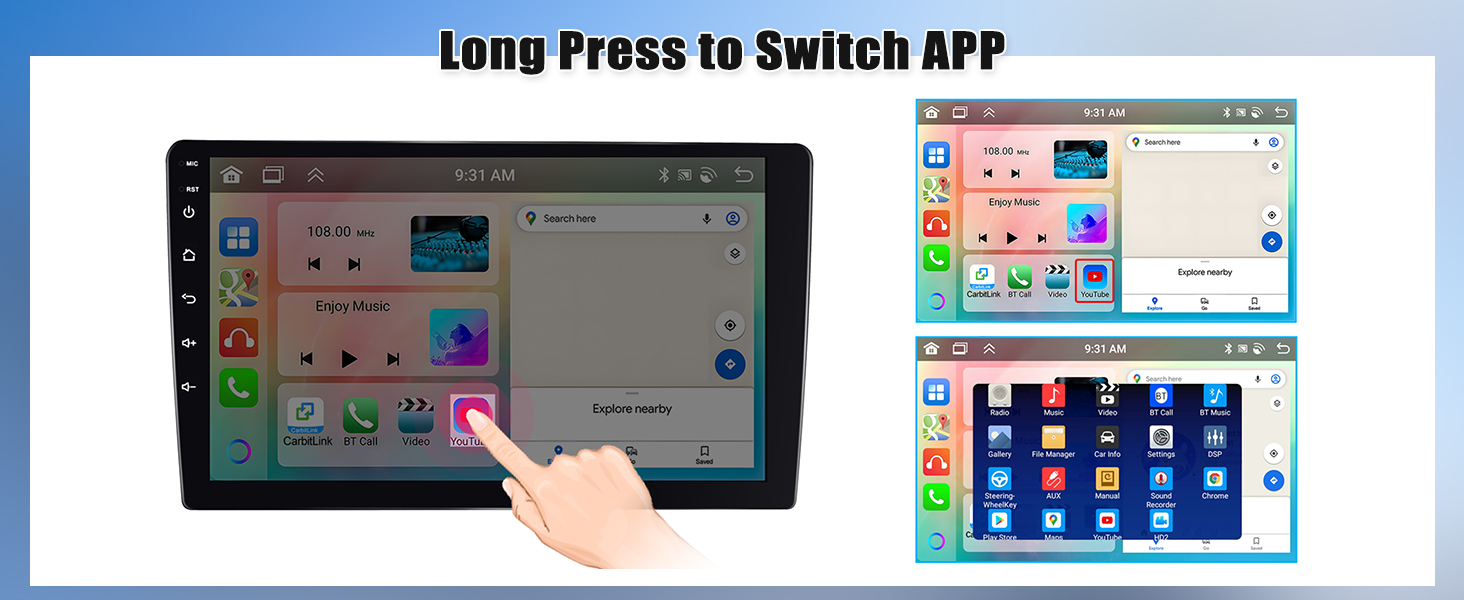
Image: The weather forecast interface showing current conditions and a multi-day forecast.
6.6 UI Themes & Split Screen Function
Personalize your car stereo with 59 UI desktop themes. The 3-split screen function allows you to run multiple applications simultaneously for enhanced multitasking.
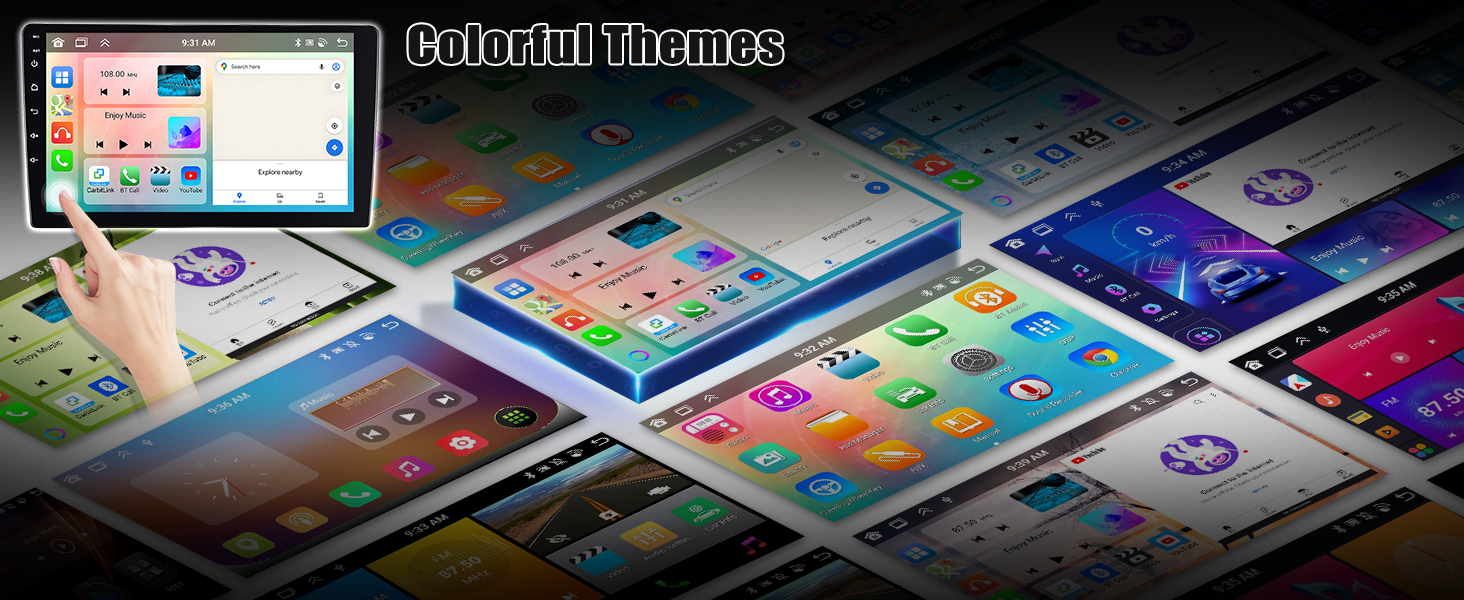
Image: A collage of various colorful desktop themes and user interfaces available for customization on the car stereo.
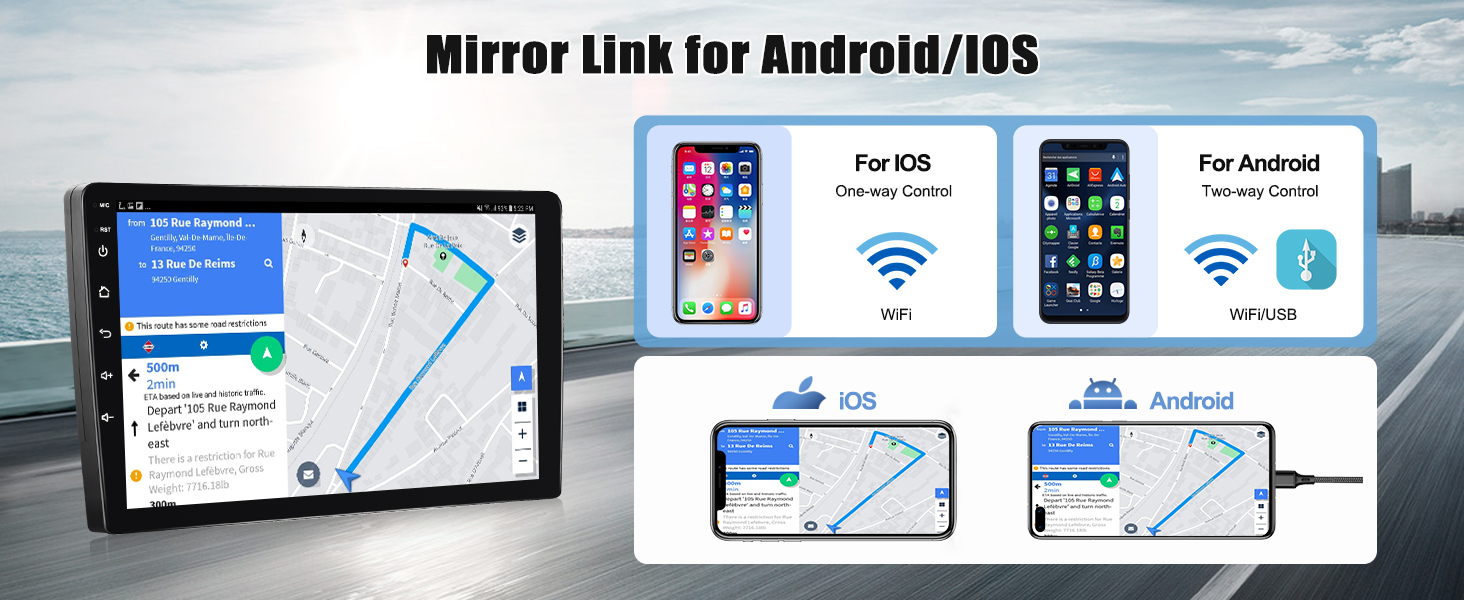
Image: Demonstrates the three-split screen function, showing multiple applications running simultaneously on the car stereo display.

Image: Illustrates how to long-press on an application icon to switch between running applications or access a multi-tasking view.
6.7 Mirror Link
Mirror Link allows you to display your smartphone's screen on the car stereo. It supports iOS (one-way control via Wi-Fi) and Android (two-way control via Wi-Fi/USB).

Image: Shows the Mirror Link function displaying a phone screen on the stereo, the steering wheel control learning interface, and the backup camera view.
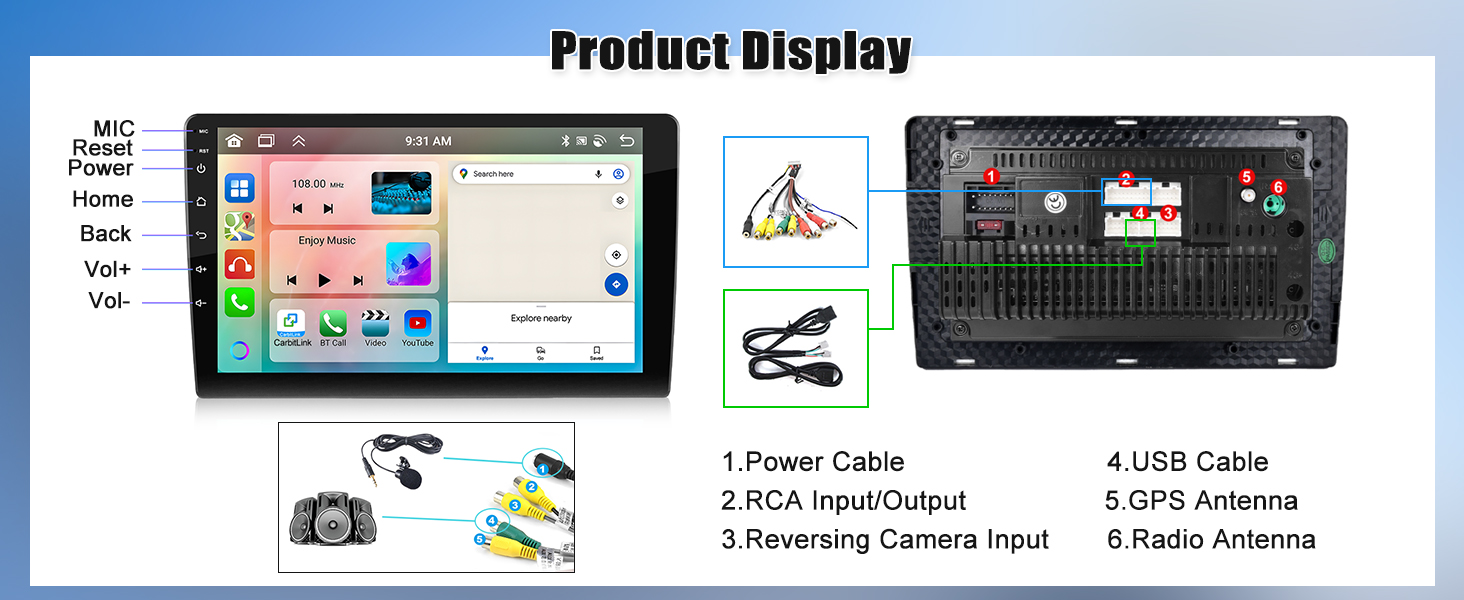
Image: Explains Mirror Link for both iOS (Wi-Fi, one-way control) and Android (Wi-Fi/USB, two-way control), showing a phone screen mirrored to the car stereo.
6.8 Steering Wheel Control
The unit supports steering wheel controls, allowing you to manage music playback, adjust volume, and answer calls without taking your hands off the wheel. The system includes a learning function to map your vehicle's steering wheel buttons.
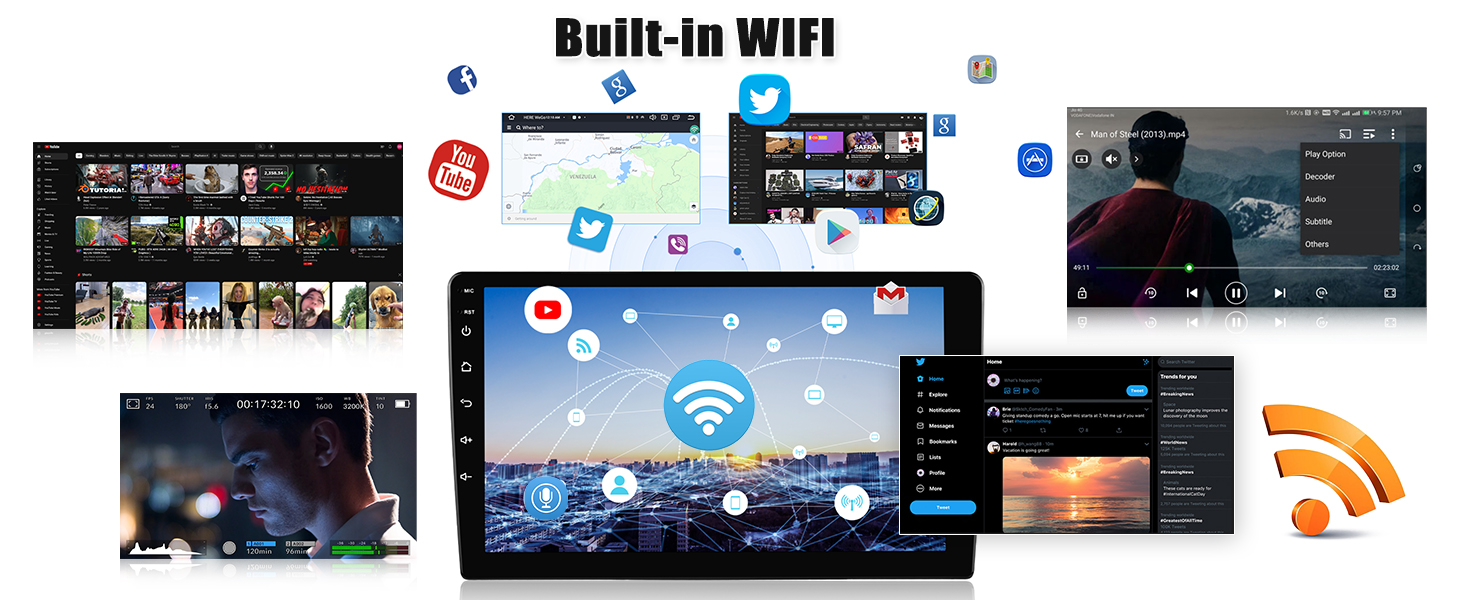
Image: The steering wheel control interface, demonstrating how to program and use the steering wheel buttons for various functions like volume, track changes, and call management.
6.9 Backup Camera
The included AHD backup camera automatically displays the rear view on the stereo screen when reversing, enhancing safety and ease of parking.
6.10 DSP 32EQ
Utilize the Digital Sound Processor (DSP) with 32-band equalization to fine-tune the audio output for optimal sound quality. Seven preset EQ modes are available.
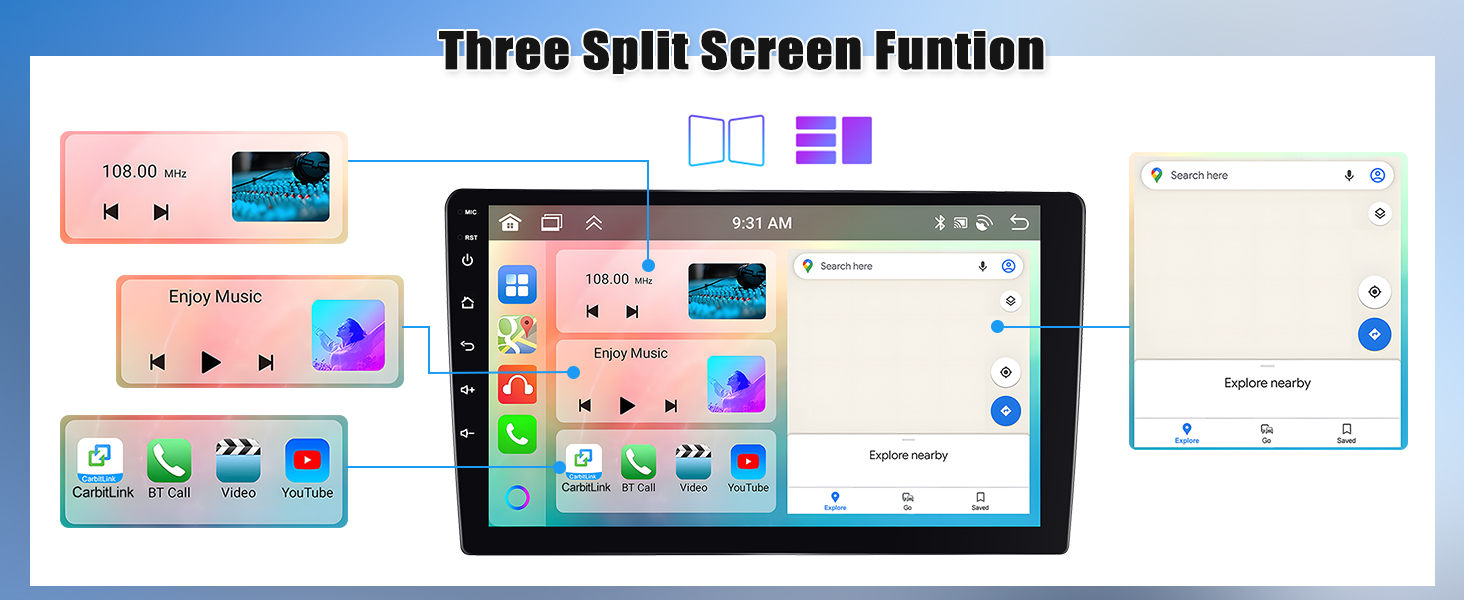
Image: The 32-band equalizer and DSP settings interface, allowing users to adjust audio parameters for a personalized listening experience.
7. Specifications
| Feature | Detail |
|---|---|
| Product Dimensions | 1 x 1 x 1 inches |
| Item Weight | 4.22 pounds |
| Item Model Number | A7246A3454A4MI2 |
| Brand | SIXWIN |
| Vehicle Service Type | Car |
| Screen Size | 9 Inches |
| Special Features | 6G+128G, Built-In Bluetooth, Built-In Wi-Fi, GPS Navigation, Rear View Camera Input, Wireless CarPlay and Android Auto |
| Connectivity Technology | Wireless |
| Map Type | Worldwide |
| Audio Output Mode | Stereo |
| Operating System | Android 13 |
8. Troubleshooting
If you encounter issues with your SIXWIN Android 13 Car Stereo, refer to the following common problems and solutions:
- No Sound:
Possible Cause: Incorrect wiring, volume too low, or missing CANBUS adapter.
Solution: Check all speaker connections. Ensure the volume is turned up. Some vehicle models may require a CANBUS adapter for audio functionality; verify your vehicle's requirements and ensure the adapter is correctly installed if needed. - Bluetooth/Wi-Fi Not Connecting:
Possible Cause: Incorrect pairing, Wi-Fi signal issues, or the white plug for the reversing camera input is not connected.
Solution: Ensure Bluetooth is enabled on both the stereo and your device. Re-pair the devices. Check Wi-Fi signal strength. Verify that the white plug for the reversing camera input is securely connected to the main unit, as it is essential for Bluetooth and Wi-Fi operation. - Touch Screen Unresponsive/Slow:
Possible Cause: Temporary software glitch or system overload.
Solution: Restart the unit. If the issue persists, perform a factory reset (note: this will erase all user data). - GPS Not Accurate:
Possible Cause: Poor GPS signal or outdated maps.
Solution: Ensure the GPS antenna is installed in a clear location with an unobstructed view of the sky. Update your navigation maps via Wi-Fi. - CarPlay/Android Auto Not Launching:
Possible Cause: Incorrect connection, incompatible phone, or app issues.
Solution: Ensure your phone is properly connected via Bluetooth (for wireless) or USB (for wired). Verify your phone model is compatible (note: Samsung phones are not supported for Mirror Link, which can affect Android Auto functionality in some cases). Restart both the stereo and your phone.
For persistent issues not covered here, please contact customer support.
9. Warranty and Support
SIXWIN provides customer support for its products. For technical assistance, warranty claims, or further inquiries, please contact us via email.
Email: sixwin_vip@163.com

Image: A customer service representative on the phone, indicating available online help and user manual support via email.
