
VILCORN SF3000
VILCORN SF3000 Retro Handheld Game Console User Manual
Model: SF3000 | Brand: VILCORN
1. Introduction
The VILCORN SF3000 is a retro handheld game console designed to provide a versatile entertainment experience. It features a 4.5-inch IPS HD screen, a dual-core processor, and a Linux operating system, offering smooth gameplay and a wide range of functions beyond gaming.
2. What's in the Box
- Handheld Game Console
- Charging Cable
- User Manual
3. Product Overview
Familiarize yourself with the console's layout and controls.

Image: Front view of the VILCORN SF3000 Retro Handheld Game Console, displaying a game on its screen.

Image: Detailed diagram of the front buttons on the VILCORN SF3000, including arrow keys, rocker, select, start, and function keys.

Image: Detailed diagram of the back and top buttons and ports on the VILCORN SF3000, showing L/R buttons, expansion keys, TF socket, DC/OTG port, headphone jack, and one-piece brackets.

Image: Close-up of the console highlighting the dual-core high-performance processor, non-slip rocker, and crystal keys.
4. Setup
4.1 Initial Charging
Before first use, fully charge the console using the provided charging cable. Connect the cable to the DC/OTG port on the console and a compatible USB power adapter (not included). The charging indicator will show the charging status.
4.2 Power On/Off
- To power on: Press and hold the power button located on the top of the console until the screen illuminates.
- To power off: Press and hold the power button until the power-off options appear, then select to shut down.
5. Operating Instructions
5.1 Navigating the Menu
Use the directional pad (D-pad) or the analog rockers to navigate through the main menu and game lists. Press the 'A' button (or equivalent action button) to select an option and the 'B' button (or equivalent back button) to return to the previous screen.
5.2 Playing Games
The console comes pre-loaded with over 25,000 games across various emulators. Select an emulator from the main menu, then browse the game list. Select a game and press the 'A' button to start playing.

Image: Console displaying a menu with various retro game console logos, indicating a large library of built-in games.
5.3 Saving and Loading Game Progress
The SF3000 supports instant save functionality. During gameplay, access the in-game menu (usually by pressing a designated 'FN' or 'Menu' button) to save your progress. You can load saved states from the same menu.
5.4 Other Functions
The VILCORN SF3000 offers additional entertainment features:
- E-book Reader: Access and read e-books.
- Video Player: Play various video formats directly from a USB flash drive (via OTG) or internal storage.
- Emergency Charging: The console can function as an emergency power bank to charge compatible mobile phones via the DC/OTG port.

Image: Console showcasing its multi-media functions including music, film, and picture playback, and e-book reading.
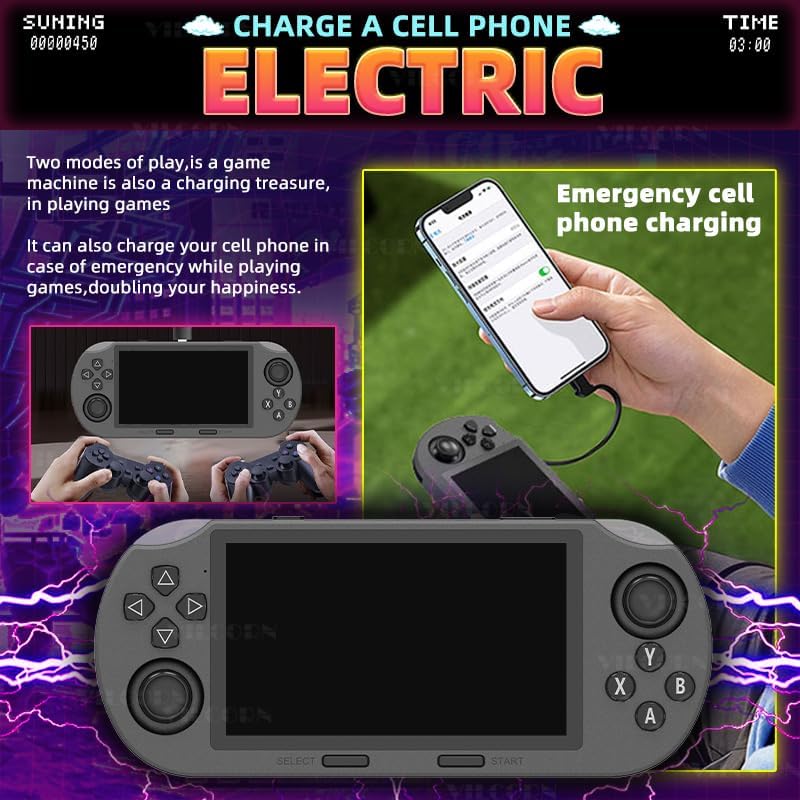
Image: Illustration of the console being used to emergency charge a mobile phone, highlighting its power bank capability.

Image: Console demonstrating direct video playback from a USB flash drive and showing its integrated stand for hands-free viewing.
6. Multi-Emulator Compatibility
The SF3000 supports a wide array of mainstream emulators, allowing you to enjoy classic games from various platforms. This includes MAME, MD, PCE, PS1, and many more. The device comes pre-loaded with a vast library of games, ensuring a rich and varied gaming experience.
7. Features & Benefits
- Designed for Gaming: 4.5-inch IPS HD screen and dual-core processor for smooth gameplay.
- Multi-Emulator Support: Compatible with MAME, MD, PCE, PS1, and more, with over 25,000 pre-installed games.
- Durable Design: Robust structure for extended gaming sessions.
- User-Friendly: Intuitive interface for easy navigation and immediate gameplay.
- Versatile Entertainment: Functions as an e-book reader, video player, and emergency phone charger.
- Optimized Gaming Experience: Features like instant save, game search, favorite lists, and game history enhance user interaction.

Image: A person using the console for various activities like video watching, music listening, novel reading, and playing games, illustrating its multi-scenario entertainment capabilities.

Image: Close-up of the console highlighting its non-slip rocker, crystal keys, and integrated stand for improved ergonomics and gaming experience.

Image: Visual representation of optimized gaming features such as instant save, game search, favorite game lists, and game history.

Image: A person playing the console in a casual setting, emphasizing its portability and ability to play anytime, anywhere.
8. Specifications
| Feature | Detail |
|---|---|
| Screen Size | 4.5 Inches |
| Display Type | IPS |
| Power Source | Battery Powered |
| Battery Type | Lithium-Ion (1 Nonstandard Battery required) |
| Memory Storage Capacity | 128 GB |
| Form Factor | Handheld |
| Material | Plastic |
| Product Dimensions | 7.87 x 3.43 x 1.5 inches |
| Item Weight | 9.3 ounces |
| Manufacturer Recommended Age | 3 years and up |
9. Maintenance
- Keep the console clean by wiping it with a soft, dry cloth.
- Avoid exposing the device to extreme temperatures or direct sunlight.
- Store in a cool, dry place when not in use.
- Do not attempt to disassemble the console, as this will void the warranty.
10. Troubleshooting
10.1 Console Not Turning On
- Ensure the battery is fully charged. Connect the charging cable and allow it to charge for at least 30 minutes before attempting to power on again.
- Press and hold the power button for 5-10 seconds to perform a hard reset.
10.2 Games Not Loading
- Check if the TF card is properly inserted into its slot.
- Ensure the game files on the TF card are not corrupted.
10.3 Screen Issues
- If the screen is dim, adjust the brightness settings in the console's system menu.
- If the screen is unresponsive or frozen, perform a hard reset.
11. Safety Information
Prohibition of water and fire.
To ensure safe operation and prevent damage, keep the device away from water and open flames. Do not expose the console to excessive moisture or high temperatures.
12. Warranty and Support
For warranty information and customer support, please refer to the documentation included with your purchase or contact VILCORN customer service directly. Keep your proof of purchase for any warranty claims.
Related documentsSF3000


Ask a question about this manual
Ask about setup, troubleshooting, compatibility, parts, safety, or missing instructions. Manuals+ will review the question and use this page’s manual context to help answer it.