
SIXTOP 1d8fc29e-c75c-45db-80a2-ef6c51c10d79
SIXTOP Android Car Stereo User Manual
Model: 1d8fc29e-c75c-45db-80a2-ef6c51c10d79
1. Introduction
This manual provides detailed instructions for the installation, operation, and maintenance of your SIXTOP Android Car Stereo. Please read this manual thoroughly before using the product to ensure proper function and safety. Keep this manual for future reference.

Image: The SIXTOP Android Car Stereo unit, showcasing its 7-inch touchscreen interface with pre-installed applications and system information.
2. Product Overview
2.1 Key Features
- System: Android 13 operating system.
- Display: 7-inch high-definition touchscreen with 1280*720 resolution.
- Memory: 4GB RAM + 64GB ROM for smooth operation and ample storage.
- Audio: Built-in DSP (Digital Sound Processor) with 32-band EQ for enhanced sound quality. Power Output: 4*45W.
- Connectivity: Bluetooth 5.0, Wi-Fi, GPS, FM/RDS radio.
- Smartphone Integration: Wireless Apple CarPlay and Android Auto, Mirror Link (wireless connection only).
- Control: Supports original steering wheel control functions.
- Camera Support: AHD/CVBS reversing input for rear view camera (camera included).
- Additional Features: AI Intelligent Voice control, Split Screen function, customizable desktop themes.
2.2 Package Contents
Verify that all items are present in the package:

Image: A visual representation of the car stereo's dimensions and a layout of all components included in the package, such as cables, camera, microphone, and user manual.
- SIXTOP Android Car Stereo with Frame
- Rear View Camera
- External Microphone
- Power Cables (x2)
- RCA Cable
- Rear Camera Input Cable
- Radio Antenna
- Canbus Decoder (if applicable for your vehicle model)
- GPS Antenna
- USB Cable (Double USB interface)
- User Manual (this document)
3. Setup & Installation
Professional installation is recommended. Ensure the vehicle's power is disconnected before beginning installation.
3.1 Pre-Installation Check
- Confirm compatibility with your vehicle model (VW, SEAT, GOLF, PASSAT, POLO, JETTA, TIGUAN, BEETLE).
- Gather necessary tools (screwdrivers, wire strippers, electrical tape, etc.).
3.2 Installation Steps
- Remove Existing Unit: Carefully remove your vehicle's original car stereo unit and dashboard trim.
- Connect Wiring:
- Connect the main power cables from the new stereo to your vehicle's wiring harness. Ensure correct polarity.
- Connect the RCA cables for audio output, if using external amplifiers.
- Connect the GPS antenna and position it in a location with clear sky view (e.g., dashboard).
- Connect the radio antenna.
- Connect the external microphone for hands-free calling.
- Connect the rear camera input cable and install the rear view camera according to its specific instructions.
- If your vehicle requires a Canbus decoder for steering wheel controls or other vehicle data, connect it as per the wiring diagram.
- Connect the USB cables for external devices.
- Test Functionality: Before fully securing the unit, temporarily connect the vehicle's power and perform a basic test of the stereo's functions (power on, radio, sound, touchscreen response).
- Secure Unit: Mount the new car stereo into the dashboard opening and secure it with screws or clips. Reinstall any removed trim pieces.

Image: A comparison showing the vehicle's dashboard with the original radio (before) and the same dashboard with the new SIXTOP Android Car Stereo successfully installed (after).
4. Operating Instructions
4.1 Initial Power On and Basic Settings
- Power On: Turn on your vehicle's ignition. The stereo should power on automatically.
- Language Selection: Follow the on-screen prompts to select your preferred language.
- Time and Date: Set the correct time and date, or enable automatic synchronization via GPS/network.
- Wi-Fi Connection: Navigate to Settings > Network & Internet > Wi-Fi. Select your Wi-Fi network and enter the password to connect. This is necessary for online maps, app downloads, and certain features.
4.2 Radio (FM/RDS)
Access the Radio application from the main menu. You can scan for stations, save presets, and utilize RDS (Radio Data System) features for station information.
4.3 Bluetooth 5.0
Bluetooth allows for hands-free calling and audio streaming.

Image: The Bluetooth phone interface on the car stereo, demonstrating calling functions and contact synchronization, with a smartphone displaying an incoming call.
- Pairing: Go to Settings > Connected devices > Pair new device. On your smartphone, search for the stereo's Bluetooth name and pair.
- Hands-Free Calling: Once paired, you can make and receive calls directly from the stereo's interface. Your phonebook can be synchronized.
- Audio Streaming: Play music from your phone via Bluetooth.
4.4 GPS Navigation
The unit supports GPS positioning and comes with built-in offline maps. Internet connection is required to download map data initially or for online map services.

Image: The top portion illustrates the GPS navigation system displaying a map, while the bottom portion highlights the Wi-Fi connectivity feature with various online applications.
4.5 Wireless Apple CarPlay & Android Auto
Connect your smartphone wirelessly to access compatible apps, navigation, music, and voice assistants.

Image: The car stereo displaying its main interface, with separate illustrations below showing how Apple CarPlay and Android Auto appear on connected smartphones.
- Ensure your phone's Wi-Fi and Bluetooth are enabled.
- Connect your phone via Bluetooth first.
- Open the [ApplePlay] or [Android Auto] app on the stereo to automatically connect.
4.6 Mirror Link
Project your smartphone screen onto the car stereo display.
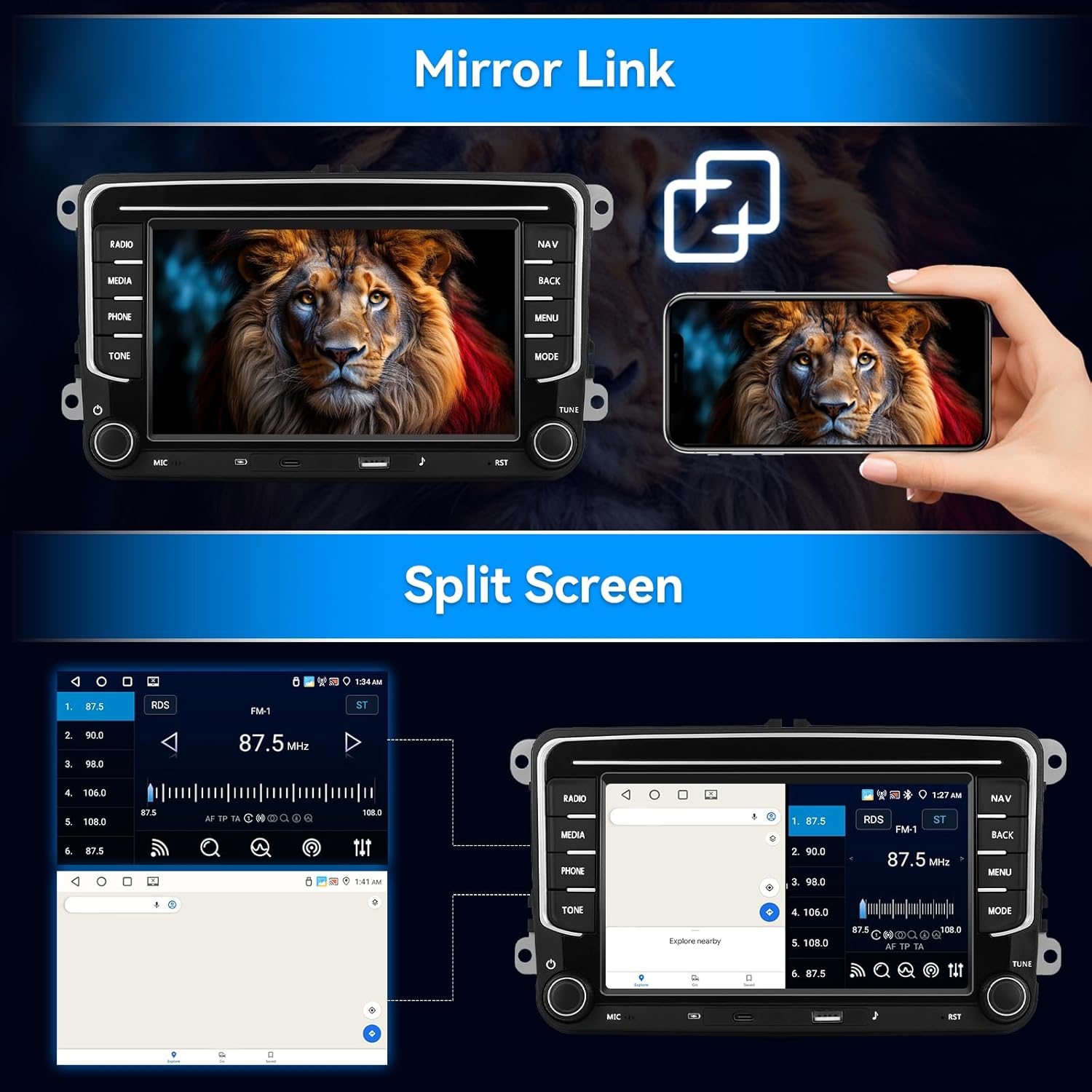
Image: The top section demonstrates the Mirror Link function, showing a phone's display replicated on the car stereo. The bottom section illustrates the Split Screen capability, running two applications side-by-side.
- Ensure your phone's Wi-Fi is enabled.
- For iPhone, select [Airplay]. For Android, select [Android Link].
- Follow the on-screen instructions to establish the connection.
4.7 AI Intelligent Voice
Activate the Voice APP to use voice commands for various functions, such as calling contacts, playing music, or opening applications.
4.8 Steering Wheel Control
If your vehicle supports it and the Canbus is correctly installed, you can configure the original steering wheel buttons to control the stereo.

Image: A composite image highlighting key features: the powerful 4-core chipset, DSP audio capabilities, the included AHD rear view camera, and the integration with steering wheel controls.
- Go to Car Settings > Steering Wheel Control.
- Follow the on-screen instructions to map your vehicle's steering wheel buttons to the stereo's functions.
4.9 Rear View Camera
The included AHD camera provides a clear reversing image. When the vehicle is put into reverse gear, the display will automatically switch to the camera view.
4.10 Split Screen Function
Run two applications simultaneously on the screen.
- Tap the rectangle icon at the top of the screen to view recent apps.
- Drag one app to the left or right side of the screen.
- Select another app to fill the remaining side.
4.11 Desktop Themes
Customize the appearance of your stereo's home screen.
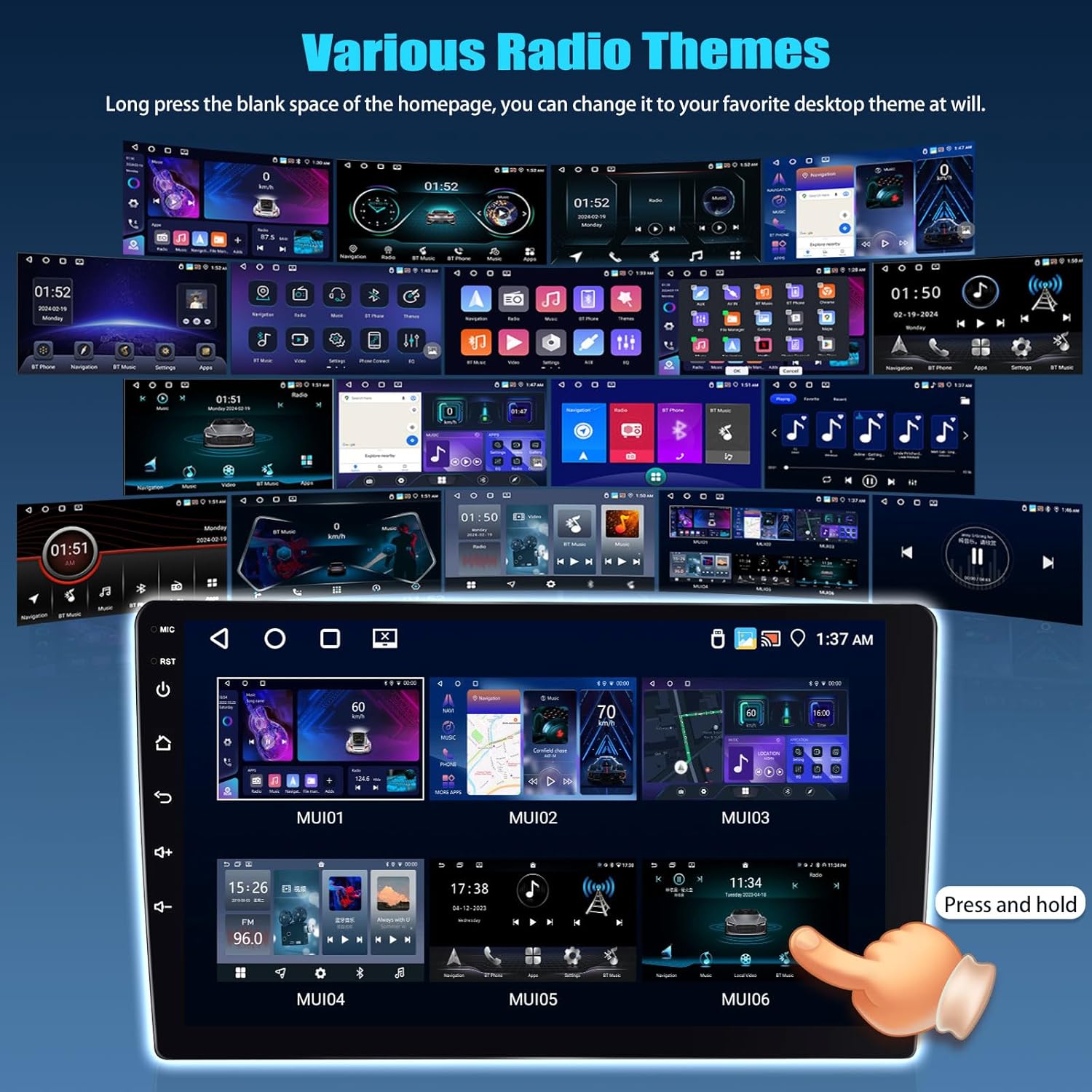
Image: A collage of various desktop themes available for the car stereo, demonstrating different visual styles and layouts.
- Long-press on a blank area of the home screen.
- Select from the available desktop themes to apply your preferred style.
5. Audio & Sound Settings
The built-in DSP and 32-band EQ allow for precise audio customization.
- Access Settings: Navigate to the Sound or EQ application from the main menu.
- Equalizer: Adjust the 32-band equalizer to fine-tune frequency responses. You can select from various presets (e.g., Pop, Rock, Jazz) or create custom profiles.
- DSP Effects: Explore DSP options such as 3D optimized, Panorama, and HiFi scene to enhance the listening experience.
- Balance/Fader: Adjust audio balance between left/right and front/rear speakers.
- Subwoofer Control: If connected, adjust subwoofer output levels and crossover frequencies.
6. Maintenance
6.1 Cleaning
- Use a soft, dry cloth to clean the screen and exterior.
- Avoid abrasive cleaners or solvents that may damage the surface.
- Do not spray cleaning liquids directly onto the unit.
6.2 Software Updates
Periodically check for software updates to ensure optimal performance and access to new features. Updates can typically be found in the system settings or on the manufacturer's support website.
7. Troubleshooting
If you encounter issues, refer to the table below for common problems and solutions.
| Problem | Possible Cause | Solution |
|---|---|---|
| Unit does not power on. | Incorrect wiring; Blown fuse; Vehicle power issue. | Check power connections and fuses. Ensure vehicle ignition is on. |
| No sound. | Volume too low; Mute activated; Speaker wiring issue. | Increase volume. Check mute status. Verify speaker connections. |
| Bluetooth connection unstable. | Interference; Device too far; Outdated firmware. | Ensure devices are close. Avoid interference. Check for firmware updates. |
| GPS signal weak or inaccurate. | GPS antenna obstructed or improperly placed. | Relocate GPS antenna to a position with clear sky view. |
| Steering wheel controls not working. | Canbus not connected; Incorrect configuration. | Verify Canbus connection. Reconfigure controls in settings. |
| Screen freezes or reboots randomly. | Software glitch; Overheating; Power supply issue. | Perform a soft reset (RST button). Ensure proper ventilation. Check power connections. |
For issues not listed here, please contact customer support.
8. Specifications
| Feature | Detail |
|---|---|
| System | Android 13 |
| Screen Size | 7 Inches |
| Screen Resolution | 1280*720 |
| Memory | 4GB (RAM) + 64GB (ROM) |
| Power Output | 4*45W (180 Watts total) |
| Bluetooth Version | 5.0 |
| Radio Band | FM/RDS |
| Reversing Input | AHD/CVBS |
| CarPlay/Android Auto | Wireless Connection Only |
| Mirror Link | Wireless Connection Only |
| USB Interface | Double USB |
| Audio Formats | APE/FLAC/WAV/MP3/WMA etc. |
| Video Formats | MKV/RMVB/AVI/MP4/MDV etc. |
| Picture Formats | PNG/JPEG/JPG/GIF/WBMP/BNP etc. |
| Operating Temperature | -20℃ to 75℃ |
| Model Number | 1d8fc29e-c75c-45db-80a2-ef6c51c10d79 |
9. Warranty & Support
9.1 Warranty Information
SIXTOP provides a 1-year replacement warranty for this product. Please retain your proof of purchase for warranty claims.
9.2 Technical Support
For technical assistance, troubleshooting, or any questions regarding your SIXTOP Android Car Stereo, please contact our support team.
- Online Support Email: SIXTOP123@163.com
- Response Time: 24 Hours / 7 Days Quick Response
- Support Duration: Lifetime Technical Support
You can also reach out to the seller directly through the Amazon platform for assistance.

Image: Customer service representatives ready to provide online support.

Image: Icons illustrating the support services offered: 24/7 quick response, 1-year replacement, and lifetime technical support.
Related documents1d8fc29e-c75c-45db-80a2-ef6c51c10d79


Ask a question about this manual
Ask about setup, troubleshooting, compatibility, parts, safety, or missing instructions. Manuals+ will review the question and use this page’s manual context to help answer it.