
Introduction
Thank you for choosing the LENRUE Computer Speakers Model E-1103. This manual provides essential information for the proper setup, operation, and maintenance of your new speakers. Please read these instructions carefully before use to ensure optimal performance and longevity of your device.
Product Overview
The LENRUE E-1103 is a compact soundbar designed for desktop and laptop use, offering clear stereo sound and dynamic lighting. It features a single USB connection for both power and audio, simplifying your setup.
Key Features:
- Crystal-Clear Stereo Sound: Equipped with dual speakers and dual diaphragms for balanced audio.
- Dynamic Colorful Touch Lighting: Soft breathing light effects with touch-sensitive control for on/off functionality.
- Space-Saving Soundbar Design: Compact form factor fits conveniently under most monitors or laptops.
- Universal USB-Powered Compatibility: Connects via a single USB port (USB-A to USB-C adapter included).
- Plug-and-Play Simplicity: No drivers or additional software required for operation.
Components:
The package includes the LENRUE E-1103 speaker unit and a USB-C adapter.
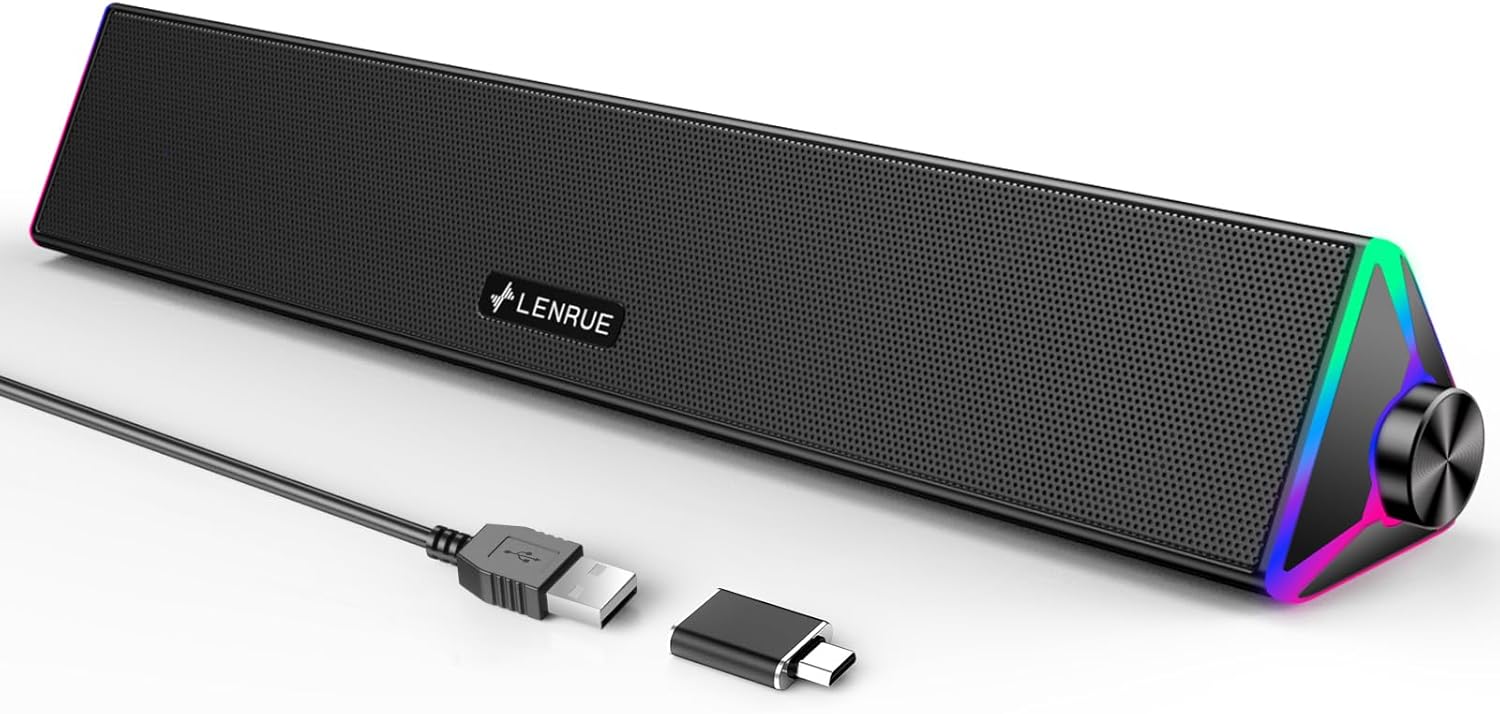
Image: The LENRUE Computer Speakers Model E-1103, a sleek soundbar designed for desktop use.
Setup Instructions
Follow these steps to connect your LENRUE E-1103 speakers to your device.
- Connect the USB Cable: Locate the USB-A cable attached to the speaker. Plug this cable into an available USB-A port on your computer (desktop PC, laptop, or monitor).

Image: Illustration of connecting the speaker's USB cable to a laptop, showing the included USB-C adapter.
Note: If your device only has USB-C ports, use the included USB-C adapter by plugging the speaker's USB-A cable into the adapter, then plugging the adapter into your device's USB-C port.
- Power On: The speakers will power on automatically once connected to a powered USB port.
- Select Audio Output: On your computer, navigate to your sound settings and select "LENRUE E-1103" as the audio output device. This is typically found in the system's sound preferences or control panel.
- Positioning: Place the soundbar directly under your monitor or laptop for optimal sound projection and to utilize its space-saving design.

Image: The speaker demonstrating compatibility with Windows, macOS, and Chrome OS devices. Not compatible with Xbox.
Operating Instructions
Volume Adjustment:
The LENRUE E-1103 features a rotary knob on the right side for convenient volume control. Rotate the knob clockwise to increase volume and counter-clockwise to decrease volume.

Image: A close-up of the speaker's rotary volume knob and a visual representation of adjusting volume on a computer interface.
Lighting Control:
The speakers are equipped with dynamic breathing lights on the sides. To turn the lights on or off, gently touch the designated touch-sensitive area located near the volume knob.

Image: The speaker's side panel highlighting the touch control icon for managing the breathing light effects.
Maintenance
Proper maintenance ensures the longevity and performance of your speakers.
- Cleaning: Use a soft, dry cloth to wipe the exterior of the speakers. Avoid using abrasive cleaners, solvents, or harsh chemicals, as these can damage the finish.
- Dust Removal: Periodically use a soft brush or compressed air to remove dust from the speaker grilles and ports.
- Storage: When not in use for extended periods, store the speakers in a cool, dry place away from direct sunlight and extreme temperatures.
- Cable Care: Avoid bending or crimping the USB cable excessively. Do not pull on the cable to disconnect it; always grasp the plug.
Troubleshooting
If you encounter issues with your LENRUE E-1103 speakers, refer to the following common problems and solutions:
| Problem | Possible Cause | Solution |
|---|---|---|
| No sound from speakers |
|
|
| Lights are not working |
|
|
| Sound is distorted or unclear |
|
|
If the problem persists after trying these solutions, please contact customer support.
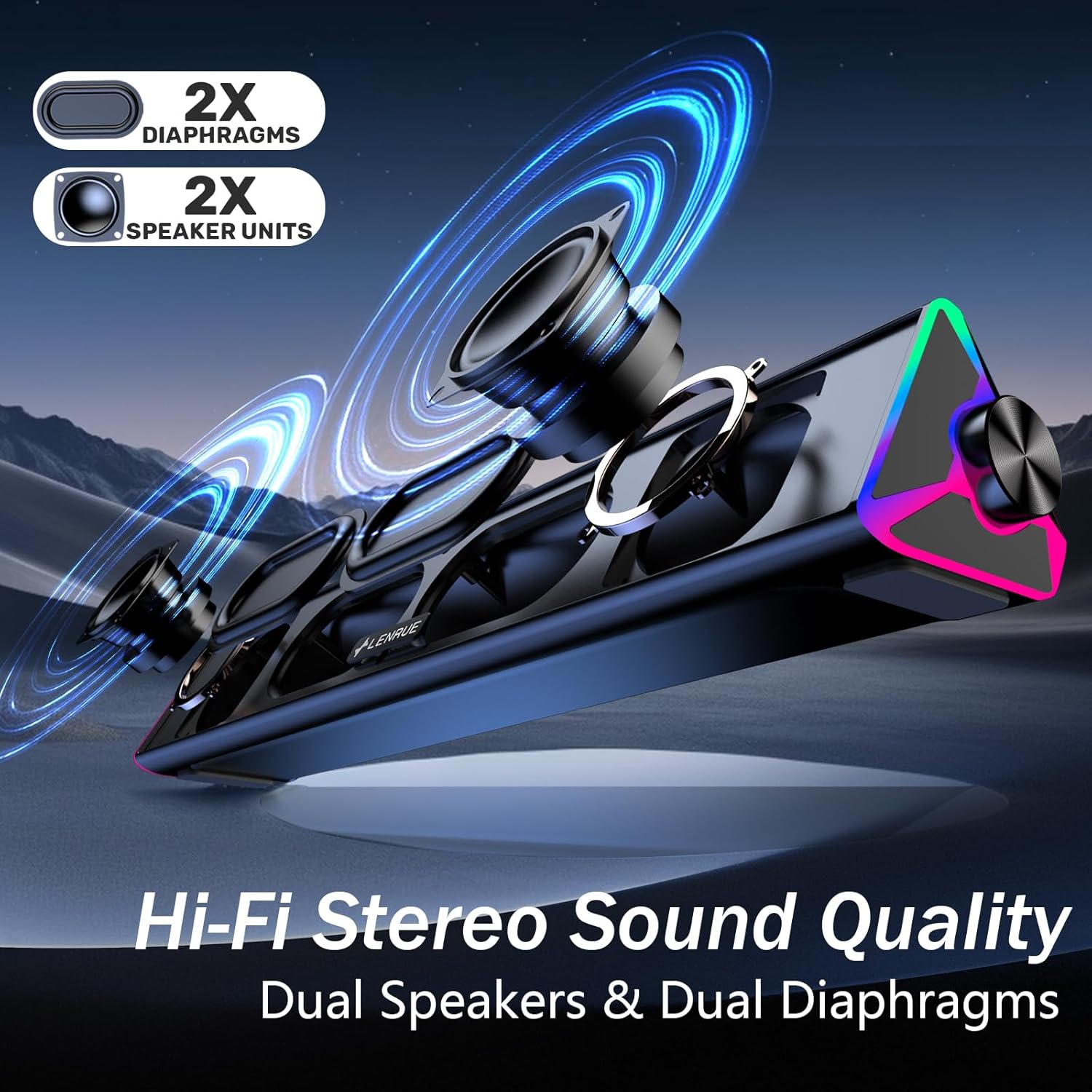
Image: An exploded view illustrating the dual diaphragms and speaker units responsible for the Hi-Fi stereo sound quality.
Specifications
| Feature | Detail |
|---|---|
| Model Number | E-1103 |
| Brand | LENRUE |
| Connectivity Technology | USB |
| Audio Output Mode | Stereo |
| Speaker Maximum Output Power | 5 Watts |
| Frequency Response | 20 Hz |
| Product Dimensions (D x W x H) | 6.3 x 37.5 x 6.3 cm (2.48 x 14.76 x 2.48 inches) |
| Item Weight | 435 Grams |
| Enclosure Material | Plastic |
| Built-In Media | USB-C adapter |
| Country of Origin | China |

Image: Diagram showing the dimensions of the speaker (37.5cm length, 6.3cm height/depth) and the 120cm USB cable length.
Warranty Information
The LENRUE Computer Speakers Model E-1103 comes with a 2-year warranty from the date of purchase. This warranty covers manufacturing defects and ensures the product is free from defects in material and workmanship under normal use. Please retain your proof of purchase for warranty claims. The warranty does not cover damage caused by misuse, accident, unauthorized modification, or normal wear and tear.
Customer Support
For any questions, technical assistance, or warranty claims regarding your LENRUE Computer Speakers Model E-1103, please contact LENRUE customer support. Refer to the contact information provided with your product packaging or visit the official LENRUE website for support details.

