
1. Introduction
This manual provides essential information for setting up, operating, maintaining, and troubleshooting your OnePlus Nord CE5 smartphone. Please read this guide thoroughly to ensure optimal performance and longevity of your device.
2. What's in the Box
Upon unboxing your OnePlus Nord CE5, verify that all the following items are included:
- OnePlus Nord CE5 Smartphone
- Phone Case
- Power Adapter
- SIM Tray Ejector
- Screen Protector (pre-applied or in box)
- USB Cable (Type-C)

Image: Contents of the OnePlus Nord CE5 retail box.
3. Device Overview
Familiarize yourself with the physical components of your OnePlus Nord CE5.
3.1 Front View

Image: Front view of the OnePlus Nord CE5, highlighting the display and front camera.
The front of the device features the 6.77-inch AMOLED display and the 16 MP front-facing camera.
3.2 Rear View

Image: Rear view of the OnePlus Nord CE5 in Nexus Blue, featuring the dual camera system and OnePlus branding.
The rear panel houses the 50 MP main camera with OIS and an 8 MP ultra-wide angle lens, along with the LED flash.
3.3 Side View
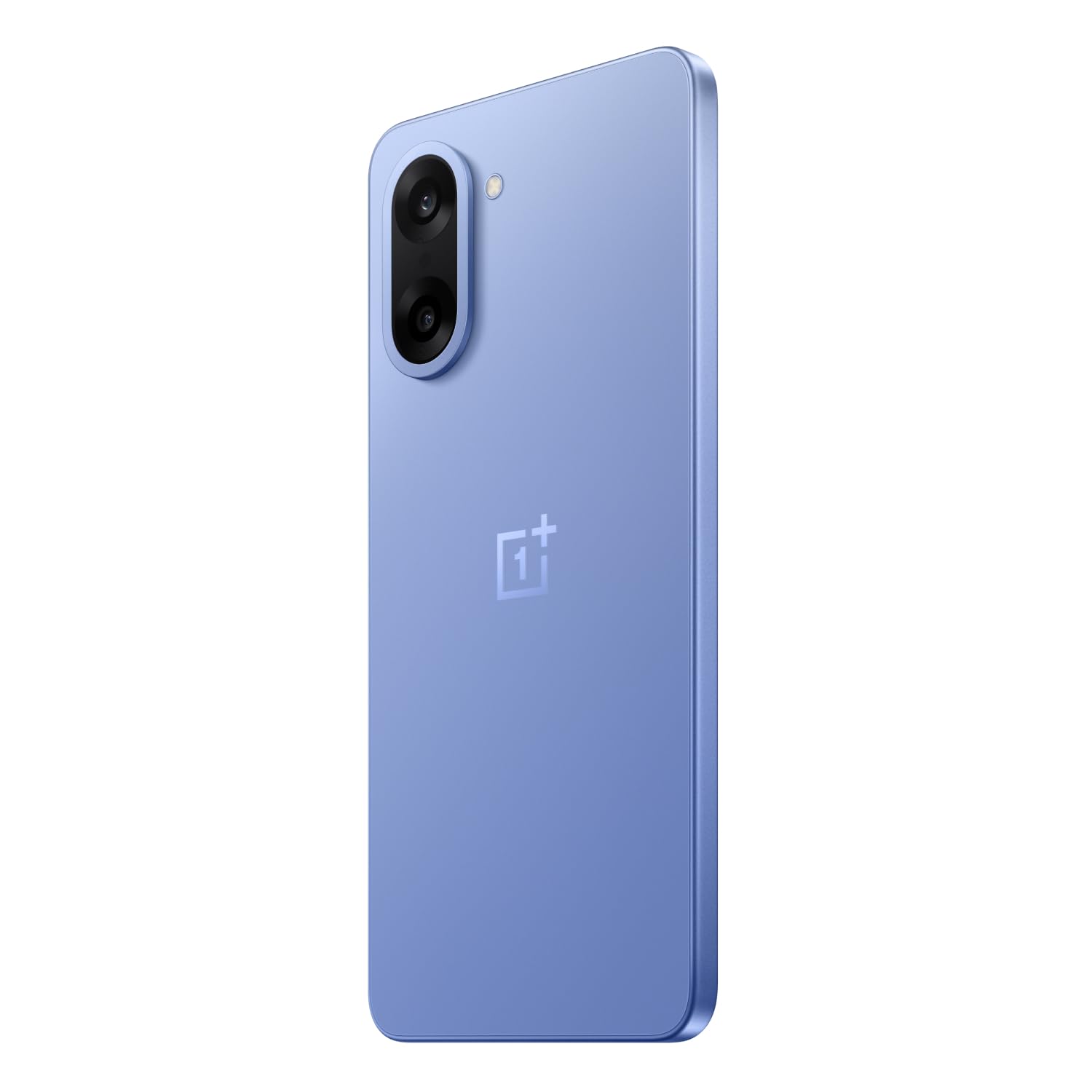
Image: Side view of the OnePlus Nord CE5, illustrating the placement of the power button and volume controls.
The side of the device includes the power button and volume control buttons. The SIM card tray is also located on one of the sides.
4. Setup
4.1 Inserting SIM Cards
- Locate the SIM card tray on the side of your device.
- Insert the SIM tray ejector tool into the small hole next to the tray and press firmly until the tray pops out.
- Place your Nano SIM cards into the designated slots on the tray. Ensure the gold contacts face downwards.
- Carefully reinsert the SIM tray into the device until it clicks into place.
4.2 Initial Power On
Press and hold the power button located on the side of the device until the OnePlus logo appears. Follow the on-screen instructions to complete the initial setup, including language selection, Wi-Fi connection, and Google account setup.
4.3 Charging the Device
Connect the USB Type-C cable to the charging port at the bottom of the phone and the other end to the provided power adapter. Plug the adapter into a power outlet. The device supports 80W SUPERVOOC fast charging.
5. Operating Your Device
5.1 Display and Navigation
The OnePlus Nord CE5 features a 6.77-inch 120Hz AMOLED display with Ultra HDR. Navigate the OxygenOS 15 interface using touch gestures. The Aqua Touch feature allows for confident swiping even with wet or oily fingers.
5.2 Battery Management
Your device is equipped with a massive 7100mAh battery. To optimize battery life:
- Utilize the 80W SUPERVOOC charger for rapid charging.
- Enable Bypass Charging during extended gaming sessions to reduce battery stress and heat.
- Adjust screen brightness and refresh rate as needed.
- Close unused background applications.

Image: Illustration of the 7100mAh battery and 80W SUPERVOOC charging capability.

Image: Explanation of Bypass Charging, which directs power to the phone's system instead of the battery during use.
5.3 Camera Usage
The device features a versatile camera system:
- Rear Camera: 50 MP Sony main sensor with Optical Image Stabilization (OIS) and an 8 MP ultra-wide angle lens. Supports 4K video recording at 60 FPS.
- Front Camera: 16 MP sensor for selfies and video calls.
Open the Camera app to access various modes, including Photo, Video, Portrait, Night, and more. Tap on the screen to focus and use the zoom controls for magnification.

Image: Detailed view of the OnePlus Nord CE5's dual rear camera setup.

Image: The device's capability to record 4K video at 60 frames per second.
5.4 Performance and Gaming
The OnePlus Nord CE5 is powered by the MediaTek Dimensity 8350 Apex processor, offering high performance for demanding applications and gaming. The device supports gaming at up to 120 FPS for a smooth experience.

Image: The MediaTek Dimensity 8350 Apex processor, emphasizing its performance capabilities.

Image: Gaming experience on the OnePlus Nord CE5 at 120 frames per second.
5.5 AI Features
The OnePlus Nord CE5 integrates various AI-powered features to enhance user experience:
- AI Camera: Includes AI Eraser for removing unwanted objects, AI Perfect Shot for optimal photo capture, AI Reflection Remover, and AI Reframe for improved composition.
- AI Productivity: Features AI VoiceScribe for in-app call summaries and real-time translation, AI Translation for global communication, and AI Call Assistant for in-call translation and summaries.
- Google Gemini: A personal AI assistant for writing, planning, learning, and more.

Image: Demonstration of AI Camera features, showing an object removed from a photo.
Image: AI VoiceScribe interface for call summaries and translation.
5.6 Multitasking with Open Canvas
The Open Canvas feature allows for enhanced split-screen multitasking, extending apps beyond the physical display. This includes flexible resizing, screencap for split-screen, drag-and-drop sharing, and refreshed floating windows.

Image: Open Canvas feature showing two applications running side-by-side on the display.
6. Maintenance
6.1 Software Updates
Regularly check for and install software updates to ensure your device has the latest features, security patches, and performance improvements. Go to Settings > About device > OxygenOS to check for updates.
6.2 Cleaning Your Device
Use a soft, lint-free cloth to clean the screen and body of your phone. Avoid using harsh chemicals or abrasive materials. For the charging port and speaker grilles, use a soft brush to gently remove dust.
6.3 Storage Management
Periodically review your device's storage to free up space. Delete unnecessary files, uninstall unused apps, and clear cache data. You can check storage usage in Settings > Storage.
6.4 Cooling System
The device features a 7041mm² VC cooling system to manage heat during intensive use. To ensure optimal cooling, avoid blocking the phone's vents (if any) and do not use the device in direct sunlight for extended periods.

Image: Internal view showcasing the 7041mm² VC cooling system for heat dissipation.
7. Troubleshooting
This section addresses common issues you might encounter with your OnePlus Nord CE5.
7.1 Device Not Powering On
- Ensure the battery is charged. Connect the device to the charger and wait a few minutes before attempting to power it on again.
- Press and hold the power button for at least 10-15 seconds to force a restart.
7.2 Apps Crashing or Freezing
- Clear the cache and data of the problematic app via Settings > Apps > [App Name] > Storage > Clear cache/Clear data.
- Update the app to its latest version from the Google Play Store.
- Restart your device.
7.3 Poor Battery Life
- Check battery usage in Settings > Battery to identify power-hungry apps.
- Reduce screen brightness and set a shorter screen timeout.
- Disable Wi-Fi, Bluetooth, and GPS when not in use.
- Ensure background app refresh is limited for non-essential apps.
7.4 Network Connectivity Issues
- Toggle Airplane Mode on and off.
- Restart your device.
- Check if your SIM card is properly inserted.
- Reset network settings via Settings > System settings > Reset phone > Reset Wi-Fi, mobile & Bluetooth.
8. Specifications
Key technical specifications for the OnePlus Nord CE5:
| Feature | Specification |
|---|---|
| Brand | OnePlus |
| Model | Nord CE5 |
| Operating System | Android 15, OxygenOS 15 |
| Processor | MediaTek Dimensity 8350 Apex (3.35 GHz) |
| RAM | 8 GB |
| Internal Storage | 128 GB |
| Display | 6.77 Inches AMOLED, 2392 x 1080 Pixels, 120Hz Refresh Rate |
| Rear Camera | 50 MP (Main) + 8 MP (Ultra-wide), OIS, 4K 60 FPS Video |
| Front Camera | 16 MP |
| Battery Capacity | 7100 mAh |
| Charging | 80W SUPERVOOC |
| SIM Card Type | Dual Nano SIM |
| Connectivity | 5G, Bluetooth, USB Type-C, Wi-Fi |
| Biometric Security | Fingerprint Recognition |
| Dimensions | 16.4 x 7.6 x 0.8 Centimeters |
| Weight | 199 Grams |
| Water Resistance | Water Resistant |
9. Warranty and Support
9.1 Warranty Information
Your OnePlus Nord CE5 comes with a 1 Year Manufacturer Warranty from the date of purchase. This warranty covers manufacturing defects. Additionally, OnePlus offers a Lifetime Display Warranty for industry-wide green line issues. Please retain your proof of purchase for warranty claims.

Image: Lifetime Display Warranty information.
9.2 Customer Support
For technical assistance, service, or warranty inquiries, please contact OnePlus Customer Service:
- Contact Number: 1800 102 8411
- WhatsApp: +91-9289606888
- Manufacturer: OPPO Mobiles India Private Limited, PLOT-NO.1, SECTOR ECOTECH-VII, GREATER, NOIDA, UTTAR PRADESH, India-201306


