
Introduction
This manual provides essential information for setting up, operating, maintaining, and troubleshooting your HP 15-fd series laptop. Please read this guide thoroughly to ensure optimal performance and longevity of your device.
The HP 15-fd laptop is equipped with a 13th Gen Intel Core i3-1315U processor, 15.6-inch HD touchscreen display, 8GB DDR4 RAM, and a 512GB SSD, running on Windows 11 Pro. It is designed for productivity and includes various connectivity options and accessories.
1. Setup
1.1 Unpacking and Initial Inspection
Carefully remove all components from the packaging. Verify that all items listed in the packing list are present and undamaged. If any items are missing or damaged, contact your retailer immediately.
1.2 Connecting to Power
- Connect the AC adapter to the power connector on your laptop.
- Plug the AC adapter into a grounded electrical outlet.
- Allow the battery to charge for at least 30 minutes before initial use, or until the battery indicator shows a full charge.
1.3 Initial Power On and Windows 11 Pro Setup
- Press the power button located on the keyboard deck to turn on the laptop.
- Follow the on-screen instructions to complete the Windows 11 Pro setup process. This includes selecting your region, language, connecting to a Wi-Fi network, and creating a user account.
- Ensure you have an active internet connection for Windows updates and software activation.
1.4 Included Accessories
Your laptop package includes the following accessories to enhance your experience:
- 5-in-1 Docking Station: Provides additional ports including HDMI video output, USB 3.0, USB Type-C/PD, and RJ45 Ethernet.
- HDMI Cable: For connecting to external displays.
- 128GB Portable SSD: For additional storage and data transfer.
- Lifetime Office: Pre-installed or provided with activation instructions for Microsoft Office suite.

Figure 1: Included accessories, including the 5-in-1 docking station, HDMI cable, 128GB portable SSD, Windows 11 Pro, and Lifetime Office.
2. Operating Your Laptop
2.1 Power On/Off and Sleep Mode
- Power On: Press the power button.
- Shut Down: Click the Start button, then Power > Shut down.
- Sleep Mode: Close the lid or click the Start button, then Power > Sleep.
2.2 Using the Touchscreen
Your HP 15-fd laptop features a responsive 15.6-inch multi-touch display. You can interact with the system using various touch gestures:
- Tap: Equivalent to a mouse click.
- Double-tap: Opens applications or selects items.
- Pinch-to-zoom: Use two fingers to zoom in or out.
- Swipe: Navigate through content or switch between applications.
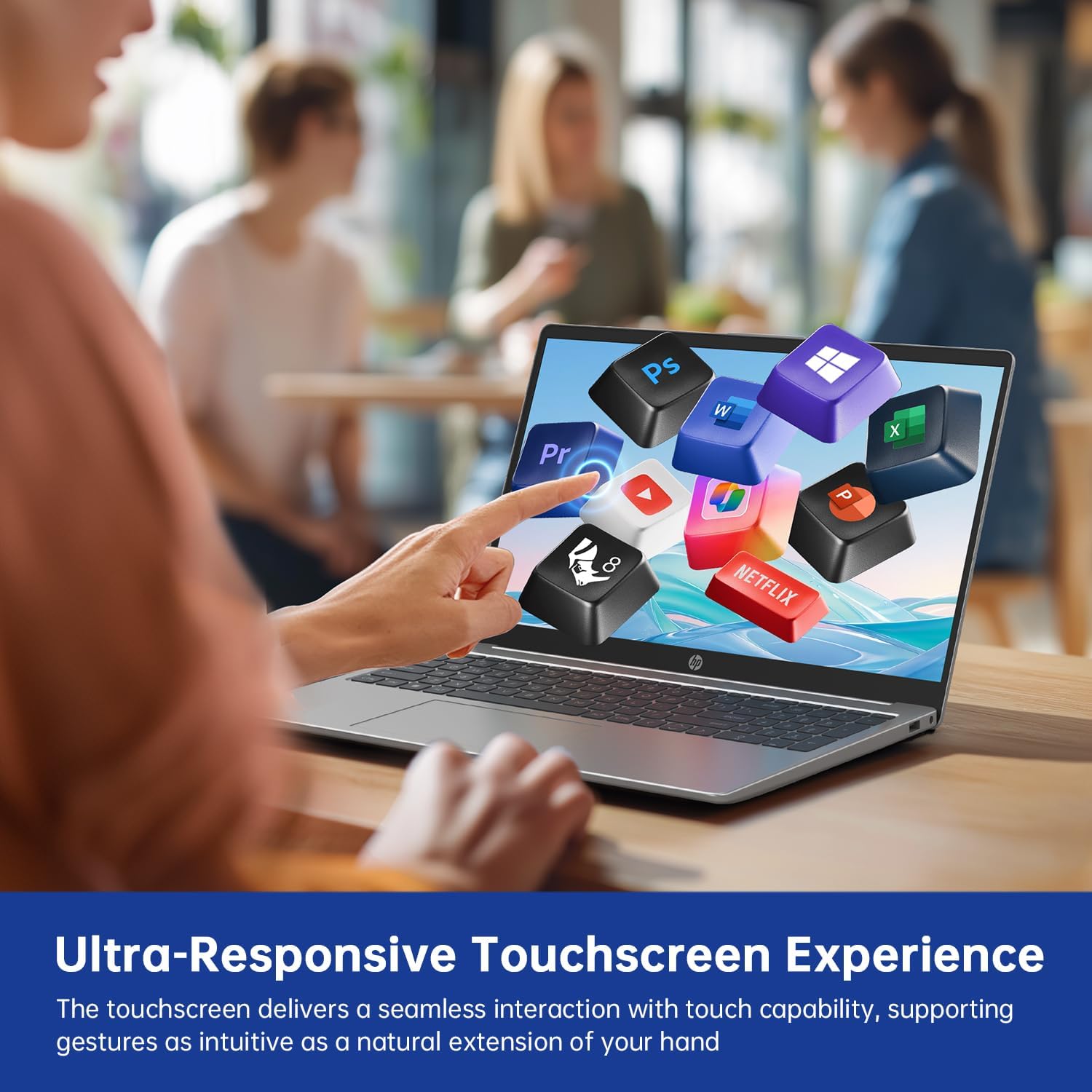
Figure 2: Demonstrating the ultra-responsive touchscreen experience with various application icons.
2.3 Keyboard and Numeric Keypad
The full-size keyboard includes a dedicated numeric keypad for efficient data entry. Function keys (F1-F12) provide quick access to system controls when pressed in combination with the Fn key.
2.4 Ports and Connectivity
The laptop offers a variety of ports for connecting external devices:
- USB-A 3.0 Ports (x2): For connecting USB devices like mice, keyboards, or external drives.
- USB-C 3.0 Port (x1): Versatile port for data transfer, charging, or connecting compatible peripherals.
- HDMI Port (x1): For connecting to external monitors or projectors.
- 3.5mm Audio Jack (x1): For headphones or external speakers.
- DC-in Port (x1): For connecting the AC adapter to charge the laptop.
Wireless connectivity includes Wi-Fi 6E for high-speed internet access and Bluetooth 5.0 for connecting wireless accessories.

Figure 3: Overview of multiple available ports on the HP 15-fd laptop.
2.5 Camera Privacy Switch
Your laptop features a 720p HD webcam with a built-in privacy switch. To ensure your privacy, slide the physical switch to cover the camera lens when not in use. Slide it back to uncover the lens when you need to use the camera for video calls or other applications.

Figure 4: The camera privacy switch provides control over webcam access.
2.6 AI Copilot Functionality
The integrated AI Copilot assists in automating tasks, generating insights, and streamlining workflows. It learns from your actions to provide smarter suggestions, enhancing productivity for tasks such as coding, writing, or data analysis.
3. Maintenance
3.1 Cleaning Your Laptop
- Screen: Use a soft, lint-free cloth lightly dampened with water or a screen cleaner. Do not spray liquid directly onto the screen.
- Keyboard and Chassis: Use a soft, dry cloth. For stubborn dirt, a slightly damp cloth with mild soap solution can be used, ensuring no liquid enters openings.
- Ports: Use compressed air to gently remove dust from ports.
3.2 Battery Care
- Avoid fully discharging the battery frequently.
- Store the laptop in a cool, dry place if not used for extended periods.
- Do not expose the laptop to extreme temperatures.
3.3 Software Updates
Regularly check for and install updates for Windows 11 Pro and HP drivers to ensure optimal performance, security, and compatibility. You can typically find these updates through Windows Update settings and the HP Support Assistant application.
4. Troubleshooting
This section addresses common issues you might encounter with your HP 15-fd laptop.
4.1 Power Issues
- Laptop does not turn on: Ensure the AC adapter is securely connected to both the laptop and a working power outlet. Check if the battery is charged. Try a different power outlet.
- Battery not charging: Verify the AC adapter is functioning correctly. Check the power cable for damage.
4.2 Display Problems
- Screen is blank or dark: Ensure the laptop is powered on. Adjust screen brightness using function keys. Connect an external monitor via HDMI to check if the issue is with the laptop's display.
- Touchscreen unresponsive: Restart the laptop. Ensure display drivers are up to date.
4.3 Connectivity Issues
- Wi-Fi not connecting: Check if Wi-Fi is enabled in Windows settings. Restart your router and laptop. Ensure correct Wi-Fi password is entered.
- Bluetooth device not pairing: Ensure Bluetooth is enabled on both devices. Place devices close to each other. Check device compatibility.
4.4 General Performance Issues
- Slow performance: Close unnecessary applications. Check for malware. Ensure sufficient free space on the SSD. Update drivers and Windows.
- System freezes or crashes: Perform a system restart. Check for recent software installations that might be causing conflicts.
If you are unable to resolve an issue using these steps, please refer to the Support section for further assistance.
5. Specifications

Figure 5: Key display and physical dimensions of the HP 15-fd laptop.
| Feature | Specification |
|---|---|
| Model Name | 15-fd |
| Processor | 13th Gen Intel Core i3-1315U (up to 4.5 GHz) |
| Graphics | Intel UHD Graphics (Integrated) |
| Display | 15.6-inch HD (1366 x 768) Touchscreen |
| RAM | 8 GB DDR4 |
| Storage | 512 GB SSD |
| Operating System | Windows 11 Pro |
| Wireless Connectivity | Wi-Fi 6E, Bluetooth 5.0 |
| Ports | 2x USB-A 3.0, 1x USB-C 3.0, 1x HDMI, 1x 3.5mm Audio Jack, 1x DC-in |
| Dimensions (LxWxH) | 14.17 x 9.29 x 0.73 inches |
| Weight | Approximately 3.52 lbs (1.6 kg) |
| Color | Natural Silver |
| Special Features | Numeric Keypad, Fingerprint Reader, HD Audio, Camera Privacy Switch |
6. Warranty Information
Your HP 15-fd laptop comes with a 12-month warranty from the date of purchase. This warranty covers manufacturing defects and hardware malfunctions under normal use. Please retain your proof of purchase for warranty claims.
The warranty does not cover damage caused by misuse, accidents, unauthorized modifications, or external factors. For detailed warranty terms and conditions, please refer to the documentation included with your product or visit the official HP support website.
7. Support
For technical assistance, troubleshooting beyond this manual, or warranty service, please contact HP Customer Support.
- Online Support: Visit the official HP Support website for drivers, manuals, and troubleshooting guides.
- Phone Support: Refer to the contact information provided in your product packaging or on the HP Support website for your region.
When contacting support, please have your laptop's serial number and model number (15-fd) ready. This information can usually be found on a label on the bottom of your laptop.


