
1. Introduction
This manual provides essential information for the safe and efficient operation of your NIMO 15.6" FHD-IPS Business Laptop. Please read this manual thoroughly before using your device and retain it for future reference. This laptop is designed for productivity, entertainment, and everyday computing tasks, featuring a powerful Intel Core i5-12450H processor, ample memory, and fast storage.
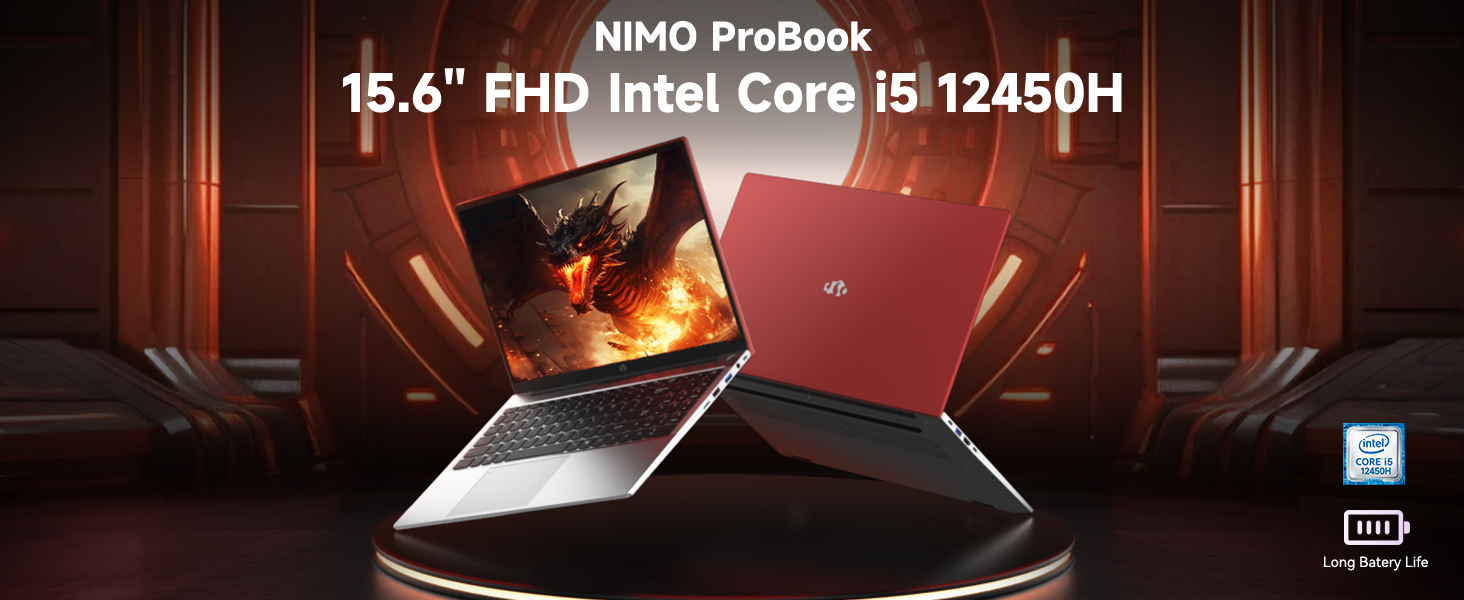
Image: The NIMO 15.6 inch FHD Laptop, highlighting its Intel Core i5 12450H processor.
2. Package Contents
Verify that all items are present in your product packaging:
- 1 x Nimo N156 Laptop
- 1 x Type-C 100W PD Fast Charger
- 1 x User Manual (this document)
- Windows 11 Home Operating System (pre-installed)
3. Setup
3.1 Initial Power On
- Unpack the laptop and charger from the box.
- Connect the 100W Type-C PD Fast Charger to the laptop's Type-C charging port and a power outlet.
- Open the laptop lid. The laptop may power on automatically or require you to press the power button located on the top right of the keyboard.
- Follow the on-screen instructions to complete the initial Windows 11 Home setup, including language, region, network connection, and user account creation.
3.2 Charging the Battery
The laptop is equipped with a 54Wh Smart Battery. For optimal performance, fully charge the battery before first use. The included 100W PD charger supports rapid charging, reaching 0-50% in approximately 15 minutes. The Charge LED indicator will show charging status.
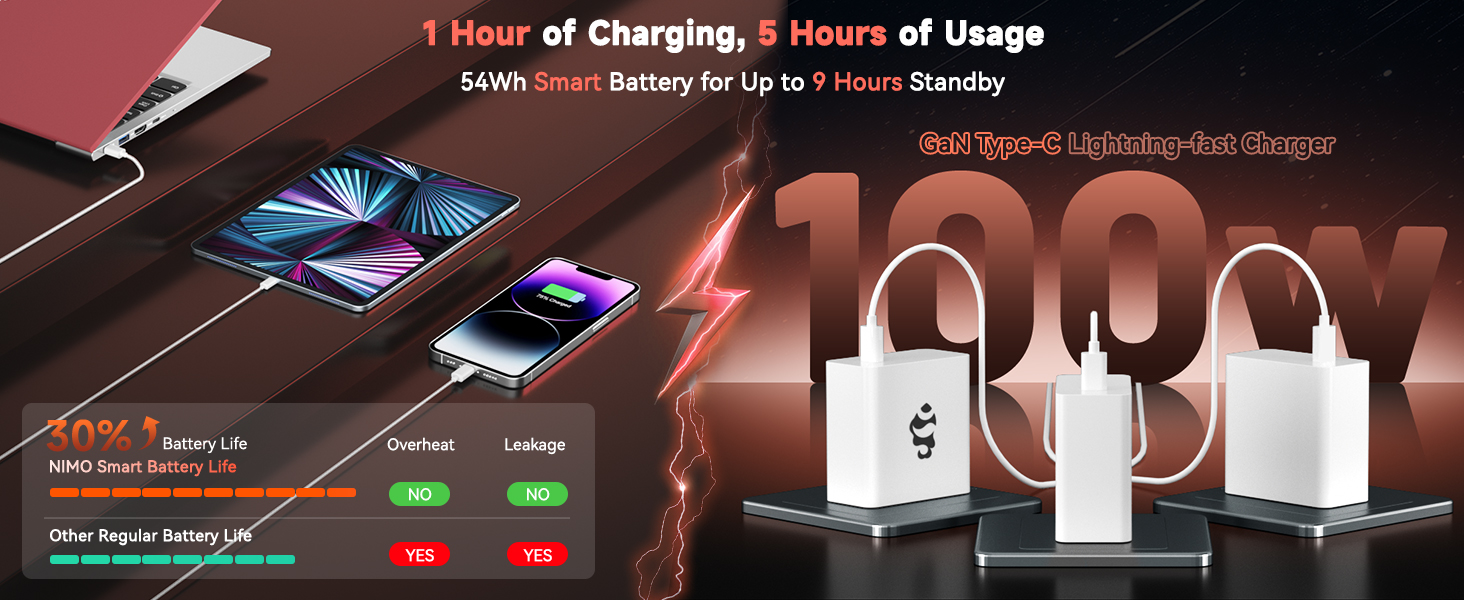
Image: The 100W PD Fast Charger demonstrating its compatibility with various devices.
3.3 Operating System Setup (Windows 11 Home)
Your NIMO laptop comes with Windows 11 Home pre-installed. During the initial setup, you will be guided through:
- Connecting to a Wi-Fi network.
- Creating or logging into a Microsoft account.
- Setting up privacy settings.
- Configuring Windows Hello (optional, for fingerprint login).
4. Operating Your Laptop
4.1 Keyboard Features
The laptop features a full-size backlit keyboard with a numeric keypad for enhanced productivity. The backlighting can be adjusted or turned off using the function keys (Fn + Fx keys, refer to keyboard icons for specific controls).
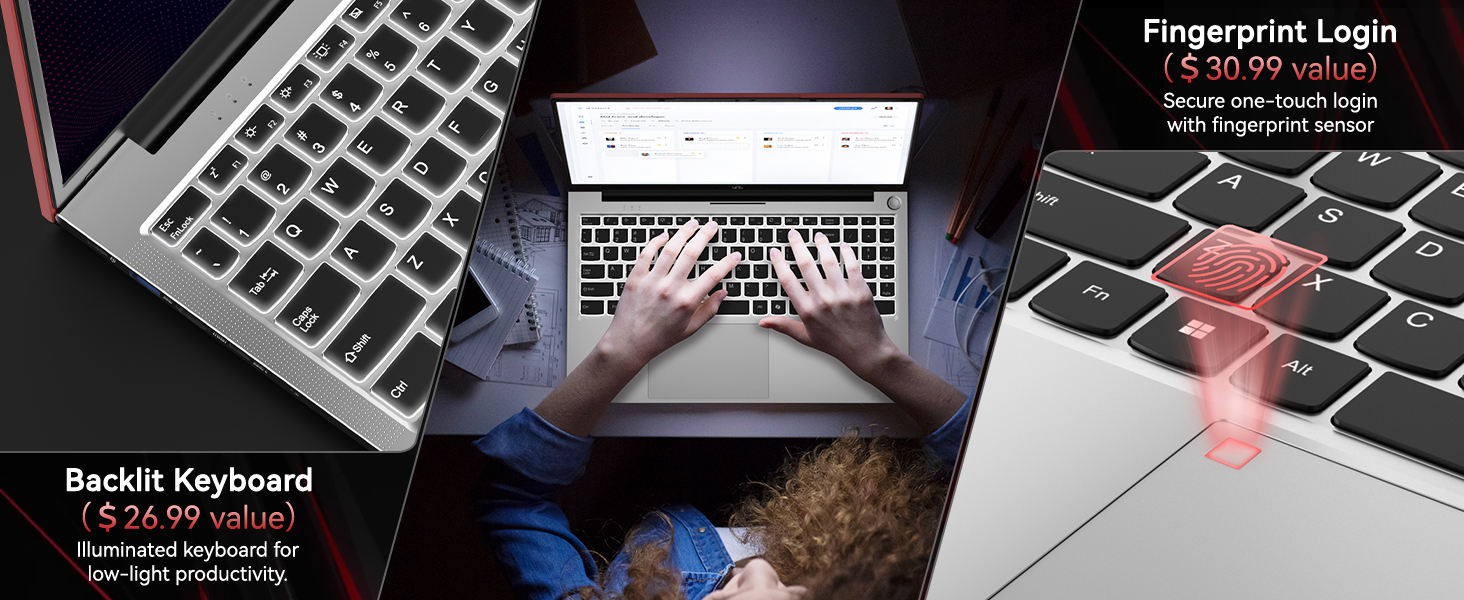
Image: Close-up of the NIMO laptop's backlit keyboard and integrated fingerprint sensor.
4.2 Touchpad and Fingerprint Reader
The precision touchpad supports multi-touch gestures for intuitive navigation. An integrated fingerprint reader is located on the touchpad for secure and quick login via Windows Hello. To set up the fingerprint reader, navigate to Windows Settings > Accounts > Sign-in options.
4.3 Display
Enjoy clear visuals on the 15.6" Full HD (1920x1080) IPS anti-glare display. The IPS technology provides 178° ultra-wide viewing angles, ensuring consistent image quality from various perspectives. The anti-glare coating minimizes reflections for comfortable viewing in different lighting conditions.

Image: The NIMO laptop's 15.6" FHD IPS display showcasing its visual clarity.
4.4 Connectivity
Your NIMO laptop offers comprehensive connectivity options:
- Wireless: Integrated WiFi 6 for fast and stable internet connections, and Bluetooth 5.2 for connecting wireless peripherals.
- Ports:
- 2 x USB 3.0 Ports
- 1 x USB 2.0 Port
- 2 x Type-C Ports (one for PD charging, one for multifunction)
- 1 x HDMI Port
- 1 x Micro SD Card Reader
- 1 x Headphone Jack
- 1 x Kensington Lock Slot
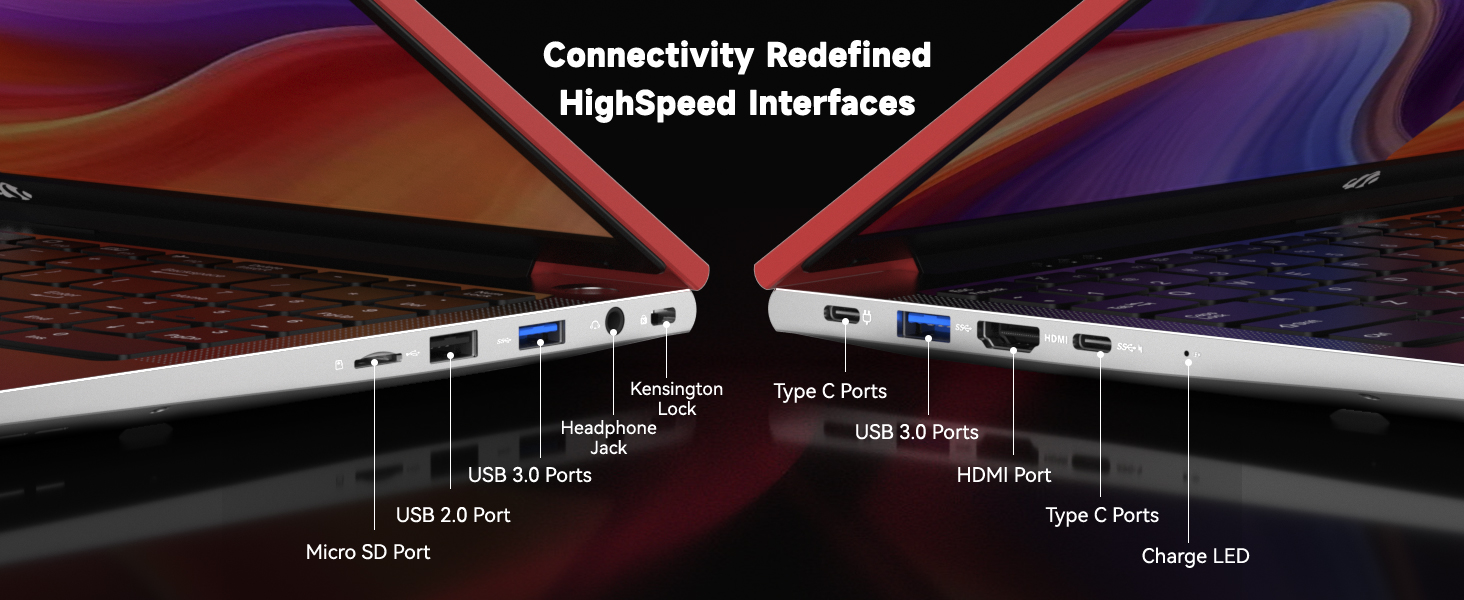
Image: Detailed view of the NIMO laptop's high-speed interface ports.
4.5 Webcam and Privacy Switch
The laptop includes a 2.0MP webcam for video conferencing. For privacy, a physical privacy switch is integrated, allowing you to easily disable the camera when not in use.
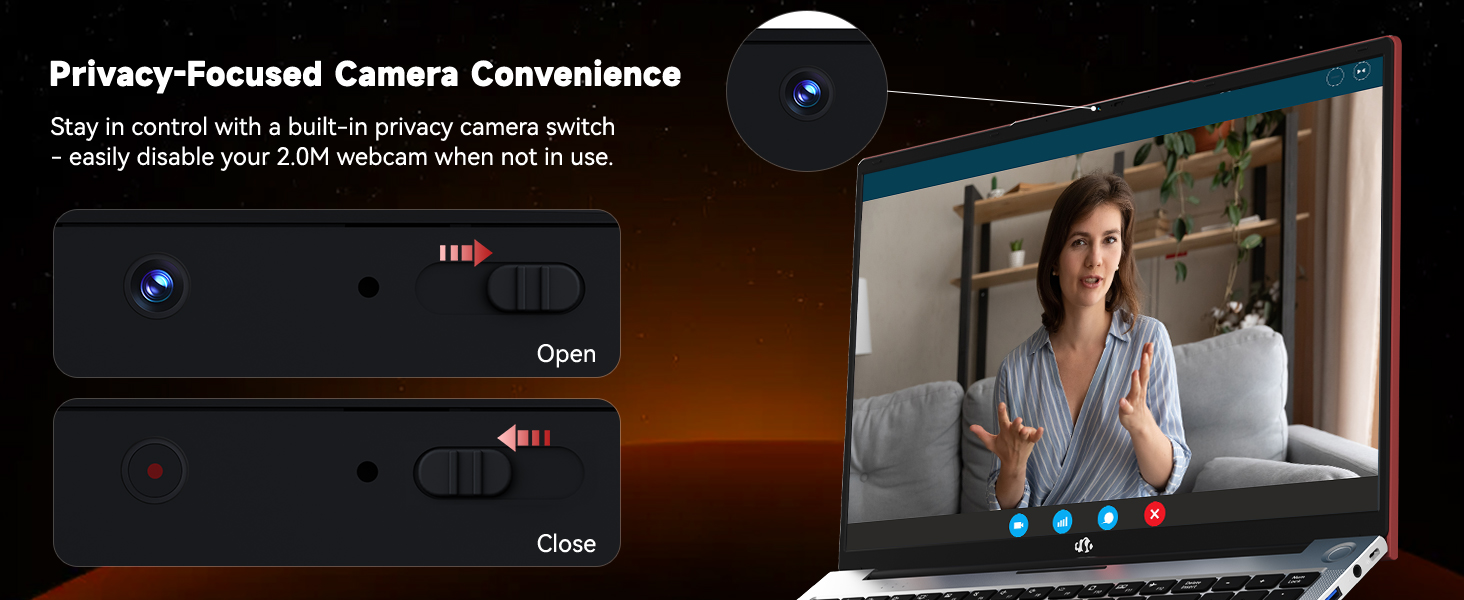
Image: The NIMO laptop's 2.0MP webcam and its privacy switch.
4.6 Audio
Experience immersive audio with the laptop's surround sound technology, enhancing your multimedia and communication experiences.
5. Maintenance
5.1 Cleaning
To maintain your laptop's appearance and functionality, regularly clean the screen with a microfiber cloth and the keyboard/chassis with a soft, damp cloth. Avoid using harsh chemicals or abrasive materials.
5.2 Battery Care
To prolong battery life, avoid extreme temperatures and fully discharge and recharge the battery periodically. Store the laptop with a partial charge if not used for extended periods.
5.3 Storage and Memory Upgrades
The NIMO N156 laptop features user-expandable dual-channel DDR4 RAM and PCIe NVMe SSD storage. The tool-free design allows for easy upgrades to meet demanding application requirements. Consult a qualified technician for assistance with hardware upgrades.

Image: Illustration of the NIMO laptop's multitasking capabilities with 32GB RAM and 2TB SSD.
6. Troubleshooting
- Laptop not powering on: Ensure the charger is securely connected and the power outlet is functional. Try pressing and holding the power button for 10-15 seconds.
- No display: Connect an external monitor to verify if the issue is with the laptop's screen. Restart the laptop.
- Wi-Fi connectivity issues: Check if Wi-Fi is enabled in Windows settings. Restart your router and the laptop. Ensure drivers are up to date.
- Slow performance: Close unnecessary applications, check for Windows updates, scan for malware, or consider upgrading RAM/SSD if performance remains consistently low.
- Fingerprint reader not working: Ensure your finger is clean and dry. Re-register your fingerprint in Windows Hello settings.
7. Specifications
| Feature | Specification |
|---|---|
| Model Name | Nimo N156 |
| Screen Size | 15.6 Inches |
| Screen Resolution | 1920 x 1080 pixels (FHD IPS) |
| Processor | Intel Core i5-12450H (8 Cores, up to 4.4GHz) |
| RAM | 32 GB DDR4 (User-expandable) |
| Hard Drive | 2 TB SSD (PCIe NVMe, User-expandable) |
| Graphics Coprocessor | INTEL Integrated Graphics |
| Operating System | Windows 11 Home |
| Wireless Type | 802.11a/b/g/n/ac (WiFi 6) |
| Bluetooth | Bluetooth 5.2 |
| Webcam | 2 MP Rear Webcam Resolution (with privacy switch) |
| Special Features | Backlit Keyboard, Fingerprint Reader, HD Audio, Numeric Keypad |
| Ports | 2x USB 3.0, 1x USB 2.0, 2x Type-C, 1x HDMI, Micro SD, Headphone Jack, Kensington Lock |
| Battery Life (Average) | 5 Hours (54Wh Smart Battery) |
| Item Weight | 3.8 pounds |
| Product Dimensions | 14.07 x 8.98 x 0.76 inches |
8. Warranty and Support
NIMO stands behind its products with comprehensive support:
- 2-Year Manufacturer Guarantee: Your NIMO laptop is covered by a 2-year manufacturer's warranty from Nimo Direct Inc. for any manufacturing defects or issues.
- 90-Day Hassle-Free Returns: Enjoy a 90-day return policy for a risk-free experience.
For technical assistance, warranty claims, or product inquiries, please refer to the contact information provided on the NIMO official website or your purchase documentation.
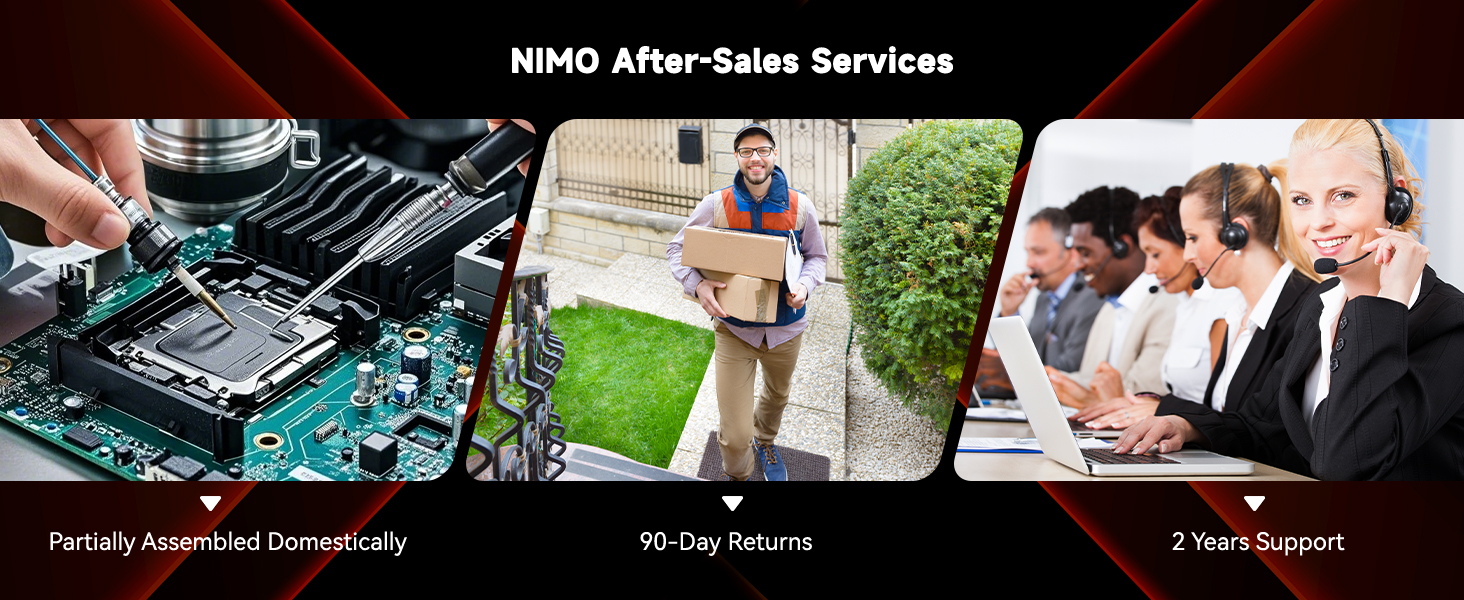
Image: Overview of NIMO's after-sales services, including repair, delivery, and customer support.
9. Official Product Videos
Watch these official videos for a visual guide to your NIMO laptop's features and usage:
NIMO 15.6 FHD Laptop Promotion Video
Video: A promotional overview of the NIMO 15.6 inch FHD Laptop, showcasing its design and key features.
NIMO 15.6 Backlit Keyboard Student Laptop
Video: Demonstrates the NIMO 15.6 inch laptop's backlit keyboard and suitability for student use.
NIMO 15.6 Laptop Comprehensive Introduction
Video: A detailed introduction to the NIMO 15.6 inch laptop, covering various aspects of its functionality.
NIMO 15.6 FHD Laptop for Students Home Work
Video: Highlights the NIMO 15.6 inch FHD Laptop's suitability for students, home use, and work tasks.
Efficiency Meets Convenience: Nimo Laptop
Video: Showcases the Nimo Laptop's efficiency and convenience features for daily use.
NIMO Laptop: Perfect for Work and Study, Anytime, Anywhere
Video: Illustrates the NIMO Laptop's versatility for work and study in various environments.

