
1. Introduction
The Coucur M01 AI Smart Glasses are a versatile 4-in-1 device designed for various daily activities. They integrate an HD camera, blue light protection, a ChatGPT-powered AI assistant, and open-ear headphones into a single eyewear solution. Crafted from premium PC+ABS material with AC lenses, these glasses offer intuitive operation and advanced features for capturing moments, communication, and information access.
Key features include an 8-megapixel camera for 1080P video recording, AI image recognition, a voice assistant with ChatGPT integration, real-time translation across 139+ languages, and open-ear Hi-Fi audio with dual ENC noise-canceling microphones for clear calls.

Image 1.1: The Coucur M01 Smart Glasses highlighting its four core functionalities: AI, Camera, Earbuds, and Sunglasses.
2. Setup
2.1 Package Contents
Verify that all components are present in the package:
- Coucur M01 AI Smart Glasses
- Magnetic Charging Cable
- User Manual
2.2 Charging the Device
Before first use, fully charge the smart glasses. Connect the magnetic charging cable to the charging port on the glasses and to a standard USB power adapter (not included). The battery capacity is 270mAh, providing up to 7 hours of music playback. A full charge typically takes approximately 1.5 hours.
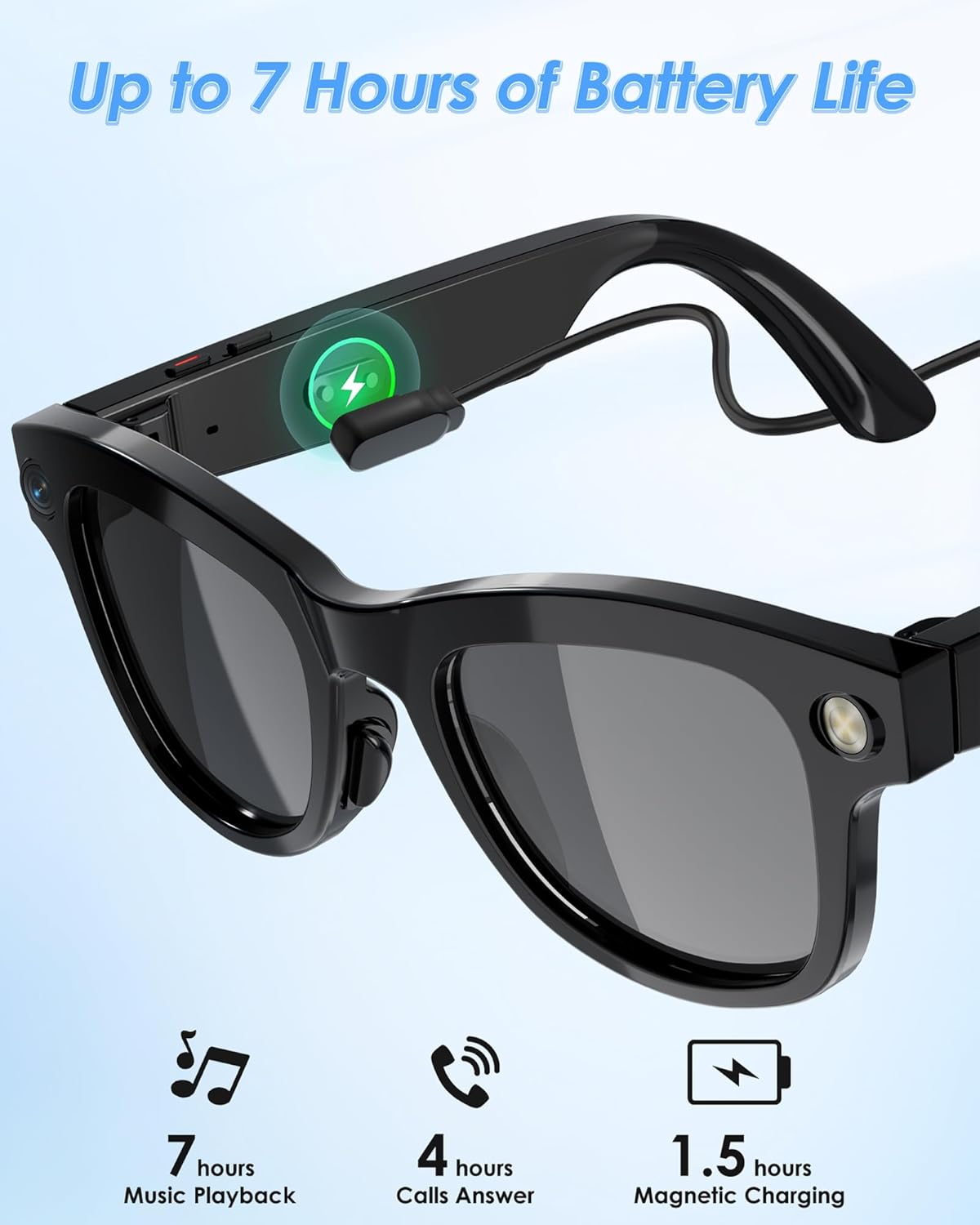
Image 2.1: The Coucur M01 Smart Glasses connected to its magnetic charging cable, illustrating battery life for music playback and calls, and charging time.
2.3 Powering On/Off
- To Power On: Press and hold the physical button located on the temple of the glasses until the indicator light illuminates.
- To Power Off: Press and hold the physical button again until the indicator light turns off.
2.4 App Installation and Pairing
To access all features, including AI capabilities, image recognition, and translation, download and install the HeyCyan application on your smartphone. The app is compatible with Android 2.0 Eclair and above.
- Search for "HeyCyan" in your smartphone's app store and install it.
- Ensure Bluetooth is enabled on your smartphone.
- Power on the Coucur M01 Smart Glasses.
- Open the HeyCyan app and follow the on-screen instructions to pair your glasses. The glasses will appear as a Bluetooth device.
- Confirm the pairing request on both your phone and the glasses if prompted.
3. Operating Instructions
3.1 Basic Controls
The Coucur M01 Smart Glasses feature a single physical button for intuitive control. Specific functions may vary based on the duration of the press or number of presses, and can be customized via the HeyCyan app.
- Short Press: Typically used for answering/ending calls, playing/pausing music.
- Long Press: Used for powering on/off, activating voice assistant.
- Double Press: May activate camera or other functions as configured in the app.

Image 3.1: A user demonstrating tap control on the Coucur M01 Smart Glasses for music enjoyment, highlighting open-ear audio and eye protection features.
3.2 Camera and Video Recording
The glasses are equipped with an 8-megapixel lens capable of recording 1080P video with anti-shake technology. Videos can be recorded for a maximum duration of 12 minutes per clip.
- Ensure the glasses are powered on and connected to the HeyCyan app.
- Activate camera mode via the physical button (refer to app settings for specific button configuration) or directly through the HeyCyan app.
- To start recording, press the designated button or tap the record icon in the app.
- To stop recording, press the button again or tap the stop icon in the app.
- Recorded photos and videos are stored internally and can be transferred to your smartphone via the HeyCyan app.

Image 3.2: A detailed view of the 800W lens system within the Coucur M01 Smart Glasses, alongside an illustration of 1080P wide-angle video capture.
3.3 AI Image Recognition and Voice Assistant
Leverage the integrated AI for object identification and voice assistance powered by ChatGPT.
- AI Image Recognition: Point the glasses at an object or text. Take a photo using the designated control. The HeyCyan app will process the image and provide identification or information.
- Voice Assistant: Activate the voice assistant by a long press on the physical button or a voice command (if configured). Ask questions or request information, and the ChatGPT assistant will provide responses through the open-ear speakers.

Image 3.3: A user interacting with the AI features of the Coucur M01 Smart Glasses, demonstrating AI image recognition for a car and a dog, and voice assistant functionality.
3.4 Real-Time Multilingual Translation
The glasses support real-time translation for over 139 languages, facilitating communication in diverse environments.
- Open the translation feature within the HeyCyan app.
- Select the source and target languages.
- Speak into the glasses' microphone, and the translated audio will be played back through the open-ear speakers.
- For text translation, use the AI image recognition feature to capture text, and the app will provide a translation.

Image 3.4: Individuals using the Coucur M01 Smart Glasses for real-time translation, with flags representing the 139+ supported languages.
3.5 Audio Playback and Calls
Enjoy open-ear Hi-Fi sound for music and crystal-clear calls with dual ENC noise-canceling microphones.
- Music Playback: Once paired with your smartphone, audio from your device will play through the glasses' open-ear speakers. Use the physical button for play/pause and track control (configurable in app).
- Phone Calls: When a call comes in, a short press of the physical button will answer the call. Another short press will end it. The dual ENC microphones reduce background noise for clear communication.
4. Maintenance
4.1 Cleaning
- Lenses: Use a soft, lint-free cloth (microfiber is recommended) to gently wipe the lenses. For stubborn smudges, use a lens cleaning spray specifically designed for eyewear. Avoid abrasive materials or harsh chemicals.
- Frame: Wipe the frame with a soft, damp cloth. Do not submerge the glasses in water.
4.2 Battery Care
- Charge the glasses regularly, even if not in frequent use, to maintain battery health.
- Avoid exposing the glasses to extreme temperatures (hot or cold), as this can degrade battery performance and lifespan.
4.3 Storage
When not in use, store the glasses in their protective case to prevent scratches and damage.
4.4 Water Resistance
The Coucur M01 Smart Glasses are not water resistant. Avoid exposure to water, rain, or excessive moisture to prevent damage to internal components.
5. Troubleshooting
| Issue | Possible Cause | Solution |
|---|---|---|
| Glasses do not power on | Low battery; Device malfunction | Charge the glasses fully. If issue persists, contact support. |
| Unable to pair with smartphone | Bluetooth off; Glasses not in pairing mode; App issue | Ensure Bluetooth is on. Restart glasses and phone. Reinstall HeyCyan app. |
| Camera/Video recording not working | App not connected; Insufficient storage; App permissions | Ensure HeyCyan app is running and connected. Check app permissions for camera and storage. Verify available storage. |
| Poor audio quality / Choppy sound | Bluetooth interference; Distance from phone; App issue | Reduce distance to phone (within 10m). Avoid strong electromagnetic interference. Restart app and glasses. |
| HeyCyan app crashes or is unstable | App bug; Outdated app version; Phone compatibility | Ensure app is updated to the latest version. Restart your smartphone. Check app store reviews for known issues or contact app developer. |
| Translation not accurate or not working | Internet connection; Microphone obstruction; Language settings | Ensure stable internet connection. Speak clearly into the microphone. Verify correct source/target languages in the app. |
| Battery drains quickly | Heavy usage; Old battery; Background app activity | Reduce continuous video recording or music playback. Close unnecessary apps on your phone. |
If you encounter issues not listed here or if the suggested solutions do not resolve the problem, please refer to the Support section for further assistance.
6. Specifications
| Feature | Specification |
|---|---|
| Model Number | M01 |
| Brand | Coucur |
| Wearable Computer Type | Smart Glasses |
| Operating System | Android (compatible with Android 2.0 Eclair and above) |
| Connectivity Technology | Bluetooth, Wi-Fi (5GHz) |
| Wireless Communication Standard | Bluetooth |
| Battery Capacity | 270 mAh |
| Music Playback Time | Up to 7 hours |
| Call Answer Time | Up to 4 hours |
| Charging Time | Approx. 1.5 hours (Magnetic Charging) |
| Camera Resolution | 8 Megapixels |
| Video Resolution | 1920x1080 (1080P) |
| Human Interface Input | Buttons, Microphone |
| Supported Application | AI Voice Assistant, Translation, Mobile Apps (HeyCyan) |
| Material | PC+ABS |
| Water Resistance Level | Not Water Resistant |
| Manufacturer | Shenzhen Buzz Tech CO., LTD. |

Image 6.1: Product dimensions of the Coucur M01 Smart Glasses, indicating suitability for standard to slightly smaller head sizes.
7. Warranty Information
The Coucur M01 AI Smart Glasses come with a standard warranty. For detailed information regarding warranty coverage, terms, and conditions, please refer to the warranty card included in your product packaging or visit the official Coucur website. Please retain your proof of purchase for warranty claims.
8. Support
For technical assistance, troubleshooting, or general inquiries about your Coucur M01 AI Smart Glasses, please contact Coucur customer support. You can typically find contact information on the official Coucur website or within the HeyCyan application.
Visit the Coucur Store for more information: Coucur Official Store