
1. Introduction and Overview
The KKB G500 is a 4G LTE cellular solar security camera designed for outdoor use where WiFi and traditional power sources are unavailable. This camera features a built-in solar panel and a 5200mAh battery for continuous operation, providing 2K video resolution, color night vision, PIR motion detection, and two-way audio communication. It operates via a built-in SIM card, requiring a 4G LTE data plan for remote access and monitoring through the iCam365 application.
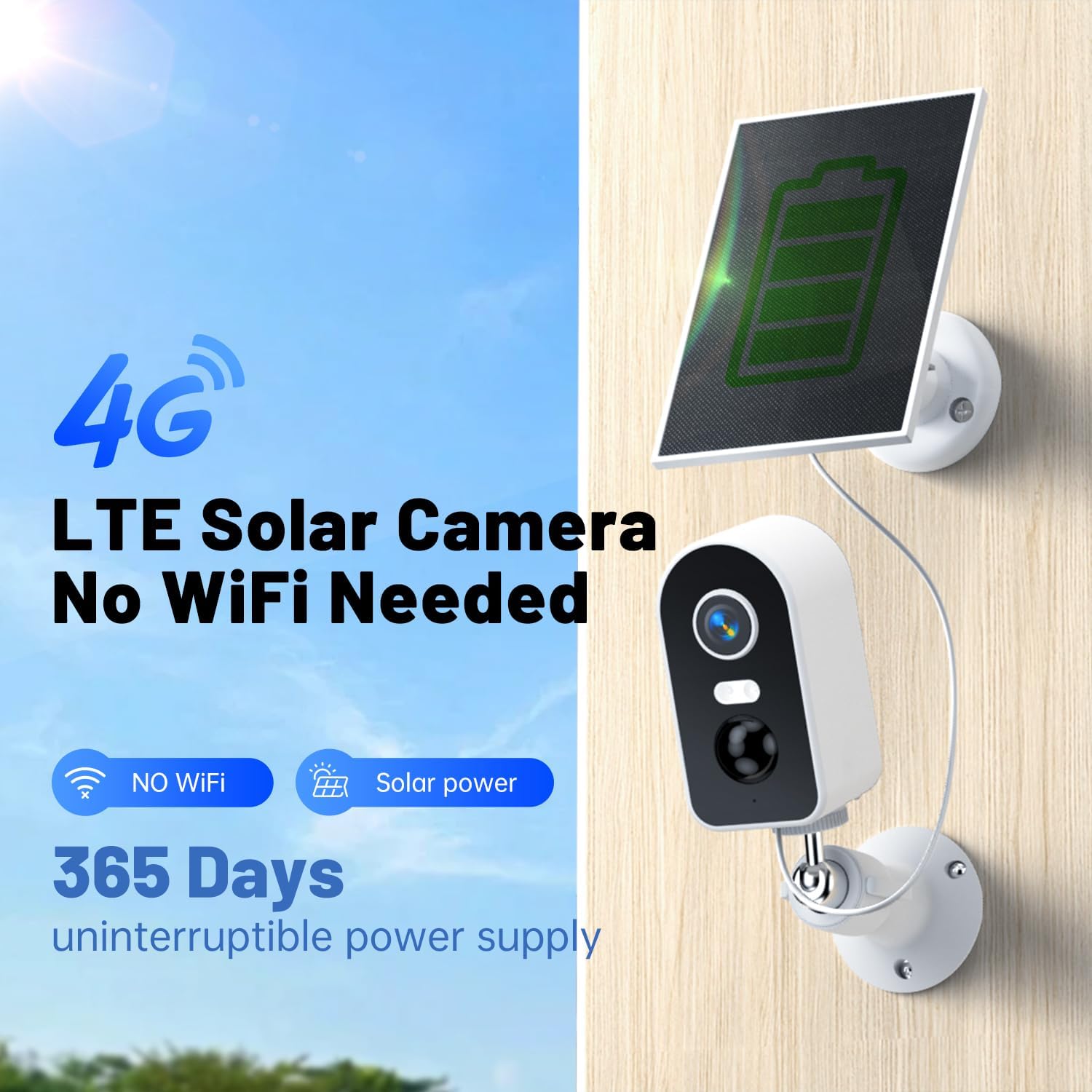
Image: The KKB G500 camera with its integrated solar panel, designed for off-grid security.
2. What's in the Box
Verify that all components are present upon unboxing:
- KKB 4G Security Camera (Model G500)
- Solar Panel
- Mounting Screws
- Instruction Manual
3. Product Features
3.1 Solar Charging & Battery Power
The camera is equipped with a 3W solar panel and a 5200mAh rechargeable battery, providing continuous power without external electrical wiring. This design ensures uninterrupted operation in remote locations.

Image: Banner highlighting the 4G LTE cellular and solar-powered features of the camera.
3.2 Cellular Operation (No WiFi Required)
The camera utilizes a built-in, non-removable SIM card for 4G LTE connectivity, eliminating the need for WiFi. A data plan is required for operation (e.g., $14.9/month or $149.9/year).

Image: Illustration demonstrating the camera's 4G signal connection and inability to connect to WiFi.
3.3 2K Video Resolution & Night Vision
Capture clear footage in 2K resolution. The camera supports both infrared (IR) and full-color night vision, allowing monitoring up to 50 feet in low-light conditions.

Image: A scene of a child and a dog on a beach, representing the clear 2K image quality.

Image: A split image showing the difference between full-color night vision and infrared night vision.
3.4 Remote Viewing with iCam365 App
Access live streams, review recorded footage, and download videos remotely using the iCam365 mobile application (available for Android and iOS). The app also provides real-time alerts and enables two-way communication.

Image: A smartphone screen showing the iCam365 app interface, demonstrating multi-person sharing capabilities.
3.5 PIR Motion Detection & Two-Way Audio
The integrated Passive Infrared (PIR) sensor detects motion and sends instant push notifications to your device. The built-in microphone and speaker facilitate two-way audio communication, allowing you to speak with visitors or deter intruders.

Image: A visual representation of smart detection capturing an abnormal status and pushing a real-time message via the app.
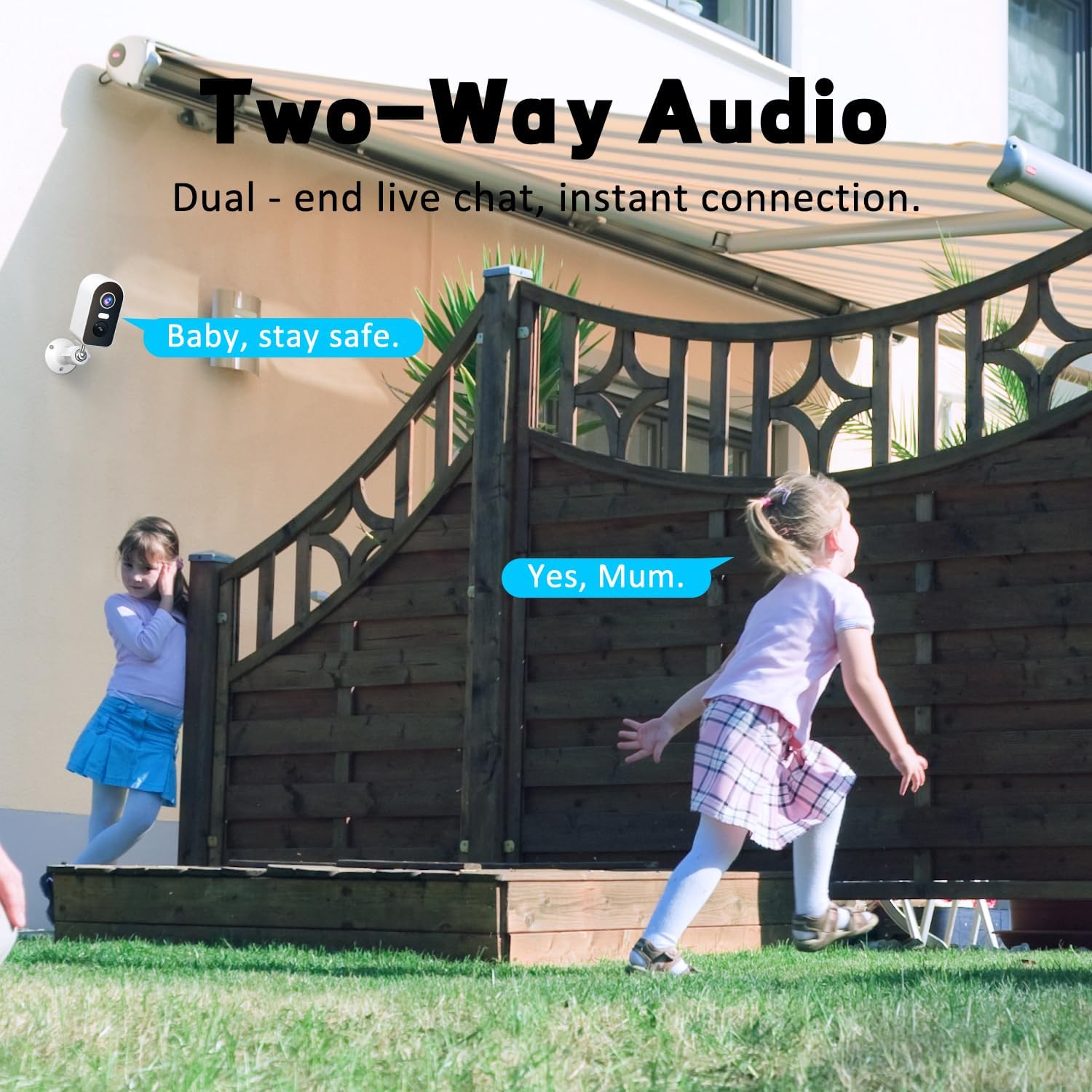
Image: Two children playing in a yard, illustrating the two-way audio feature for live communication.
3.6 IP65 Waterproof Rating
The camera is rated IP65 waterproof, ensuring protection against dust and water jets. This makes it suitable for various outdoor weather conditions, including rain, sun, and snow.

Image: The camera and solar panel shown in a rainy outdoor setting, emphasizing its IP65 waterproof capabilities.
3.7 Flexible Storage Options
Recordings can be stored locally on a Micro SD card (up to 128GB, not included) or via cloud storage services (subscription may be required). Message encryption ensures privacy.

Image: Visual representation of flexible storage options, including TF card and cloud storage.
4. Setup Guide
4.1 Initial Charging
Before first use, ensure the camera's internal battery is sufficiently charged. Connect the solar panel to the camera and place it in direct sunlight for several hours, or charge via a USB power adapter (not included) if available.
4.2 SIM Card Activation and Data Plan
The camera comes with a built-in SIM card. To activate cellular service, you must subscribe to a 4G LTE data plan through the iCam365 app. Available plans include monthly ($14.9) or annual ($149.9) options. The SIM card provides 300MB of data for initial testing.

Image: Details on the built-in SIM card and available 4G data subscription plans.
4.3 iCam365 App Download and Pairing
- Download the iCam365 app from your smartphone's app store (Android or iOS).
- Register for an account and log in.
- Follow the in-app instructions to add your KKB G500 camera. This typically involves scanning a QR code on the camera or entering its device ID.
- Ensure the camera is powered on and within 4G network coverage during the pairing process.
4.4 Mounting the Camera and Solar Panel
The camera can be wall-mounted or placed freestanding. For optimal solar charging, install the solar panel in a location that receives direct sunlight for most of the day. Avoid shaded areas.

Image: Examples of proper and improper solar panel installation to ensure effective charging.

Image: Various installation methods for the camera, including ceiling, wall, and tabletop placement.
5. Operating Instructions
5.1 Live View
Open the iCam365 app and select your camera to view the live feed. You can pan, tilt, and zoom digitally within the app to adjust the viewing area.
5.2 Two-Way Audio
While in live view, tap the microphone icon in the app to speak through the camera's speaker. Tap the speaker icon to listen to audio from the camera's microphone.
5.3 Motion Detection Alerts
When motion is detected, the camera will send a push notification to your smartphone. You can adjust motion detection sensitivity and schedule alert times within the app settings.
5.4 Video Playback and Recording
Access recorded footage through the iCam365 app. You can review event-triggered recordings or continuous recordings if a Micro SD card is installed and configured. Options to download clips are available.
5.5 Night Vision Modes
The camera automatically switches to night vision in low light. You can typically choose between infrared (black and white) and full-color night vision modes in the app settings, depending on environmental conditions and preference.
6. Maintenance
6.1 Solar Panel Cleaning
Periodically clean the surface of the solar panel with a soft, damp cloth to remove dust, dirt, or debris. A clean panel ensures maximum charging efficiency.
6.2 Battery Management
Monitor the battery level through the iCam365 app. While the solar panel provides continuous charging, prolonged periods of low sunlight or high usage may deplete the battery. Ensure the solar panel is optimally positioned.
6.3 Firmware Updates
Check the iCam365 app regularly for available firmware updates. Keeping the camera's firmware updated ensures optimal performance, security, and access to new features.
7. Troubleshooting
- Camera not connecting to 4G network:
- Ensure your data plan is active and has sufficient data. Check the camera's location for adequate 4G signal strength. Restart the camera.
- Battery not charging:
- Verify the solar panel is clean and positioned in direct sunlight. Check the connection cable between the solar panel and the camera. Ensure the ambient temperature is within the operating range for charging.
- No motion detection alerts:
- Check the motion detection settings in the iCam365 app. Ensure the sensitivity is set appropriately and that alert schedules are correctly configured. Verify the camera's field of view is clear.
- Poor video quality:
- Ensure the camera lens is clean. Check the 4G signal strength, as a weak signal can affect streaming quality. Adjust video resolution settings in the app if available.
- Two-way audio not working:
- Check the microphone and speaker permissions for the iCam365 app on your smartphone. Ensure the camera's microphone and speaker are not obstructed.
8. Specifications
| Model Name | G500 (4G-RF-11) |
| Connectivity Technology | Wireless (4G LTE Cellular) |
| Power Source | Solar Powered (3W panel), 5200mAh Battery |
| Video Capture Resolution | 2K |
| Night Vision Range | 30-50 Feet (IR and Color Night Vision) |
| Special Features | 2-Way Audio, HD Resolution, Motion Sensor (PIR), Night Vision, Weatherproof |
| Indoor/Outdoor Usage | Indoor, Outdoor |
| Water Resistance Level | IP65 Waterproof |
| Storage Options | Micro SD (Max 128GB), Cloud Storage |
| Compatible Devices | Smartphone (Android, iOS) |
| Dimensions (L x W x H) | 7.1 x 5.12 x 3.54 inches |
| Item Weight | 1.36 pounds |
9. Warranty and Support
KKB provides comprehensive customer support for the G500 camera. For technical assistance, troubleshooting, or warranty inquiries, please utilize the following resources:
- APP Online Contact: Access multi-channel service directly through the iCam365 application.
- Email Support: Contact customer service via email for detailed inquiries.
- 7x24 Hours Professional Technical Support: Dedicated support is available around the clock to assist you.

Image: KKB customer service team offering multi-channel and 24/7 technical support.
