
Logitech MX Master 4
Logitech MX Master 4 for Mac Ergonomic Bluetooth Mouse User Manual
Model: MX Master 4 (910-007575)
1. Introduction
The Logitech MX Master 4 for Mac is an advanced ergonomic Bluetooth mouse designed for precision and control across macOS and iPadOS environments. It features haptic feedback, ultra-fast MagSpeed scrolling, and an 8K DPI sensor for tracking on various surfaces, including glass. This manual provides instructions for setting up, operating, maintaining, and troubleshooting your MX Master 4 for Mac mouse.

Image: The Logitech MX Master 4 for Mac mouse, presented in Space Black.

Image: The MX Master 4 for Mac mouse seamlessly integrated into an Apple desktop workstation.
2. Setup
2.1 Initial Connection
The MX Master 4 for Mac connects wirelessly via Bluetooth. Follow these steps to pair your mouse with your device:
- Ensure the mouse is charged.
- Turn on the mouse using the power switch located on the bottom.
- Press and hold one of the Easy-Switch buttons (1, 2, or 3) on the bottom of the mouse until the LED indicator blinks rapidly, indicating pairing mode.
- On your Mac or iPad, navigate to System Settings (macOS) or Settings (iPadOS) > Bluetooth.
- Select "MX Master 4 for Mac" from the list of available devices to complete pairing.
Note:
- A USB-C receiver is not included with the Mac version of this mouse.
- The mouse is compatible with macOS, iPadOS, Windows, Linux, and Chrome OS.

Image: Side view of the mouse, highlighting the USB-C charging port and Bluetooth connectivity.
2.2 Installing Logi Options+ Software
For full functionality and customization, install the Logi Options+ software. This application allows you to personalize buttons, adjust haptic feedback intensity, and configure application-specific settings.
- Visit the official Logitech website to download Logi Options+.
- Follow the on-screen instructions to install the software on your computer.
2.3 Package Contents
The retail package for your Logitech MX Master 4 for Mac includes:
- Logitech MX Master 4 Mouse
- User Documentation
Please note that a USB-C charging cable and a USB-C receiver are not included in the box.

Image: The MX Master 4 for Mac mouse and user documentation, indicating responsible packaging.
3. Operating Instructions
Familiarize yourself with the key features and controls of your MX Master 4 for Mac mouse.

Image: A labeled diagram illustrating the various buttons and features of the MX Master 4 for Mac mouse.
3.1 MagSpeed Scroll Wheel
The MagSpeed scroll wheel offers two modes: hyper-fast scrolling, allowing you to scroll 1,000 lines per second, and a precise, click-to-click mode for detailed navigation. The mouse automatically switches between these modes based on your scrolling speed, or you can manually toggle it.

Image: A hand operating the MagSpeed scroll wheel for fast and precise navigation.
3.2 Haptic Sense Panel
The Haptic Sense Panel provides tactile feedback for specific actions, shortcuts, and notifications. This feature enhances your interaction with the mouse by providing physical cues. The intensity of the haptic feedback can be customized via the Logi Options+ software.

Image: A close-up view of the Haptic Sense Panel, illustrating its tactile feedback capability.
3.3 Actions Ring Shortcuts
The Actions Ring provides dynamic, customizable shortcuts that adapt to the application you are using. This feature allows you to access frequently used tools, filters, and adjustments directly at your cursor, potentially saving time and reducing repetitive movements.

Image: A user utilizing the Actions Ring for quick access to application-specific shortcuts.
3.4 Easy-Switch Technology
The MX Master 4 for Mac can be paired with up to three different devices and allows for seamless switching between them using the Easy-Switch buttons located on the bottom of the mouse. This is ideal for users who work across multiple computers or devices.
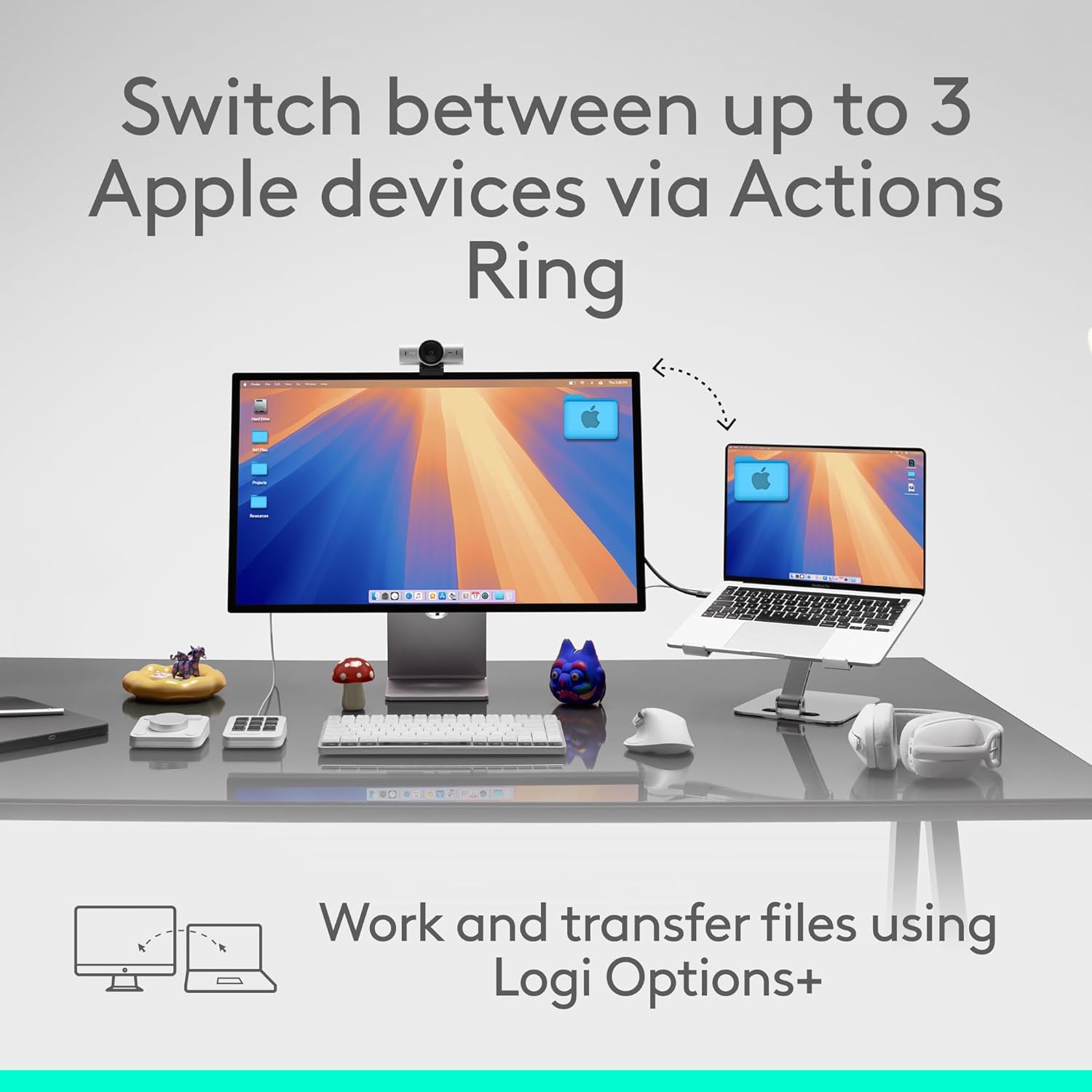
Image: A visual representation of switching between up to three Apple devices using the mouse's Easy-Switch feature.
3.5 8K DPI Sensor
The mouse is equipped with an 8K DPI optical sensor, enabling precise tracking on virtually any surface, including glass (minimum 4mm thickness).

Image: The mouse demonstrating its ability to track precisely on a glass surface.
3.6 Quiet Clicks
The MX Master 4 for Mac features quiet click technology, reducing click noise by 90% compared to standard mice. This creates a quieter working environment without compromising tactile feedback.
4. Customization with Logi Options+
The Logi Options+ application unlocks the full potential of your MX Master 4 for Mac. Through this software, you can:
- Customize button assignments for various applications.
- Adjust the intensity of haptic feedback.
- Configure the Actions Ring for specific workflows.
- Set up application-specific profiles.
Regularly check for updates to Logi Options+ to ensure you have the latest features and performance enhancements.

Image: The Logi Options+ application interface, showing customization options for the mouse.
5. Charging and Battery
The MX Master 4 for Mac is powered by a rechargeable battery. To charge the mouse, connect a USB-C cable (not included) to the USB-C port on the front of the mouse and to a power source.
- A full charge provides up to 70 days of battery life, depending on usage.
- A quick 1-minute charge can provide approximately 3 hours of use.
The LED indicator on the mouse will show charging status and battery level.
6. Maintenance
To ensure optimal performance and longevity of your MX Master 4 for Mac mouse, follow these maintenance guidelines:
- Cleaning: The mouse features improved stain resistance. To clean, gently wipe the surface with a soft, damp, lint-free cloth. Avoid abrasive cleaners or solvents.
- Storage: When not in use for extended periods, store the mouse in a clean, dry environment.
- Avoid Extreme Conditions: Do not expose the mouse to extreme temperatures, direct sunlight, or excessive moisture.

Image: The mouse's surface, emphasizing its improved stain resistance for easier cleaning.
7. Troubleshooting
If you encounter issues with your MX Master 4 for Mac, refer to the following common solutions:
- Mouse Not Connecting:
- Ensure the mouse is turned on and charged.
- Verify Bluetooth is enabled on your device.
- Re-initiate pairing mode on the mouse by holding an Easy-Switch button.
- Remove and re-add the mouse from your device's Bluetooth settings.
- Try connecting to a different Easy-Switch channel (1, 2, or 3).
- Haptic Feedback Not Working:
- Ensure Logi Options+ software is installed and running.
- Check haptic feedback settings within Logi Options+ to ensure it is enabled and configured.
- Inaccurate Tracking:
- Clean the optical sensor on the bottom of the mouse with a soft, dry cloth.
- Ensure the surface you are using is clean and free of debris.
- If tracking on glass, ensure the glass thickness is at least 4mm.
- Buttons or Scroll Wheel Unresponsive:
- Check battery level and charge if necessary.
- Restart your computer or device.
- Reinstall Logi Options+ software.
8. Specifications
| Feature | Detail |
|---|---|
| Brand | Logitech |
| Series | Logitech MX Master 4 |
| Model Number | 910-007575 |
| Hardware Platform | Mac, PC |
| Operating System Compatibility | Android, Chrome OS, Linux, Windows, iPadOS, macOS |
| Item Weight | 10.2 ounces (approx. 289.2 grams) |
| Package Dimensions | 6.61 x 5.59 x 2.24 inches |
| Color | Space Black |
| Power Source | Battery Powered (Rechargeable) |
| Connectivity Technology | Bluetooth, Radio Frequency (Logi Bolt ready, receiver not included) |
| Special Features | Lightweight, Programmable Buttons, Rechargeable, Soundless (Quiet Clicks), Wireless, Haptic Feedback, MagSpeed Scroll Wheel, 8K DPI Optical Sensor |
| Movement Detection Technology | Optical |
| Battery Life | Up to 70 days on a full charge; 3 hours of use from 1-minute charge |
9. Warranty and Support
Logitech products are manufactured to high-quality standards and are backed by a limited hardware warranty. For specific warranty details, terms, and conditions applicable to your region, please refer to the warranty information included with your product or visit the official Logitech support website.
For technical assistance, frequently asked questions, and driver downloads, please visit the Logitech Support website:
Related documentsMX Master 4


Ask a question about this manual
Ask about setup, troubleshooting, compatibility, parts, safety, or missing instructions. Manuals+ will review the question and use this page’s manual context to help answer it.