
1. Introduction
This manual provides detailed instructions for the installation, operation, and maintenance of your GNCC 2K 3MP Indoor WiFi Surveillance Camera, model P5W. Please read this manual thoroughly before using the product to ensure proper functionality and safety.
2. Product Overview
2.1 Package Contents
Verify that all items are present in your package:
- GNCC 2K 3MP Indoor WiFi Surveillance Camera (P5W)
- Power Adapter
- 2-meter Power Cable
- Mounting Base
- Screws for installation
- User Manual (this document)
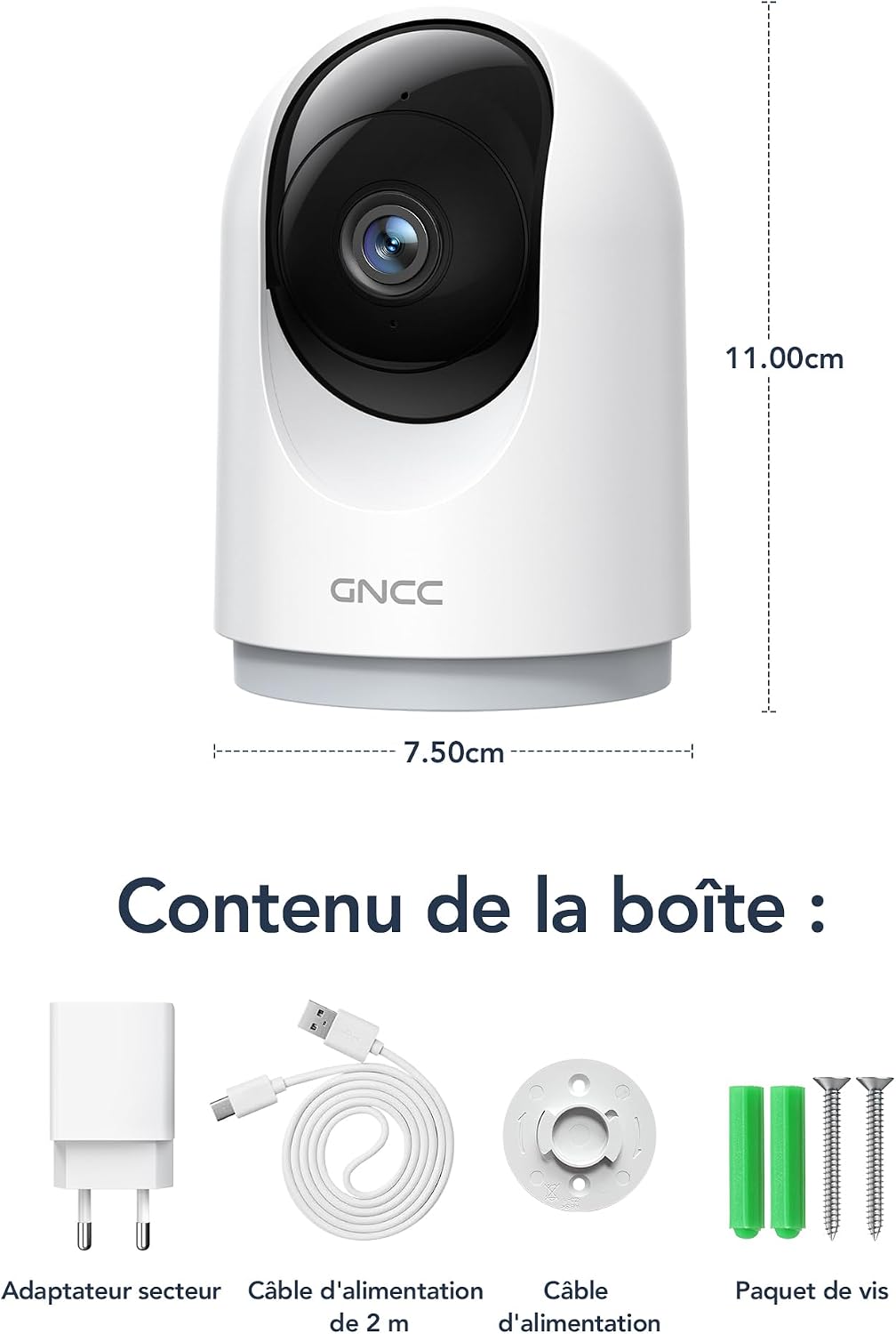
Figure 2.1: Package Contents and Camera Dimensions. The image displays the camera, power adapter, USB cable, mounting base, and screws. Dimensions are indicated as 7.50cm width and 11.00cm height.
2.2 Camera Features
- 2K 3MP Resolution: Provides clear and detailed video footage.
- 360° Coverage: Features 355° horizontal pan and 60° vertical tilt for comprehensive monitoring.
- 2.4GHz WiFi Connectivity: Connects to your home network for remote access.
- Infrared Night Vision: Automatically activates in low light, providing clear visibility up to 15 meters.
- Two-Way Audio: Allows for real-time communication through the camera.
- AI Motion Detection & Tracking: Detects movement, human shapes, pets, and abnormal sounds, sending instant alerts to your phone.
- Multi-Device View: Monitor up to four cameras simultaneously on your mobile device.
- Smart Home Integration: Compatible with Amazon Alexa and Google Assistant for voice control.
- Privacy Mode: Remotely disable recording and live view via the app.
- Flexible Storage: Supports Cloud storage (subscription required) and local storage via MicroSD card (up to 128GB, not included).

Figure 2.2: Key Features of the GNCC P5W Camera.
3. Setup Instructions
3.1 Powering On the Camera
- Connect the 2-meter power cable to the camera's power input port.
- Plug the power adapter into a standard electrical outlet.
- The camera will power on, and its indicator light will begin to flash, indicating it is ready for setup.
3.2 App Installation and Account Creation
- Download the official GNCC app from your smartphone's app store (iOS App Store or Google Play Store).
- Open the app and follow the on-screen instructions to create a new account or log in if you already have one.
3.3 Connecting the Camera to Wi-Fi
Ensure your smartphone is connected to a 2.4GHz Wi-Fi network. The camera does not support 5GHz Wi-Fi.
- In the GNCC app, tap the "+" icon to add a new device.
- Select your camera model (P5W) from the list of devices.
- Follow the app's prompts to connect the camera to your 2.4GHz Wi-Fi network. This typically involves scanning a QR code displayed on your phone with the camera lens.
- Once connected, the camera's indicator light will turn solid, and you will hear a confirmation sound.
3.4 Mounting the Camera
The camera can be placed on a flat surface or mounted to a wall/ceiling using the provided mounting base and screws.
- Table Mount: Place the camera on a stable, flat surface. Ensure it has a clear view of the area you wish to monitor.
- Screw-in Installation:
- Choose a suitable location for mounting.
- Use the mounting base as a template to mark the screw positions on the wall or ceiling.
- Drill pilot holes and insert the wall anchors if necessary.
- Secure the mounting base with the provided screws.
- Attach the camera to the mounting base by twisting it until it locks securely.
4. Operating Instructions
4.1 Live View and Pan/Tilt Control
Open the GNCC app and select your camera to access the live view. Use the on-screen controls to pan (355° horizontal) and tilt (60° vertical) the camera lens to adjust the viewing angle.

Figure 4.1: 360° Coverage of the GNCC P5W Camera.
4.2 Two-Way Audio
From the live view screen, tap the microphone icon to enable two-way audio. You can speak into your phone, and your voice will be transmitted through the camera's speaker. Similarly, you can hear audio from the camera's environment.

Figure 4.2: Two-Way Audio Functionality.
4.3 Motion Detection and Alerts
The camera is equipped with AI-powered motion detection, human shape detection, pet detection, and abnormal sound detection. When an event is detected, the camera will automatically record and send an instant notification to your smartphone.
- Enabling/Disabling Alerts: Navigate to the camera settings in the app to customize alert preferences, including sensitivity levels and detection zones.
- Motion Tracking: When motion is detected, the camera can automatically track the moving object within its field of view.

Figure 4.3: Motion Detection and Instant Notifications.
4.4 Night Vision
The camera automatically switches to infrared night vision mode in low-light conditions, providing clear black-and-white video up to 15 meters. No manual intervention is required.

Figure 4.4: Night Vision in operation, showing a baby in a crib.
4.5 Storage Options
- MicroSD Card Storage: Insert a MicroSD card (up to 128GB, not included) into the camera's designated slot for local recording. The camera will continuously record or record upon motion detection, depending on your settings.
- Cloud Storage: Optional cloud storage is available via subscription, offering 24/7 unlimited recording and access to past footage. A 14-day free trial for smart AI detection features may be available.

Figure 4.5: Cloud and Local Storage Options.
4.6 Smart Home Integration (Alexa & Google Assistant)
The GNCC P5W camera can be integrated with Amazon Alexa and Google Assistant for convenient voice control. Follow the instructions in your Alexa or Google Home app to link your GNCC account and devices.
- Example Voice Command: "Alexa, show me the living room camera."

Figure 4.6: Smart Home Integration and Advanced Features.
4.7 Privacy Mode
To ensure privacy, you can remotely disable the camera's recording and live view functions through the GNCC app. This feature allows you to turn off surveillance when not needed.
5. Maintenance
- Cleaning: Use a soft, dry cloth to clean the camera lens and body. Avoid using harsh chemicals or abrasive materials.
- Firmware Updates: Regularly check the GNCC app for available firmware updates. Keeping your camera's firmware up-to-date ensures optimal performance and security.
- Power Cycle: If the camera experiences issues, try unplugging it from the power source for 10 seconds and then plugging it back in.
- MicroSD Card Management: If using a MicroSD card, periodically check its status in the app and format it if necessary to maintain recording quality and prevent errors.
6. Troubleshooting
| Problem | Possible Cause | Solution |
|---|---|---|
| Camera fails to connect to Wi-Fi. | Incorrect Wi-Fi password; Camera too far from router; 5GHz Wi-Fi network used; Router firewall settings. |
|
| No live view or offline status. | No internet connection; Camera powered off; Weak Wi-Fi signal. |
|
| Motion detection alerts are not received. | Alerts disabled in app; Incorrect detection zone/sensitivity; App notifications blocked by phone settings. |
|
| Two-way audio not working. | Microphone/speaker muted in app; Phone volume too low; Network latency. |
|
7. Specifications
| Feature | Detail |
|---|---|
| Model Name | P5W |
| Resolution | 2K (1296 Pixels effective capture, 1440p screen capture resolution) |
| Pan/Tilt Range | Horizontal 355°, Vertical 60° |
| Connectivity | 2.4GHz Wi-Fi (Wireless) |
| Night Vision Range | Up to 15 meters |
| Audio | Two-Way Audio |
| Motion Detection | AI Motion, Human, Pet, Abnormal Sound Detection |
| Storage Options | MicroSD Card (up to 128GB), Cloud Storage (subscription) |
| Power Source | Wired Electric Cable (5 Volts, 3 Watts) |
| Dimensions (L x W x H) | 7.5 x 7.5 x 14.9 cm |
| Weight | 330 grams |
| Operating Environment | Indoor Use Only |
| Compatible Devices | Smartphone (iOS/Android), Amazon Alexa, Google Assistant |
| GTIN / UPC | 850070296489 |
8. Warranty and Support
8.1 Warranty Information
GNCC products are designed and manufactured to the highest quality standards. For specific warranty details, please refer to the warranty card included in your product packaging or visit the official GNCC website. Keep your purchase receipt as proof of purchase for warranty claims.
The product has a return policy duration of 30 days for refund/replacement, as per Amazon's policy.
8.2 Customer Support
If you encounter any issues or have questions regarding your GNCC P5W camera, please contact GNCC customer support through the following channels:
- Official Website: Visit the GNCC official website for FAQs, support articles, and contact information.
- In-App Support: The GNCC app may offer a support section or direct contact options.
- Email Support: Refer to the product packaging or official website for the customer support email address.
When contacting support, please have your product model (P5W) and purchase information ready.


