
1. Product Overview
The ICERIVER AE2 is a high-performance ALEO miner designed for efficient cryptocurrency mining. It features a robust power supply unit (PSU) and is engineered for stable operation within a wide voltage range. This manual provides essential information for setting up, operating, and maintaining your AE2 miner.

Figure 1: Front view of the ICERIVER AE2 ALEO Miner, showcasing its compact design and integrated cooling fans.
Key Features:
- ALEO Hashrate: 720MH/S (±5%) for optimal mining performance.
- Wall Power: 1300W/h (±10%) power consumption.
- Connection: Standard Ethernet for network connectivity.
- Voltage Input: 100-240V AC, ensuring compatibility with various power grids.
- Operating Temperature: Designed to operate efficiently between 0~40 ℃.
2. Setup Guide
2.1 Unpacking
- Carefully open the packaging and remove the miner.
- Inspect the miner for any visible damage during transit. If damage is found, contact your vendor immediately.
- Verify that all components are present: the ICERIVER AE2 miner unit and the power supply cable.
2.2 Physical Connection
Before powering on, ensure all necessary cables are securely connected.

Figure 2: Rear view of the ICERIVER AE2 ALEO Miner, showing the power input and Ethernet port.
- Power Connection: Connect the provided power cable to the power input port on the miner. Ensure the other end is connected to a grounded power outlet (100-240V AC).
- Network Connection: Connect an Ethernet cable from your router or network switch to the Ethernet port on the miner. A stable internet connection is crucial for mining operations.
2.3 Initial Power On
- Once all cables are securely connected, switch on the power supply to the miner.
- Observe the indicator lights on the miner. Typically, a green light indicates power, and a blinking light indicates network activity.
- Allow a few minutes for the miner to boot up and acquire an IP address from your network.
3. Operation
3.1 Network Configuration
The miner is configured to obtain an IP address automatically via DHCP by default. For advanced users, static IP configuration is possible via the web interface.
- Finding the Miner's IP Address:
- Check your router's connected devices list.
- Use an IP scanner tool on your network.
- Accessing the Web Interface: Open a web browser and enter the miner's IP address into the address bar. You will be prompted for login credentials (refer to the default credentials provided with your unit or contact support if not found).
- Pool Configuration: Within the web interface, navigate to the "Miner Settings" or "Pool Configuration" section to enter your ALEO mining pool details (pool URL, worker name, password).
3.2 Monitoring and Control
The web interface provides real-time monitoring of the miner's status, hashrate, temperature, and fan speed.
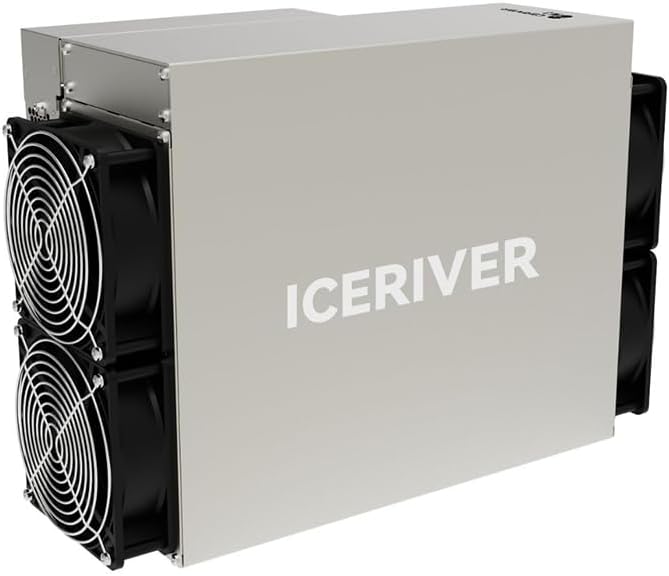
Figure 3: Close-up of the ICERIVER AE2 control panel, showing status indicator lights.
- Status Indicators:
- Green LED: Power on / Normal operation.
- Red LED: Error / Warning (check web interface for details).
- Network LED: Blinking indicates network activity.
- Restart/Reboot: The web interface allows for remote rebooting of the miner if necessary.
4. Maintenance
4.1 Cleaning
Regular cleaning is essential to ensure optimal performance and longevity of your miner.
- Frequency: Clean the miner every 1-3 months, depending on the operating environment.
- Procedure:
- Power off and unplug the miner before cleaning.
- Use compressed air to remove dust from the fans and heatsinks.
- Wipe the exterior with a dry, soft cloth. Do not use liquid cleaners.
4.2 Firmware Updates
Periodically check the official ICERIVER website for firmware updates. Updates can improve performance, stability, and security.
- Download the latest firmware from the official source.
- Follow the update instructions provided on the web interface or with the firmware package.
- Do not power off the miner during a firmware update.
4.3 Environmental Considerations
- Ensure the operating environment is well-ventilated to prevent overheating.
- Maintain ambient temperature within the specified range (0~40 ℃).
- Avoid high humidity and direct exposure to water or corrosive substances.
5. Troubleshooting
This section addresses common issues you might encounter with your ICERIVER AE2 miner.
| Problem | Possible Cause | Solution |
|---|---|---|
| Miner does not power on. | Power cable loose; Power outlet issue; PSU failure. | Check power cable connections. Test power outlet. Contact support if PSU is suspected. |
| No network connection. | Ethernet cable loose/faulty; Router/switch issue; Incorrect IP configuration. | Verify Ethernet cable. Restart router/switch. Check network settings in web interface. |
| Low hashrate or no mining. | Incorrect pool settings; Network instability; Overheating; Firmware issue. | Verify pool URL, worker name, and password. Check network stability. Ensure proper ventilation. Update firmware. |
| Overheating. | Poor ventilation; Dust accumulation on fans/heatsinks; High ambient temperature. | Improve airflow around the miner. Clean fans and heatsinks. Relocate to a cooler environment. |
If the issue persists after attempting these solutions, please refer to the support section or contact technical assistance.
6. Technical Specifications
| Feature | Value |
|---|---|
| Model Name | AE2 720MH/S |
| ALEO Hashrate | 720MH/S (±5%) |
| Wall Power | 1300W/h (±10%) |
| Connection | Ethernet |
| Voltage Input | 100-240V AC |
| Operating Temperature | 0~40 ℃ |
| Product Dimensions (L x W x H) | 19.5 x 29 x 43 cm |
| Item Weight | 13 kg |
| Cooling Method | Air |
| Power Supply Design | Non-Modular |
7. Warranty and Support
7.1 Warranty Information
Due to the specialized nature of mining equipment, the product's daily revenue is influenced by total network computing power and cryptocurrency price fluctuations. In principle, returns are not accepted unless due to product failure. If a return is accepted for reasons other than product failure, a 30% return fee may be charged. Please retain your proof of purchase for warranty claims.
7.2 Technical Support
For technical assistance, troubleshooting beyond this manual, or warranty inquiries, please contact your vendor or the manufacturer, ICERIVER, through their official support channels. Ensure you have your product model number and purchase details ready when contacting support.
Note: Always refer to the latest information on the official ICERIVER website for the most up-to-date support resources and contact details.

