
1. Introduction
This manual provides detailed instructions for the setup, operation, and maintenance of your BaldrTherm Wireless Pool Thermometer, Model HCS0565ARF-V4. This device is designed to accurately measure water temperature in various environments such as pools, hot tubs, spas, and aquariums, offering both direct display and remote monitoring capabilities.
The BaldrTherm Wireless Pool Thermometer system includes:
- Wireless Floating Thermometer (HCS0565ARF-V4)
- Wireless Gateway Hub (HWG023WBRF-V2)
- USB Power Cable for Hub
- Instruction Manual

Image 1.1: BaldrTherm Wireless Pool Thermometer, Gateway Hub, and mobile app interface.
2. Safety Information
- Battery Safety: Use only specified batteries. Do not mix old and new batteries, or different types of batteries. Dispose of used batteries according to local regulations.
- Water Exposure: The thermometer is IPX7 waterproof. Ensure the battery compartment is securely sealed before placing it in water. The hub is not waterproof and must be kept in a dry environment.
- Temperature Limits: Do not expose the device to temperatures outside its specified operating range.
- Children: Keep the device and its components out of reach of children.
3. Product Overview
The BaldrTherm Wireless Pool Thermometer provides accurate temperature readings with convenient remote monitoring. Key features include:
- 360° Full LCD Display: Ensures temperature readings are visible from any angle.
- Super High Accuracy: Measures temperature with an accuracy of ±0.5°F.
- Transparent Top Design: Allows for easy viewing of temperature data.
- Remote Monitoring: Connects to a gateway for app-based monitoring up to 328 feet away.
- IPX7 Waterproof & Fog-Free Screen: Designed to function perfectly when submerged, with a clear, readable screen in all conditions.
4. Setup Instructions
4.1. Gateway Hub Setup
- Unfold the antenna on the Gateway Hub.
- Connect the USB power cable to the hub and plug it into a power source. The blue light on the hub will start blinking.
- Download the "HomGar" app from your device's app store (available for iOS and Android).
- Open the app and register/log in.
- In the app, tap "Add Device" and follow the on-screen instructions to connect the hub to your 2.4GHz Wi-Fi network. Ensure your Wi-Fi router supports 2.4GHz.

Image 4.1: BaldrTherm Gateway Hub with antenna extended and USB power connected.
4.2. Thermometer Setup
- Unscrew the top part of the thermometer to access the battery compartment.
- Insert the required batteries (Nonstandard Battery batteries required, typically 3x AA) into the compartment, ensuring correct polarity.
- Securely screw the top part back onto the thermometer to ensure a waterproof seal.
- Place the thermometer near the powered-on hub.
- In the "HomGar" app, select "Add Device" and then choose the pool sensor (HCS0565ARF-V4). Tap "Next" to enter pairing mode. The thermometer should automatically connect to the hub.

Image 4.2: Installing batteries into the BaldrTherm Wireless Pool Thermometer.
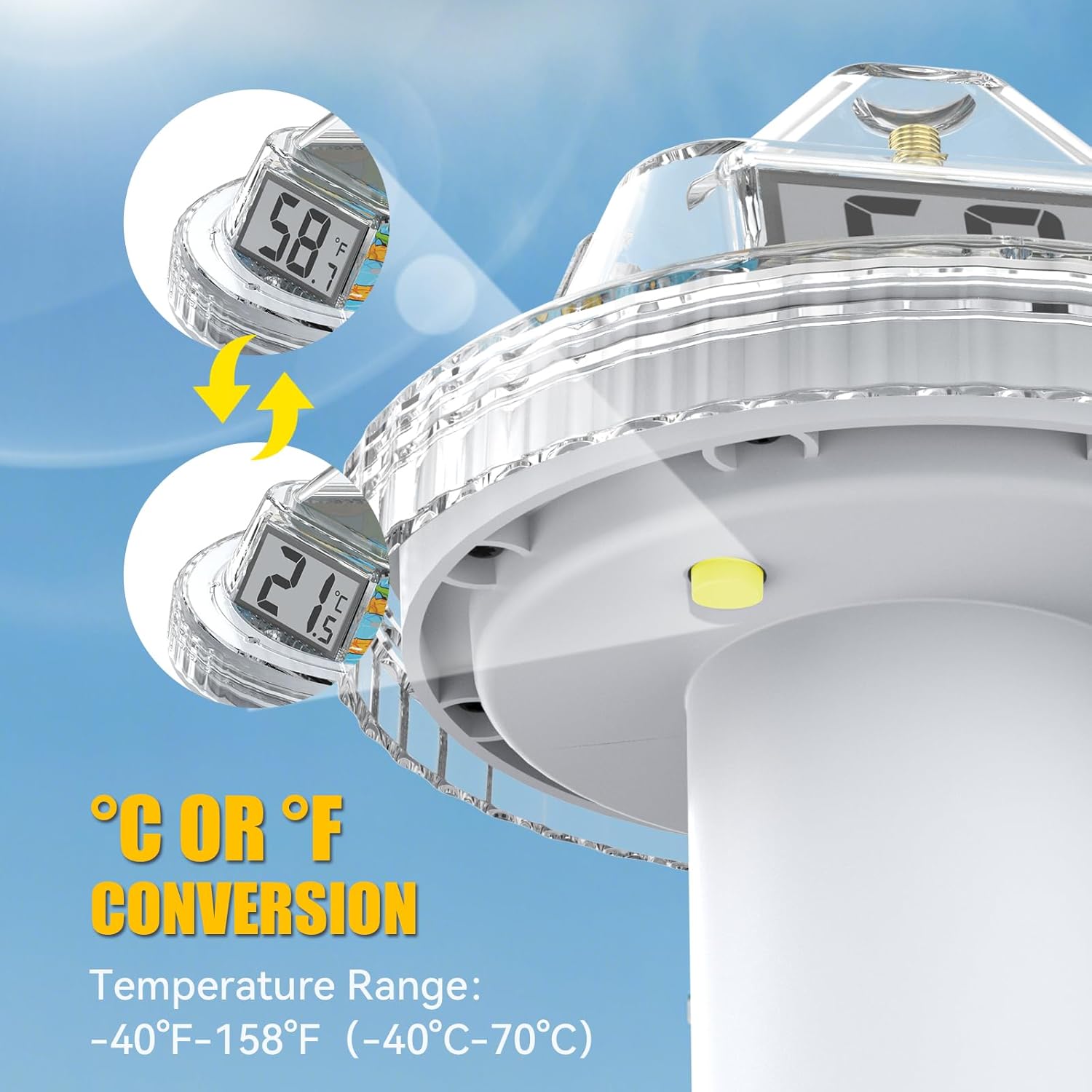
Image 4.3: Step-by-step guide for connecting the thermometer and hub via the HomGar app.
4.3. Setup Video Guide
For a visual guide on setting up your BaldrTherm Wireless Pool Thermometer and connecting it to the app, please watch the following video:
Video 4.1: Official BaldrTherm guide for setting up the Wireless Pool Thermometer and connecting it to the mobile application.
5. Operating Instructions
5.1. Placement
Once set up, gently place the thermometer into the water of your pool, hot tub, spa, or aquarium. The device is designed to float and provide accurate readings from its submerged sensor.
5.2. Reading Temperature
- Direct Display: The thermometer features a 360° LCD display, allowing you to read the water temperature directly from multiple angles while it floats.

Image 5.1: The thermometer floating in water, showcasing its 360° clear view display.
- App Monitoring: Use the "HomGar" app on your smartphone to remotely monitor the water temperature. The app provides real-time data and historical temperature trends.

Image 5.2: Remote monitoring of pool temperature via the HomGar mobile application.
5.3. Unit Conversion (°C/°F)
To switch between Celsius and Fahrenheit, locate the conversion button on the thermometer (typically found near the battery compartment or on the underside of the display unit). Press the button to toggle between the temperature units.

Image 5.3: Close-up of the thermometer indicating the C/F conversion button and temperature range.
6. Maintenance
6.1. Cleaning
Regularly clean the thermometer with a soft cloth and mild soap to remove any residue or algae buildup. Rinse thoroughly with fresh water. Do not use abrasive cleaners or solvents.
6.2. Battery Replacement
When the display becomes dim or the device stops responding, it's time to replace the batteries. Unscrew the top, replace the batteries as per Section 4.2, and ensure the compartment is sealed tightly.
6.3. Storage
When not in use for extended periods, remove the batteries from the thermometer. Store both the thermometer and the hub in a cool, dry place away from direct sunlight and extreme temperatures.
7. Troubleshooting
- No Display/Device Not Powering On:
Solution: Check battery installation and ensure batteries are fresh. Verify the battery compartment is securely closed. - Inaccurate Temperature Readings:
Solution: Ensure the thermometer is fully submerged in the water. Allow sufficient time for the temperature to stabilize. Compare with another reliable thermometer if available. - App Connection Issues:
Solution: Ensure the hub is powered on and its blue light is blinking. Verify your Wi-Fi network is 2.4GHz (5GHz networks are not supported). Keep your phone and the hub close to the Wi-Fi router during setup. Restart the app, hub, and your phone. - Remote Monitoring Not Working:
Solution: Confirm the hub is connected to your Wi-Fi and the thermometer is paired with the hub. Check the range between the thermometer and the hub (up to 328 feet). Obstacles can reduce signal strength. - Foggy Screen:
Solution: The device features an anti-fog design. If fogging occurs, ensure the battery compartment is sealed correctly. If the issue persists, contact customer support.
8. Specifications
| Model Name | HCS0565ARF-V4 |
| Item Model Number | HCS0565ARF-V4*2+HWG023WBRF-V2 |
| Brand | BaldrTherm |
| Display Type | Digital LCD (360° View) |
| Connectivity Technology | Wi-Fi (2.4GHz only) |
| Waterproof Rating | IPX7 |
| Temperature Accuracy | ±0.5°F |
| Remote Monitoring Range | Up to 328 feet (with 023 Gateway) |
| Power Source (Thermometer) | Nonstandard Battery (e.g., AA, not included) |
| Power Source (Hub) | USB Powered |
| Outer Material | Plastic |
| Special Feature | Fast Refresh |
9. Warranty and Support
BaldrTherm products are manufactured to high-quality standards. For specific warranty information, please refer to the warranty card included with your product or visit the official BaldrTherm website. If you encounter any issues or require technical assistance, please contact BaldrTherm customer support through their official channels.
