
1. Introduction
This manual provides detailed instructions for the NUPLEA AI Translation Earbuds Q10Pro. Please read this manual carefully before using the product to ensure proper operation and to maximize its features. Keep this manual for future reference.

Image 1.1: NUPLEA Q10Pro AI Translation Earbuds in their charging case, displaying a digital screen with time and battery status.
2. Package Contents
Ensure all items are present in the package:
- 2 x AI Translation Earbuds
- 1 x Charging Case
- 1 x USB Type-C Charging Cable
- 1 x User Manual (this document)
3. Setup
3.1. Charging the Earbuds and Case
Before first use, fully charge the earbuds and charging case.
- Place the earbuds into the charging case.
- Connect the USB Type-C charging cable to the charging port on the case and to a power source.
- The LCD screen on the charging case will display the battery levels. A full charge for the earbuds takes approximately 1 hour. The case provides up to 36 hours of extended playtime.

Image 3.1: The NUPLEA Q10Pro earbuds and charging case connected via a USB-C cable, illustrating the 1-hour fast charge and extended battery life.
3.2. Pairing with a Device
The earbuds use Bluetooth 5.4 for a stable connection.
- Open the charging case. The earbuds will automatically enter pairing mode.
- On your smartphone or other Bluetooth-enabled device, go to Bluetooth settings.
- Select "NUPLEA Q10Pro" (or similar name) from the list of available devices.
- Once connected, you will hear an audio prompt, and the device will show the earbuds as paired.

Image 3.2: Visual representation of upgraded Bluetooth 5.4 technology, highlighting increased connection range, stability, and transfer speed.
4. Operating Instructions
4.1. Smart Touch Controls
The earbuds and charging case feature touch controls for various functions:
- Music Playback: Click MFB (Multi-Function Button) key to pause/play.
- Call Management:
- Click MFB button to answer/end a call.
- Long press the MFB button to reject a call.
- Voice Assistant: Call Siri (or other voice assistant) by pressing and holding the right MFB button for 2 seconds.
- Noise Control Modes: Press and hold the left MFB button for 2 seconds to switch between ANC (Active Noise Cancellation) mode, Normal mode, and Transparency mode.

Image 4.1: Illustration of smart touch controls on the earbuds, detailing actions for music, calls, voice assistant, and noise control modes.
4.2. Charging Case Touch Screen Functions
The multifunctional touch screen on the charging case allows direct control without needing your phone for many features.
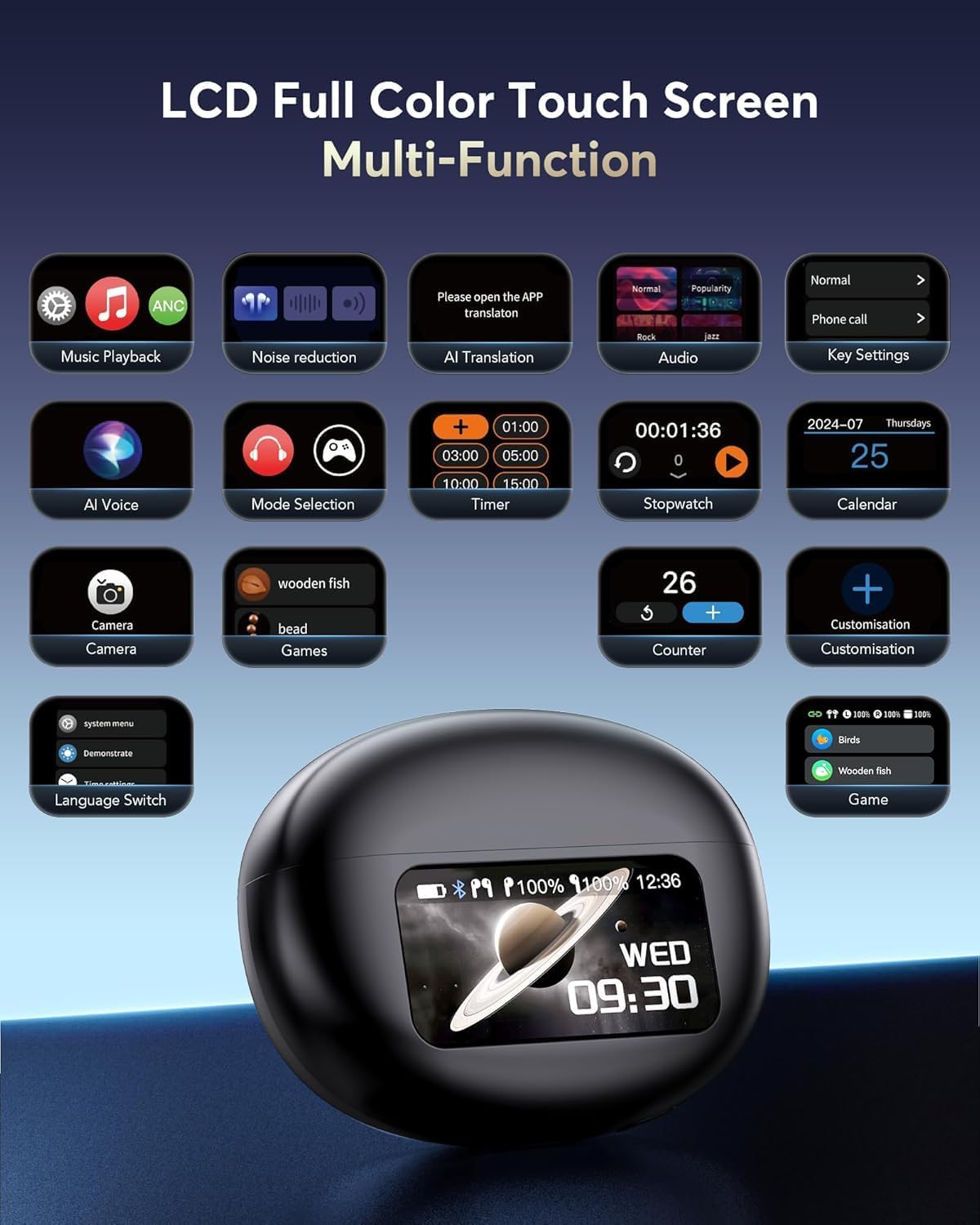
Image 4.2: The LCD full-color touch screen on the charging case displaying icons for music playback, noise reduction, AI translation, audio settings, key settings, AI voice, mode selection, timer, stopwatch, calendar, camera, games, counter, customization, and language switch.
4.3. Translation Features
The NUPLEA Q10Pro earbuds offer real-time translation for 144 languages and accents. An accompanying application is required to access and utilize the full range of translation features.
4.3.1. Translation Modes
The earbuds support various translation modes to suit different communication scenarios:
- Touch Mode: For fluent conversations. Each person wears an earbud. Touch the earbud before speaking, and the other person will hear the translation in their earbud.
- Free Speech Mode: For in-depth one-on-one conversations. Each person wears an earbud and speaks normally without touching, allowing for hassle-free communication.
- Speaker Mode: For directions or ordering food. You wear an earbud and speak; the translation will be played through your phone's speaker.
- Offline Mode: Supports offline translation in most parts of the world (requires pre-downloaded language packs via the app).

Image 4.3: Touch Mode for fluent conversation, where each user touches their earbud before speaking to enable translation.

Image 4.4: Free Speech Mode for natural, in-depth one-on-one conversations without manual interaction.

Image 4.5: Speaker Mode, where the user speaks into the earbud and the translation is played through the phone's speaker.

Image 4.6: Offline Mode, enabling translation without an internet connection after downloading language packs.
4.3.2. Advanced Translation Functions (via App)
The companion application enhances the translation capabilities with additional features:
- Live Recording: Converts spoken recordings to text for meeting notes or transcription.
- Simultaneous Interpretation: Provides real-time voice translation, suitable for international conferences.
- Face-to-Face Translation (Earphones + Mobile Phone): Two-way voice translation for global negotiations or travel, using one earbud and the mobile phone.
- Face-to-Face Translation (Dual-Ear Mode): Share earbuds with another person for simultaneous two-way conversation.
- Summary & Playback: Access historical recordings with AI summary and speaker identification.
- Text-to-Image: Generates images based on provided text descriptions.
- Image-to-Image: Generates images based on a reference image and text description.
- Audio and Video Call: Online calls with real-time translation; no app needed for the other party.
- Audio and Video History: Easily view call records and support redial.

Image 4.7: The app interface for Live Recording, converting speech to text for easy note-taking.

Image 4.8: The app interface for Simultaneous Interpretation, providing real-time voice translation.

Image 4.9: The app interface for Face-to-Face Translation using one earbud and the mobile phone.

Image 4.10: The app interface for Face-to-Face Translation in Dual-Ear Mode, allowing two users to share earbuds for conversation.
5. Maintenance
5.1. Cleaning
Regular cleaning helps maintain optimal performance and hygiene:
- Gently wipe the earbuds and charging case with a soft, dry, lint-free cloth.
- For ear tips, remove them and clean with a mild soap solution if necessary, then rinse and dry thoroughly before reattaching.
- Avoid using abrasive materials or harsh chemicals.
5.2. Water Resistance
The earbuds are rated as waterproof. However, this rating typically refers to resistance against splashes, sweat, and light rain, not submersion. Avoid prolonged exposure to water or using them during swimming or showering.
6. Troubleshooting
If you encounter issues, refer to the following common solutions:
| Problem | Possible Cause | Solution |
|---|---|---|
| Earbuds not pairing/connecting. | Bluetooth is off on device, earbuds not in pairing mode, out of range. | Ensure Bluetooth is enabled. Place earbuds in case, close, then open to re-enter pairing mode. Move closer to the device. Forget device in Bluetooth settings and re-pair. |
| No sound or low volume. | Volume too low on device/earbuds, earbuds not properly seated, dirty ear tips. | Adjust volume on both device and earbuds. Ensure earbuds are correctly placed in ears. Clean ear tips. |
| Translation features not working. | Companion app not installed/configured, internet connection issues (for online modes), microphone blocked. | Install and configure the dedicated translation app. Ensure a stable internet connection for online translation. Check if microphones are clear. Grant necessary permissions to the app. |
| Charging issues. | Cable/charger faulty, charging contacts dirty, earbuds not seated correctly in case. | Try a different charging cable and adapter. Clean charging contacts on earbuds and case. Ensure earbuds are securely placed in the case. |
7. Specifications
| Feature | Detail |
|---|---|
| Model Name | AI Language Translation Earbuds |
| Item Model Number | YYK-Q10 Pro |
| Brand | NUPLEA |
| Connectivity Technology | Wireless (Bluetooth) |
| Bluetooth Version | 5.4 |
| Bluetooth Range | Up to 15 Meters |
| Battery Life (Earbuds) | 6-7 Hours (continuous playtime) |
| Total Playtime (with Case) | Up to 36 Hours |
| Charging Time | 1 Hour |
| Control Method | Touch |
| Noise Control | Active Noise Cancellation (ANC) |
| Water Resistance Level | Waterproof |
| Frequency Range | 20Hz - 20,000Hz |
| Included Components | 2 x AI Translator Earbuds |
| Item Weight | 3.2 ounces |
| Package Dimensions | 3.66 x 3.58 x 1.26 inches |
8. Warranty and Support
For warranty information, please refer to the documentation provided at the time of purchase or contact your retailer. For technical support, please visit the official NUPLEA website or contact their customer service department. Contact details are typically found on the product packaging or the manufacturer's website.