
Introduction
This manual provides detailed instructions for the MageGee GK960 Wireless Gaming Keyboard. Please read this manual thoroughly before using the product to ensure proper operation and to maximize your user experience. The GK960 offers versatile connectivity, customizable RGB lighting, and an ergonomic design for extended use.

Image: The MageGee GK960 Wireless Gaming Keyboard, showcasing its full layout and RGB backlighting.
Package Contents
Verify that all items listed below are included in your package:
- MageGee GK960 Wireless Gaming Keyboard
- USB-C Charging Cable
- 2.4G USB Receiver
- User Manual
- User Guide
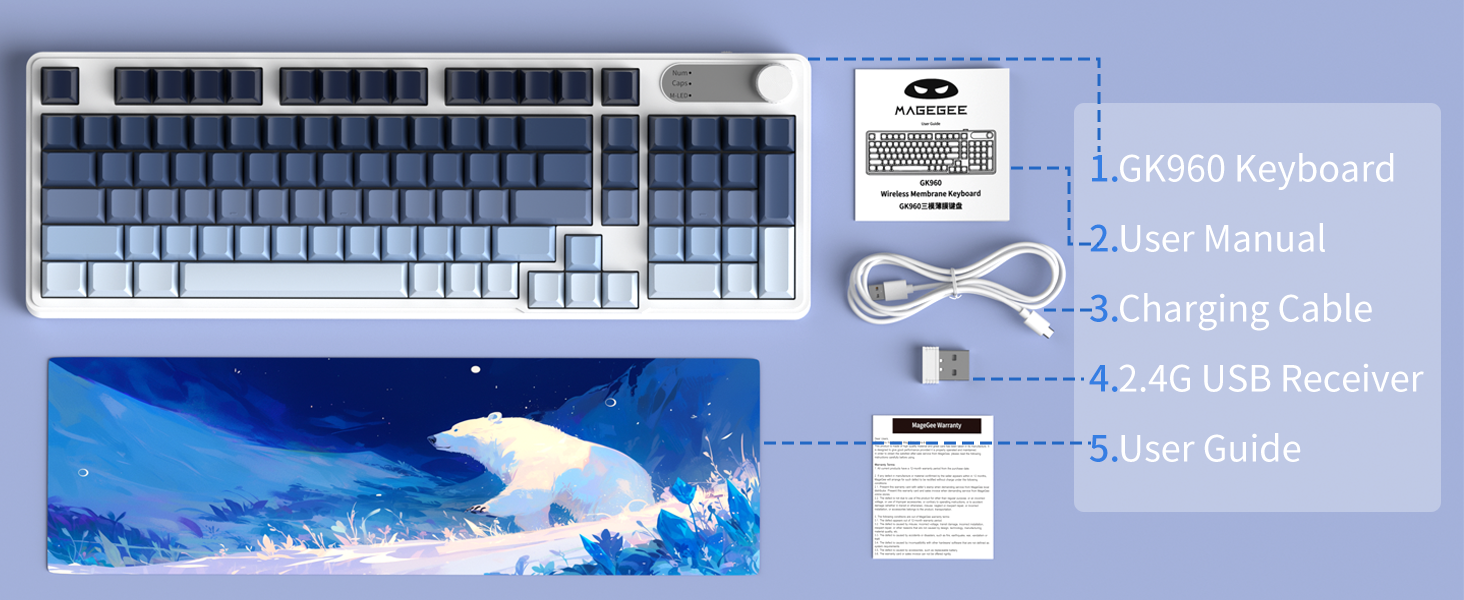
Image: An illustration showing the MageGee GK960 keyboard and its included accessories: USB-C cable, 2.4G receiver, user manual, and user guide.
Setup and Connectivity
The GK960 keyboard supports three connection modes: Wired (USB-C), 2.4GHz Wireless, and Bluetooth.
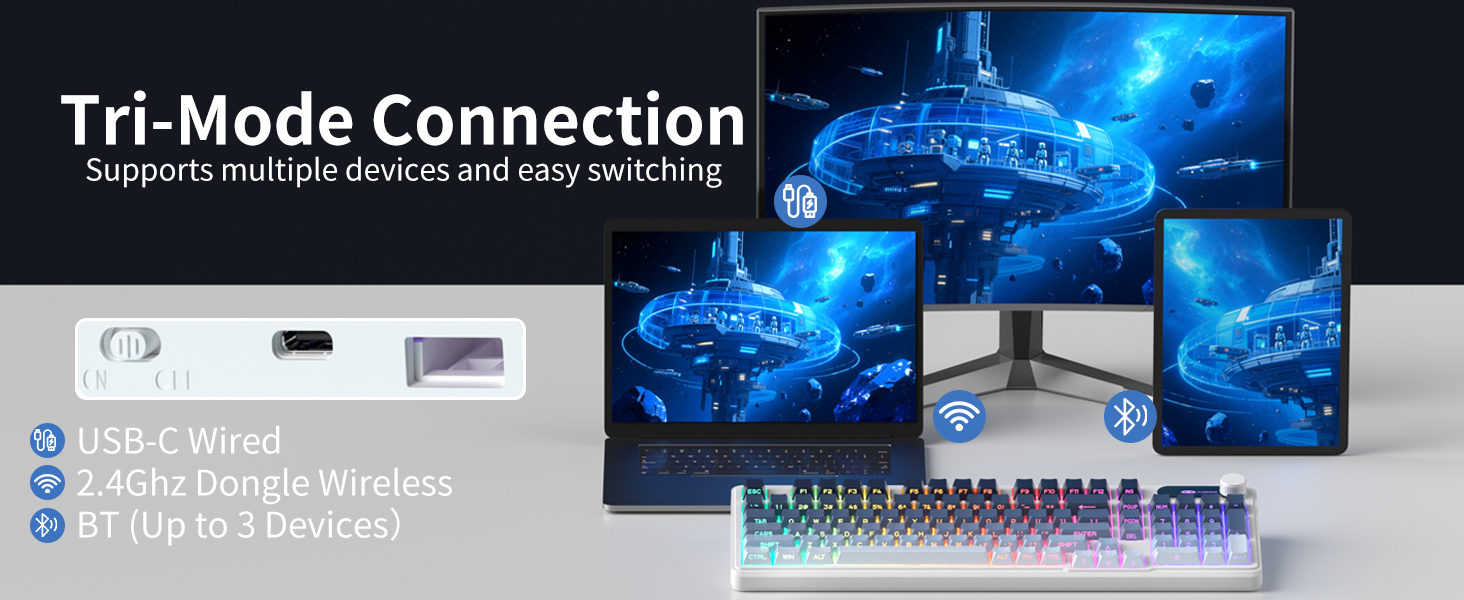
Image: A visual representation of the keyboard connecting to multiple devices (laptop, monitor, tablet) via USB-C, 2.4G dongle, and Bluetooth.
1. Wired Connection (USB-C)
- Connect the provided USB-C cable to the keyboard's USB-C port.
- Connect the other end of the USB-C cable to an available USB port on your computer.
- The keyboard will automatically be recognized and ready for use.
2. 2.4GHz Wireless Connection
- Locate the 2.4G USB receiver in the package.
- Plug the 2.4G USB receiver into an available USB port on your computer.
- On the keyboard, switch the mode selector to the '2.4G' position.
- The keyboard will connect wirelessly to your device.
3. Bluetooth Connection
The GK960 supports up to three Bluetooth devices (BT1, BT2, BT3).
- On the keyboard, switch the mode selector to the 'BT' position.
- Press and hold FN + 1 (for BT1), FN + 2 (for BT2), or FN + 3 (for BT3) for 3-5 seconds until the indicator light flashes rapidly, indicating pairing mode.
- On your device (computer, tablet, smartphone), enable Bluetooth and search for new devices.
- Select 'GK960' from the list of available devices to pair.
- Once paired, the indicator light will stop flashing.
Switching Between Modes
Use the mode selector switch on the keyboard to easily switch between Wired, 2.4G, and Bluetooth modes. For Bluetooth, press FN + 1/2/3 to switch between paired Bluetooth devices.
Operating Instructions
RGB Backlighting Control
The GK960 features vibrant RGB backlighting with adjustable effects, brightness, and speed.
- FN + INS: Switch between different light modes.
- FN + Backspace: Turn the backlight on/off.
- FN + -/_: Adjust light speed (slower).
- FN + =/+: Adjust light speed (faster).
- FN + PgUp: Increase light brightness.
- FN + PgDn: Decrease light brightness.
- FN + P: Toggle logo color.
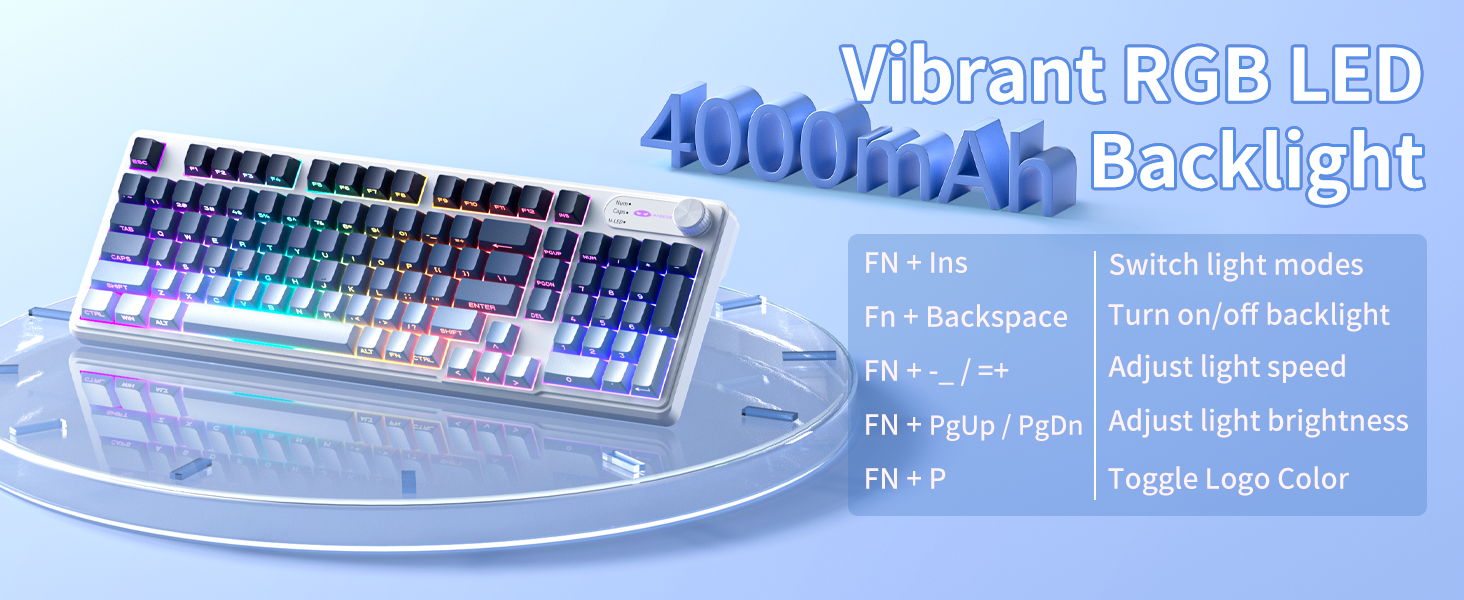
Image: A diagram illustrating the FN key combinations for controlling the RGB backlight modes, speed, brightness, and logo color.
Dual-Mode Rotary Knob
The multi-functional knob allows quick adjustments for volume and lighting.
- Toggle Mode: Long-press FN + Knob for 5 seconds to switch between Volume Mode and Light Mode.
- Volume Mode: Rotate the knob to adjust volume. Press down on the knob to mute/unmute.
- Light Mode: Rotate the knob to adjust backlight brightness. Press down on the knob to cycle through lighting effects.
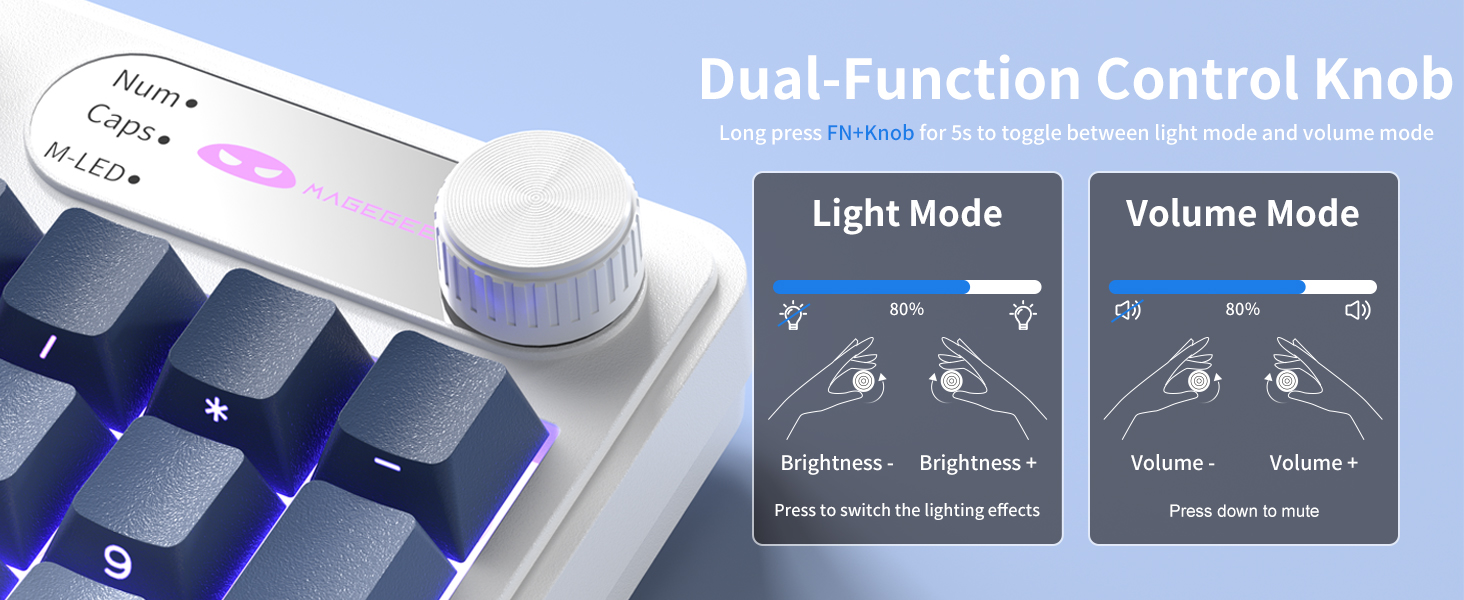
Image: A close-up of the multi-functional knob, detailing its operation for both volume and lighting adjustments, including the FN+Knob long-press for mode switching.
Side-Printed Keycaps
The GK960 features double-shot injection molded keycaps with side-printed legends. This design allows the backlight to shine through the letters, enhancing visibility and durability, preventing fading from prolonged use.

Image: A close-up view of the keyboard's side-printed keycaps, highlighting how the backlight illuminates the legends.
19-Key Anti-Ghosting
The GK960 keyboard is equipped with 19-key anti-ghosting technology. This ensures that every keystroke registers accurately, even when multiple keys are pressed simultaneously during fast-paced gaming or typing. This prevents missed inputs and enhances performance.
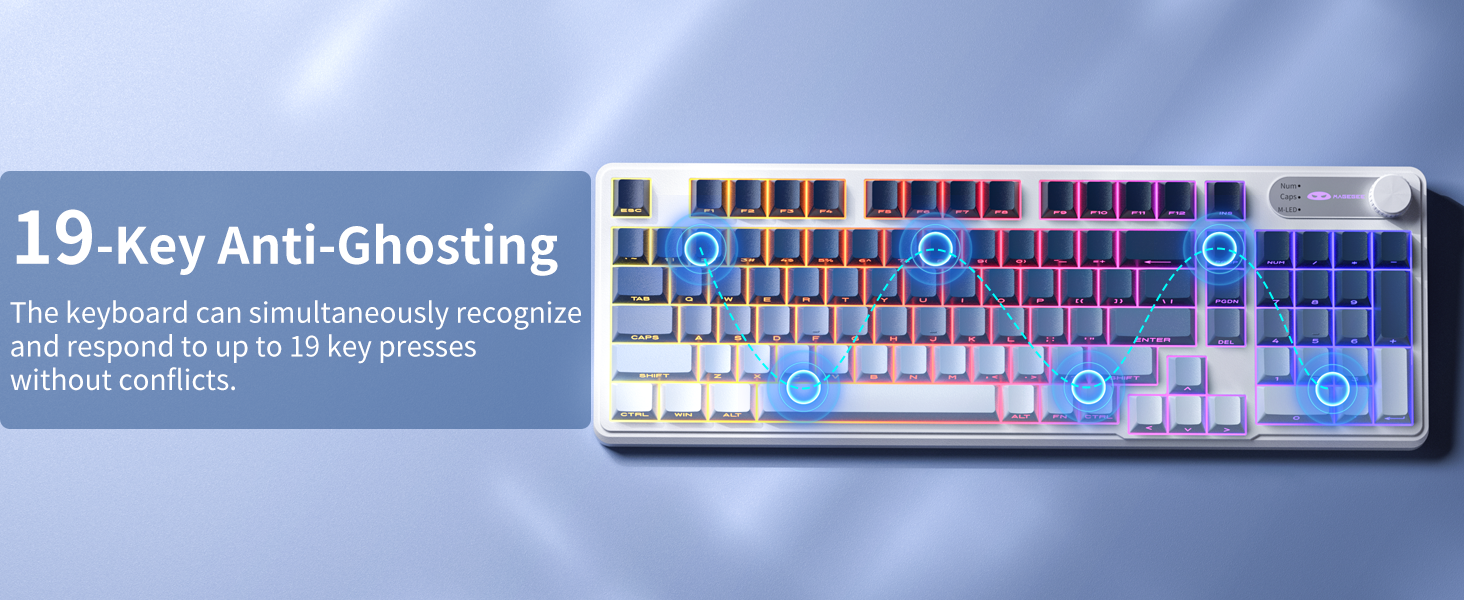
Image: A visual diagram illustrating the 19-key anti-ghosting feature, showing multiple simultaneous key presses being registered without conflict.
System Compatibility
The keyboard supports both Windows and Mac operating systems. You can switch between them using a simple key combination (refer to specific key combinations if provided on the keyboard or in a quick start guide).
Battery Management
The GK960 is equipped with a 4000mAh high-capacity battery for extended usage.
- Charging: Connect the keyboard using the provided USB-C cable to a power source. The keyboard can be used in wired mode while charging.
- Battery Life: Approximately 22 hours with backlight on, and up to 200 hours with backlight off.
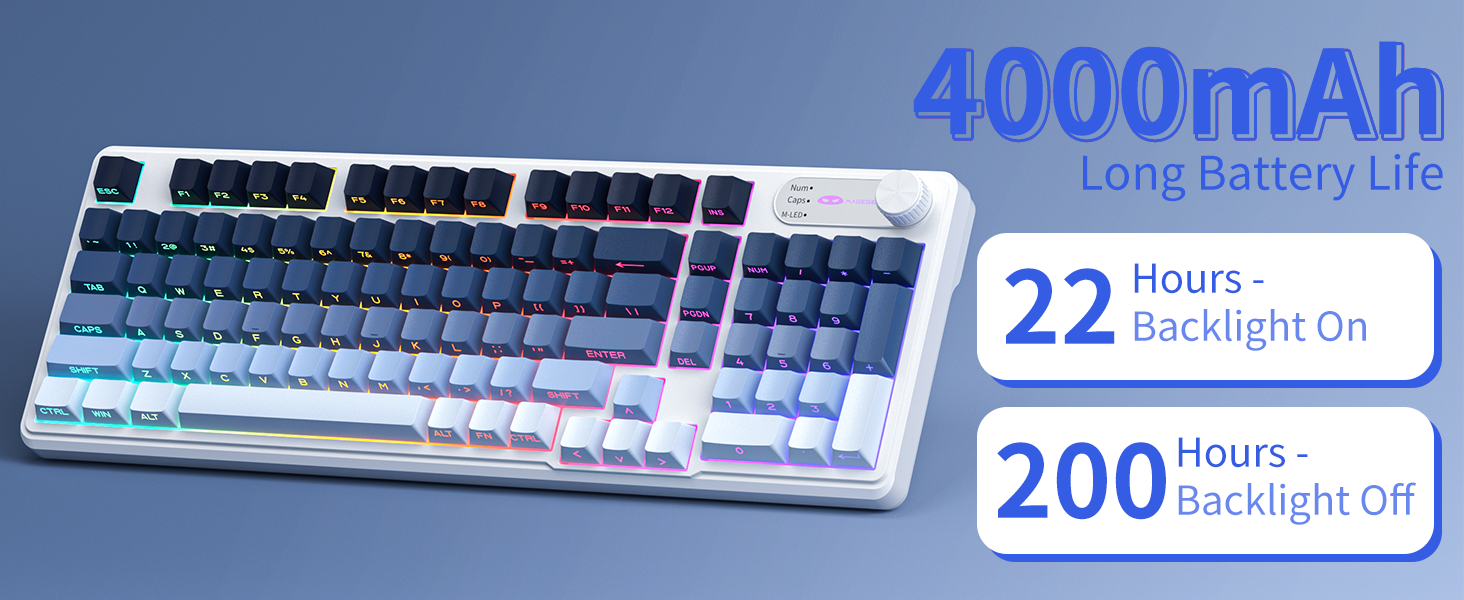
Image: A graphic displaying the 4000mAh battery capacity and estimated usage times: 22 hours with backlight on and 200 hours with backlight off.
Ergonomic Design
The GK960 features a stepped keycap structure and adjustable stands to promote a comfortable typing posture. This design helps reduce wrist fatigue during long periods of use.
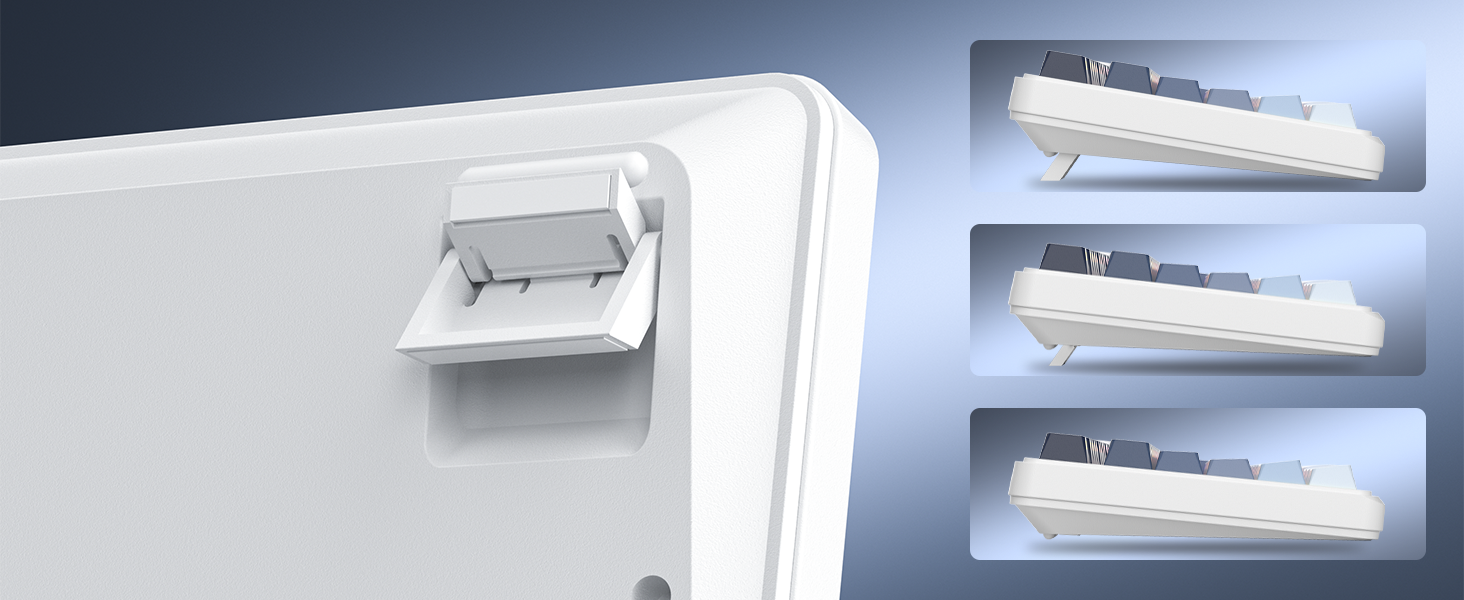
Image: A depiction of the keyboard's adjustable feet and stepped keycap profile, illustrating its ergonomic features for comfortable typing angles.
Maintenance
- Cleaning: Use a soft, dry cloth to wipe the keyboard surface. For deeper cleaning, use compressed air to remove dust and debris from between keycaps. Avoid using harsh chemicals or abrasive materials.
- Storage: Store the keyboard in a cool, dry place away from direct sunlight and extreme temperatures.
- Liquid Exposure: Avoid spilling liquids on the keyboard. If liquid exposure occurs, immediately disconnect the keyboard and allow it to dry completely before reconnecting.
Troubleshooting
- Keyboard not responding: Ensure the keyboard is charged. Check the connection mode (Wired, 2.4G, BT) and ensure it matches your device's connection. For 2.4G, ensure the USB receiver is properly inserted. For Bluetooth, re-pair the device if necessary.
- Backlight not working: Press FN + Backspace to toggle the backlight. Ensure brightness is not set to minimum (FN + PgUp).
- Intermittent connection: Ensure the keyboard is within range of the receiver/device. Avoid sources of strong electromagnetic interference.
- Keys not registering: Clean under the keycaps to remove any obstructions. Ensure the keyboard is fully charged.
Specifications
| Feature | Specification |
|---|---|
| Model Name | GK960 |
| Connectivity Technology | Wired (USB-C), 2.4G Wireless, Bluetooth |
| Battery Capacity | 4000mAh |
| Backlighting | RGB |
| Anti-Ghosting | 19-Key |
| Keycap Type | Side-Printed, Double-Shot Injection |
| Compatible Devices | Laptop, PC, Smartphone, Tablet |
| Item Weight | 1.88 pounds |
| Package Dimensions | 17.56 x 7.17 x 2.05 inches |

Image: A diagram illustrating the physical dimensions of the MageGee GK960 keyboard.
Warranty and Support
MageGee products are designed for reliability and performance. For warranty information or technical support, please refer to the warranty card included in your package or visit the official MageGee website. Keep your purchase receipt for warranty claims.


