1. Product Overview
This manual provides essential information for setting up, operating, and maintaining your Samsung QN50Q8FAAFXZA 50-Inch Class QLED Q8F 4K Vision AI Smart TV, along with instructions for the Walts FIXED-MOUNT-43-90 TV Mount and the Amber Protection 3-Outlet Surge Protector.
Key Features:
- Samsung QN50Q8FAAFXZA 50-Inch QLED Q8F 4K Vision AI Smart TV: Features a Q4 AI Processor for clear color and sound, 100% Color Volume with Quantum Dot for vibrant scenes, and a 60Hz refresh rate.
- Walts FIXED-MOUNT-43-90 TV Mount: Supports TVs from 43"-98" with a maximum weight of 175 lbs. Can be installed in both concrete and wood studs.
- Amber Protection 3-Outlet Surge Protector: Protects devices from surges up to 1225 Joules with a blue LED indicator when active.
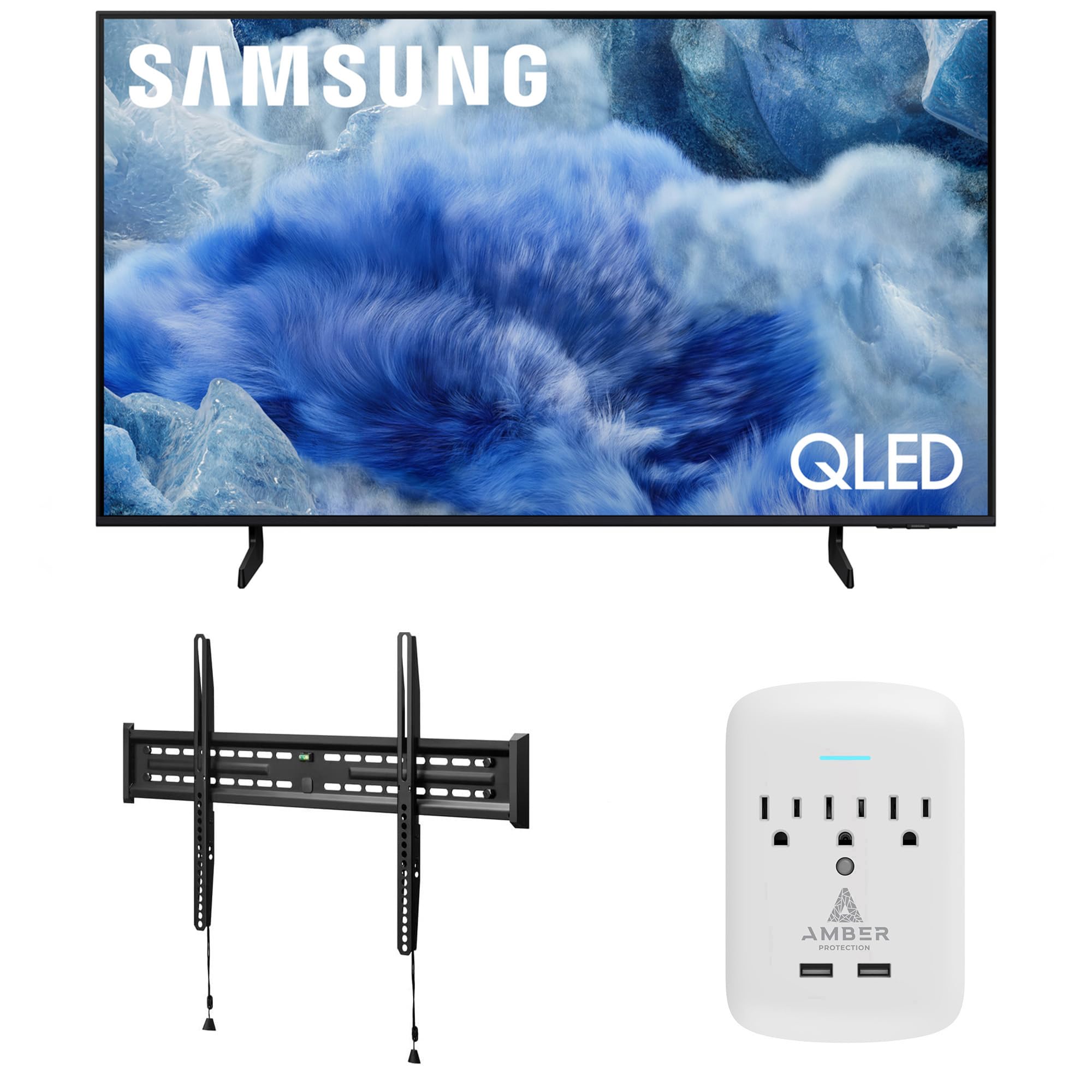
Figure 1.1: Samsung QN50Q8FAAFXZA 50-Inch QLED Q8F 4K Smart TV with included stand.

Figure 1.2: Front view of the Samsung QN50Q8FAAFXZA 50-Inch QLED Q8F 4K Smart TV.

Figure 1.3: Side view of the Samsung QN50Q8FAAFXZA 50-Inch QLED Q8F 4K Smart TV.
2. Safety Information
Always read and follow all safety instructions before using this product to prevent injury or damage. Ensure proper ventilation by maintaining a distance of at least 10 cm between the TV and other objects (walls, cabinet sides, etc.). Do not expose the apparatus to rain or moisture. Never place a television set in an unstable location. Always use cabinets or stands or mounting methods recommended by Samsung. Always ensure the television set is not overhanging the edge of the supporting furniture. Always educate children about the dangers of climbing on furniture to reach the television or its remote control. Always route cords and cables safely to prevent tripping hazards.
3. Setup
3.1 Unboxing the TV
Carefully open the TV packaging. It is recommended to have two people for larger TVs to ensure safe handling. Remove all packaging materials and accessories.
3.2 Stand Installation (Optional)
If you choose not to wall-mount your TV, attach the included stands. Place the TV screen-down on a soft, flat surface. Align the stands with the designated slots on the TV's bottom edge and secure them with the provided screws.
3.3 Wall Mount Installation
The Walts FIXED-MOUNT-43-90 TV Mount is designed for secure installation. Ensure you identify suitable mounting points (wood studs or concrete) in your wall. Follow the detailed instructions provided with the Walts TV Mount for proper and safe installation. The mount can support TVs up to 175 lbs.

Figure 3.1: Components of the Walts FIXED-MOUNT-43-90 TV Mount.
3.4 Surge Protector Setup
Plug the Amber Protection 3-Outlet Surge Protector into a standard wall outlet. Connect your TV and other devices to the surge protector's outlets. The blue LED indicator will illuminate when the protector is active, safeguarding your electronics from power surges up to 1225 Joules.

Figure 3.2: Amber Protection 3-Outlet Surge Protector.
3.5 Initial TV Setup
After mounting or placing your TV, connect the power cord to the TV and then to the surge protector. Connect any external devices (cable box, gaming console, etc.) to the TV's HDMI or USB ports. Power on the TV using the remote control. Follow the on-screen prompts to select your language, connect to your Wi-Fi network, and complete the initial setup of the Samsung Smart Hub.
4. Operating the TV
4.1 Smart Hub / Tizen OS
The Samsung QLED Q8F runs on the intuitive Tizen operating system, providing access to a wide range of streaming apps, live TV, and smart features. Navigate using the included SolarCell Remote.
4.2 Voice Control
Utilize built-in voice assistants like Bixby or Amazon Alexa for hands-free control. Search for content, change settings, and manage smart home devices using voice commands.
4.3 SmartThings Integration
Connect and control compatible smart home devices directly from your TV using the SmartThings app. Create routines and monitor your home environment.
4.4 Art Mode
Transform your TV into a personalized art display when not in use. Choose from a selection of artwork or upload your own photos to enhance your living space.
4.5 Workspace
Access PC-on-TV features, including remote PC access and Samsung DeX, allowing you to use your TV as a workstation.
4.6 Samsung Health
Sync with compatible Samsung Health devices to track your fitness and wellness goals directly on your TV screen.
5. Picture Quality & Display
The Samsung QLED Q8F delivers a stunning visual experience with advanced display technologies.
5.1 Q4 AI Processor
The Q4 AI Processor powers dramatically clear color and sound, optimizing content for an enhanced viewing experience.

Figure 5.1: Visual representation of the Q4 AI Processor.
5.2 100% Color Volume with Quantum Dot
Experience over a billion colors that stay true, even in the brightest scenes, thanks to Quantum Dot technology.

Figure 5.2: Illustration of 100% Color Volume with Quantum Dot technology.
5.3 HDR Support
The TV supports Quantum HDR+, providing a wider range of brightness and contrast for a more dynamic picture.
5.4 4K Upscaling
Content with lower resolutions is automatically upscaled to near 4K quality, enhancing clarity and detail.
6. Gaming Features
The QLED Q8F is equipped with features to optimize your gaming experience.
6.1 Game Mode
The TV automatically detects when a gaming console is connected and switches to Game Mode, reducing input lag for a more responsive gaming experience. Features like Auto Low Latency Mode (ALLM) and Game Motion Plus are supported.
6.2 Refresh Rate
The TV features a 60Hz refresh rate, suitable for most gaming. While it supports 4K 60Hz Max HDMI Input Rate, it does not support 120Hz for gaming consoles directly.
6.3 Cloud Gaming
Access cloud gaming services directly from the TV's Gaming Hub, allowing you to play games without a console (subscription may be required).
7. Audio Features
Experience immersive sound with the TV's integrated audio technologies.
7.1 OTS Lite & Q-Symphony
Object Tracking Sound Lite (OTS Lite) provides dynamic sound that follows the action on screen. Q-Symphony allows the TV speakers to synchronize with a compatible Samsung soundbar for a richer, more enveloping audio experience.
7.2 Bluetooth Audio
Connect Bluetooth-enabled headphones or speakers wirelessly for a personalized listening experience.
7.3 HDMI eARC
The HDMI eARC (Enhanced Audio Return Channel) port allows for high-quality audio passthrough to compatible sound systems.
8. Connectivity
The TV offers various connectivity options for your devices.
- HDMI: 3 HDMI ports (4K 60Hz Max HDMI Input Rate).
- USB: 2 USB-A ports.
- Ethernet: 1 Ethernet port for wired internet connection.
- Wi-Fi: Built-in Wi-Fi for wireless internet access.
- Bluetooth: For connecting wireless audio devices.
9. Maintenance
To ensure the longevity and optimal performance of your TV and accessories, follow these maintenance guidelines:
- Cleaning the Screen: Gently wipe the screen with a soft, dry microfiber cloth. For stubborn smudges, lightly dampen the cloth with water or a specialized screen cleaner. Avoid harsh chemicals.
- Cleaning the Frame and Stand: Use a soft, dry cloth to wipe dust from the TV frame and stand.
- Cable Management: Regularly check and organize cables to prevent tangles and damage.
- Software Updates: Ensure your TV's software is up-to-date for the best performance and latest features. Check for updates via the TV's settings menu.
10. Troubleshooting
If you encounter any issues, refer to the following common troubleshooting tips:
- No Power: Ensure the power cord is securely connected to both the TV and the power outlet/surge protector. Check if the surge protector is on and functioning.
- No Picture/Sound: Verify that the correct input source is selected on the TV. Check all cable connections between the TV and external devices.
- Remote Control Not Working: Check the remote's battery level (for SolarCell Remote, ensure it's charged). Point the remote directly at the TV.
- Wi-Fi Connection Issues: Restart your router and modem. Reconnect the TV to the Wi-Fi network via the TV's settings.
- Picture Quality Issues: Adjust picture settings (brightness, contrast, color) in the TV menu. Ensure your content source is of high quality.
For more detailed troubleshooting, consult the full user manual available on the Samsung support website or contact Samsung customer service.
11. Specifications
| Feature | Specification |
|---|---|
| Manufacturer | Samsung |
| Model Name | QN50Q8FAAFXZA |
| Screen Size | 50 Inches |
| Display Technology | QLED |
| Resolution | 4K |
| Refresh Rate | 60 Hz |
| Processor | Q4 AI Processor |
| Special Features | Quantum HDR+, 100% Color Volume with Quantum Dot, Samsung Knox Security, Color Booster Pro, AVA and Adaptive Sound, AI Customization Mode, Supreme UHD Dimming, Dual LED, 4K Upscaling, Contrast Enhancer, OTS Lite, Q-Symphony, Bluetooth Audio, Wi-Fi, HDMI x 3, 4K 60Hz Max HDMI Input Rate, USB-A x 2, Ethernet, One UI Tizen, Samsung Vision AI, Samsung Health, Gaming Hub, Cloud Gaming Compatible, Auto Low Latency Mode, Game Motion Plus, SolarCell Remote TM2560E, VESA 200mm x 200mm |
| Supported Internet Services | Netflix, Prime Video, Disney+, Hulu, Apple TV, YouTube, HBO Max, Peacock, Sling, and More |
| Mounting Type | Wall Mount (Walts FIXED-MOUNT-43-90) |
| TV Mount Max Weight | 175 lbs |
| Surge Protector Joules | 1225 Joules |
| Item Weight | 24.7 pounds |
| Product Dimensions | 9.4 x 44 x 27.6 inches |
| Certification | Energy Star Compliant |
12. Warranty and Support
For complete warranty information and support, please refer to the official Samsung Product Warranty Guide included with your product or visit the Samsung support website.
Product Warranty Guide Summary:
- Television (QLED and LED): 1 year for parts & labor, 1 year for accessories (remote control, wall mount, cables), 1 year in-home service.
- Monitor LCD / LED: 3 years for parts, 1 year for labor.
- Large Format Display: 3 years for parts & labor, in-home service.
- Hotel TV: 3 years for parts & labor, in-home service.
For service or support, contact Samsung Service Centre in your region. Web support is available at www.samsung.com/support.


