
1. Introduction
The ORICO IS6 is a high-performance 4K@60Hz HDMI capture card designed for gaming, livestreaming, and content creation. It offers ultra-low latency pass-through and capture capabilities, supporting various devices such as PS5, Xbox, Switch, PC, and Mac. This manual provides detailed instructions for setting up, operating, and maintaining your ORICO IS6 capture card.
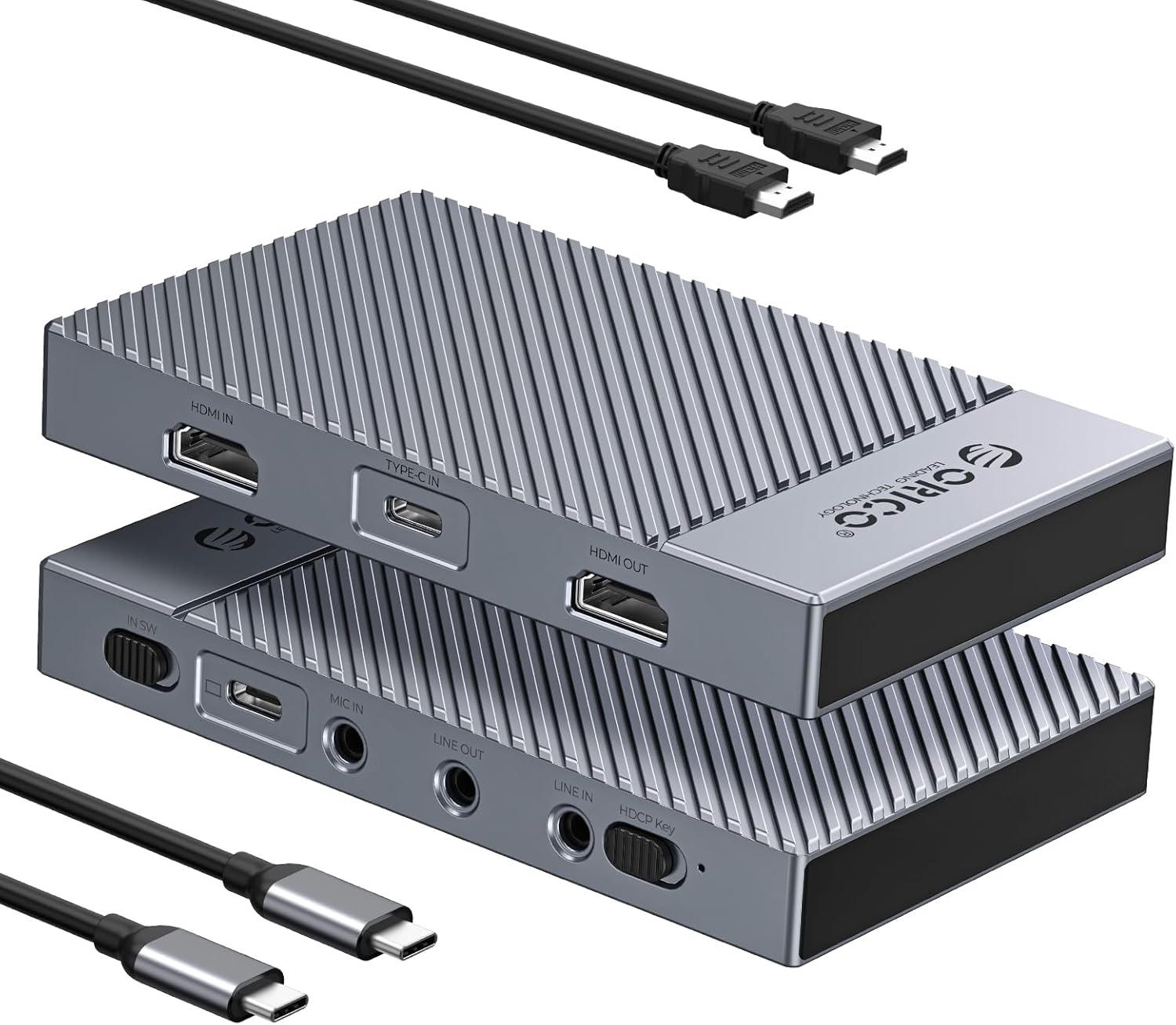
Image 1.1: The ORICO IS6 4K@60Hz HDMI Capture Card, showcasing its compact design and included HDMI and USB-C cables.
2. Package Contents
Verify that all items are present in your package:
- 1 x ORICO IS6 4K Capture Card
- 1 x USB-C to USB-C Cable
- 2 x HDMI Cables
- 1 x User Manual (this document)
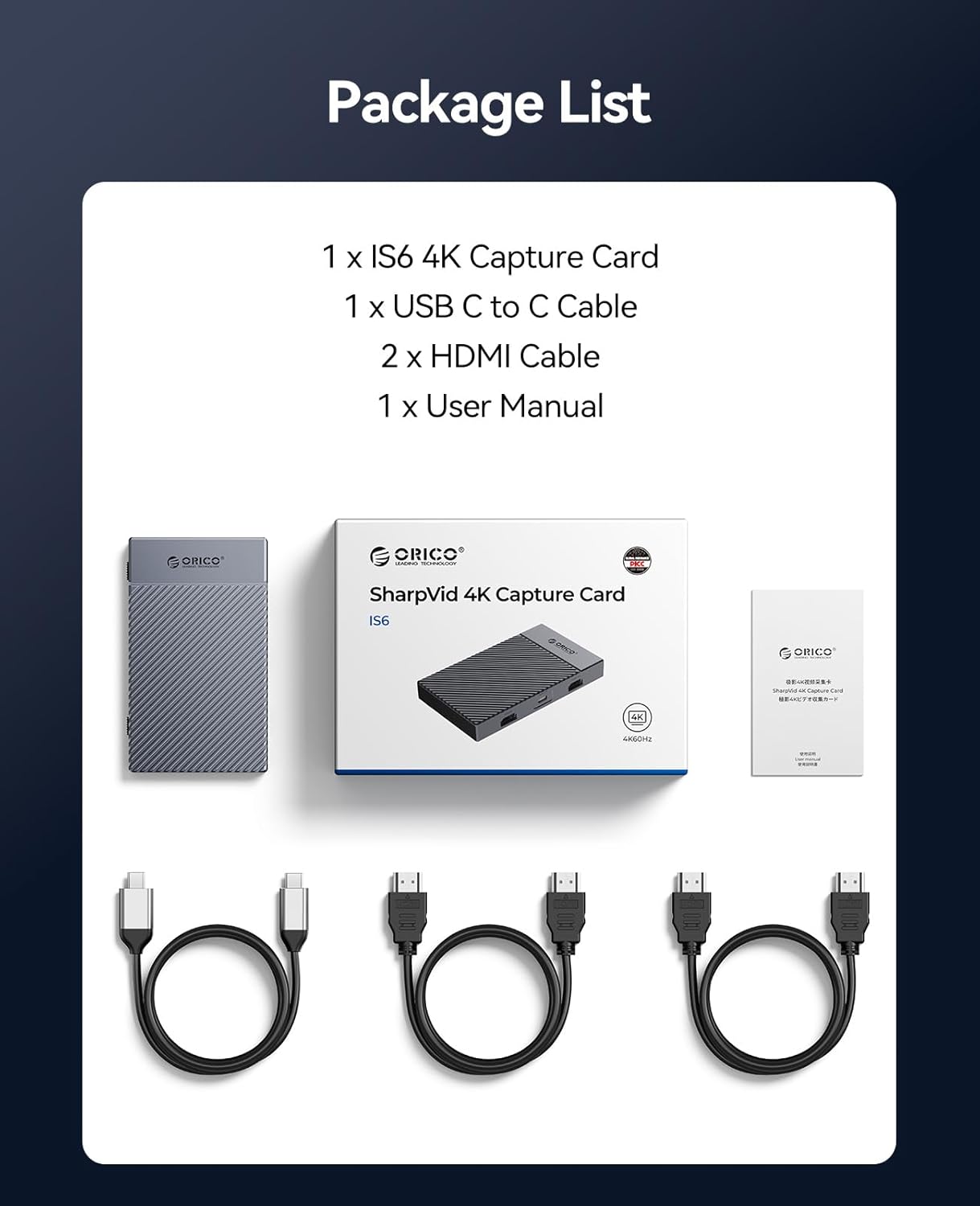
Image 2.1: Visual representation of the ORICO IS6 package contents, including the capture card, USB-C cable, two HDMI cables, and the user manual.
3. Product Features
The ORICO IS6 capture card offers several advanced features for high-quality video capture and streaming:
- 4K@60Hz Loop-Through & Capture: Supports 4K@60Hz resolution for both video pass-through and capture, ideal for high-fidelity content.
- Dual Source Input: Easily switch between HDMI and USB-C inputs for versatile connectivity with various devices.
- VRR Synchronization Technology: Dynamic frame rate synchronization eliminates screen tearing and stuttering for a smoother visual experience.
- Wide Compatibility: Supports NV12, YUY2, and RGB24 formats, ensuring optimal image quality and color accuracy across different applications. Compatible with Windows, macOS, Linux, and Android operating systems.
- Efficient Heat Dissipation: Precision-machined aluminum unibody design prevents overheating, even during extended 4K recording sessions.
- Real-Time Streaming & Audio Recording: Integrated audio inputs and outputs allow for microphone, headphone, and mixing console connections for comprehensive audio management during streams or recordings.

Image 3.1: Key features of the ORICO IS6, highlighting 4K 60Hz capability, dual input, Variable Refresh Rate (VRR), universal compatibility, and plug-and-play functionality.

Image 3.2: Illustration demonstrating the benefit of VRR (Variable Refresh Rate) technology, showing a smoother image when VRR is active compared to when it is off.
4. Setup Instructions
Follow these steps to connect your ORICO IS6 capture card:
- Connect Input Source:
- For HDMI devices (e.g., game consoles, cameras): Connect an HDMI cable from your source device's HDMI OUT port to the HDMI IN port on the ORICO IS6.
- For USB-C devices (e.g., smartphones, some laptops): Connect a USB-C cable from your source device to the TYPE-C IN port on the ORICO IS6.
- Connect Display (Pass-through): Connect an HDMI cable from the HDMI OUT port on the ORICO IS6 to your monitor or HDTV. This allows you to play games or view content on a larger screen with ultra-low latency.
- Connect to Computer (Capture): Connect the included USB-C to USB-C cable from the TYPE-C Capture port on the ORICO IS6 to a USB port on your PC or Mac.
- Connect Audio Devices (Optional):
- MIC IN: Connect a 3.5mm microphone for commentary.
- LINE IN: Connect an external audio source (e.g., mixing console) via a 3.5mm cable.
- LINE OUT: Connect headphones or speakers via a 3.5mm cable for audio monitoring.
- Power Connection: Ensure the device is powered. The USB-C connection to your computer typically provides sufficient power.
- Software Setup: Install and configure your preferred capture software (e.g., OBS Studio, Streamlabs OBS) on your computer. The ORICO IS6 is generally plug-and-play and should be recognized as a video capture device.

Image 4.1: Detailed connection diagram for the ORICO IS6, illustrating how to connect various input and output devices, including game consoles, PCs, monitors, and audio peripherals.

Image 4.2: Example setup showing the ORICO IS6 connected to a laptop for capture and a Nintendo Switch for input, with a hardware toggle for switching between HDMI and Type-C inputs.
5. Operating Instructions
Once connected, follow these guidelines for operating your ORICO IS6:
5.1. Video Capture and Streaming
- Select Input: Use the physical switch on the ORICO IS6 to select between HDMI Input (left) and USB-C Input (right). Note that HDMI and USB-C inputs cannot be used simultaneously.
- Software Configuration: Open your capture software (e.g., OBS Studio). Add a "Video Capture Device" source and select "ORICO IS6" (or similar name) from the device list.
- Resolution and Frame Rate: Configure the output resolution and frame rate within your capture software. The ORICO IS6 supports up to 4K@60Hz capture.
- Audio Settings: In your capture software, ensure the correct audio input device is selected for the ORICO IS6 to capture game audio. If using an external microphone, select it as a separate audio input source. Adjust audio levels to prevent noise.
- Start Recording/Streaming: Initiate recording or streaming through your chosen software.

Image 5.1: A laptop screen showing a game being captured in 4K 60Hz resolution, demonstrating the high-quality recording capability of the ORICO IS6.
5.2. HDCP Key Switch
The ORICO IS6 features an HDCP Secret Key Switch. This switch is typically used to manage HDCP (High-bandwidth Digital Content Protection) for certain content. For most gaming and streaming purposes, you may need to adjust this based on your source device and content. Consult your source device's documentation regarding HDCP requirements.
5.3. Multi-Format Support
The device supports various video formats including YUY2, NV12, P010, and MJPEG. Your capture software will typically handle the selection of the optimal format, but manual adjustment may be possible for specific needs.

Image 5.2: Visual representation of the various video capture formats supported by the ORICO IS6, including YUY2, NV12, P010, MJPEG, and RGB, each optimized for different applications.
5.4. Real-Time Audio Management
Utilize the 3.5mm audio ports for comprehensive audio control during live sessions:
- Connect a microphone to the MIC IN for voice commentary.
- Connect headphones to the LINE OUT to monitor all audio (game, microphone, external sources).
- Connect a mixing console to the LINE IN for advanced audio mixing.

Image 5.3: A streamer's setup demonstrating real-time audio recording and streaming capabilities of the ORICO IS6, with connections for a microphone, headphones, and a mixing console.
6. Maintenance
To ensure the longevity and optimal performance of your ORICO IS6 capture card, follow these maintenance guidelines:
- Cleaning: Use a soft, dry cloth to clean the exterior of the device. Avoid using liquid cleaners or solvents.
- Storage: Store the device in a cool, dry place away from direct sunlight and extreme temperatures.
- Handling: Handle the device with care to prevent physical damage. Avoid dropping or subjecting it to strong impacts.
- Ventilation: Ensure the device has adequate ventilation. Although designed for efficient heat dissipation, avoid covering its surfaces during operation.
7. Troubleshooting
If you encounter issues with your ORICO IS6, refer to the following troubleshooting tips:
- No Video Output/Capture:
- Check all cable connections (HDMI, USB-C) to ensure they are secure.
- Verify that the correct input source (HDMI or USB-C) is selected on the ORICO IS6.
- Ensure your source device is powered on and outputting video.
- In your capture software, confirm that the ORICO IS6 is selected as the video capture device.
- Try a different HDMI or USB-C cable.
- No Audio/Poor Audio Quality:
- Check audio cable connections (MIC IN, LINE IN, LINE OUT).
- In your capture software, verify that the correct audio input device for the ORICO IS6 is selected and not muted.
- Adjust audio levels in your software.
- If experiencing noise, ensure corresponding audio settings are correctly configured in your capture software as mentioned in the product features.
- Ensure the source device's audio output is enabled and not muted.
- Stuttering or Lagging Video:
- Ensure your computer meets the minimum system requirements for 4K@60Hz capture.
- Close unnecessary applications on your computer to free up system resources.
- Check for updated drivers for your computer's USB controller or graphics card.
- Verify that VRR is enabled on compatible displays and source devices for smoother visuals.
- Device Not Recognized by Computer:
- Try connecting the ORICO IS6 to a different USB port on your computer.
- Restart your computer.
- Ensure the USB-C capture cable is securely connected.
- Check your computer's Device Manager (Windows) or System Information (macOS) to see if the device is listed.
8. Specifications
| Feature | Detail |
|---|---|
| Brand | ORICO |
| Model | IS6 |
| Color | Grey |
| Material | Aluminum |
| Interface Hardware | HDMI, USB-C |
| Input Resolution | Up to 4K@60Hz |
| Loop-Through Resolution | Up to 4K@60Hz |
| Capture Resolution | Up to 4K@60Hz |
| Special Features | Charge Transmission, VRR Synchronization |
| Compatible Devices | Game Consoles (PS5, Xbox, Switch), Desktop Computers, Laptops, Smartphones |
| Operating Systems | Windows, macOS, Linux, Android |
| Number of Ports | 2 (HDMI IN, Type-C IN, HDMI OUT, Type-C Capture, Audio Ports) |
| Item Weight | 150 Grams |
9. Warranty and Support
ORICO products are covered by a 12-month warranty from the date of purchase. If you encounter any manufacturing defects or operational issues, please contact ORICO customer support for assistance.
For technical support or warranty claims, please refer to the contact information provided on the ORICO official website or your purchase documentation.

