
Spedal CL871Pro
Spedal CL871pro 6.25" Motorcycle CarPlay & Android Auto Screen User Manual
Model: CL871Pro | Brand: Spedal
1. Introduction
This manual provides comprehensive instructions for the installation, operation, and maintenance of your Spedal CL871pro Motorcycle CarPlay & Android Auto Screen. The CL871pro is designed to enhance your riding experience with smart navigation, entertainment, and safety features, including an anti-theft quick-release mount, TPMS support, and a full-body waterproof design.

Figure 1.1: Spedal CL871pro Main Unit and Accessories.
The image displays the Spedal CL871pro unit, a quick-release mounting bracket, two TPMS sensors, and a small motorcycle icon, illustrating the product's components and intended use.
2. Key Features
- New Anti-Theft Mount with Quick-Release Design: Features a tool-free, secure snap-lock mechanism for easy detachment, providing protection against theft.
- TPMS Tire Pressure Monitoring: Supports Spedal's TPMS system for real-time tire pressure updates, enhancing safety and convenience.
- Smarter Navigation & CarPlay/Android Auto Support: Seamless integration with Apple CarPlay and Android Auto on a 6.25" high-resolution LCD display (900 nits peak brightness) for clear visibility and responsive touchscreen operation.
- Direct Bluetooth Audio with Voice Assistant Support: Connects directly to Bluetooth helmet headsets or earbuds for clearer sound and supports hands-free Siri and Google Assistant commands.
- Auto Brightness Adjustment: Display automatically adjusts brightness based on environmental light conditions for optimal visibility.
- Rugged & Weatherproof (IP67 Rated): Fully waterproof and dustproof design, suitable for various riding conditions including rain, dirt, or snow.
- Wide Compatibility & Easy Installation: Compatible with 9–18V motorcycle power systems and includes all necessary mounting hardware and tools.
3. Setup and Installation
3.1 Mounting the Device
The CL871pro features a quick-release anti-theft mount for secure and convenient attachment to your motorcycle handlebars. Follow these steps for installation:
- Attach the mounting bracket to your motorcycle handlebars using the provided clamps and tools. Ensure it is securely fastened and positioned for optimal viewing.
- Align the CL871pro unit with the quick-release mechanism on the mounting bracket.
- Press the unit firmly onto the bracket until you hear a "snap" sound, indicating it is securely locked in place.
- To detach, simply press the quick-release button or lever and slide the unit off the mount.
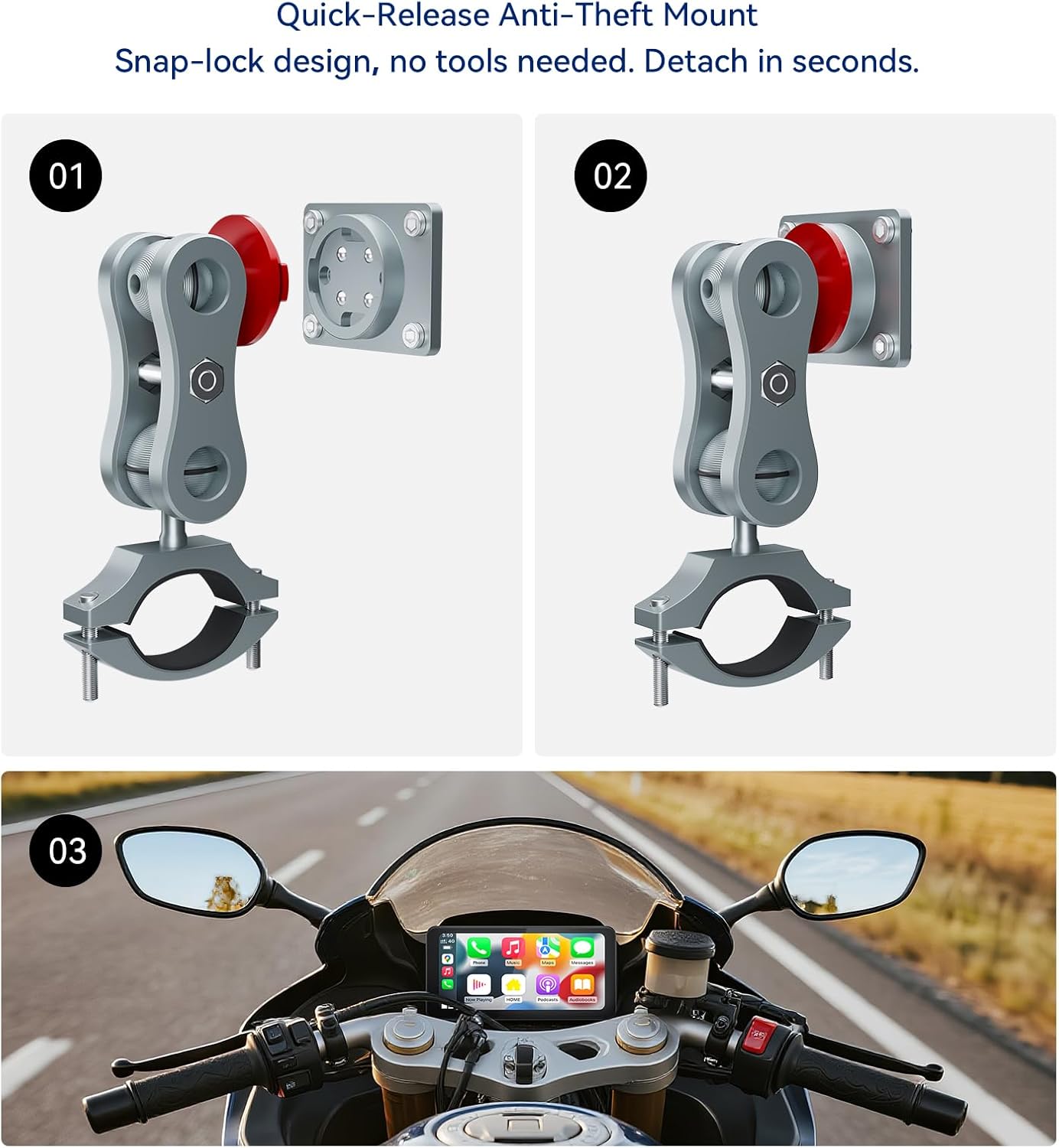
Figure 3.1: Quick-Release Anti-Theft Mount Operation.
This image illustrates the three steps for using the quick-release anti-theft mount: 1) aligning the device with the mount, 2) securing it with the snap-lock, and 3) the device mounted on a motorcycle handlebar, showing its integrated appearance.
3.2 Power Installation
You have two options for powering your Spedal CL871pro:
- Direct Battery Connection: Connect the provided power cable directly to your motorcycle's 9-18V battery system. Ensure proper polarity.
- USB Cable Power: Alternatively, you can power the device using a USB cable. Important: The USB power source must provide a voltage greater than 5V and a current greater than 2A for proper operation.
3.3 TPMS Sensor Installation (Optional)
If you have Spedal TPMS sensors, follow these steps to install them on your motorcycle tires:
- Identify the front and rear TPMS sensors.
- Remove the valve cap from your tire.
- Screw the corresponding TPMS sensor onto the tire valve stem until it is hand-tight.
- Use the provided wrench to tighten the sensor securely, ensuring no air leakage.
- Repeat for the other tire.

Figure 3.2: TPMS Sensors and Display.
This image shows a motorcycle rider with the Spedal CL871pro display showing tire pressure information, alongside two TPMS sensors, emphasizing the real-time monitoring capability.
4. Operating Instructions
4.1 Initial Power On and Interface
Once powered, the CL871pro will boot up and display its main interface. The 6.25-inch IPS touchscreen is highly responsive and designed for easy interaction, even with motorcycle gloves.
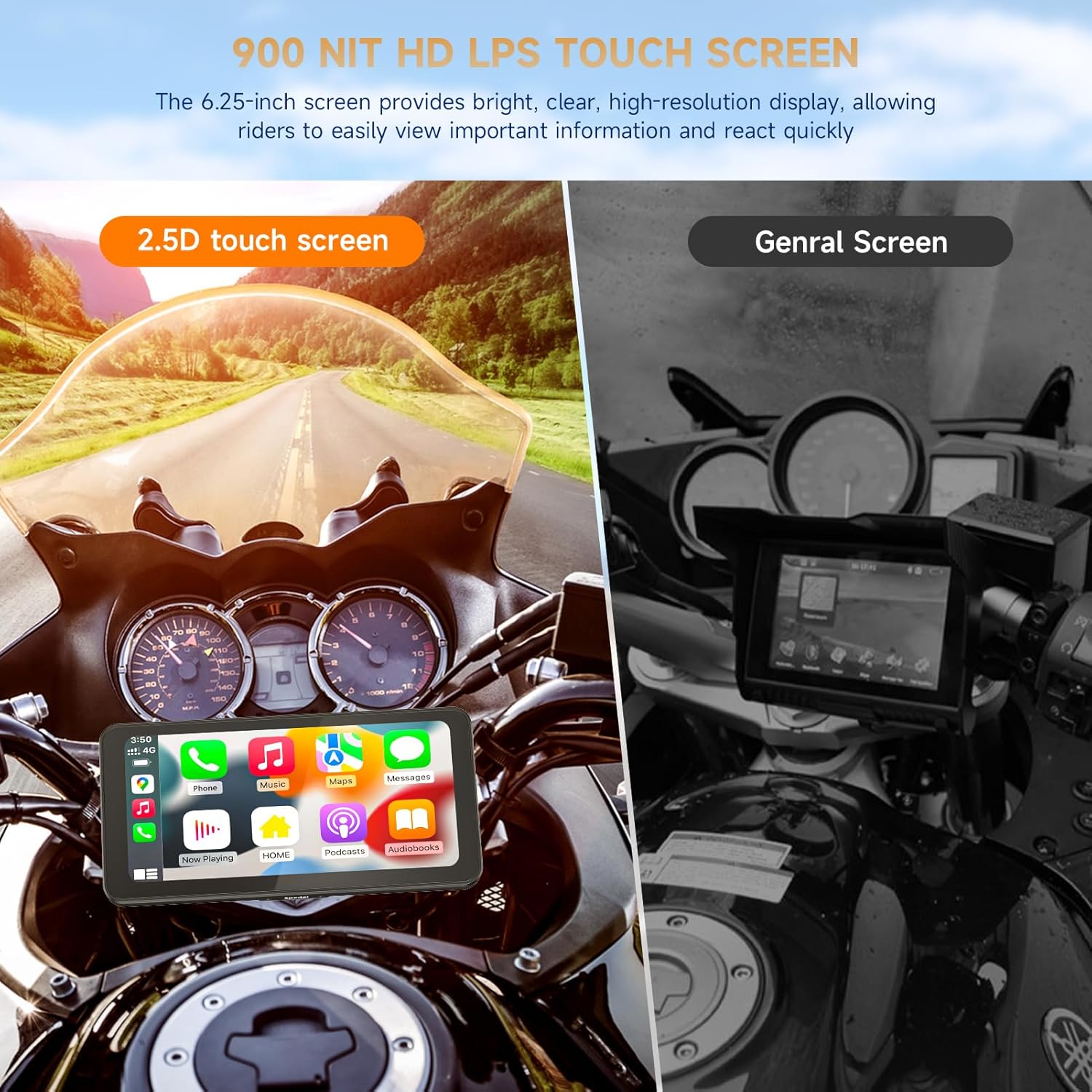
Figure 4.1: All-Weather Operation.
This image demonstrates the Spedal CL871pro's durability and usability in various weather conditions, including rain, sun, and snow, highlighting its IP67 waterproof rating and anti-glare screen.
4.2 Connecting to CarPlay / Android Auto
The CL871pro supports wireless Apple CarPlay and Android Auto. To connect your smartphone:
- Ensure Bluetooth and Wi-Fi are enabled on your smartphone.
- On the CL871pro screen, select either "CarPlay" or "Android Auto" from the main menu.
- Follow the on-screen prompts to pair your phone. This typically involves selecting the device from your phone's Bluetooth settings and confirming the pairing code.
- Once paired, CarPlay or Android Auto will launch automatically, mirroring your phone's compatible apps to the display.
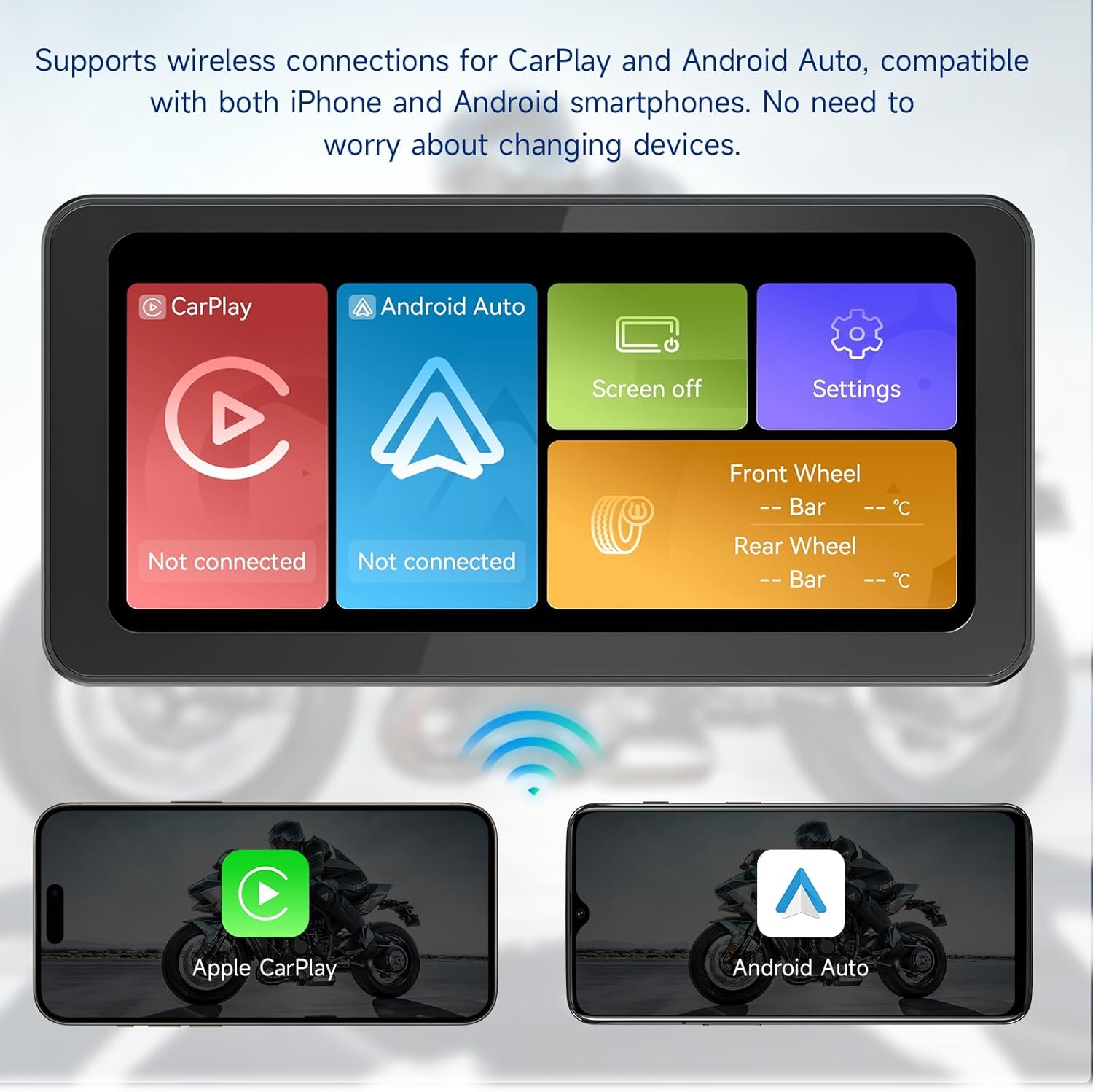
Figure 4.2: Wireless CarPlay and Android Auto Connectivity.
This image shows the CL871pro display with options for CarPlay and Android Auto, along with two smartphones (iPhone and Android) wirelessly connected, illustrating seamless integration.
4.3 Bluetooth Audio and Voice Assistant
For optimal audio experience and hands-free control, connect your Bluetooth helmet headset or earbuds directly to your smartphone. The CL871pro facilitates this direct connection for clearer sound and reduced signal loss.
- Voice Assistant: With your phone connected, you can activate Siri (for Apple CarPlay) or Google Assistant (for Android Auto) using voice commands. This allows you to:
- Search for destinations and get navigation directions.
- Play music from your preferred streaming services.
- Make and receive hands-free calls.
- Send and read messages.

Figure 4.3: Direct Bluetooth Audio Connection.
This image illustrates the direct Bluetooth connection from a smartphone to a helmet headset or earbuds, bypassing the CL871pro for audio, ensuring stable and clear sound during rides.

Figure 4.4: Hands-Free Voice Control.
This image depicts a motorcycle rider using voice commands with the CL871pro display, showing icons for Siri and Google Assistant, and examples of voice commands for navigation, music, calls, and messages.
4.4 Automatic Brightness Adjustment
The CL871pro features an ambient light sensor that automatically adjusts the screen brightness. This ensures optimal visibility whether you are riding in bright sunlight or low-light conditions, enhancing safety and readability.

Figure 4.5: Auto Brightness Adjustment.
This image visually represents the automatic light sensor function, showing the screen adjusting its brightness from a bright daytime setting to a darker nighttime setting, illustrating enhanced usability and safety.
5. Maintenance
To ensure the longevity and optimal performance of your Spedal CL871pro, follow these maintenance guidelines:
- Cleaning the Screen: Use a soft, lint-free cloth to gently wipe the screen. For stubborn smudges, slightly dampen the cloth with water or a screen-safe cleaner. Avoid abrasive materials or harsh chemicals.
- General Care: Despite its IP67 rating, avoid prolonged submersion in water. Regularly check the mounting bracket for tightness, especially after riding on rough terrain.
- Storage: When not in use for extended periods, store the device in a cool, dry place, away from direct sunlight and extreme temperatures.
6. Troubleshooting
| Problem | Possible Cause | Solution |
|---|---|---|
| Device does not power on. | Insufficient power supply; loose connection. | Ensure power cable is securely connected. If using USB, verify voltage is >5V and current >2A. Check motorcycle battery connection. |
| CarPlay/Android Auto not connecting wirelessly. | Bluetooth/Wi-Fi off on phone; incorrect pairing. | Ensure Bluetooth and Wi-Fi are active on your smartphone. Forget previous pairings and re-attempt connection. Restart both devices. |
| TPMS sensors not displaying readings. | Sensors not paired; low sensor battery; sensor malfunction. | Ensure sensors are correctly installed and tightened. Check the TPMS pairing instructions in the device settings. If issues persist, contact customer support. |
| Screen visibility issues (too dim/bright). | Automatic brightness sensor obstructed or malfunctioning. | Ensure the ambient light sensor on the device is not covered. If the issue persists, there might be a setting to manually adjust brightness, or contact support. |
7. Specifications
| Feature | Detail |
|---|---|
| Model Number | CL871Pro |
| Display Size | 6.25 Inches |
| Display Type | LCD, IPS Touchscreen |
| Peak Brightness | 900 nits |
| Touch Screen Type | Capacitive |
| Connectivity Technology | Bluetooth, USB |
| Voice Command | Microphone, Touchscreen (Siri/Google Assistant) |
| Map Type Support | Road (via CarPlay/Android Auto) |
| Mounting Type | Dashboard Mount, Panel Mount (Quick-Release Anti-Theft) |
| Waterproof Rating | IP67 |
| Operating Temperature | -4°F to 158°F (-20°C to 70°C) |
| Power Compatibility | 9–18V motorcycle power systems; USB (5V, 2A minimum) |
| Item Weight | 1.32 pounds |
| Product Dimensions | 7.8 x 3.1 x 5.1 inches |

Figure 7.1: Wide Operating Temperature Range.
This image visually represents the Spedal CL871pro's ability to operate in extreme temperatures, from -4°F (-20°C) to 158°F (70°C), showcasing its robust design for diverse environments.
8. Warranty and Support
Your Spedal CL871pro is backed by a 1-year warranty from the date of purchase. This warranty covers manufacturing defects and ensures reliable performance of your device.
For any product issues, missing parts, or technical assistance, our customer service team is available 24/7 to provide full support, including replacements, repairs, or refunds as applicable.
Please refer to your purchase documentation or visit the official Spedal website for detailed warranty terms and contact information.
Ask a question about this manual
Ask about setup, troubleshooting, compatibility, parts, safety, or missing instructions. Manuals+ will review the question and use this page’s manual context to help answer it.