
1. Introduction
This manual provides essential information for setting up, operating, maintaining, and troubleshooting your Dell 14 Plus 2-in-1 Touch Laptop. This device is designed for versatility, offering multiple modes of use and integrating advanced AI capabilities for enhanced productivity and creativity.
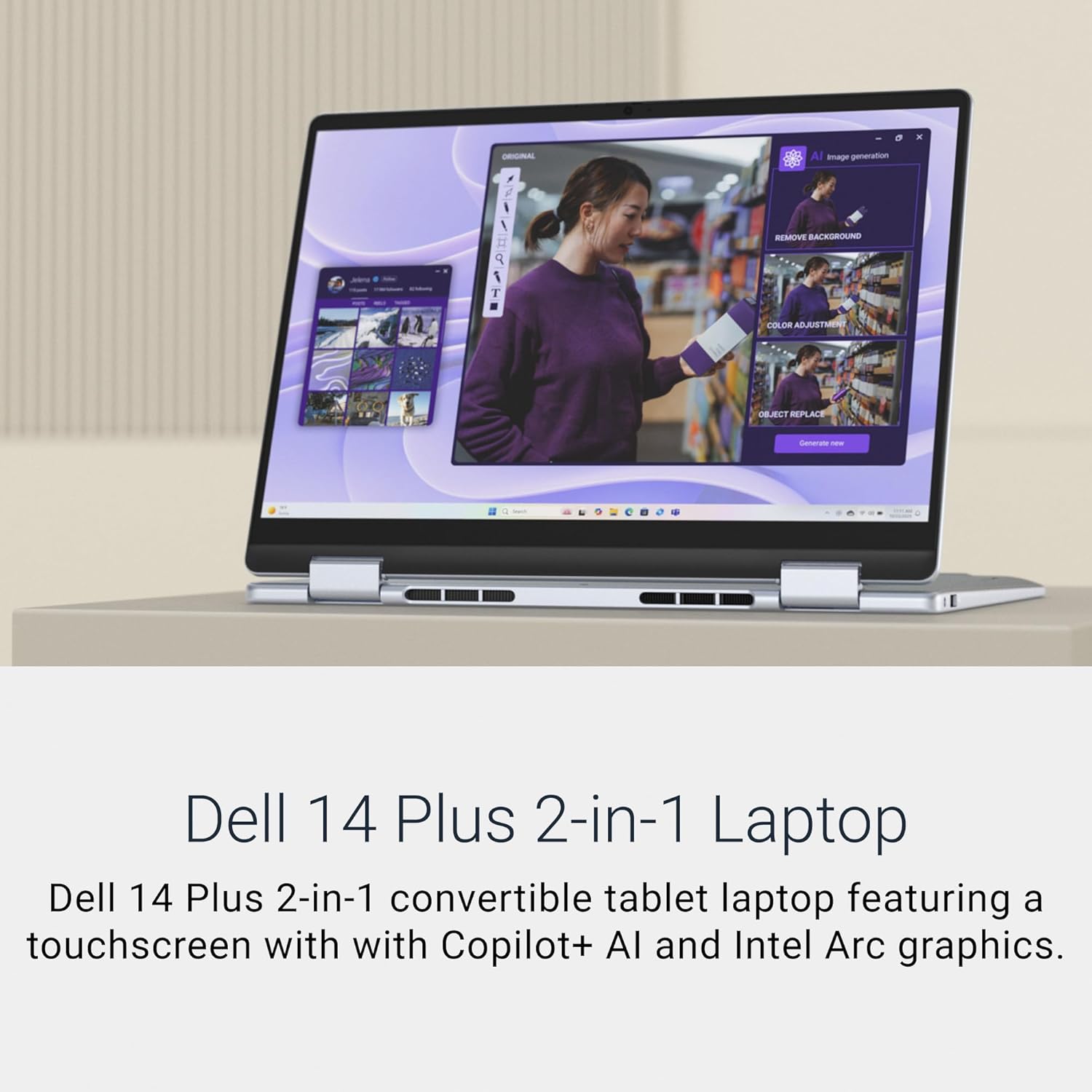
The Dell 14 Plus 2-in-1 Laptop in its standard laptop configuration, showcasing its display and design.
2. What's in the Box
Verify that all components are present in the packaging:
- Dell 14 Plus 2-in-1 Touch Laptop
- Power Adapter
- User Manual (this document)
- Integrated Webcam
3. Setup
3.1 Initial Power-On
- Connect the power adapter to the laptop's charging port and then to a power outlet.
- Open the laptop lid. The system may power on automatically, or you may need to press the power button located on the side.
- Follow the on-screen instructions to complete the Windows 11 Home operating system setup, including language selection, network connection, and user account creation.
3.2 Fingerprint Reader Setup
For enhanced security, set up the integrated fingerprint reader:
- Navigate to Windows Settings > Accounts > Sign-in options.
- Locate 'Fingerprint Recognition (Windows Hello)' and follow the prompts to register your fingerprints.
4. Operating Instructions
4.1 2-in-1 Modes
The Dell 14 Plus offers four versatile modes:
- Laptop Mode: Standard computing experience with keyboard and touchpad.
- Tent Mode: Ideal for presentations or watching media in confined spaces.
- Stand Mode: Perfect for touch-based interaction and media consumption.
- Tablet Mode: Fully folded back for a tablet experience, utilizing the touchscreen.

The laptop easily transitions between various modes for different uses.
4.2 Touchscreen Usage
Interact with your laptop using intuitive touch gestures:
- Tap: Select items or open applications.
- Swipe: Scroll through content or navigate.
- Pinch-to-Zoom: Enlarge or reduce content size.
4.3 Keyboard and Fingerprint Reader
The backlit keyboard provides comfortable typing in various lighting conditions. The integrated fingerprint reader allows for quick and secure login.

A detailed view of the backlit keyboard, designed for comfortable use.
4.4 AI-Enabled Features
Leverage the Intel Core Ultra 5 processor and Copilot+ AI for enhanced functionality:
- Recall: Quickly find content you've previously viewed on your laptop using natural language prompts.

The Recall feature helps users quickly locate previously accessed information.
- Live Captions: Instantly translate and display captions for audio content in real-time.

Live Captions provide real-time translation and subtitles for various media.
- Cocreator: Generate custom images and enhance creative projects using AI.

Cocreator assists in generating unique images for creative tasks.
- Windows Studio Effects: Enhance video calls with features like background blur, eye contact correction, and automatic framing.
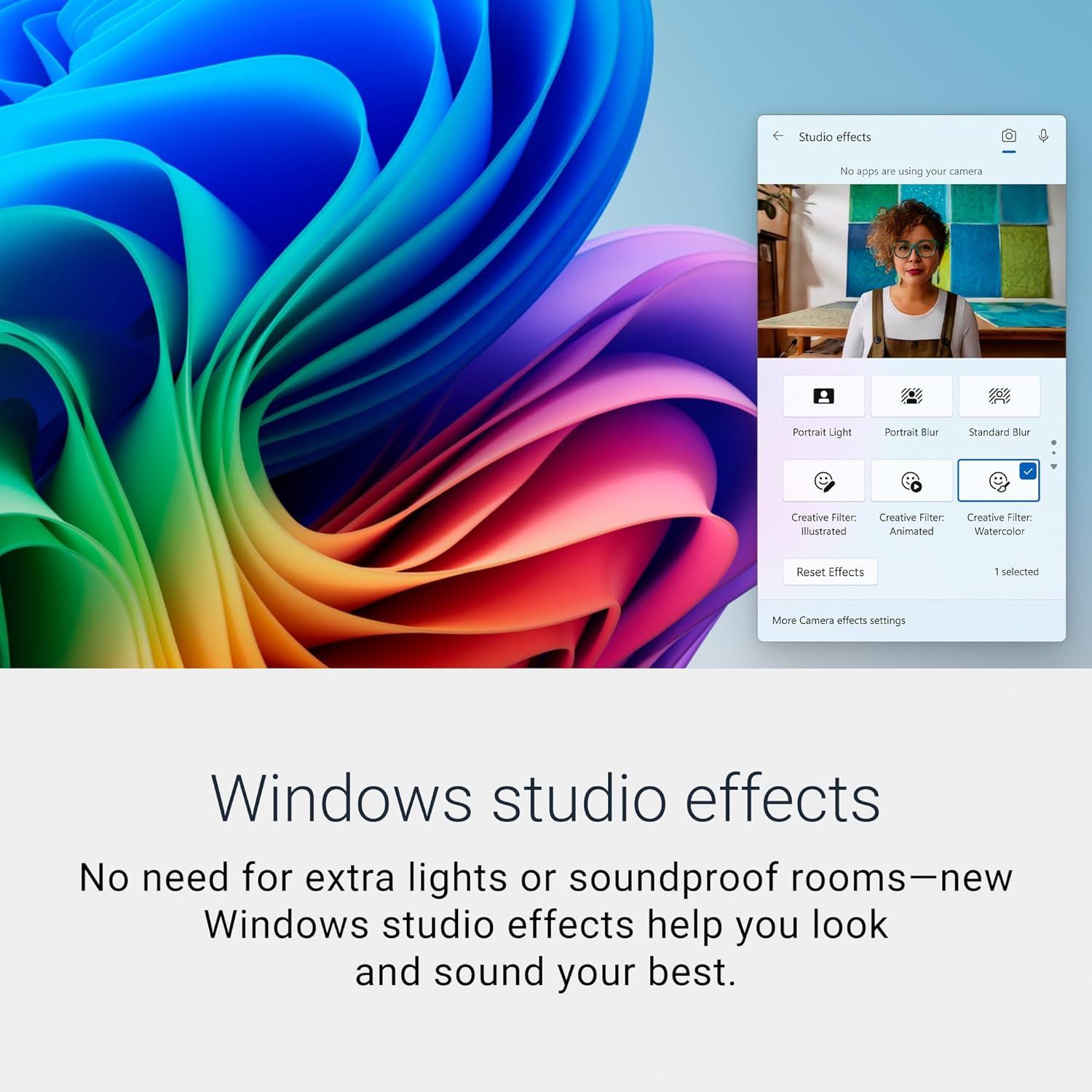
Windows Studio Effects improve video call quality and user presentation.
4.5 Ports and Connectivity
The laptop features various ports for connecting peripherals and external displays:
- Thunderbolt™ 4 (40 Gbps) with DisplayPort™ 2.1 and Power Delivery
- USB 3.2 Gen 2 (10 Gbps) Type-C® port with DisplayPort™ 1.4 and Power Delivery
- HDMI 2.1
- USB 3.2 Gen 1 Type-A (5 Gbps)
- Headset Jack

Overview of the laptop's connectivity ports.
5. Maintenance
5.1 Cleaning Your Laptop
- Use a soft, lint-free cloth slightly dampened with water or a screen cleaner to clean the display.
- For the keyboard and chassis, use a soft cloth. Avoid harsh chemicals.
- Ensure the laptop is powered off and unplugged before cleaning.
5.2 Battery Care
- Avoid extreme temperatures.
- Do not leave the laptop constantly plugged in at 100% charge for extended periods.
- Periodically discharge the battery to around 20% before recharging.
5.3 Software Updates
Regularly check for and install operating system and driver updates to ensure optimal performance and security. Access updates via Windows Settings > Windows Update.
6. Troubleshooting
This section addresses common issues you might encounter.
6.1 Laptop Does Not Power On
- Ensure the power adapter is securely connected to both the laptop and a working power outlet.
- Check if the power outlet is functional by plugging in another device.
- Try holding the power button for 15-20 seconds to perform a hard reset.
6.2 Display Issues
- If the screen is blank, try pressing the 'Fn' key along with the display toggle key (often F8 or F10) to cycle through display outputs.
- Ensure display drivers are up to date via Windows Update or Dell's support website.
6.3 Connectivity Problems (Wi-Fi/Bluetooth)
- Verify that Wi-Fi or Bluetooth is enabled in Windows Settings.
- Restart your router/modem for Wi-Fi issues.
- Update network drivers from Dell's support website.
7. Specifications
Key technical specifications for the Dell 14 Plus 2-in-1 Touch Laptop (Model DB04250):
| Processor | Intel Core Ultra 5 226V (8 cores, up to 4.5 GHz) |
| RAM | 16 GB LPDDR5X, 8533 MT/s (onboard) |
| Storage | 512 GB M.2 PCIe NVMe SSD |
| Graphics | Intel Arc Graphics (Integrated) |
| Display | 14" FHD+ (1920 x 1200) Touch WVA, 300 nits, ComfortView Plus |
| Operating System | Windows 11 Home |
| Keyboard | Backlit Keyboard |
| Security | Fingerprint Reader |
| Ports | 1x Thunderbolt™ 4, 1x USB 3.2 Gen 2 Type-C®, 1x HDMI 2.1, 1x USB 3.2 Gen 1 Type-A, 1x Headset Jack |
| Wireless Connectivity | Wi-Fi, Bluetooth |
| Battery | 64 Watt Hours Lithium Ion |
| Dimensions (L x W x Thickness) | 22.6 x 31.4 x 1.6 cm (approx.) |
| Weight | 1.61 Kg (approx.) |

The slim profile of the Dell 14 Plus 2-in-1 Laptop.
8. Warranty Information
This Dell 14 Plus 2-in-1 Touch Laptop comes with a 1-Year Limited Hardware Warranty. For detailed terms and conditions, please refer to the warranty documentation included with your product or visit the official Dell support website.
9. Support
For technical assistance, driver downloads, or further support, please contact Dell customer service or visit the official Dell support website:
- Manufacturer: DELL, Dell International Service India Private Limited
- Website: www.dell.com/support


