Introduction
Thank you for choosing the Redragon BM-4092 2.4G Wireless Mouse. This manual provides detailed instructions for setting up, operating, maintaining, and troubleshooting your new wireless mouse. Please read this manual carefully before use to ensure optimal performance and longevity of your device.
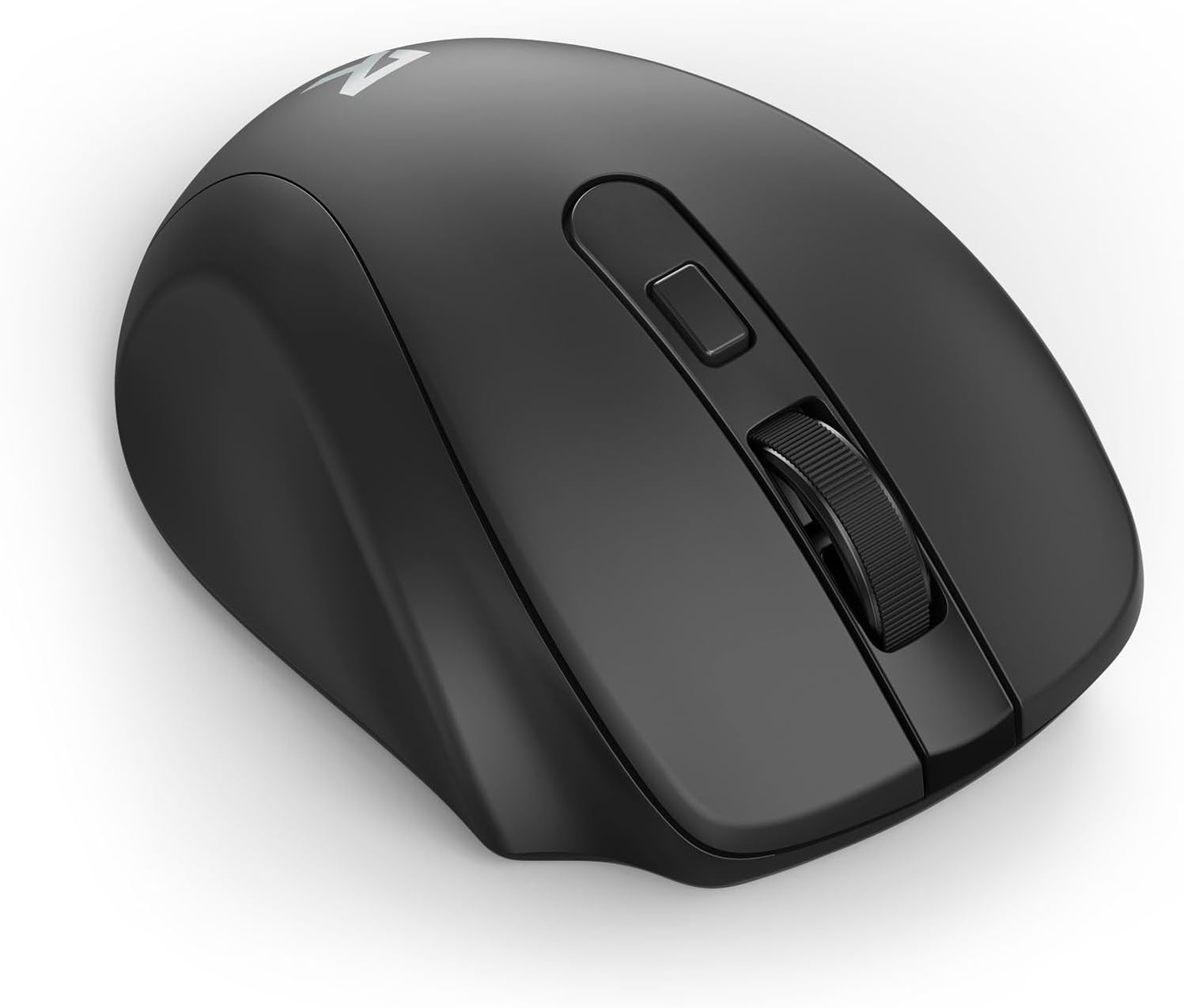
Image: Front view of the Redragon BM-4092 2.4G Wireless Mouse.
Setup Instructions
1. Battery Installation
- Locate the battery compartment on the underside of the mouse.
- Gently slide open the battery cover.
- Insert one (1) AA battery into the compartment, ensuring the polarity (+/-) matches the diagram inside. Note: The AA battery is not included.
- Close the battery cover securely.

Image: Underside of the mouse showing the battery compartment and the 2.4G USB receiver slot.
2. Connecting the USB Receiver
- Remove the 2.4G USB receiver from its storage slot, usually located next to the battery compartment.
- Plug the USB receiver into an available USB port on your computer (desktop, laptop, tablet, or compatible smart device).
- Your computer should automatically detect and install the necessary drivers. This may take a few moments.
- Once the drivers are installed, the mouse is ready for use.

Image: The Redragon BM-4092 mouse in use with a laptop, illustrating the 2.4G wireless connection.
Operating Instructions
Mouse Functions
The Redragon BM-4092 mouse features standard buttons and additional customizable controls:
- Left Button: Primary click function.
- Right Button: Secondary click function (context menu).
- Scroll Wheel: Scroll up/down, and can also function as a middle click button.
- DPI Button: Located below the scroll wheel, this button allows you to cycle through 5 adjustable DPI settings.
- Forward Button: (Side button) Navigates forward in web browsers or file explorers.
- Backward Button: (Side button) Navigates backward in web browsers or file explorers.

Image: Diagram illustrating the Left Button, Right Button, Scroll Wheel, DPI Button, Forward Button, and Backward Button.
DPI Adjustment
The mouse offers 5 adjustable DPI (Dots Per Inch) settings, allowing you to change cursor sensitivity on the fly. Press the DPI button to cycle through the available settings, up to 4000 DPI, to match your preference or task requirements.

Image: Visual representation of the 5 adjustable DPI settings, highlighting up to 4000 DPI.
Ergonomic Design
The Redragon BM-4092 features an ergonomic design intended to provide comfort and reduce muscle strain during extended use. Its contoured shape supports the natural curve of your hand.

Image: Illustration demonstrating the ergonomic design of the mouse, aimed at reducing muscle strain.
Power Saving Mode
To conserve battery life, the mouse automatically enters a power-saving standby mode after a period of inactivity. To reactivate the mouse, simply move it or click any button.
Maintenance
Cleaning
To maintain optimal performance, regularly clean your mouse. Use a soft, dry cloth to wipe the surface. For stubborn dirt, a slightly damp cloth can be used, but ensure no moisture enters the device. Avoid using harsh chemicals or abrasive cleaners.
Battery Replacement
When the mouse performance degrades or it stops responding, it may be time to replace the AA battery. Follow the battery installation steps outlined in the Setup section.
Troubleshooting
- Mouse not responding:
- Check if the battery is correctly installed and has sufficient charge. Replace if necessary.
- Ensure the USB receiver is securely plugged into a working USB port on your computer. Try a different USB port.
- Make sure the mouse is within the effective operating range (up to 10 meters / 33 feet) of the USB receiver.
- Erratic cursor movement:
- Clean the optical sensor on the underside of the mouse with a soft, dry cloth.
- Ensure you are using the mouse on a suitable surface. Highly reflective or transparent surfaces may affect tracking. A mouse pad is recommended.
- Connection issues:
- If the connection is unstable, try unplugging and re-plugging the USB receiver.
- Avoid placing the receiver near other wireless devices or large metal objects that might cause interference.
Specifications
| Brand | Redragon |
| Model | BM-4092 |
| Connectivity | 2.4G Wireless |
| Movement Detection Technology | Optical |
| DPI Settings | 5 adjustable settings, up to 4000 DPI |
| Power Source | 1 x AA Battery (not included) |
| Compatible Devices | Smartphone, Laptop, Desktop Computer, Tablet |
| Dimensions (L x W x H) | 13.7 x 7.7 x 4.5 cm (approx.) |
| Weight | 80 grams (approx.) |
Warranty Information
For detailed warranty information, please refer to the warranty card included with your product packaging or visit the official Redragon website. Keep your purchase receipt as proof of purchase for any warranty claims.
Customer Support
If you encounter any issues not covered in this manual or require further assistance, please contact Redragon customer support through their official website or the contact information provided in your product documentation.


