
PHEZEN RT-QJ1142X-WUYA-06
PHEZEN 9-inch Android Car Stereo Radio User Manual
Model: RT-QJ1142X-WUYA-06 | Brand: PHEZEN
1. Introduction
This manual provides detailed instructions for the installation, operation, maintenance, and troubleshooting of your PHEZEN 9-inch Android Car Stereo Radio. This unit features Android 14, integrated Apple CarPlay and Android Auto, GPS navigation, Bluetooth connectivity, FM radio, and supports steering wheel controls and backup cameras. Please read this manual thoroughly before use to ensure proper functionality and safety.
2. Vehicle Compatibility
This car stereo radio is compatible with the following vehicle models and years:
- GMC: Sierra (2007-2013), Yukon (2007-2014), Sierra 3rd generation (2010-2014)
- Chevrolet: Silverado (2007-2013), Suburban (2006-2014), Tahoe (2007-2014), Suburban 10th generation (2007-2014), Silverado 2nd generation (2010-2014)
Ensure your vehicle's dashboard matches the installation requirements for this unit. Professional installation is recommended.

Image: Comparison of the vehicle dashboard before and after installing the PHEZEN 9-inch Android Car Stereo Radio.
3. Package Contents
Verify that all items are present in the package:
- PHEZEN 9-inch Android Car Stereo Unit
- Power Cable
- RCA Input/Output Cables
- 2 USB Cables
- Camera Input Cable
- Radio Adapter
- GPS Antenna
- Instruction Manual
- Sound Amplifier
- Canbus Box
- Turn the USB connection
- Car Compass

Image: All components included in the PHEZEN car stereo package.
4. Setup and Installation
4.1 Wiring Diagram
Refer to the following diagram for proper wiring connections. Incorrect wiring can damage the unit or your vehicle's electrical system. If unsure, consult a professional installer.
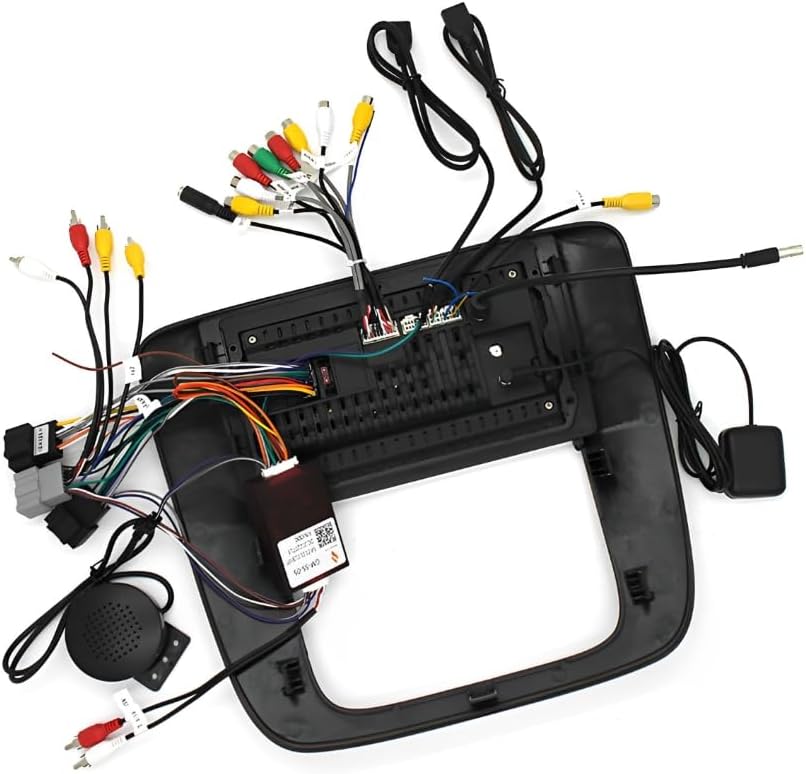
Image: Comprehensive wiring diagram for the car stereo unit.
4.2 Screen Calibration
To ensure accurate touch response, calibrate the screen after installation. Follow the steps in the video below:
Video: Instructions on how to calibrate the car radio screen for optimal touch functionality.
4.3 Initial Connectivity (Bluetooth & WiFi)
Establish initial connections for Bluetooth and WiFi. This is crucial for features like CarPlay, Android Auto, and online navigation.
Video: Guide on connecting your car stereo radio via Bluetooth and setting up WiFi hotspot if needed.
5. Operating Instructions
5.1 Apple CarPlay & Android Auto
This unit supports both wireless and wired Apple CarPlay and Android Auto. Connect your smartphone to access navigation, music, calls, and voice control directly from the stereo screen.

Image: Display of CarPlay, Android Auto, and Mirror Link functionalities.

Image: CarPlay and Android Auto connection methods.
5.2 GPS Navigation & WiFi Hotspot
The unit features a dual navigation system supporting both offline and online maps. Connect to Wi-Fi to access online maps, download apps, and stream content.

Image: GPS Navigation and WiFi Hotspot features.

Image: GPS Navigation interface.
5.3 Bluetooth & FM Radio
Enjoy hands-free calling and music streaming via Bluetooth. The built-in FM radio allows you to listen to your favorite stations and receive real-time traffic information.

Image: Bluetooth, FM/RDS Radio, and Equalizer functions.
Image: Bluetooth Music and FM/RDS Radio interfaces.
5.4 Steering Wheel Control & Backup Camera
The unit supports steering wheel controls for convenient operation. A reversing camera input is included to assist with safe parking, featuring a 170° wide-angle lens, IP68 waterproof rating, and night vision.

Image: Reversing Display and Steering Wheel Control features.

Image: Rear View Camera, Steering Wheel Control, and Split Screen functions.
5.4.1 Backup Camera Format and Resolution Setup
Adjust the backup camera settings for optimal performance. Refer to the video for detailed steps:
Video: Steps to set up the backup camera format and resolution.
5.5 IPS Touchscreen
The 9-inch IPS touchscreen provides a clear and responsive interface for all functions.
Image: IPS Touchscreen display quality.
6. Maintenance
6.1 Cleaning the Screen
Use a soft, lint-free cloth to gently wipe the screen. For stubborn smudges, slightly dampen the cloth with water or a screen-safe cleaner. Avoid harsh chemicals or abrasive materials.
6.2 Software Updates
Periodically check for software updates to ensure optimal performance and access to new features. Updates can typically be found in the system settings under 'About device' or 'System updates'.
7. Troubleshooting
7.1 No Power
- Check all power connections to ensure they are securely fastened.
- Verify the vehicle's fuse box for any blown fuses related to the stereo system.
7.2 No Sound
- Ensure the volume is not muted or set to minimum.
- Check speaker connections.
- Verify audio output settings in the system menu.
7.3 Bluetooth/WiFi Connection Issues
- Ensure Bluetooth and WiFi are enabled on both the stereo and your mobile device.
- Delete previous connection records on both devices and attempt to pair again.
- Restart both the stereo and your mobile device.
- For WiFi, ensure the hotspot password is correct and the signal is strong.
7.4 Touch Screen Unresponsive/Inaccurate
- Perform a screen calibration as shown in Section 4.2.
- Restart the unit.
8. Specifications
| Feature | Detail |
|---|---|
| Brand | PHEZEN |
| Model Number | RT-QJ1142X-WUYA-06 |
| Connectivity Technology | Bluetooth, Wi-Fi |
| Controller Type | Steering Wheel Control, Smartphone App |
| Special Feature | Built-In Bluetooth |
| Compatible Devices | Smartphone, Tablet |
| Connector Type | USB, RCA |
| Audio Output Mode | Stereo |
| Surround Sound Channel Configuration | 2.1 |
| Video Encoding | MKV, RMVB, AVI, MP4, MDV |
| Item Weight | 1876 Grams |
| Output Power | 45 Watts |
| Number of Channels | 4 |
| Output Wattage | 180 Watts |
| Supported Internet Services | Apple CarPlay, Android Auto |
| Audio Output Type | Speakers |
| Format | AVI, WAV, WMA |
| Built-In Media | Car Compass |
9. Warranty and Support
9.1 Warranty Information
This product comes with a standard manufacturer's warranty. Please refer to the warranty card included in your package for specific terms and conditions. Keep your purchase receipt as proof of purchase for warranty claims.
9.2 Customer Support
For technical assistance, troubleshooting, or any questions regarding your PHEZEN car stereo, please contact our customer support team. Contact details can be found on the product packaging or the official PHEZEN website.
Ask a question about this manual
Ask about setup, troubleshooting, compatibility, parts, safety, or missing instructions. Manuals+ will review the question and use this page’s manual context to help answer it.