
1. Overview
The Bigme HiBreak Pro is a smart Epaper phone designed for an eye-friendly experience with its 6.13-inch HD Eye-Care 300ppi screen. Running on Android 14, it offers robust performance with a Dimensity 1080 processor, 8GB RAM, and 256GB storage. It supports 5G full network and dual SIM functionality, powered by a 4500mAh long-lasting battery. This manual provides essential information for setting up, operating, and maintaining your device.
2. Product Features
- 6.13-inch Epaper Display: Features an energy-efficient and eye-friendly screen with minimal blue light emission.
- Robust Performance: Equipped with a Dimensity 1080 processor, 8GB RAM, and 256GB storage for smooth and efficient operation.
- Enhanced Daily Functionality: A 4500mAh battery ensures extended use. The dual camera setup includes a 20MP rear camera for document scanning with OCR.
- 5G Dual SIM Capability: Supports 5G dual standby for flexible and seamless connectivity across 5G and 4G networks.
- Full App Compatibility: Operates on Android 14 OS, supporting a wide range of applications.

Figure 2.1: Key features of the Bigme HiBreak Pro, including NFC, fingerprint unlocking, fast charging, BigmeGPT, GPS, voice-to-text, battery life, and storage.
3. Device Layout

Figure 3.1: Device layout showing the Fingerprint Power Button, Volume Button, USB-C port, Card Slot, Microphone, Light Sensor, 5MP Front Camera, Speaker, Infrared, 20MP Rear Camera, LED Flash, and Custom Key.

Figure 3.2: HD Dual Camera setup with 5MP front and 20MP rear cameras.
4. Setup
- Unboxing: Carefully remove all items from the packaging. Verify that all components listed in the 'What's in the Box' section are present.
- Insert SIM Card: Use the provided SIM ejector tool to open the card slot. Insert your 5G compatible SIM card(s) and/or a microSD card if desired. Ensure the tray is fully reinserted.
- Power On: Press and hold the Fingerprint Power Button located on the side of the device until the Bigme logo appears.
- Initial Configuration: Follow the on-screen prompts to select your language, connect to a Wi-Fi network, set up your Google account, and configure security settings like fingerprint unlock.
- Software Updates: It is recommended to check for and install any available software updates to ensure optimal performance and security.
5. Operating Instructions
5.1 Basic Navigation
- Touchscreen: Navigate the interface by tapping, swiping, and pinching on the ePaper display.
- Power Button: Press briefly to lock/unlock the screen. Press and hold to power off or restart the device.
- Volume Buttons: Adjust media volume, call volume, or use as page-turn buttons in reading applications.
5.2 Epaper Display Modes
The Bigme HiBreak Pro features various display modes optimized for different tasks. Access these settings through the quick settings panel or display settings to adjust refresh rates and visual quality for reading, browsing, or video playback.
5.3 Calls and Messaging
Utilize the dual SIM functionality for managing two phone numbers. Make and receive calls, send text messages, and manage contacts through the standard Android phone and messaging applications.
5.4 Applications
The device runs on Android 14, allowing access to a wide range of applications from the Google Play Store. Install your preferred reading apps, productivity tools, and communication platforms.

Figure 5.1: Android 14 OS interface on the Bigme HiBreak Pro.
6. Maintenance
- Battery Care: To prolong battery life, avoid extreme temperatures. Charge the device using the provided USB-C cable and a compatible power adapter.
- Cleaning: Use a soft, lint-free cloth to clean the screen and device body. Avoid harsh chemicals or abrasive materials.
- Software Updates: Regularly check for and install system updates to ensure optimal performance, security, and access to new features.
- Storage Management: Periodically review and delete unnecessary files and applications to free up storage space and maintain device speed.
7. Troubleshooting
7.1 Device Not Powering On
- Ensure the battery is charged. Connect the device to a charger for at least 30 minutes.
- Try a forced restart by holding the power button for 10-15 seconds.
7.2 Screen Freezing or Unresponsive
- Perform a soft reset by holding the power button until the device restarts.
- If the issue persists, consider a factory reset (note: this will erase all data).
7.3 Connectivity Issues (Wi-Fi/5G)
- Toggle Wi-Fi or mobile data off and on.
- Restart your device.
- Check your router or contact your mobile service provider.
8. Specifications
| Feature | Detail |
|---|---|
| Brand | Bigme |
| Model Name | HiBreak Pro |
| Display Technology | E-Ink |
| Screen Size | 6.13 Inches |
| Display Resolution | 824 x 1648 |
| RAM | 8 GB |
| Storage Capacity | 256 GB |
| Connectivity Technology | USB |
| Color | Black |
| Supported File Formats | EPUB, MOBI, PDF |
| Product Features | HD Eye-Care 300ppi Screen, Document Scanner with OCR |
| Battery Description | Lithium-ion |
| Human Interface Input | Touchscreen |
9. What's in the Box
- Bigme HiBreak Pro Epaper Phone
- USB-C Cable
- SIM Ejector Tool
- Quick Start Guide (if included)
- Warranty Card (if included)
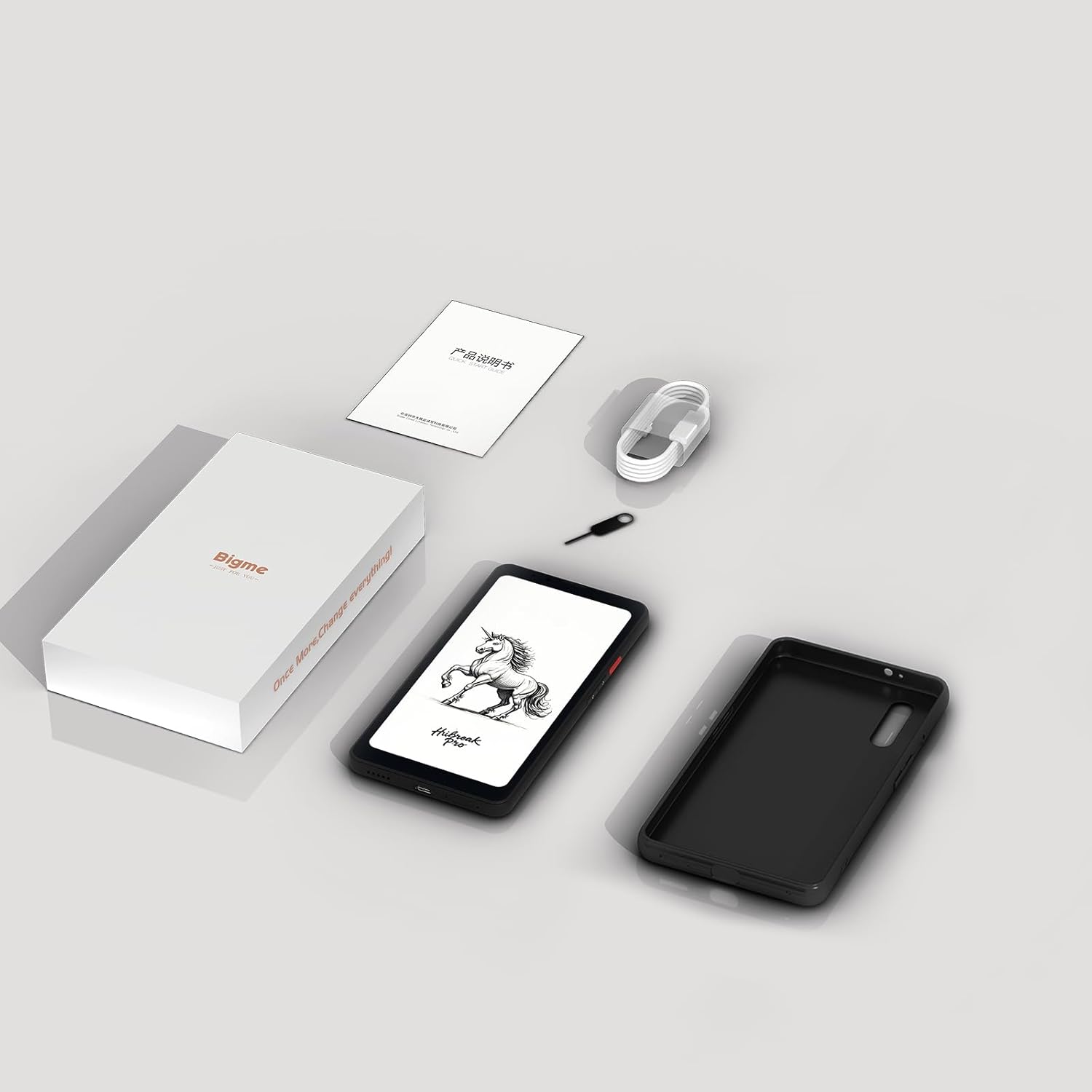
Figure 9.1: Contents of the Bigme HiBreak Pro retail box.
10. Warranty and Support
Your Bigme HiBreak Pro Epaper Phone is covered by a manufacturer's warranty. Please refer to the warranty card included in your product packaging for specific terms and conditions, including warranty period and coverage details. For technical support, service, or further inquiries, please visit the official Bigme website or contact their customer service.


