
1. Introduction
This manual provides essential information for setting up, operating, maintaining, and troubleshooting your HP 250 G10 laptop. Please read this manual thoroughly before using your device to ensure proper function and longevity.
2. Product Overview
Familiarize yourself with the components of your HP 250 G10 laptop.
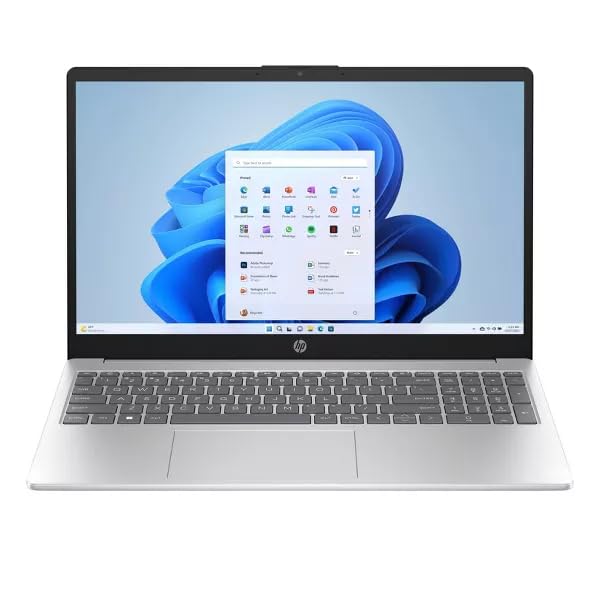
Figure 2.1: HP 250 G10 Laptop (Closed View)
This image shows the HP 250 G10 laptop in a closed state, highlighting its sleek design and silver finish.
2.1. External Components
- Display: 15.6-inch FHD (1920 x 1080) Anti-glare IPS display.
- Keyboard: Full-size keyboard with numeric keypad.
- Touchpad: Precision touchpad for navigation.
- Webcam: 720p HD Camera with privacy shutter, located above the display.
- Power Button: Typically located on the keyboard deck or side.

Figure 2.2: HP 250 G10 Laptop (Open View)
This image displays the HP 250 G10 laptop in an open position, showcasing the screen with Windows 11 interface, keyboard, and touchpad.
2.2. Ports and Connectors

Figure 2.3: HP 250 G10 Laptop (Side Ports)
This image illustrates the various ports available on the sides of the HP 250 G10 laptop, including USB, HDMI, and audio jacks.
- USB 3.2 Gen 1 Type-C: 1 port, supports 5Gbps data transfer.
- USB 3.2 Gen 1 Type-A: 2 ports, supports 5Gbps data transfer.
- HDMI 1.4: 1 port for external display connection.
- Headphone/Microphone Combo Jack: 1 port for audio input/output.
- Power Connector: For connecting the AC adapter.
3. Setup
3.1. Initial Power On
- Connect Power: Plug the 45W AC adapter into the laptop's power connector and then into a wall outlet.
- Open Laptop: Carefully open the laptop lid.
- Power On: Press the power button to turn on the laptop.
- Windows Setup: Follow the on-screen instructions to complete the Windows 11 Pro setup, including language, region, network connection, and user account creation.
3.2. Connecting to a Wireless Network
- During Windows setup, select your Wi-Fi network from the list and enter the password if prompted.
- If already set up, click the Wi-Fi icon in the taskbar, select your network, and connect.
4. Operating Instructions
4.1. Using the Keyboard and Touchpad
- The keyboard includes a numeric keypad for efficient data entry.
- The touchpad supports multi-touch gestures for scrolling, zooming, and other functions. Refer to Windows settings for customization.
4.2. Connecting External Devices
- USB Devices: Connect USB drives, mice, or other peripherals to the available USB Type-A or Type-C ports.
- External Display: Use the HDMI 1.4 port to connect an external monitor or projector.
- Audio Devices: Plug headphones or external speakers into the headphone/microphone combo jack.
4.3. Using the Webcam
The integrated 720p HD camera can be used for video calls and conferences. Ensure the privacy shutter is open when using the camera. The privacy shutter is a physical slide that covers the camera lens.
5. Maintenance
5.1. Cleaning Your Laptop
- Use a soft, lint-free cloth slightly dampened with water or a screen cleaner to clean the display.
- For the keyboard and chassis, use a soft, dry cloth. Avoid harsh chemicals.
- Periodically use compressed air to clear dust from vents to ensure proper cooling.
5.2. Battery Care
- To maximize battery life, avoid fully discharging the battery frequently.
- Store the laptop in a cool, dry place if not used for extended periods.
- The laptop features a 41Wh Lithium-Ion battery with an estimated life of up to 6 hours, depending on usage.
5.3. Software Updates
Regularly check for and install Windows updates and HP driver updates to ensure optimal performance and security. These can typically be found in Windows Settings or through the HP Support Assistant application.
6. Troubleshooting
6.1. Common Issues and Solutions
| Issue | Possible Solution |
|---|---|
| Laptop does not power on. | Ensure the AC adapter is securely connected to both the laptop and a working power outlet. Check the power indicator light. |
| No Wi-Fi connection. | Verify Wi-Fi is enabled in Windows settings. Restart your router and the laptop. Check for updated Wi-Fi drivers. |
| Display is blank or flickering. | Connect an external monitor to check if the issue is with the laptop's display. Adjust display settings in Windows. Restart the laptop. |
| Slow performance. | Close unnecessary applications. Check Task Manager for resource-intensive processes. Ensure sufficient free space on the 1TB NVMe M.2 SSD. Run a virus scan. |
For more detailed troubleshooting or persistent issues, please refer to the HP support website or contact HP customer service.
7. Specifications
| Component | Detail |
|---|---|
| Model Name | HP 250 G10IXS |
| Processor | Intel Core i7-1355U (10 Cores: 2 Performance + 8 Efficient, 12 Threads, up to 5.0 GHz) |
| Graphics | Intel Iris Xe Graphics (Integrated) |
| Display | 15.6" FHD (1920 x 1080) Anti-glare IPS, 250 nits, 45% NTSC |
| Memory (RAM) | 24GB DDR4 SDRAM 3200 MHz (Max 64GB) |
| Storage | 1TB NVMe M.2 SSD |
| Operating System | Windows 11 Pro |
| Wireless Connectivity | Realtek Wi-Fi 6 (2x2) and Bluetooth 5.3 |
| Ports | 1x USB 3.2 Gen 1 Type-C, 2x USB 3.2 Gen 1 Type-A, 1x HDMI 1.4, 1x Headphone/microphone combo |
| Camera | 720p HD Camera with Privacy Shutter |
| Battery | 41Wh Lithium-Ion, up to 6 hours battery life |
| Dimensions (L x W x H) | 14.17" x 9.29" x 0.73" inches |
| Weight | 3.3 lbs |
| Color | Natural Silver |
8. Warranty and Support
Your HP 250 G10 laptop is covered by a standard manufacturer's warranty. For specific warranty terms and conditions, please refer to the documentation included with your purchase or visit the official HP support website.
For technical assistance, driver downloads, or service inquiries, please visit the HP Support website: support.hp.com


