
1. Introduction
This manual provides detailed instructions for the DAREU AE6 Pro Wireless Gaming Mouse. Designed for high-performance gaming, this mouse features a custom PAW3950 30K sensor, dual 8K polling rate, a lightweight 59g design, and a versatile charging dock with a TFT display. Please read this manual thoroughly to ensure proper setup and optimal use of your device.
2. What's in the Box
Verify that all items are present in the package:
- DAREU AE6 Pro Wireless Gaming Mouse
- Charging Dock
- USB A-C Cable
- User Manual (this document)
3. Product Overview
Familiarize yourself with the components of your DAREU AE6 Pro Wireless Gaming Mouse.

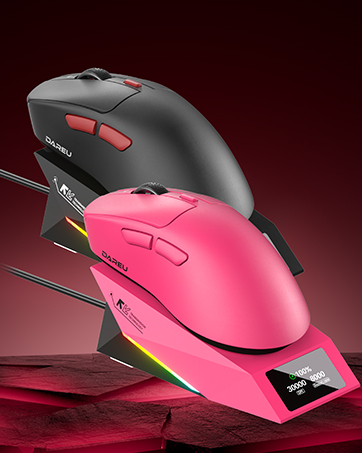
The DAREU AE6 Pro Wireless Gaming Mouse in magenta, shown on its charging dock. The dock's display indicates battery level and current DPI/polling rate.
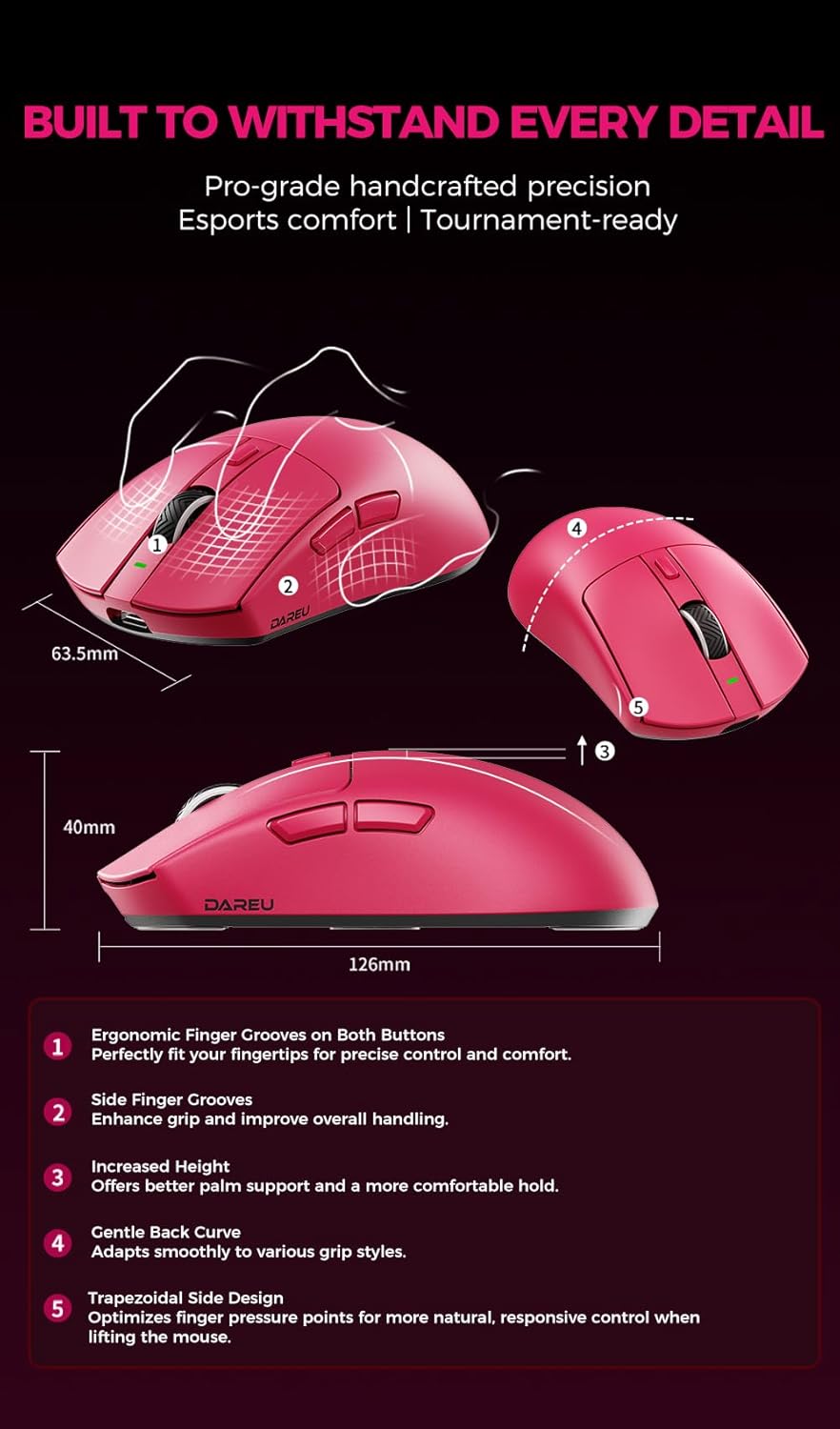
Detailed diagram of the DAREU AE6 Pro mouse, highlighting its various buttons and their corresponding functions.
- Left Button: Primary click function.
- Right Button: Secondary click function.
- Scroll Wheel: For scrolling and middle-click.
- Forward Button: Navigational forward function.
- Backward Button: Navigational backward function.
- DPI Button: Cycles through DPI settings.
- 2.4G/OFF/BT Switch Button (Bottom): Selects connection mode or powers off.
- Report Rate Button (Bottom): Press to switch report rate. Long press to pair Bluetooth devices.
4. Setup and Connectivity
4.1. Wired Connection
- Connect the provided USB A-C cable to the mouse and your computer's USB port.
- The mouse will function immediately in wired mode and charge simultaneously.
4.2. 2.4G Wireless Connection
- Connect the charging dock to your computer using the USB A-C cable. The charging dock acts as the 2.4G wireless receiver.
- Ensure the switch on the bottom of the mouse is set to '2.4G'.
- The mouse should automatically connect to the dock. The dock's TFT screen will display real-time battery level, DPI, and polling rate.
4.3. Bluetooth Connection
- Set the switch on the bottom of the mouse to 'BT'.
- Long press the Report Rate button on the bottom of the mouse to enter pairing mode. The mouse's indicator light will flash.
- On your computer or device, navigate to Bluetooth settings and select 'DAREU AE6 Pro' to pair.
4.4. Hardware Requirements for 8K Hz Polling Rate
To achieve the optimal 8K Hz polling rate, your system should meet the following specifications:

Hardware specifications required for optimal 8K Hz polling rate performance.
- CPU: Intel Core i7-9700K or higher / AMD Ryzen 7 3700X or higher
- Display: 240Hz+ refresh rate monitor
- GPU: NVIDIA GTX 1080 or equivalent / AMD RX 5700 or equivalent
- RAM: 16GB or more
5. Charging the Mouse
The DAREU AE6 Pro mouse is equipped with a 500mAh rechargeable battery.
- To charge, simply place the mouse onto the charging dock. The magnetic connection will secure it in place.
- The charging dock's TFT display will show the real-time battery level during charging and use.
- Alternatively, connect the USB A-C cable directly to the mouse for wired use and charging.
- A full charge provides approximately 166 hours of battery life, depending on usage and settings.
6. Operation
6.1. DPI Adjustment
Press the DPI Button (button 6 in the product overview) to cycle through preset DPI levels. The current DPI will be displayed on the charging dock's TFT screen (if connected via 2.4G wireless) or can be customized via the web driver.
6.2. Polling Rate Adjustment
Press the Report Rate Button on the bottom of the mouse (button 8 in the product overview) to cycle through available polling rates (e.g., 1000Hz, 2000Hz, 4000Hz, 8000Hz). The current polling rate will be displayed on the charging dock's TFT screen (if connected via 2.4G wireless) or can be customized via the web driver.
6.3. Keel Structure and KBS Light Button Technology
The internal Keel structure provides enhanced structural strength and durability.

Gen-4 KBS Light Button Technology ensures consistent click feedback across the entire button surface.
The mouse incorporates an innovative Keel structure for increased durability and 20° micro switches to minimize false clicks. The KBS Light system ensures consistent tactile feedback across the front, middle, and rear button zones, accommodating various grip styles.
7. Web Driver Customization
The DAREU AE6 Pro supports a powerful web-based driver for customization, compatible with both Windows and macOS systems.

The DAREU AE6 Pro web driver interface allows for comprehensive customization of mouse settings.
- Access the web driver via an internet connection for instant setup.
- Customize all 6 buttons, DPI stages, polling rate, and create macros effortlessly.
- Achieve personalized settings to optimize your gaming and work experience.
8. Maintenance
8.1. Cleaning
- To clean the mouse, use a soft, dry cloth.
- For stubborn dirt, slightly dampen the cloth with water or a mild cleaning solution. Avoid harsh chemicals.
- Do not immerse the mouse or charging dock in water.
8.2. Excimer Coating

The UV Excimer coating provides a comfortable grip and enhanced durability.
The mouse features a micro-textured Excimer coating designed to enhance sweat dissipation, provide anti-slip properties, and offer scratch resistance. This coating helps prevent fingerprints and sweat buildup during extended use.
9. Troubleshooting
9.1. Mouse Not Responding
- Wired: Ensure the USB cable is securely connected to both the mouse and the computer. Try a different USB port.
- 2.4G Wireless: Verify the charging dock is connected to the computer and the mouse switch is set to '2.4G'. Ensure the mouse battery is charged.
- Bluetooth: Check if the mouse is paired correctly in your device's Bluetooth settings. Ensure the mouse switch is set to 'BT' and try re-pairing if necessary.
9.2. Cursor Stuttering or Lag
- Ensure your computer meets the hardware requirements for high polling rates (e.g., 8K Hz). Lowering the polling rate might resolve stuttering on less powerful systems.
- Check for interference from other wireless devices.
- Ensure the mouse sensor is clean and free from debris.
9.3. Customization Issues with Web Driver
- Ensure you have a stable internet connection to access the web driver.
- Try using a different web browser.
- If issues persist, ensure your mouse firmware is up to date (check DAREU's official website for updates).
10. Specifications
The DAREU AE6 Pro features the AIM-750U sensor and CX52860 MCU for high-performance tracking.
| Feature | Detail |
|---|---|
| Product Dimensions | 4.96 x 2.5 x 1.57 inches |
| Item Weight | 2.12 ounces (59g) |
| Model Number | AE6 PRO-MA |
| Batteries | 1 Lithium Polymer battery (included) |
| Connectivity Technology | 2.4G Hz, Bluetooth, Wired |
| Special Features | AIM-HighSpeed wireless, Custom PAW3950 Sensor, Dual 8000Hz polling rate, Keel Structure Lightweight, TFT Display Charging Dock |
| Movement Detection Technology | Optical (AIM-750U / Custom PAW3950) |
| Max DPI | 30000 DPI |
| Max IPS | 750 IPS |
| Max Acceleration | 50G |
| MCU | CX52860 |
11. Warranty and Support
For warranty information and technical support, please refer to the official DAREU website or contact DAREU customer service. Keep your purchase receipt for warranty claims.
DAREU Official Website: www.dareu.com


