
1. Introduction
This manual provides essential information for setting up, operating, maintaining, and troubleshooting your HP 250 G10 laptop. Please read this guide thoroughly to ensure proper use and longevity of your device.
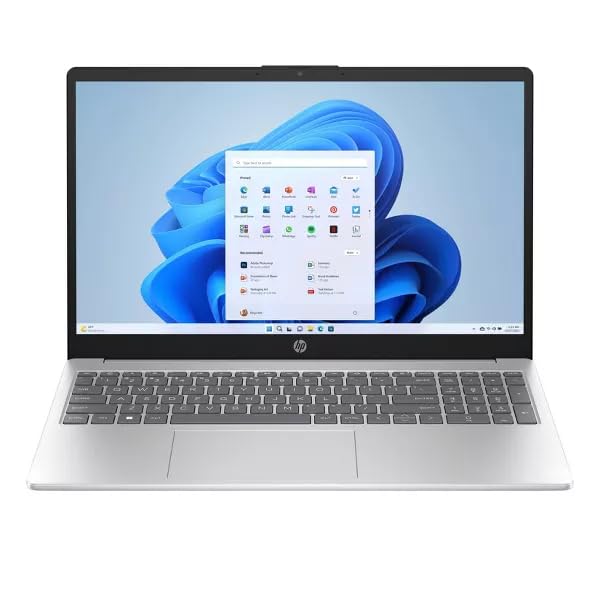
Figure 1: HP 250 G10 Laptop (Closed View)
2. Setup
2.1 Unboxing and Initial Inspection
Carefully remove all components from the packaging. Verify that the following items are present:
- HP 250 G10 Laptop
- 45W AC Adapter
- 32GB USB 3.0 Flash Drive
Inspect the laptop and accessories for any signs of damage. If any components are missing or damaged, contact your vendor immediately.
2.2 Connecting the Power Adapter
Connect the AC adapter to the power connector on the laptop and then plug the adapter into a wall outlet. The battery will begin charging automatically.
2.3 Initial Power On and Operating System Setup
Press the power button located on the keyboard deck to turn on the laptop. Follow the on-screen instructions to complete the Windows 11 Pro setup process. This includes selecting your region, connecting to a network, and creating a user account.

Figure 2: HP 250 G10 Laptop with Windows 11 Pro Interface
2.4 Connecting to a Network
Your HP 250 G10 supports Wi-Fi 6 and Bluetooth 5.3. During the initial setup, you will be prompted to connect to a Wi-Fi network. To connect later, navigate to Settings > Network & Internet > Wi-Fi and select your desired network.
3. Operating Instructions
3.1 Power Management
- Power On: Press the power button.
- Sleep Mode: Close the lid or select 'Sleep' from the Start Menu.
- Shut Down: Select 'Shut down' from the Start Menu.
- Restart: Select 'Restart' from the Start Menu.
3.2 Keyboard and Touchpad
The laptop features a full-size keyboard with a numeric keypad. The touchpad supports multi-touch gestures for navigation. Refer to Windows 11 settings for customizing touchpad gestures.

Figure 3: HP 250 G10 Laptop (Open View)
3.3 External Port Usage
The HP 250 G10 is equipped with various ports for connecting external devices:
- USB 3.2 Gen 1 Type-C (1x): Supports 5Gbps data transfer.
- USB 3.2 Gen 1 Type-A (2x): Supports 5Gbps data transfer for standard USB devices.
- HDMI 1.4 (1x): For connecting to external displays or projectors.
- Headphone/Microphone Combo Jack (1x): For audio input and output.

Figure 4: HP 250 G10 Laptop Side Ports
3.4 Display and Camera
The laptop features a 15.6-inch FHD (1920 x 1080) Anti-glare IPS display. The integrated 720p HD camera includes a privacy shutter for enhanced security. Slide the shutter to cover the camera lens when not in use.
4. Maintenance
4.1 Cleaning Your Laptop
- Screen: Use a soft, lint-free cloth lightly dampened with water or a screen cleaner. Do not spray liquid directly onto the screen.
- Keyboard and Chassis: Use a soft, dry cloth. For stubborn dirt, a slightly damp cloth can be used, ensuring no liquid enters openings.
- Vents: Use compressed air to clear dust from cooling vents periodically to maintain optimal airflow.
4.2 Battery Care
The laptop is equipped with a 41Wh Lithium-Ion battery. To maximize battery lifespan:
- Avoid extreme temperatures.
- Do not fully discharge the battery frequently.
- If storing the laptop for extended periods, ensure the battery is charged to approximately 50%.
4.3 Software Updates
Regularly update your Windows 11 Pro operating system and drivers to ensure optimal performance and security. Access Windows Update via Settings > Windows Update.
5. Troubleshooting
This section addresses common issues you might encounter with your HP 250 G10 laptop.
5.1 Laptop Does Not Power On
- Ensure the AC adapter is securely connected to both the laptop and a working power outlet.
- Verify the power outlet is functional by plugging in another device.
- If the battery is completely drained, allow it to charge for at least 15-30 minutes before attempting to power on.
5.2 Display Issues
- No image on screen: Connect an external monitor to the HDMI port to check if the issue is with the laptop's internal display.
- Dim screen: Adjust brightness settings using the function keys (usually F2/F3 or similar icons) or through Windows display settings.
5.3 Network Connectivity Problems
- Wi-Fi: Ensure Wi-Fi is enabled in Windows settings. Restart your router and the laptop.
- Bluetooth: Check if Bluetooth is enabled in Windows settings. Ensure the device you are trying to connect to is in pairing mode.
6. Specifications
Detailed technical specifications for the HP 250 G10 Laptop (Model: 250 G10IXS).
| Feature | Specification |
|---|---|
| Model Name | 250 G10IXS |
| Processor | Intel Core i7-1355U (10-Core, up to 5.0 GHz) |
| Graphics | Intel Iris Xe Graphics (Integrated) |
| Display | 15.6-inch FHD (1920 x 1080) IPS, Anti-glare, 250 nits |
| RAM | 16GB DDR4 SDRAM (3200 MHz) |
| Storage | 512GB NVMe M.2 SSD |
| Operating System | Windows 11 Pro |
| Wireless Connectivity | Realtek Wi-Fi 6 (2x2), Bluetooth 5.3 |
| Ports | 1x USB 3.2 Gen 1 Type-C, 2x USB 3.2 Gen 1 Type-A, 1x HDMI 1.4, 1x Headphone/microphone combo |
| Camera | 720p HD Camera with Privacy Shutter |
| Battery | 41Wh Lithium-Ion (up to 6 hours average battery life) |
| Dimensions (LxWxH) | 14.17 x 9.29 x 0.73 inches |
| Weight | 3.3 lbs |
| Color | Natural Silver |
7. Warranty and Support
Your HP 250 G10 laptop comes with a standard manufacturer's warranty. For specific warranty terms and conditions, please refer to the documentation included with your product or visit the official HP support website.
7.1 Technical Support
For technical assistance, driver downloads, or further support, please visit the official HP support website or contact HP customer service. Keep your product's serial number and model information readily available when seeking support.
You can find additional resources and contact information on the HP Support Website.


