
Redmi Redmi Pad 2 Wi-Fi + Cellular
Redmi Pad 2 Wi-Fi + Cellular User Manual
Model: Redmi Pad 2 Wi-Fi + Cellular
1. Introduction
Welcome to the Redmi Pad 2 Wi-Fi + Cellular user manual. This guide provides essential information to help you get started with your new tablet, understand its features, and ensure optimal performance. Please read this manual thoroughly before using your device.
The Redmi Pad 2 offers a vibrant 2.5K display, powerful MediaTek Helio G100-Ultra processor, long-lasting 9000mAh battery, and supports an Active Pen for enhanced productivity and creativity. With HyperOS 2 and AI-powered features, your tablet experience is designed to be intuitive and efficient.

Image: An overview of the Redmi Pad 2's key features, including its 2.5K display, cellular connectivity, immersive audio, 9000mAh battery, HyperOS 2, AI-Powered capabilities, and MediaTek Helio G100-Ultra processor.
2. Initial Setup
2.1 Unboxing and Package Contents
Your Redmi Pad 2 package should contain the following items:
- Redmi Pad 2 Tablet Computer
- Power Adapter
- USB Type-C Cable
- SIM Ejector Tool
2.2 Charging the Device
Before first use, fully charge your Redmi Pad 2. Connect the USB Type-C cable to the tablet's charging port and the power adapter, then plug the adapter into a wall outlet. The tablet supports 18W fast charging.
2.3 Powering On/Off
- To Power On: Press and hold the Power button until the Redmi logo appears.
- To Power Off: Press and hold the Power button, then select 'Power off' from the options on the screen.
2.4 Inserting a SIM Card (Cellular Models)
For cellular connectivity, insert a nano-SIM card using the provided SIM ejector tool.
- Locate the SIM card tray on the side of the tablet.
- Insert the SIM ejector tool into the small hole next to the tray and press gently until the tray pops out.
- Place your nano-SIM card into the tray with the gold contacts facing down.
- Carefully push the tray back into the tablet until it clicks into place.

Image: Side view of the Redmi Pad 2, illustrating the location of the SIM card tray and physical buttons.
2.5 Connecting to Wi-Fi
- Go to Settings > Wi-Fi.
- Toggle Wi-Fi on.
- Select your desired network from the list.
- Enter the password if prompted and tap Connect.
2.6 Google Account Setup
Follow the on-screen prompts to set up your Google account. This is necessary to access the Google Play Store, synchronize data, and use various Google services.
3. Operating Your Redmi Pad 2
3.1 Navigation and User Interface (HyperOS 2)
Your Redmi Pad 2 runs on HyperOS 2, based on Android, providing a smooth and intuitive user experience. Swipe gestures and on-screen buttons allow for easy navigation between apps and settings.
3.2 Display Features
Experience crystal-clear visuals on the 11-inch 2.5K (2560x1600 pixels) display with a 90Hz refresh rate for smooth scrolling and animations. The display offers up to 600 nits of brightness for clear visibility in various lighting conditions.

Image: The Redmi Pad 2's 2.5K Crystal Clear Display, highlighting its sharp resolution and vibrant color reproduction.
3.3 Audio Experience
The tablet features quad speakers with Dolby Atmos support, delivering an immersive audio experience for movies, music, and games.

Image: The Redmi Pad 2 demonstrating its immersive audio capabilities with quad speakers and Dolby Atmos technology.
3.4 Active Pen Support
The Redmi Pad 2 supports an Active Pen (sold separately) for precise input. Use it for note-taking, sketching, marking up documents, and navigating the interface with ultra-low latency and 4096 pressure sensitivity levels.

Image: The Redmi Pad 2 demonstrating Active Pen support for creative tasks, instant answers, effortless note-taking, and handwriting recognition.

Image: A close-up of the Redmi Smart Pen in use, detailing its features such as seamless writing, millisecond-level latency, 4096 pressure sensitivity, 10g activation force, and 12 hours of continuous writing.
3.5 AI-Powered Features
Leverage AI capabilities like Circle to Search for instant information retrieval and Gemini AI for personalized assistance, enhancing productivity and entertainment.

Image: The Redmi Pad 2 demonstrating AI-powered features, specifically 'Circle to Search' for instant answers.
3.6 Camera Usage
The tablet is equipped with an 8MP rear camera and a 5MP front camera, suitable for video calls and casual photography. Video capture resolutions include FHD 1080p and HD 720p.
3.7 Storage and Performance
The Redmi Pad 2 comes with 8GB RAM and 256GB internal storage (UFS 2.2 for fast loads). Storage can be expanded up to 2TB using a microSD card (sold separately).

Image: The Redmi Pad 2 highlighting its storage and RAM capabilities, including up to 16GB RAM, 256GB UFS 2.2 storage, and 2TB expandable storage.
Powered by the MediaTek Helio G100-Ultra processor, the tablet delivers efficient performance for multitasking, gaming, and media consumption.
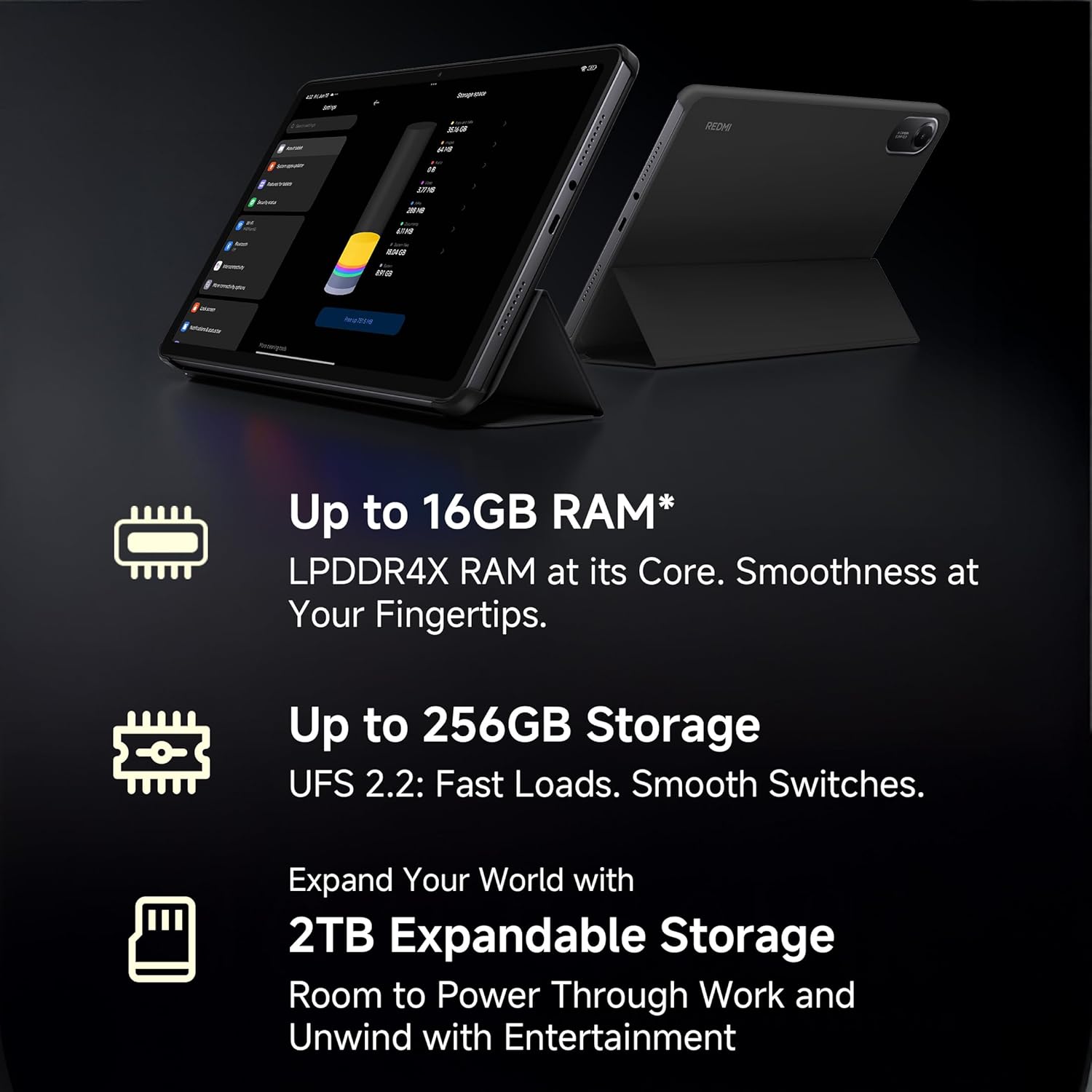
Image: A visual representation of the advanced MediaTek Helio G100-Ultra processor, emphasizing its performance capabilities.
3.8 Connectivity
Stay connected with Wi-Fi (802.11a/b/g/n/ac) and cellular connectivity. The tablet also features Bluetooth for connecting accessories and a USB 2.0 Type-C port for charging and data transfer.

Image: The Redmi Pad 2 demonstrating its cellular connectivity, allowing users to stay connected anytime, anywhere.
4. Maintenance and Care
4.1 Cleaning Your Tablet
Use a soft, lint-free cloth to clean the screen and body of your Redmi Pad 2. Avoid using harsh chemicals or abrasive materials that could damage the display or finish.
4.2 Battery Care
The 9000mAh battery provides extended usage. To prolong battery life:
- Avoid extreme temperatures.
- Do not let the battery drain completely before recharging frequently.
- Use the original charger and cable for optimal charging.

Image: The Redmi Pad 2 highlighting its XL 9000mAh battery, capable of providing up to 19 hours of binge-watching, 22 hours of discoveries, and 10 hours of gaming.
4.3 Software Updates
Regularly check for and install software updates to ensure your tablet has the latest features, security patches, and performance improvements. Go to Settings > About tablet > System update.
4.4 Storage Optimization
Periodically review and delete unnecessary files, apps, and media to maintain optimal performance. Utilize cloud storage or the expandable storage option for large files.
5. Troubleshooting
This section addresses common issues you might encounter with your Redmi Pad 2.
5.1 Device Not Powering On
- Ensure the battery is charged. Connect the tablet to the charger for at least 30 minutes.
- Press and hold the Power button for 10-15 seconds to perform a forced restart.
5.2 Connectivity Issues (Wi-Fi/Cellular)
- Wi-Fi: Check if Wi-Fi is enabled in settings. Restart your router. Forget the network and reconnect.
- Cellular: Ensure the SIM card is correctly inserted and activated. Check your mobile data settings. Restart the tablet.
5.3 Slow Performance
- Close unused applications running in the background.
- Clear cache data for apps.
- Ensure sufficient free storage space.
- Restart the tablet regularly.
5.4 Active Pen Not Responding
- Ensure the Active Pen is charged (if applicable).
- Check Bluetooth connection for the pen in tablet settings.
- Restart the tablet.
6. Specifications
| Feature | Detail |
|---|---|
| Brand | Redmi |
| Model Name | Redmi Pad 2 Wi-Fi + Cellular |
| Operating System | Android, HyperOS 2 |
| Processor | MediaTek Helio G100-Ultra (2.2 GHz) |
| Graphics Coprocessor | Mali-G57 MC2 |
| RAM | 8 GB |
| Internal Storage | 256 GB |
| Expandable Storage | Yes (up to 2TB) |
| Screen Size | 11 Inches (27.94cm) |
| Display Resolution | 2560x1600 Pixels (2.5K) |
| Display Type | LCD |
| Refresh Rate | 90 Hz |
| Maximum Brightness | 600 Nits |
| Rear Camera | 8 MP |
| Front Camera | 5 MP |
| Battery Capacity | 9000 mAh |
| Battery Average Life | 10 Hours |
| Connectivity | Wi-Fi (802.11a/b/g/n/ac), Cellular |
| Human Interface | Touchscreen with Stylus Support |
| Audio Jack | 3.5 mm |
| Dimensions (L x W x T) | 25.5L x 16.6W x 0.7Th Centimeters |
| Item Weight | 519 Grams |
| Color | Sky Blue |
7. Warranty Information
The Redmi Pad 2 Wi-Fi + Cellular comes with a 1-year manufacturer warranty. Please retain your proof of purchase for warranty claims. For detailed terms and conditions, refer to the warranty card included in your product packaging or visit the official Redmi website.
8. Customer Support
For further assistance, technical support, or service inquiries, please contact Redmi customer support. You can find contact information on the official Redmi website or through the support section within your device's settings.
Manufacturer: BYD (India) Private Limited, Xiaomi
Manufacturer Contact Information: BYD (India) Private Limited, Developed Plot No. OZ 7, Sipcot, Oragadam, Sriperambudur, Kancheepuram, Tamil Nadu 602105, India
For online support, visit the official Redmi India Support Page.
Related documentsRedmi Pad 2 Wi-Fi + Cellular


Ask a question about this manual
Ask about setup, troubleshooting, compatibility, parts, safety, or missing instructions. Manuals+ will review the question and use this page’s manual context to help answer it.