
KOGATA GC355
KOGATA GC355 Smart Projector User Manual
Model: GC355
Introduction
This user manual provides comprehensive instructions for the setup, operation, maintenance, and troubleshooting of your KOGATA GC355 Smart Projector. Please read this manual thoroughly before using the product to ensure proper functionality and to maximize your viewing experience.

Image: The KOGATA GC355 Smart Projector, a compact grey device with a prominent lens and ventilation grilles, viewed from an angle.
Product Features
- Short Throw Technology: Projects a large image from a short distance, ideal for small spaces and flexible placement.
- High Brightness: Features 1200 ANSI lumens for clear and vibrant images, even in environments with some ambient light.
- 4K Support & Native 1080p: Delivers sharp, detailed visuals with native 1080p resolution and support for 4K content streaming.
- TOF Auto Focus & Keystone Correction: Equipped with Time-of-Flight (TOF) technology for instant, real-time automatic focus and image alignment, eliminating manual adjustments.
- Built-in Smart TV OS: Runs on an official operating system with pre-installed streaming apps like Prime Video and YouTube, and support for downloading others such as Disney+ and Apple TV.
- Dolby Audio & Dual 10W Speakers: Provides an immersive audio experience with rich sound, deep bass, and clear highs through integrated dual 10W full-range speakers with Dolby Audio support.
- WiFi 6 & Bidirectional Bluetooth 5.2: Ensures fast and stable wireless connectivity with WiFi 6, and offers versatile audio options with bidirectional Bluetooth 5.2 for connecting external speakers or using the projector as a standalone Bluetooth speaker.
- Portable Design: Lightweight at 2.2 lbs and compact with dimensions of 8.27 x 8.27 x 3.07 inches, making it easy to transport and set up in various locations.
Setup Guide
1. Unpacking and Placement
Carefully remove the projector and all accessories from the packaging. Place the projector on a stable, flat surface. Ensure there is adequate ventilation around the device to prevent overheating.

Image: Illustration showing the KOGATA GC355 projector placed on a coffee table, projecting a large image onto a wall from a short distance, demonstrating its short-throw capability for a 200-inch screen from a minimal distance.
For optimal viewing, position the projector directly in front of your projection surface (wall or screen). The short-throw design allows for a large screen size, such as a 100-inch screen from approximately 90 inches away.
2. Power Connection
Connect the provided power adapter to the projector's power input port, then plug the other end into a standard electrical outlet.
3. Initial Power On and Auto Adjustment
Press the power button on the projector or remote control to turn on the device. The GC355 features advanced TOF (Time-of-Flight) technology for instant auto-focus and keystone correction. The projector will automatically adjust the image for clarity and proper geometry upon startup.
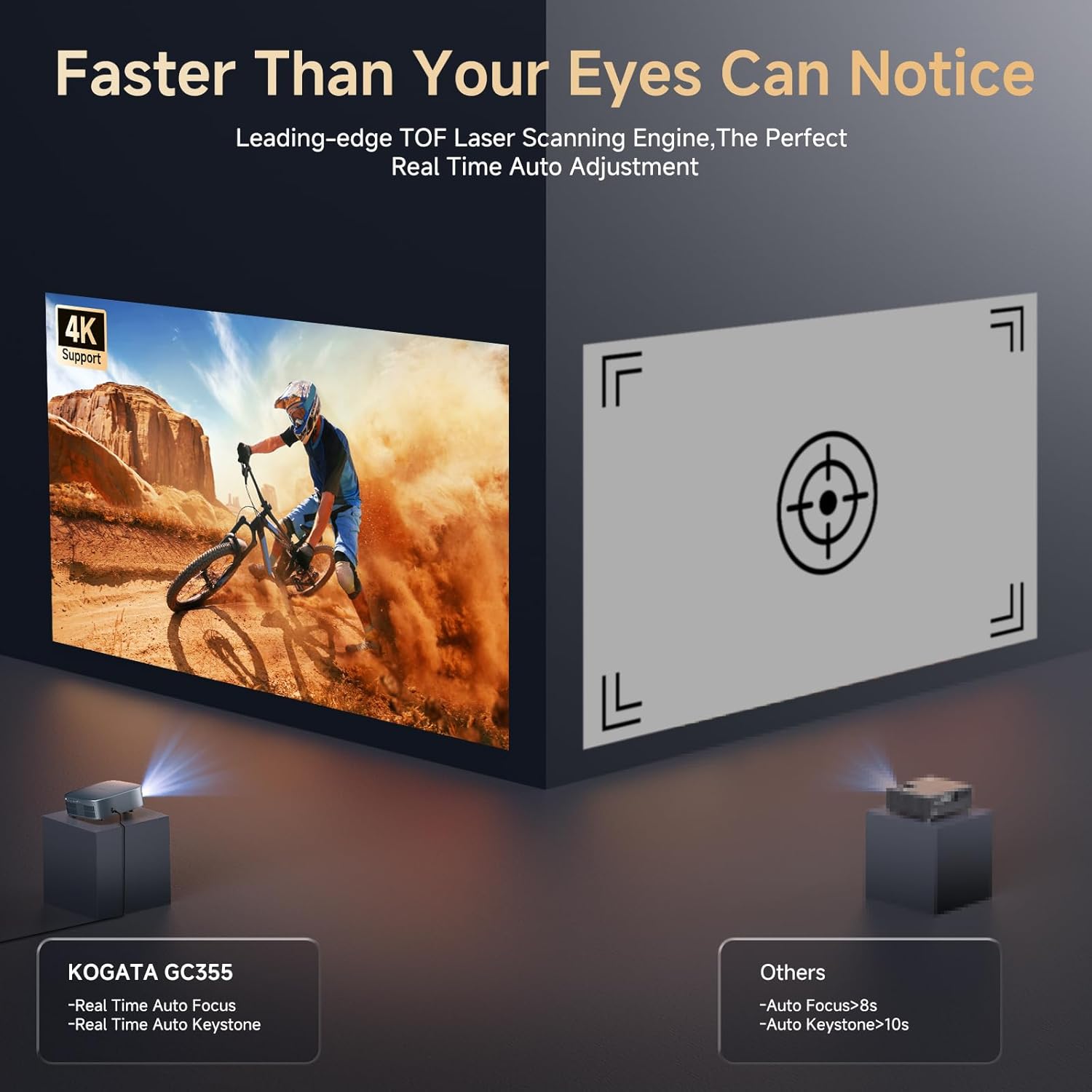
Image: A comparison showing the KOGATA GC355 projector's real-time auto-focus and keystone correction capabilities, highlighting its speed and precision compared to other projectors.
If the projector is bumped or moved, the integrated AI sensor will detect the change and readjust the image automatically. Dynamic obstacle avoidance will also intelligently scan walls and nearby objects, automatically resizing and positioning the screen to fit your available space.
4. Network Connection (WiFi 6)
Navigate to the settings menu on the projector's interface. Select "Network" or "WiFi" and choose your desired WiFi 6 network from the list. Enter the password if prompted. A stable internet connection is required for streaming apps and system updates.
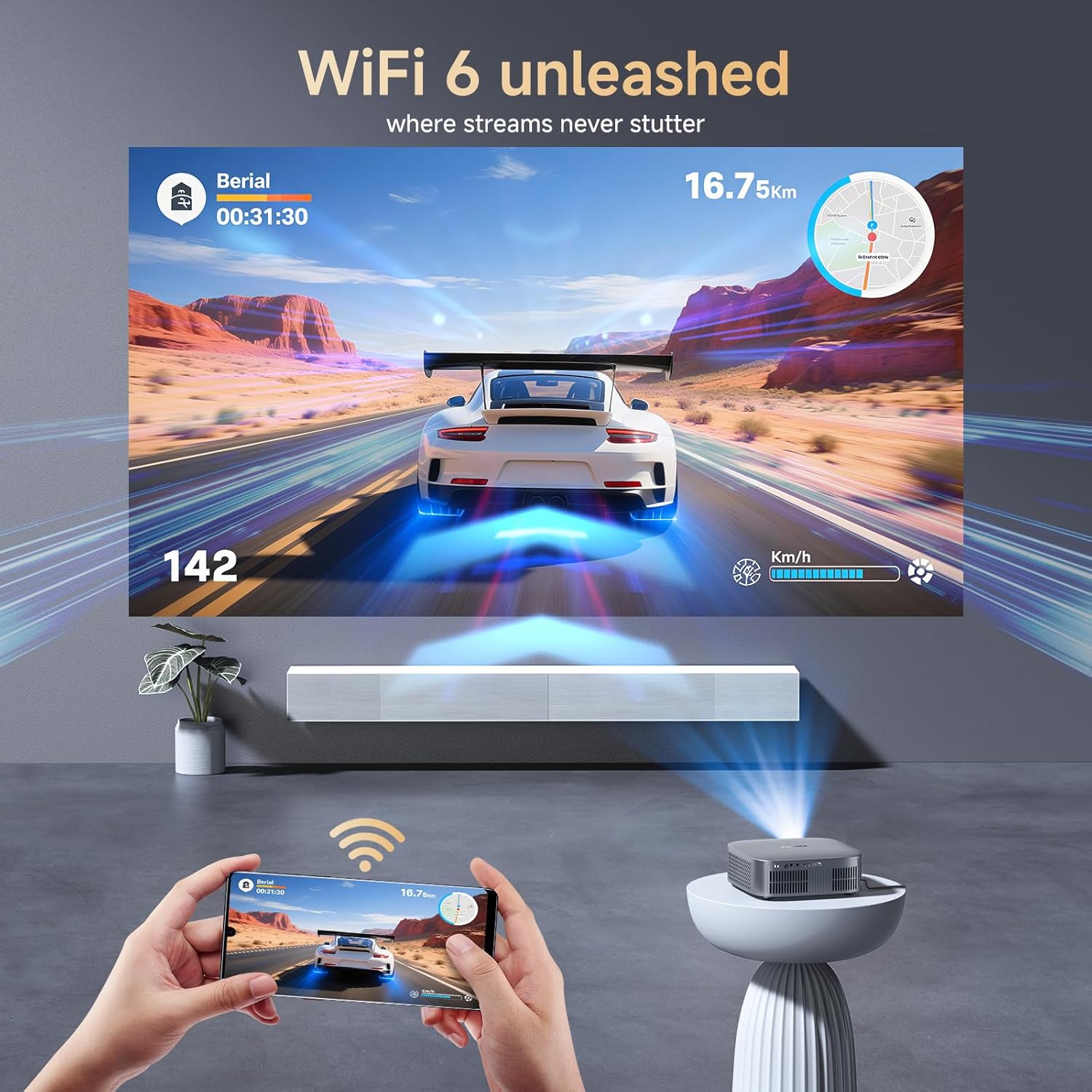
Image: A visual representation of the projector connected via WiFi 6, showing a racing game projected onto a wall, with a smartphone mirroring its screen to the projector, illustrating seamless streaming.
5. Connecting External Devices (HDMI, USB)
The projector includes HDMI and USB ports for connecting external devices such as laptops, gaming consoles, Blu-ray players, or USB storage drives. Simply plug your device into the appropriate port and select the corresponding input source from the projector's main menu.
Operating Instructions
1. Navigating the Smart TV OS
The KOGATA GC355 runs on an official Smart TV OS, providing access to a wide range of applications. Use the remote control to navigate through the home screen, browse content, and launch applications. Pre-installed apps include Prime Video and YouTube. You can download additional apps like Disney+ and Apple TV from the integrated app store.
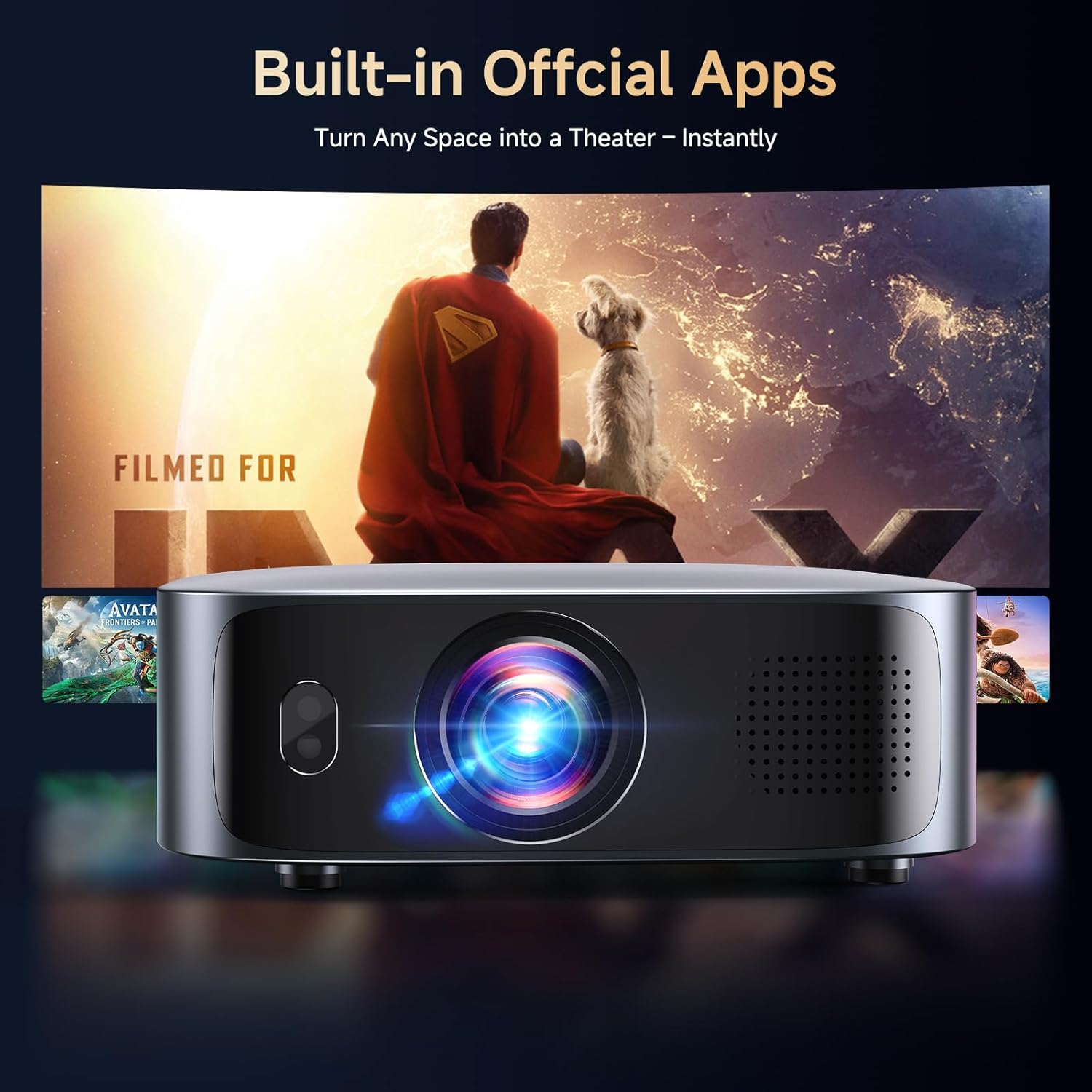
Image: The KOGATA GC355 projector displaying its smart TV interface on a screen, showing icons for various built-in streaming applications like Prime Video and YouTube, ready for selection.
2. Adjusting Picture Settings
Access the "Picture" or "Display" settings in the main menu to customize your viewing experience. Options include brightness, contrast, color temperature, and aspect ratio. The projector supports HDR for enhanced detail in shadows and highlights, and features a 98% NTSC cinema-grade color gamut for vibrant and accurate color reproduction.
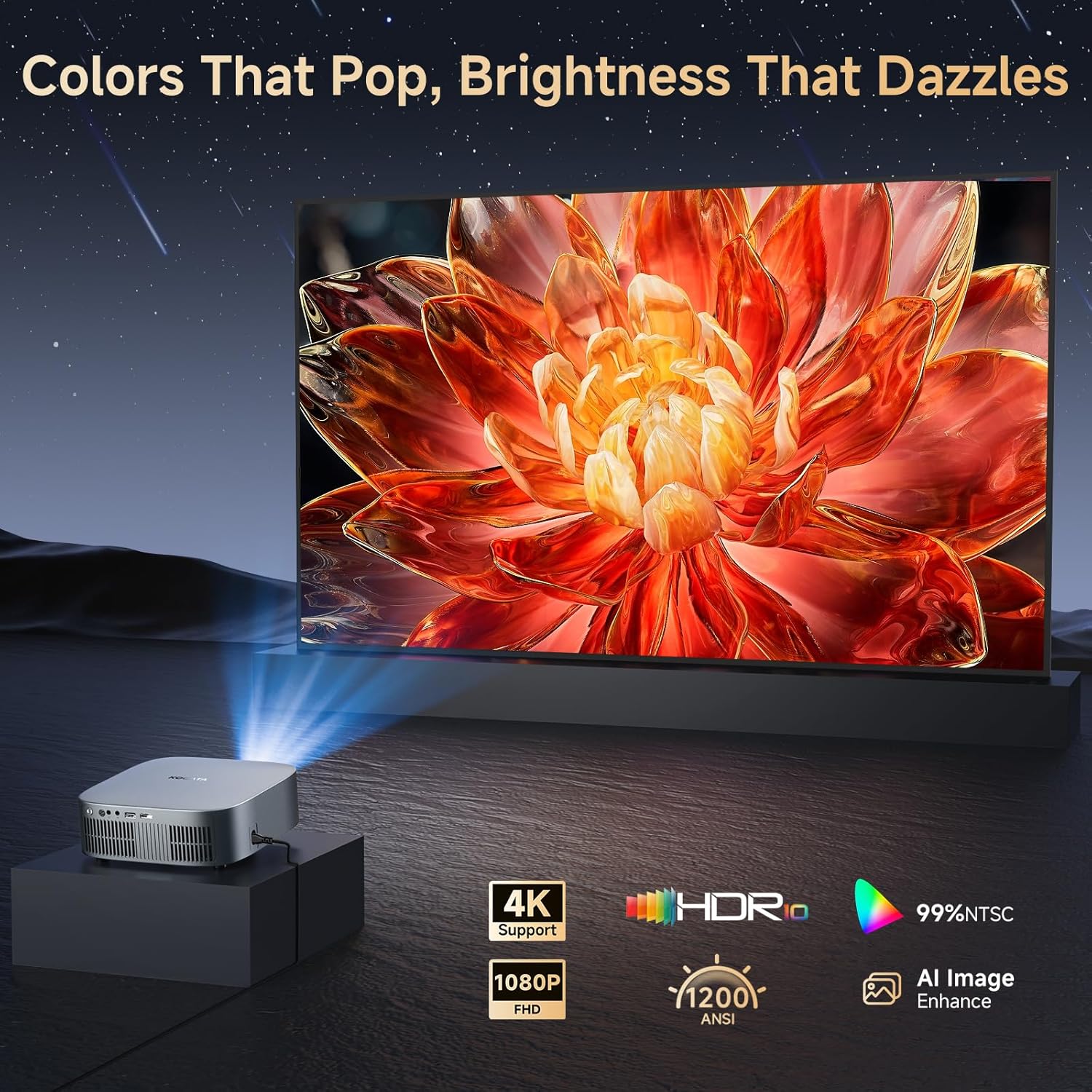
Image: The KOGATA GC355 projector projecting a highly detailed and colorful image of a flower, highlighting its 4K support, HDR, 1080p FHD, 1200 ANSI lumens, AI Image Enhance, and 99% NTSC color capabilities for stunning visuals.
3. Audio Settings and Bluetooth Connectivity
The GC355 features integrated dual 10W full-range speakers with Dolby Audio support. You can adjust volume and select various audio modes through the "Sound" settings. For external audio, utilize the bidirectional Bluetooth 5.2 feature to connect to Bluetooth speakers or headphones, or even use the projector as a standalone Bluetooth speaker for music playback.
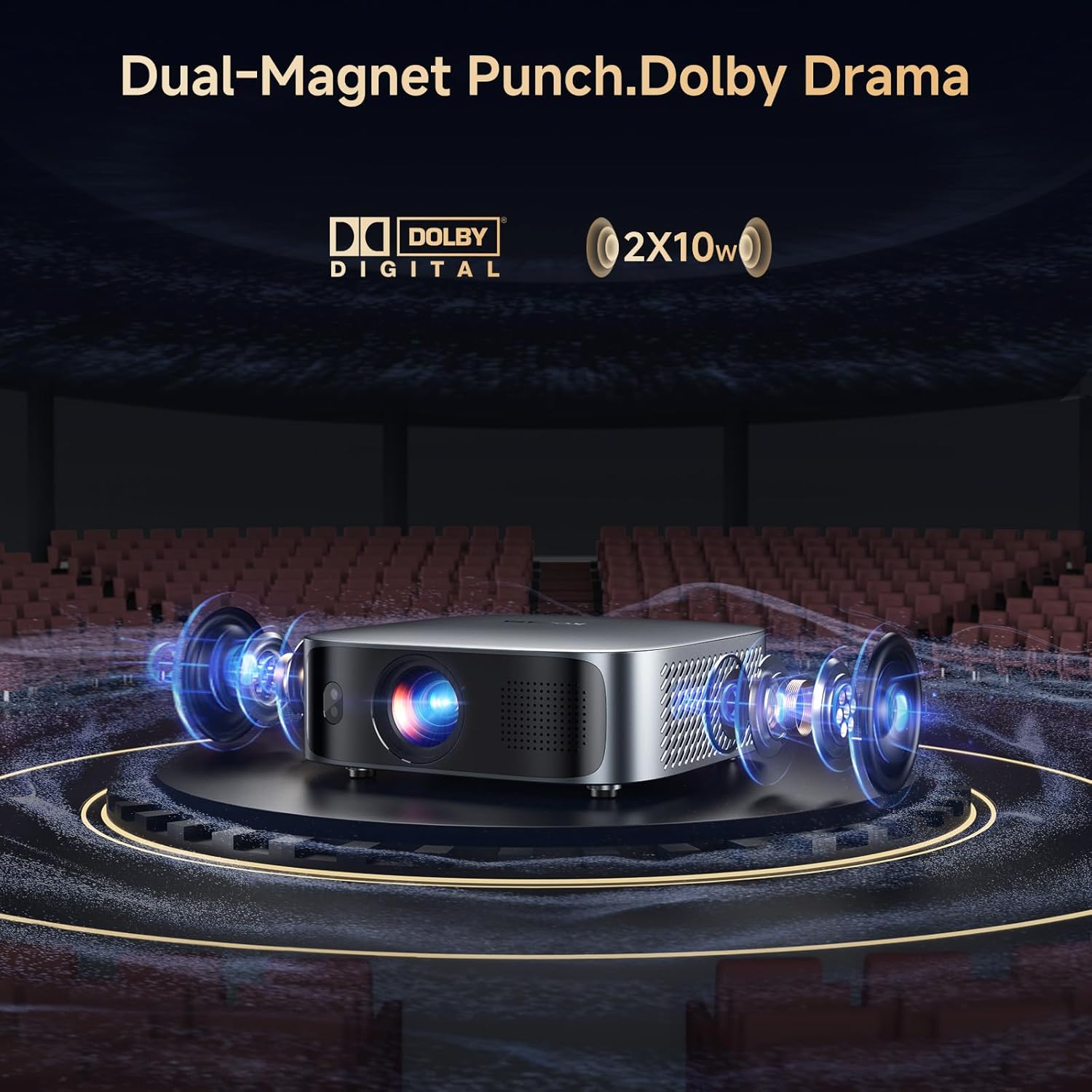
Image: An exploded view illustration of the KOGATA GC355 projector highlighting its internal dual 10W speakers and Dolby Digital audio capabilities, set against a backdrop of a theater, emphasizing its cinematic sound.
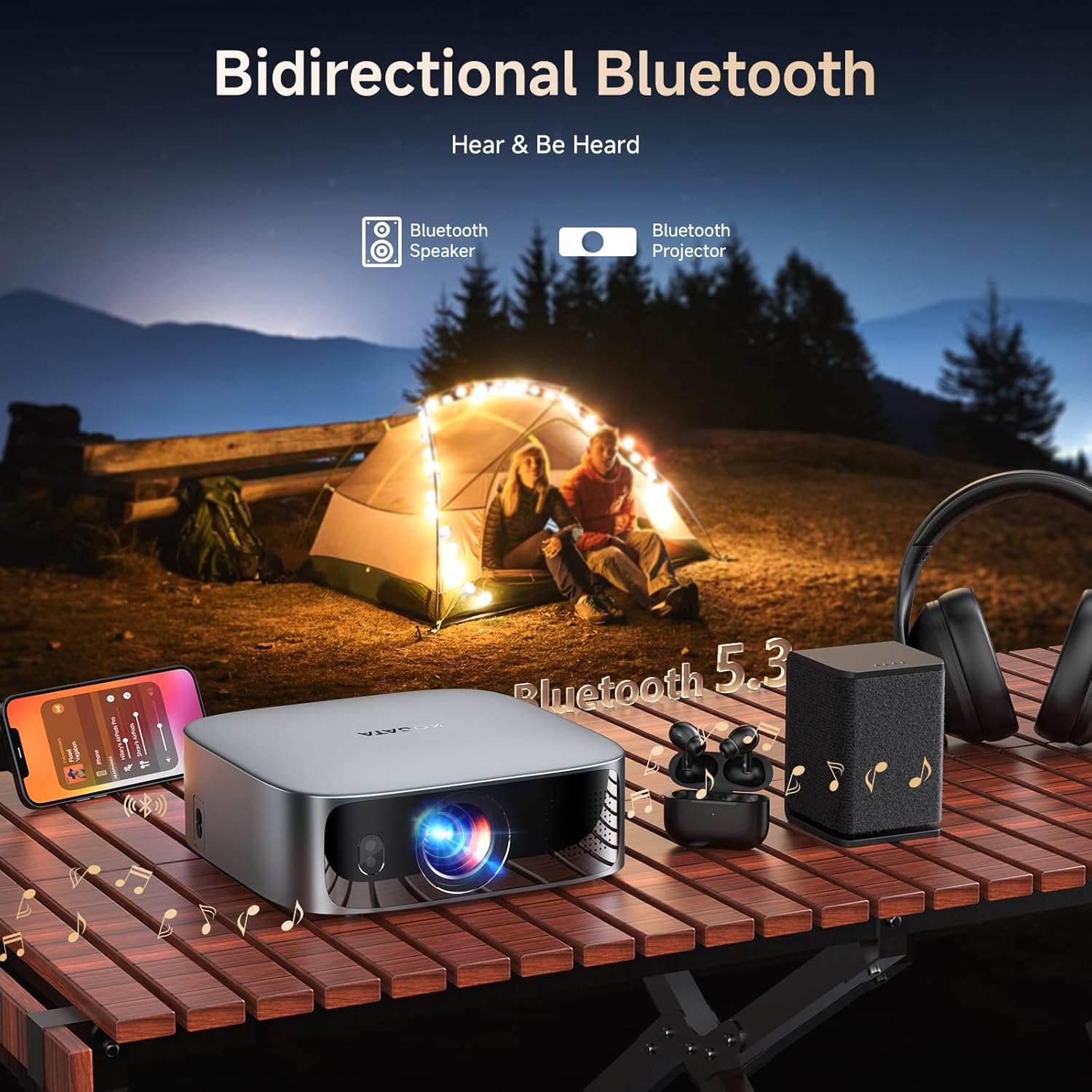
Image: The KOGATA GC355 projector on a wooden table outdoors, connected via bidirectional Bluetooth to a smartphone, a portable speaker, and wireless earbuds, demonstrating its versatility for audio input and output in various settings.
4. Screen Mirroring
The projector supports instant screen mirroring from compatible smartphones and tablets. Refer to your device's screen mirroring instructions and select the projector from the available devices list to cast your content onto the big screen.
Maintenance
1. Cleaning the Lens
Use a soft, lint-free cloth specifically designed for optical lenses to gently wipe the projector lens. Avoid using abrasive cleaners, paper towels, or excessive force, as this can scratch or damage the lens coating.
2. Cleaning the Projector Body
Wipe the exterior of the projector with a soft, dry cloth. For stubborn marks, a slightly damp cloth can be used, followed by a dry cloth to remove any moisture. Do not use harsh chemicals, solvents, or strong detergents.
3. Ventilation
Ensure that the ventilation grilles on the projector are not blocked by dust or other objects. Proper airflow is crucial for preventing overheating and maintaining optimal performance and longevity of the device. Do not place the projector on soft surfaces like blankets or carpets that may obstruct airflow.
4. Storage
When not in use for extended periods, store the projector in a cool, dry place, away from direct sunlight, high humidity, and extreme temperatures. It is recommended to use the original packaging or a protective case for storage and transport to prevent damage.
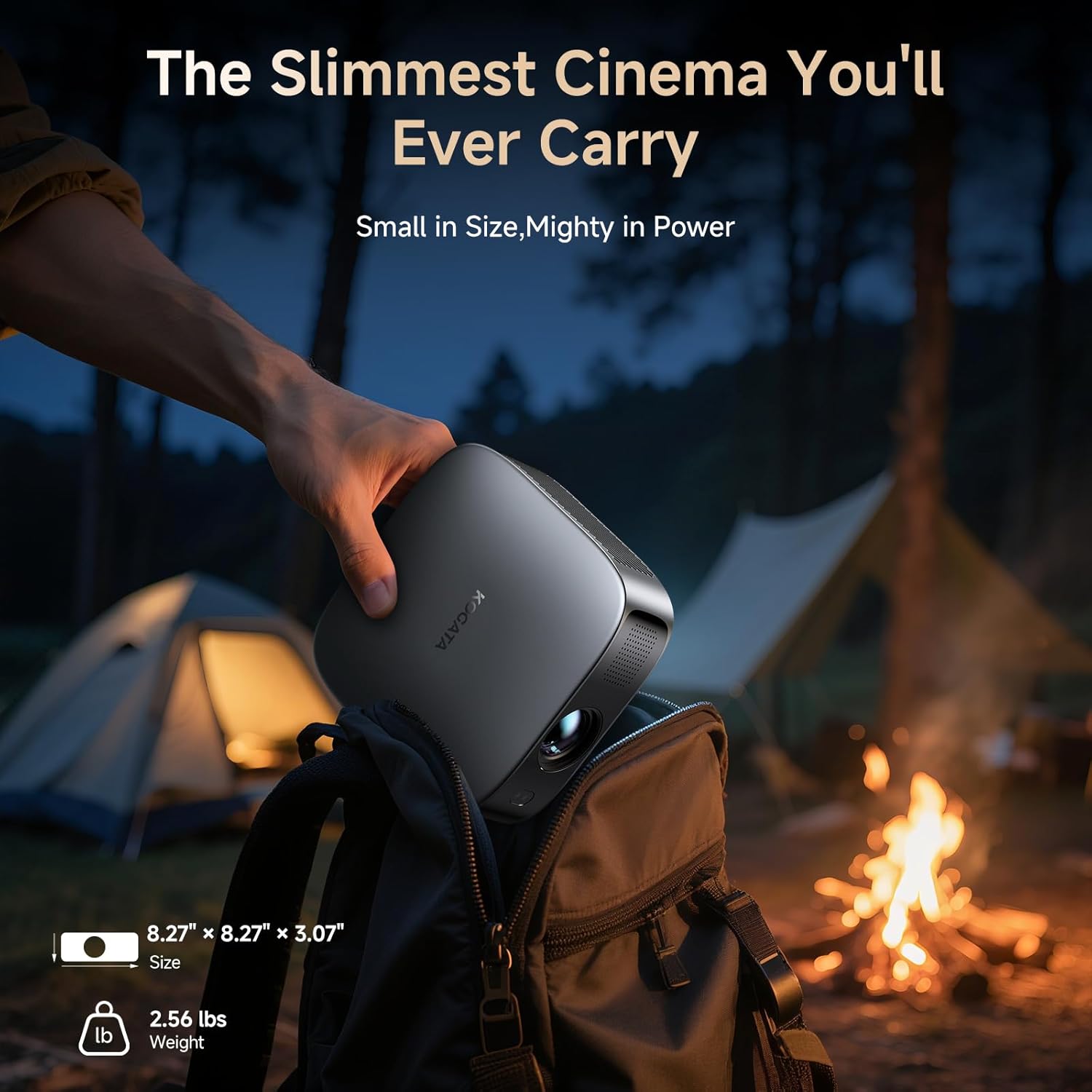
Image: A hand placing the compact KOGATA GC355 projector into a backpack, illustrating its portability and small size (8.27" x 8.27" x 3.07", 2.56 lbs) for easy transport.
Troubleshooting
| Problem | Possible Cause | Solution |
|---|---|---|
| No image projected | Power not connected; Input source incorrect; Lens cap on. | Check power connection; Select correct input source (HDMI, USB) using the remote; Remove lens cap. |
| Image is blurry | Projector moved; Lens dirty; Auto-focus obstructed. | Allow auto-focus to readjust (move projector slightly if needed); Clean the lens; Ensure nothing is blocking the TOF sensor. |
| Image is distorted (not rectangular) | Projector not aligned; Obstacle in projection path. | Allow auto-keystone to readjust; Ensure no objects block the projection path or are on the wall. |
| No sound | Volume too low; Muted; External audio device not connected properly. | Increase volume; Unmute the projector; Check Bluetooth connection or HDMI audio settings. |
| Cannot connect to WiFi | Incorrect password; Out of range; Network issue. | Verify password; Move projector closer to the router; Restart your router and the projector. |
Specifications
- Model: GC355
- Brand: KOGATA
- Display Resolution: Native 1920 x 1080 (Supports 4K streaming)
- Brightness: 1200 ANSI Lumens
- Connectivity: HDMI, USB, WiFi 6, Bidirectional Bluetooth 5.2
- Special Features: TOF Full-Angle Auto Focus, Real-time Keystone Correction, Built-in Smart TV OS, Dolby Audio, Short Throw, AI Image Enhance, HDR Support, 98% NTSC Color Gamut, Dynamic Obstacle Avoidance, Screen Mirroring.
- Audio: Dual 10W Full-Range Speakers
- Item Weight: 2.2 pounds (approx. 1 kg)
- Product Dimensions: 8.27 x 8.27 x 3.07 inches (approx. 21 x 21 x 7.8 cm)
- Color: Grey
- Recommended Uses: Indoor/Outdoor Home Theater, Gaming, Presentations
- Ceiling Mount Thread: 1/4-inch (6.35mm) threaded hole
Warranty and Support
KOGATA is committed to providing excellent customer support for your GC355 Smart Projector:
- Warranty: Enjoy a comprehensive 3-year warranty from the date of purchase, covering manufacturing defects and malfunctions.
- Replacement Policy: Benefit from a 1-year free replacement policy for eligible issues, ensuring peace of mind during the initial period of ownership.
- Technical Support: Lifetime technical support is available to assist you with any questions or operational challenges you may encounter throughout the product's lifespan.
For any questions, technical assistance, or warranty claims, please contact KOGATA customer service. Refer to the product packaging or the official KOGATA website for the most up-to-date contact details.
Related documentsGC355


Ask a question about this manual
Ask about setup, troubleshooting, compatibility, parts, safety, or missing instructions. Manuals+ will review the question and use this page’s manual context to help answer it.