
1. Introduction
This manual provides detailed instructions for the installation, operation, and maintenance of the FOXWELL BT630 Bluetooth Battery Monitor with Shunt and the FOXWELL NT809 BT OBD2 Scanner. This combined system offers advanced battery monitoring capabilities and comprehensive vehicle diagnostic functions. Please read this manual thoroughly before using the devices to ensure proper and safe operation.

Figure 1.1: FOXWELL BT630 Bluetooth Battery Monitor and NT809 OBD2 Scanner. This image displays both the FOXWELL NT809 diagnostic tablet with its VCI module and the FOXWELL BT630 battery monitor with its shunt, illustrating the complete product bundle.
2. Product Features
2.1 FOXWELL BT630 Bluetooth Battery Monitor
- Real-Time Bluetooth Monitoring: Seamless integration with BMS apps via Bluetooth, supporting high-current monitoring up to 600A and a wide voltage range from 10V to 120V. Displays 9 critical metrics: SOC%, Voltage, Current, Remaining Capacity, Power, Temperature, Estimated Runtime, and Charge/Discharge History.
- Comprehensive Safety Protection: Features high-strength, heat-resistant fiberglass housing and honeycomb ventilation with an advanced temperature sensor. The dedicated app integrates 8-layer safety protection for customizable alerts and power cutoff (requires external relay), including over/under-voltage, charge/discharge overcurrent, overpower, over-temperature, low-temperature, and low SOC.
- Dual-Calibration Precision: Automatic error calibration using a long-term model database. Built-in high-precision shunt with ±0.4% error reduces manual calibration frequency.
- Low Power Consumption: Ultra-low 0.4W power consumption design extends battery runtime.
- Long-Term Tracking: Visualized data graphs detect potential risks up to 30 days in advance, monitoring current, voltage, and temperature trends.
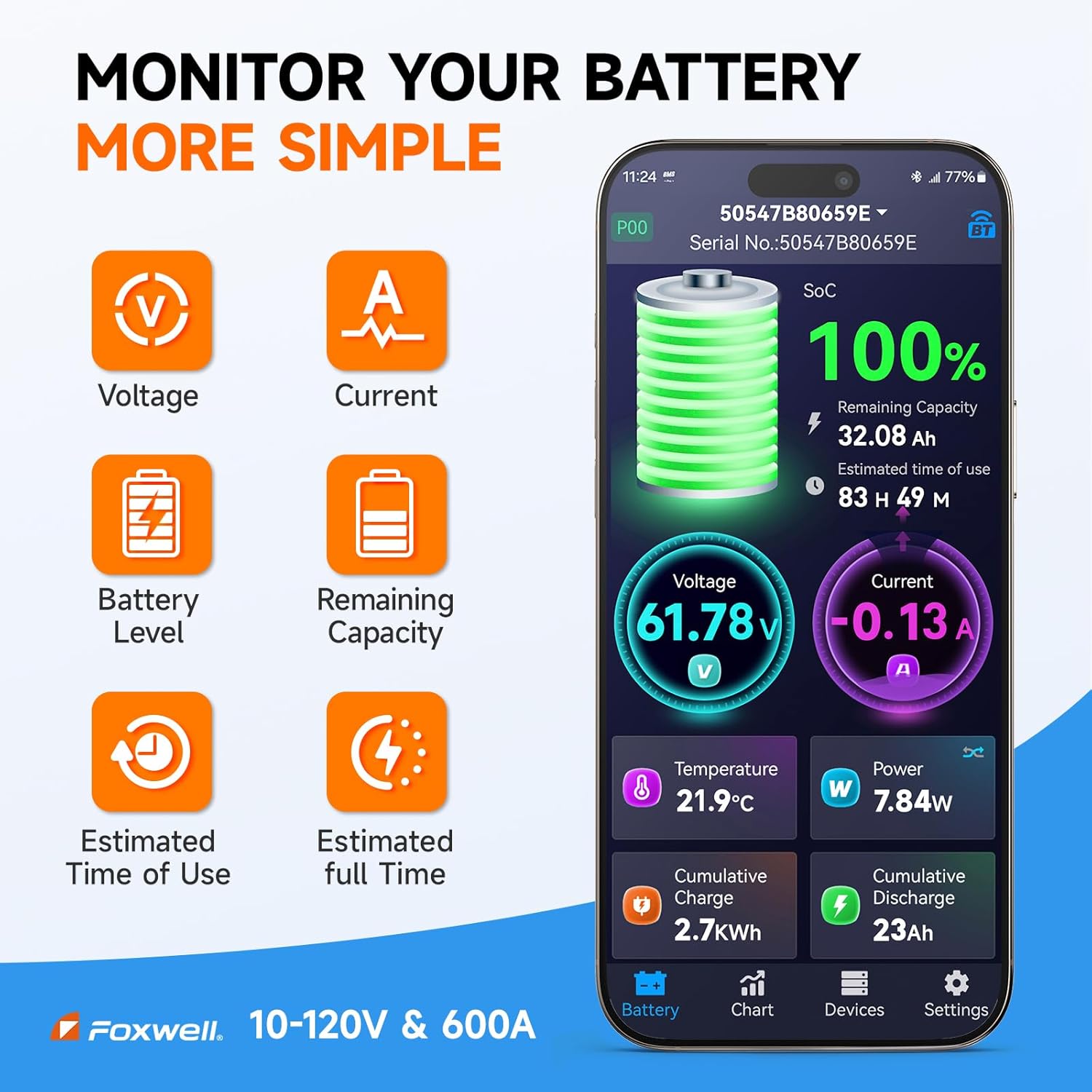
Figure 2.1: FOXWELL BT630 Battery Monitor App Interface. This image shows the mobile application interface for the BT630, displaying real-time battery metrics such as voltage, current, state of charge (SoC), remaining capacity, temperature, and estimated runtime.

Figure 2.2: FOXWELL BT630 Battery Monitor Safety Features. This image illustrates the 8 security protection layers of the BT630, including safeguards against low voltage, over voltage, discharge over current, charging over current, over power, over temperature, low temperature, and low SoC.
2.2 FOXWELL NT809 BT OBD2 Scanner
- Professional OE-Level All System Wireless Diagnostic: Supports comprehensive diagnostics for various vehicle systems.
- 30+ Hot Services: Includes functions like Oil Reset, ABS Service, SAS Reset, EPB Reset, D-P-F Regeneration, Throttle Reset, BMS Reset, Injector Coding, Gearlearn, SRS, Transmission Adaptation, CVT, EGR Reset, EVAP/SMOG Test, Seat Match, and G Sensor Learn.
- Bi-Directional Active Test: Allows sending commands to vehicle systems to test components.
- Wireless Connectivity: Bluetooth VCI with a diagnostic range of up to 65.61 ft.
- Automatic VIN Recognition: Quickly identifies vehicle information.
- Free Updates: Includes 3 years of free software updates.

Figure 2.3: FOXWELL NT809 OBD2 Scanner with Features. This image showcases the NT809 diagnostic tablet and its VCI module, highlighting key features such as 'Active Test', '30+ Resets', 'Full OBD2 Modes', and '3 Years Free Update'.

Figure 2.4: FOXWELL NT809 30+ Hot Services. This image displays a selection of the 30+ special service functions available on the NT809, including Oil Reset, ABS Service, SAS Reset, EPB Reset, D-P-F Regeneration, Throttle Reset, BMS Reset, and Injector Coding.
3. Package Contents
Upon unpacking, please verify that all items are present and in good condition. The package typically includes:
- FOXWELL BT630 Bluetooth Battery Monitor Unit
- High-Precision Shunt (for BT630)
- FOXWELL NT809 Diagnostic Tablet
- Vehicle Communication Interface (VCI) Module (for NT809)
- OBD2 Diagnostic Cable
- Power Adapter/Charging Cable
- User Manuals (for each device)
4. Setup Instructions
4.1 FOXWELL BT630 Bluetooth Battery Monitor Setup
- Shunt Installation: Install the high-precision shunt in series with the negative terminal of your battery system. Ensure all high-current connections are secure and properly insulated.
- Wiring Connections: Connect the BT630 monitor to the shunt and the battery system according to the wiring diagram provided in the BT630 specific manual. Ensure correct voltage (10-120V) and current (up to 600A) connections.
- App Download and Pairing: Download the dedicated FOXWELL BMS app from your device's app store. Enable Bluetooth on your smartphone or tablet and pair it with the BT630 monitor. Follow the in-app instructions for initial setup and calibration.

Figure 4.1: FOXWELL BT630 High-Precision Design. This image provides an internal view of the BT630 monitor, highlighting its high-precision components and showing the wiring connections for the shunt and battery system.
4.2 FOXWELL NT809 BT OBD2 Scanner Setup
- Charge the Tablet: Ensure the NT809 diagnostic tablet is fully charged before first use.
- Connect VCI to Vehicle: Locate the vehicle's OBD2 port (usually under the dashboard) and securely plug in the Vehicle Communication Interface (VCI) module. The VCI will power on automatically.
- Power On Tablet: Press the power button on the NT809 tablet to turn it on.
- Bluetooth Pairing: On the NT809 tablet, navigate to the Bluetooth settings and pair with the VCI module. Ensure a stable connection is established.
- Vehicle Selection: From the main menu, select 'Diagnosis' and then choose your vehicle's make, model, and year. The system may automatically detect VIN for faster identification.

Figure 4.2: FOXWELL NT809 Wireless Diagnostic Setup. This image demonstrates the wireless connection between the NT809 tablet and the VCI module plugged into a vehicle's OBD2 port, emphasizing the convenience of wireless diagnostics.
5. Operating Instructions
5.1 Operating the FOXWELL BT630 Battery Monitor
- Real-Time Monitoring: Open the FOXWELL BMS app on your paired device. The dashboard will display real-time data for SOC%, Voltage, Current, Remaining Capacity, Power, Temperature, Estimated Runtime, and historical charge/discharge data.
- Data Visualization: Use the 'Chart' section in the app to view historical data trends for various parameters. This helps in understanding battery performance over time.
- Alerts and Settings: Access the 'Settings' menu to customize alert thresholds for over/under-voltage, overcurrent, over/low temperature, and low SOC. If an external relay is connected, you can configure automatic power cutoff based on these alerts.
- Calibration: The BT630 features automatic error calibration. Manual calibration is rarely needed due to the high-precision shunt. Refer to the app for any specific calibration procedures if required.
5.2 Operating the FOXWELL NT809 OBD2 Scanner
- Diagnostic Functions: After selecting your vehicle, choose 'Diagnosis' from the main menu. You can then select specific control modules (e.g., Engine, ABS, SRS) to read and clear diagnostic trouble codes (DTCs), view live data streams, and perform freeze frame analysis.
- Active Test (Bi-Directional Control): Select 'Active Test' to send commands to vehicle components. This allows you to test the functionality of actuators like fuel pumps, radiator fans, windows, and more, without using the vehicle's controls.
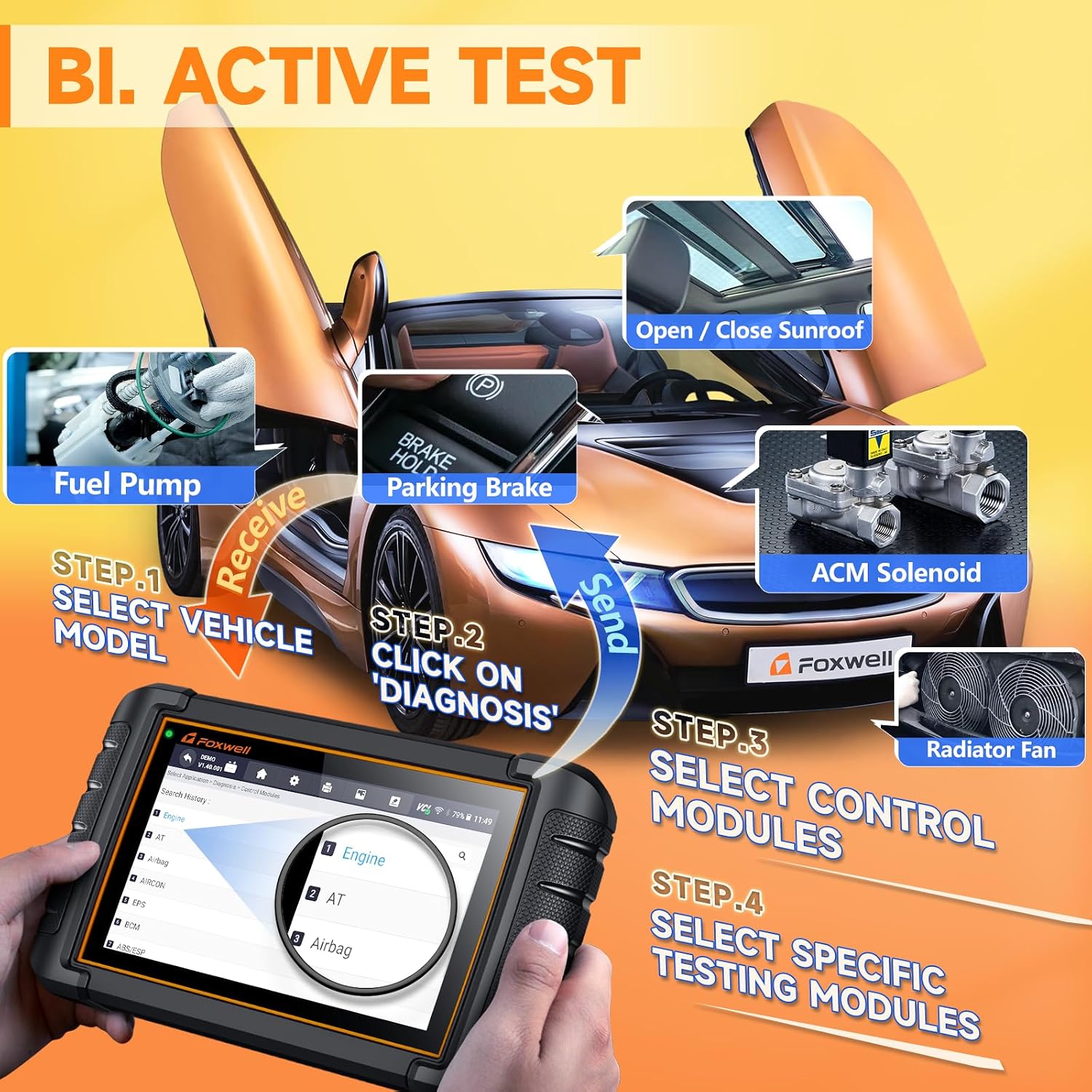
Figure 5.1: FOXWELL NT809 Active Test Workflow. This image illustrates the step-by-step process of performing an active test with the NT809, from selecting the vehicle model to choosing specific testing modules and components like the fuel pump, parking brake, and radiator fan.

Figure 5.2: FOXWELL NT809 Active Test List. This image presents a comprehensive list of components and systems that can be subjected to active tests using the NT809, including radiator fan, injectors, doors and windows, parking brake, and various lights.
- Special Functions (Hot Services): Access the 'Service' menu to perform various maintenance and reset functions such as Oil Reset, EPB Reset, BMS Reset, D-P-F Regeneration, and Injector Coding. Follow the on-screen prompts carefully for each function.
- Software Updates: Regularly connect the NT809 tablet to a Wi-Fi network and check for software updates. Keeping the software updated ensures compatibility with new vehicle models and access to the latest features.
6. Maintenance
- Cleaning: Use a soft, dry cloth to clean the devices. Avoid using abrasive cleaners or solvents.
- Storage: Store the devices in a cool, dry place away from direct sunlight and extreme temperatures.
- Cable Inspection: Periodically inspect all cables and connectors for damage. Replace any damaged components immediately.
- Software Updates: For the NT809, ensure regular software updates are performed to maintain optimal performance and vehicle compatibility.
- Firmware Updates: Check for firmware updates for the BT630 monitor via the app to ensure the latest features and bug fixes.
7. Troubleshooting
7.1 FOXWELL BT630 Battery Monitor Troubleshooting
- No Data Displayed:
- Ensure the BT630 is properly wired to the battery and shunt.
- Check Bluetooth connection between the monitor and your smartphone/tablet.
- Verify the app is running and has necessary permissions. - Inaccurate Readings:
- Confirm the shunt is correctly installed in the negative line.
- Check for loose wiring connections.
- Allow the automatic calibration feature to operate over time. - App Connectivity Issues:
- Restart the app and your smartphone/tablet.
- Ensure no other devices are interfering with the Bluetooth signal.
- Re-pair the BT630 with the app.
7.2 FOXWELL NT809 OBD2 Scanner Troubleshooting
- VCI Not Connecting:
- Ensure the VCI is securely plugged into the vehicle's OBD2 port.
- Check if the vehicle's ignition is on.
- Verify Bluetooth connection between the tablet and VCI.
- Try restarting both the tablet and the VCI. - No Communication with Vehicle:
- Confirm the correct vehicle make, model, and year are selected.
- Check for any blown fuses in the vehicle's OBD2 circuit.
- Ensure the VCI firmware is up to date. - Tablet Freezes/Slow Performance:
- Close unnecessary applications running in the background.
- Clear cache or perform a factory reset if persistent (backup data first).
- Ensure sufficient storage space on the tablet. - Update Issues:
- Ensure a stable internet connection during updates.
- Check for sufficient battery charge on the tablet before starting updates.
8. Specifications
8.1 FOXWELL BT630 Bluetooth Battery Monitor
- Voltage Range: 10V - 120V
- Current Range: Up to 600A
- Power Consumption: Ultra-low 0.4W
- Shunt Accuracy: ±0.4% error
- Connectivity: Bluetooth
- Housing: High-strength, heat-resistant fiberglass
8.2 FOXWELL NT809 BT OBD2 Scanner
- Operating System: Android-based
- Display: Touchscreen (specific size not provided, typically 7-8 inches)
- Connectivity: Bluetooth (VCI), Wi-Fi (for updates)
- Wireless Diagnostic Range: Up to 65.61 ft (20 meters)
- OBD2 Compatibility: All OBD2 compliant vehicles
- Updates: 3 years free software updates
9. Warranty and Support
FOXWELL products typically come with a manufacturer's warranty. Please refer to the warranty card included with your product or visit the official FOXWELL website for detailed warranty terms and conditions. For technical support, product inquiries, or service, please contact FOXWELL customer support through their official channels. Keep your purchase receipt and product serial numbers handy when contacting support.
Official FOXWELL Website: www.foxwelltech.com
