
Introduction
This manual provides essential information for the safe and efficient operation, maintenance, and troubleshooting of your SwitchBot K11+ Robot Vacuum & Mop. Please read this manual thoroughly before using the product and retain it for future reference.
Package Contents
Verify that all items are present in the package:
- Mini Robot Vacuum × 1
- Auto-Empty Station × 1
- Mopping Pad Plate × 1
- Anti-Tangle Side Brush × 2
- Small Cleaning Tool × 1
- Dust Bag × 2
- Original Mopping Cloth Pack × 1
- Bin Filter × 2
- Quick Start Guide × 1
- User Manual × 1
- Multi-Surface Brush
- Brush Frame
- Front Caster Wheel

Image: SwitchBot K11+ Robot Vacuum and Auto-Empty Station. The robot vacuum is black and circular, positioned next to a compact black auto-empty station with a wooden top.
Setup
1. Unpacking and Placement
Carefully remove all components from the packaging. Place the auto-empty station against a wall in an open area, ensuring there are no obstacles within 1.5 meters (5 feet) in front and 0.5 meters (1.6 feet) to either side. Connect the power adapter to the station and plug it into a wall outlet.
2. Initial Charging
Place the robot vacuum onto the charging contacts of the auto-empty station. Ensure the robot is properly docked and charging. A full charge is recommended before the first use.
3. App Download and Connection
Download the SwitchBot app from your device's app store. Follow the in-app instructions to add your K11+ robot vacuum. This will enable advanced features like mapping, scheduling, and zone cleaning.
Video: Official SwitchBot K11+ Robot Vacuum and Mop overview. This video demonstrates the compact size, self-emptying feature, and smart navigation capabilities of the robot vacuum, providing a visual guide to its key functions and ease of use.
Operation
1. Basic Controls
Press the power button on the robot to start or pause cleaning. Press and hold to send the robot back to its charging station.
2. Smart App Control
Utilize the SwitchBot app to:
- Map Your Home: The advanced LDS LiDAR navigation system creates a detailed map of your home for precise cleaning routes.
- Schedule Cleanings: Set specific times for the robot to clean automatically.
- Define No-Go Zones: Prevent the robot from entering certain areas.
- Select Cleaning Modes: Choose between vacuuming, mopping, or combined modes, and adjust suction power.
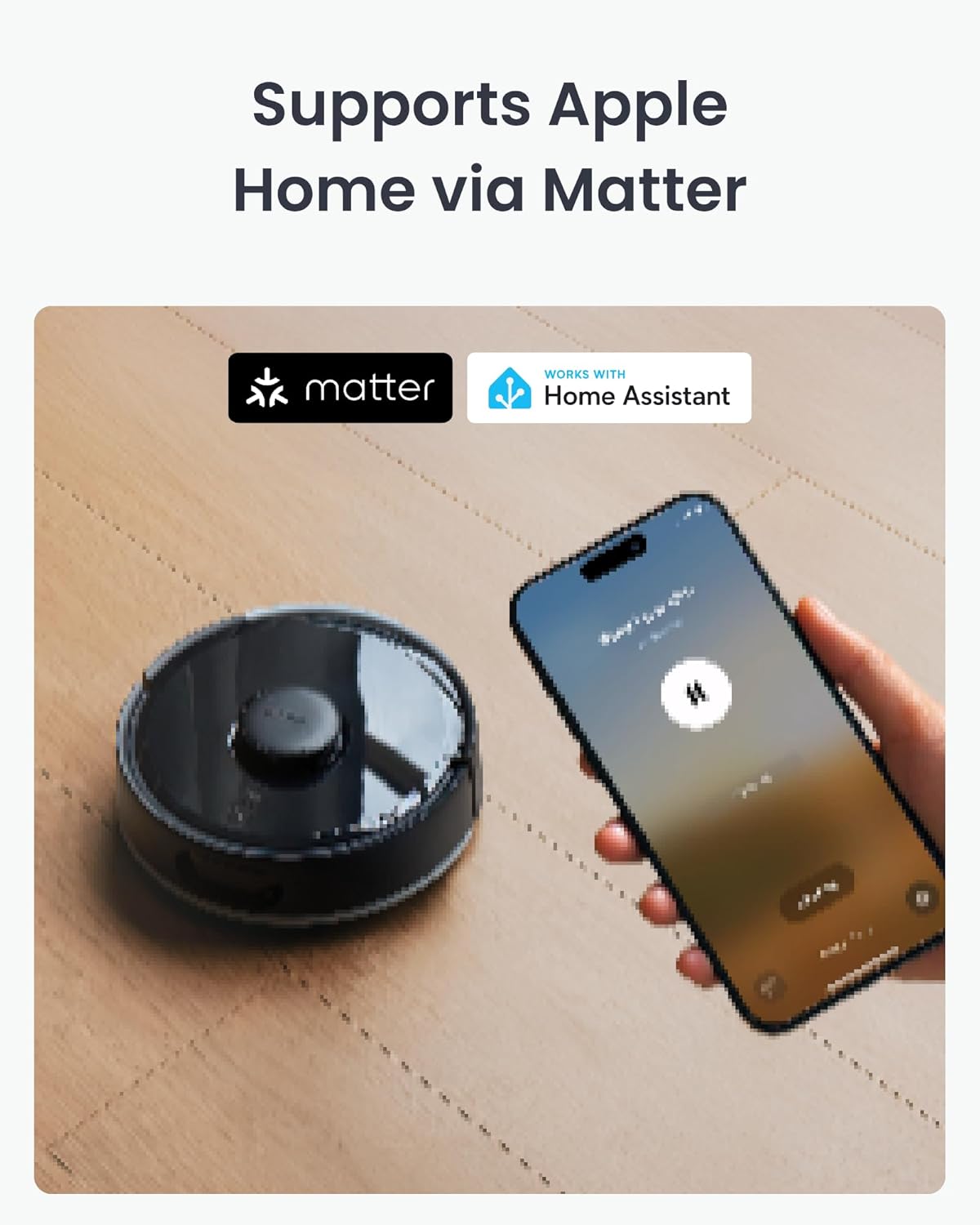
Image: A smartphone displaying the SwitchBot app interface, showing a map of a home and controls for the K11+ Robot Vacuum. The robot is visible on a wooden floor in the background.
3. Voice Control and Smart Home Integration
The K11+ supports Matter for seamless integration with smart home ecosystems. It works with Alexa, Google Home, and Apple Home, allowing you to start, stop, or pause cleaning using voice commands without an additional hub.
4. Navigation and Obstacle Avoidance
Equipped with LDS LiDAR and PSD side sensors, the robot navigates around furniture and obstacles. Drop sensors prevent falls from stairs, and it can climb thresholds up to 1.7 cm.

Image: The SwitchBot K11+ Robot Vacuum is shown cleaning underneath a sofa, demonstrating its ultra-slim design and ability to reach tight spaces.
Maintenance
Regular maintenance ensures optimal performance and extends the lifespan of your robot vacuum.
1. Auto-Empty Station and Dust Bag
The auto-empty station automatically transfers collected debris from the robot to a 4L dust bag. This bag typically requires replacement every 90 days, depending on usage.
- Replacing the Dust Bag: Open the lid of the auto-empty station, remove the full dust bag, and insert a new one. Ensure it is securely seated.

Image: The SwitchBot K11+ Robot Vacuum docked at its auto-empty station, highlighting the 90-day dust storage capacity.
2. Cleaning the Brushes
The K11+ features an anti-tangle roller brush and anti-tangle twin side brushes. Periodically inspect and clean them to remove hair and debris.
- Roller Brush: Remove the brush cover and roller brush. Use the provided cleaning tool to cut and remove tangled hair.
- Side Brushes: Gently pull off the side brushes and remove any tangled hair or debris. Reattach them securely.

Image: A detailed view of the underside of the SwitchBot K11+ robot vacuum, illustrating its dual anti-tangle brush design, including the main roller brush and side brushes.
3. Mopping Pad Usage
Attach a mopping pad to the mopping pad plate. After each use, dispose of the used pad. The mopping function is designed for light floor cleaning.
4. Filter Cleaning
Remove the dustbin and tap out loose debris. The bin filter can be gently brushed clean. Do not wash the filter with water unless specified in the full user manual.
Troubleshooting
| Problem | Possible Cause | Solution |
|---|---|---|
| Robot does not start or respond. | Low battery; power switch off; robot stuck. | Ensure robot is charged; check power switch; clear any obstructions. |
| Poor cleaning performance. | Dustbin full; brushes tangled; filter clogged. | Empty dustbin; clean brushes; clean/replace filter. |
| Robot gets stuck frequently. | Obstacles on floor; no-go zones not set. | Clear small objects; define no-go zones in the app. |
| App connectivity issues. | Wi-Fi signal weak; Matter integration unstable. | Check Wi-Fi connection; try re-linking Matter integration if persistent. |
Specifications
| Feature | Detail |
|---|---|
| Brand | SwitchBot |
| Model Name | SwitchBot K11+ Robot Vacuum |
| Special Features | 6000 Pa Suction Power, Matter Support (Apple Home, Alexa, Google Home), 3.6-Inch Slim Design |
| Color | Black |
| Product Dimensions | 12.2"L x 11.41"W x 11.41"H |
| Filter Type | Cartridge |
| Battery Life | 150 minutes |
| Dust Bag Capacity | 4 Liters |
| Power Source | Battery Powered |
| Control Method | Voice, App |
| Form Factor | Robotic vacuum |
| Item Weight | 13.42 pounds |
| Surface Recommendation | Hard floor, wooden floor, short wool carpet, Tile |
Warranty and Support
Your SwitchBot K11+ Robot Vacuum & Mop is covered by a manufacturer's warranty. For detailed warranty information, please refer to the warranty card included in your package or visit the official SwitchBot website. For technical support, troubleshooting assistance, or to purchase replacement parts, please contact SwitchBot customer service through their official channels.
Online Support: Visit www.switch-bot.com/support


