
1. Introduction
This manual provides essential information for the safe and efficient use of your Azeyou A733 Android 15 Tablet. Please read this manual thoroughly before operating the device to ensure proper functionality and to prevent damage. Keep this manual for future reference.

Image: The Azeyou A733 Android 15 Tablet, showcasing its 12-inch display and core specifications.
2. Safety Information
- Do not expose the tablet to extreme temperatures, direct sunlight, or high humidity.
- Avoid dropping or subjecting the tablet to severe impact.
- Use only manufacturer-approved chargers and accessories.
- Do not attempt to disassemble or repair the tablet yourself. Refer to authorized service personnel.
- Keep the tablet away from children and pets to prevent accidental damage or injury.
3. Package Contents
Verify that all items are present in your product package:
- Azeyou A733 Android 15 Tablet
- USB Type-C Charging Cable
- Power Adapter (20W Fast Charger)
- User Manual (this document)
- SIM Ejector Tool (if applicable for models with cellular support)
4. Device Overview
Familiarize yourself with the physical components of your tablet.

Image: Side view of the Azeyou A733 tablet, illustrating the placement of buttons and ports.
- Power Button: Located on the side, used to turn the tablet on/off or wake/sleep the screen.
- Volume Buttons: Adjust the audio volume.
- USB Type-C Port: For charging and data transfer.
- Speaker Grilles: Located on the sides for audio output.
- Front Camera: For video calls and selfies (5MP).
- Rear Camera: For taking photos and videos (13MP).
- Microphone: For voice input.
- TF Card Slot: For expandable storage up to 1TB.
5. Setup
5.1 Initial Charging
Before first use, fully charge your tablet. Connect the provided USB Type-C cable to the tablet's Type-C port and the power adapter, then plug the adapter into a wall outlet. The tablet supports 20W fast charging.
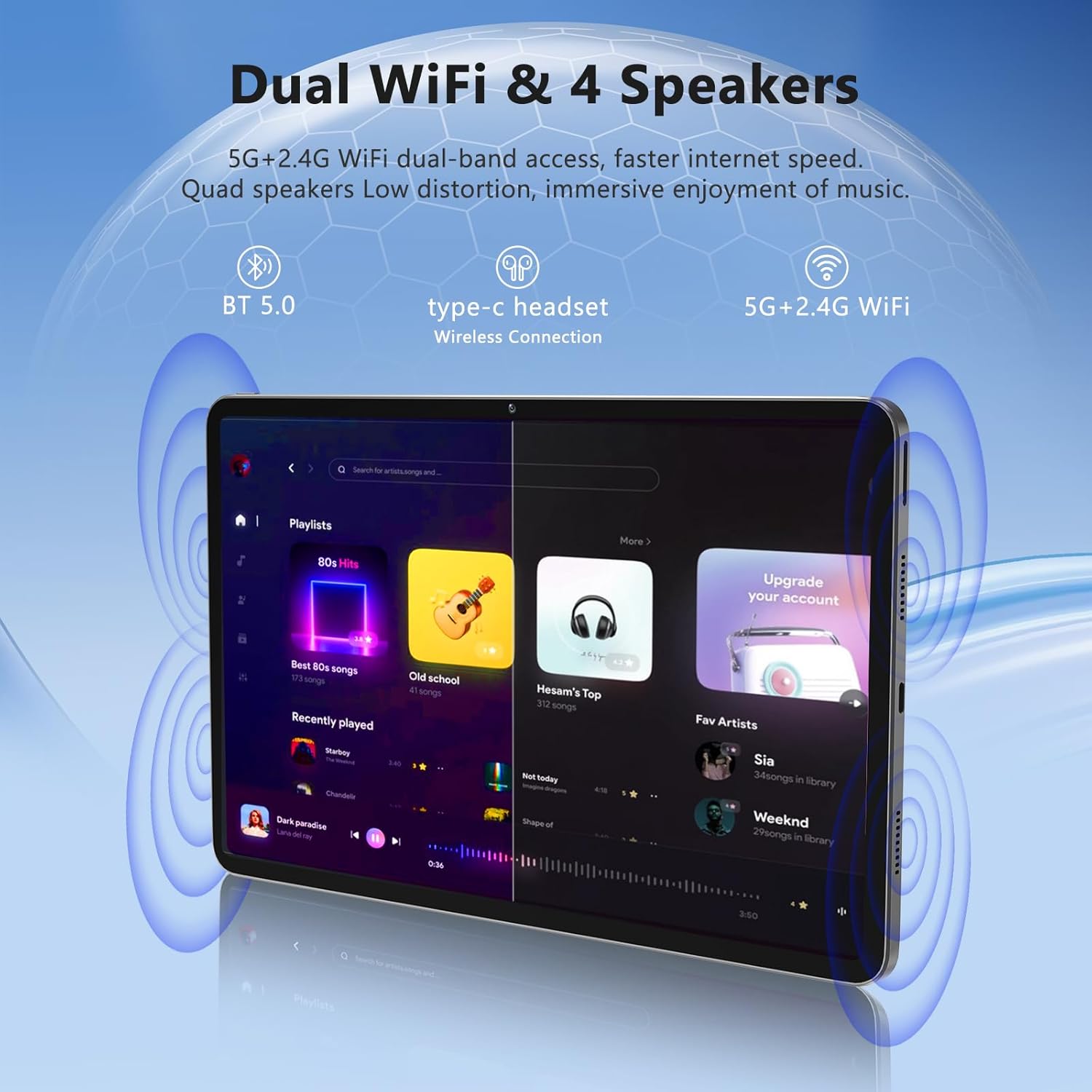
Image: The Azeyou A733 tablet connected to a charger, illustrating its fast charging feature.
5.2 Power On/Off
- To Power On: Press and hold the Power button until the Azeyou logo appears.
- To Power Off: Press and hold the Power button until the power options appear on screen, then select "Power off."
- To Restart: Press and hold the Power button until the power options appear, then select "Restart."
5.3 Initial Setup Wizard
Upon first power-on, the tablet will guide you through an initial setup process:
- Select your preferred language.
- Connect to a Wi-Fi network.
- Sign in with your Google account or create a new one.
- Review and accept the terms and conditions.
- Set up screen lock (PIN, pattern, or password).
5.4 Expandable Storage
To expand storage, insert a TF (microSD) card into the designated slot. The tablet supports up to 1TB expansion.

Image: Visual representation of the tablet's memory configuration, including 20GB RAM, 128GB ROM, and 1TB expandable storage.
6. Operating the Tablet
6.1 Basic Navigation
The Azeyou A733 tablet uses touch gestures for navigation:
- Tap: Select an item or open an app.
- Swipe: Scroll through screens or lists.
- Pinch: Zoom in or out on images and web pages.
- Long Press: Access contextual menus or move icons.
6.2 Wi-Fi Connection
To connect to a Wi-Fi network:
- Go to Settings > Network & internet > Wi-Fi.
- Toggle Wi-Fi On.
- Select your desired network from the list.
- Enter the password if prompted, then tap Connect.
The tablet supports Wi-Fi 6 for faster and more stable connections.

Image: The tablet showcasing its dual Wi-Fi capabilities and quad speakers for enhanced audio experience.
6.3 Bluetooth Connection
To pair with a Bluetooth device (e.g., headphones, keyboard, mouse):
- Go to Settings > Connected devices > Bluetooth.
- Toggle Bluetooth On.
- Ensure your Bluetooth device is in pairing mode.
- Select the device from the list and follow any on-screen prompts to complete pairing.
6.4 App Management
Your Azeyou A733 tablet is GMS certified, allowing full access to the Google Play Store for downloading and managing applications.
- Install Apps: Open the Play Store app, search for your desired app, and tap Install.
- Uninstall Apps: Long-press an app icon on the home screen or app drawer, then drag it to "Uninstall" or select "App info" and choose "Uninstall."
6.5 Camera Usage
The tablet features a 5MP front camera and a 13MP rear camera.
- Open the Camera app.
- Tap the camera switch icon to toggle between front and rear cameras.
- Tap the shutter button to take a photo or start/stop video recording.
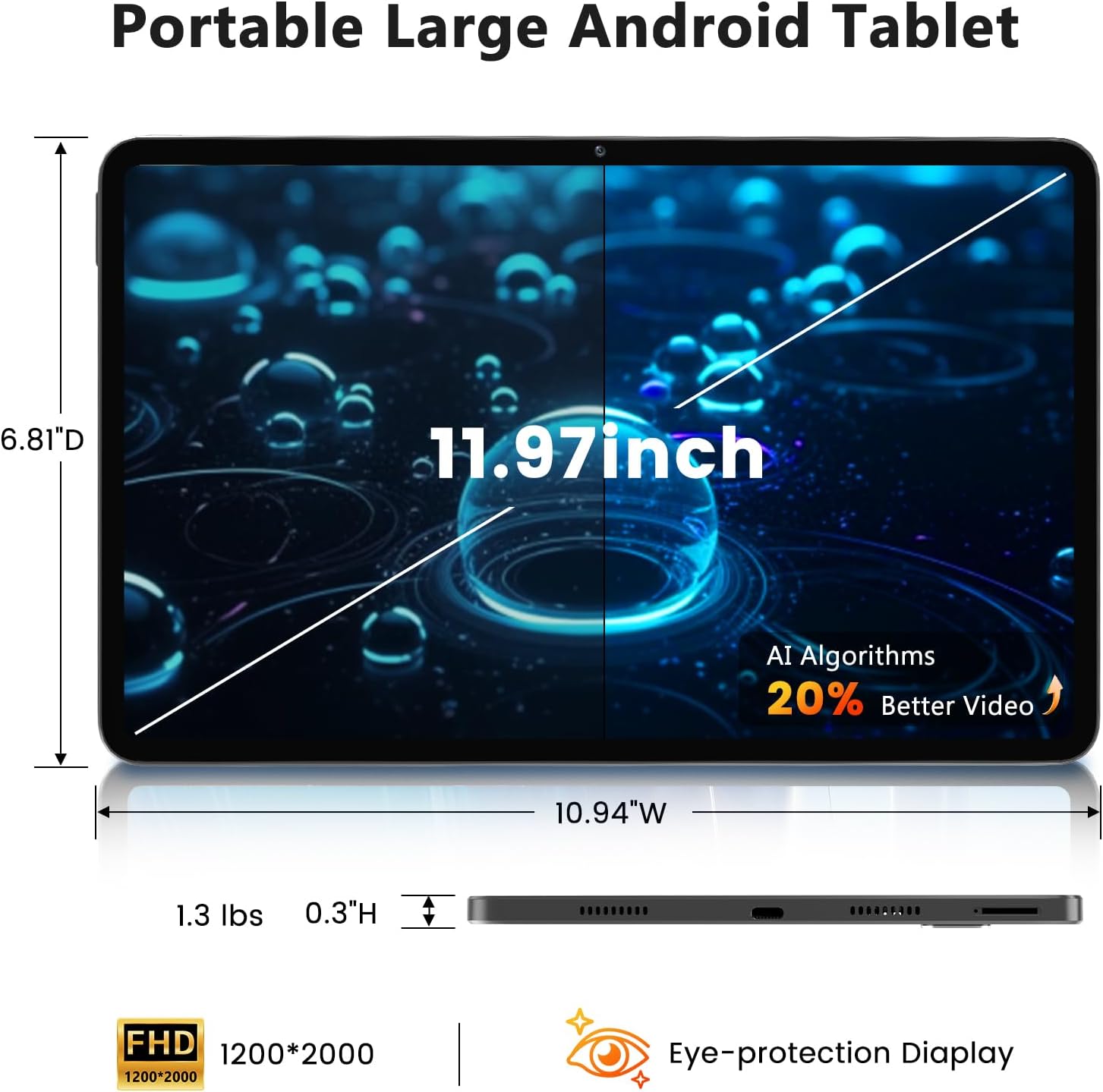
Image: Detailed view of the tablet's 13MP rear camera and 5MP front camera, illustrating their positions and use.
6.6 Split-Screen Function
To use two apps simultaneously:
- Open the first app.
- Tap the recent apps button (usually a square icon).
- Long-press the icon of the first app at the top of its card.
- Select "Split screen."
- Choose the second app from the recent apps list or app drawer.
6.7 AI Air Gesture
The tablet supports AI Air Gesture for hands-free control. Specific gestures and their functions can be configured in Settings > Smart Controls (or similar menu name).
6.8 Sitting Posture Detection
This feature helps users maintain a healthy sitting posture by providing alerts or guidance. Access and configure this feature in Settings > Digital Wellbeing & parental controls or a dedicated health/posture app.

Image: Demonstrations of AI air gesture for tablet control and the sitting posture detection system.
6.9 Media Playback (Widevine L1)
The tablet is Widevine L1 certified, enabling high-definition (HD) content streaming on platforms such as Netflix, Amazon Prime Video, Hulu, and HBO.

Image: The tablet displaying logos of popular streaming services, signifying its Widevine L1 certification for HD playback.
7. Maintenance
7.1 Cleaning
Use a soft, lint-free cloth to clean the tablet screen and body. Avoid using harsh chemicals or abrasive materials.
7.2 Battery Care
The 8000mAh battery provides extended usage. To prolong battery life:
- Avoid fully discharging the battery frequently.
- Do not leave the tablet charging for excessively long periods after it's full.
- Keep the tablet within a moderate temperature range.

Image: An infographic detailing the 8000mAh battery and its estimated performance across various activities.
7.3 Software Updates
Regularly check for and install software updates to ensure optimal performance and security. Go to Settings > System > System update.
7.4 Storage Management
To manage your 128GB internal storage (expandable to 1TB):
- Go to Settings > Storage to view usage and free up space.
- Regularly clear cache data from apps.
- Move large files to an inserted TF card.
8. Troubleshooting
8.1 Common Issues
- Tablet not turning on: Ensure the battery is charged. Connect to the charger for at least 30 minutes before attempting to power on.
- Apps crashing or freezing: Close and reopen the app. If the issue persists, clear the app's cache (Settings > Apps > [App Name] > Storage & cache > Clear cache). Restart the tablet.
- Wi-Fi connection issues: Restart your Wi-Fi router and the tablet. Forget the network in tablet settings and reconnect.
- Slow performance: Close unnecessary background apps. Clear cache and temporary files. Consider performing a factory reset if performance issues persist after other troubleshooting steps.
8.2 Factory Reset
A factory reset will erase all data from your tablet and restore it to its original factory settings. Back up important data before proceeding.
- Go to Settings > System > Reset options.
- Select Erase all data (factory reset).
- Confirm your decision and follow the on-screen instructions.
9. Specifications

Image: A visual representation of the tablet's physical dimensions and weight.
| Feature | Specification |
|---|---|
| Brand | Azeyou |
| Model | A733 |
| Operating System | Android 15 |
| Processor | A733 Octa-Core |
| RAM | 20GB (6GB Physical + 14GB Virtual) |
| Internal Storage (ROM) | 128GB |
| Expandable Storage | Up to 1TB via TF card (not included) |
| Screen Size | 11.97 Inches |
| Screen Resolution | 1200 x 2000 Pixels (2K Display) |
| Rear Camera | 13 MP |
| Front Camera | 5 MP |
| Battery Capacity | 8000mAh |
| Charging | 20W Fast Charge, Type-C Port |
| Wireless Connectivity | WiFi 6 (802.11ax), Bluetooth 5.0 |
| Dimensions (LxWxH) | 11.97 x 6.81 x 0.3 inches |
| Item Weight | 3.15 pounds |
| Special Features | GMS Certified, Widevine L1, Dual Speakers, AI Air Gesture, Sitting Posture Detection, Split-screen function |
10. Warranty and Support
Your Azeyou A733 Tablet comes with a standard manufacturer's warranty. Please refer to the warranty card included in your package for specific terms and conditions, including warranty duration and coverage details.
For technical support, troubleshooting assistance, or warranty claims, please contact Azeyou customer service through the retailer where the product was purchased or visit the official Azeyou support website (if available).
Please have your product model number (A733) and purchase information ready when contacting support.


